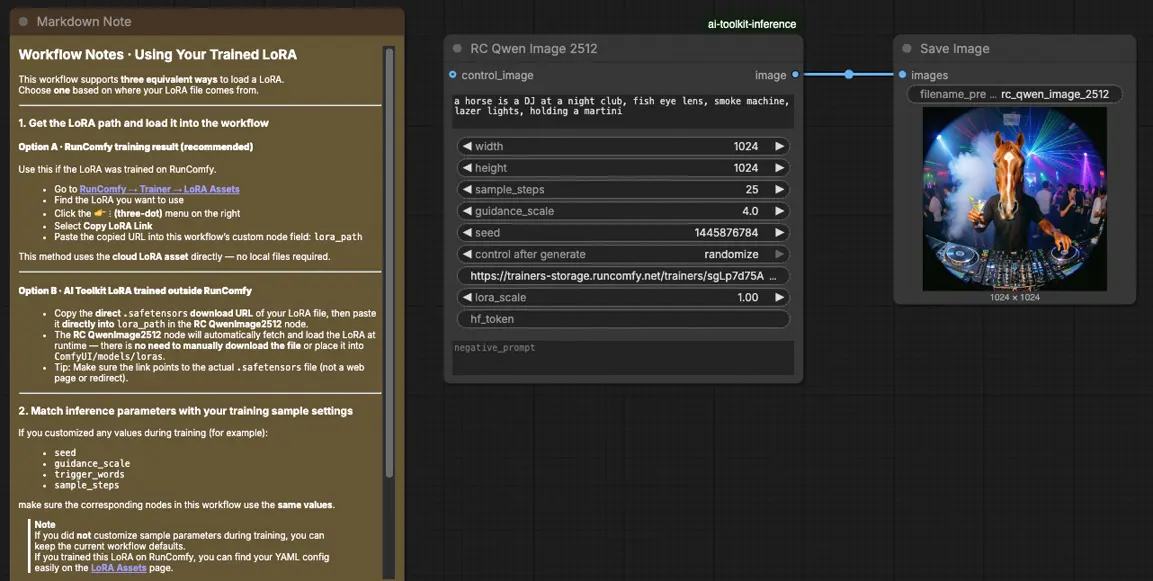
Inferencia de Qwen Image 2512 LoRA: generaciones de AI Toolkit alineadas con la tubería y coincidentes con el entrenamiento en ComfyUI#
Este flujo de trabajo listo para producción de RunComfy aplica un LoRA entrenado con AI Toolkit a Qwen Image 2512 en ComfyUI con un enfoque en el comportamiento coincidente con el entrenamiento. Se centra en RC Qwen Image 2512 (RCQwenImage2512), un nodo personalizado de código abierto creado por RunComfy (source) que ejecuta una tubería de inferencia nativa de Qwen (en lugar de un gráfico de muestreo genérico) y carga tu adaptador a través de lora_path y lora_scale.
Por qué la Inferencia de Qwen Image 2512 LoRA a menudo se ve diferente en ComfyUI#
Las vistas previas de AI Toolkit para Qwen Image 2512 son producidas por una tubería específica del modelo, incluyendo el comportamiento de guía “true CFG” de Qwen y los valores predeterminados que utiliza esa tubería para el acondicionamiento y muestreo. Si reconstruyes el mismo trabajo como un gráfico de muestreo estándar de ComfyUI, la semántica de la guía y el punto de parcheo de LoRA pueden cambiar—por lo que “mismo prompt + misma semilla + mismos pasos” aún puede resultar en un resultado de apariencia diferente. En la práctica, muchos informes de “mi LoRA no coincide con el entrenamiento” son desajustes de tubería, no un parámetro faltante.
RCQwenImage2512 mantiene la inferencia alineada envolviendo la tubería de Qwen Image 2512 dentro del nodo y aplicando el LoRA en esa tubería a través de lora_path y lora_scale. Fuente de la tubería: `src/pipelines/qwen_image.py`.
Cómo usar el flujo de trabajo de Inferencia de Qwen Image 2512 LoRA#
Paso 1: Abre el flujo de trabajo#
Lanza el flujo de trabajo en la nube en ComfyUI.
Paso 2: Importa tu LoRA (2 opciones)#
- Opción A (resultado de entrenamiento de RunComfy): RunComfy → Trainer → LoRA Assets → encuentra tu LoRA → ⋮ → Copia el Enlace de LoRA
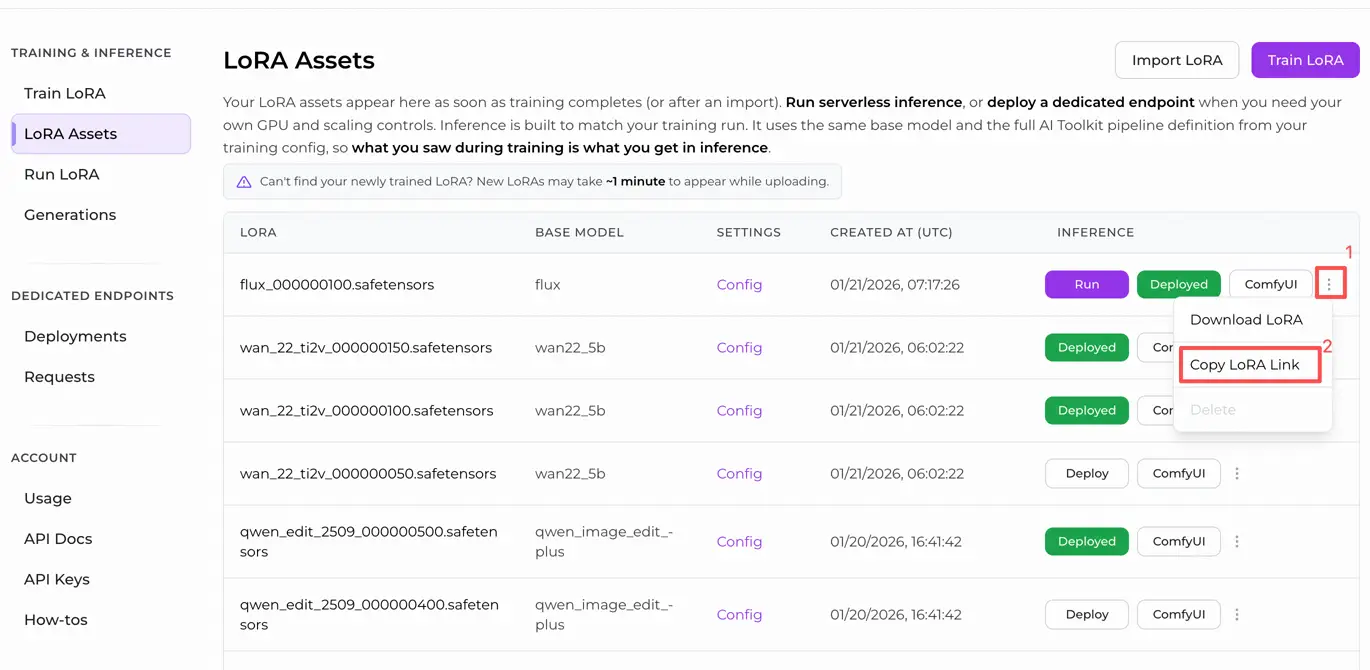
- Opción B (LoRA de AI Toolkit entrenado fuera de RunComfy): Copia un enlace de descarga directa de
.safetensorspara tu LoRA y pega esa URL enlora_path(no es necesario descargar enComfyUI/models/loras)
Paso 3: Configura el nodo personalizado RCQwenImage2512 para la Inferencia de Qwen Image 2512 LoRA#
Pega tu enlace de LoRA en lora_path en RC Qwen Image 2512 (RCQwenImage2512).
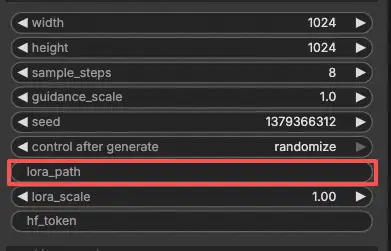
Luego, establece los parámetros restantes del nodo (comienza igualando los valores que usaste para la generación de vista previa/muestra durante el entrenamiento):
prompt: tu prompt positivo (incluye cualquier token de activación que tu LoRA espere)negative_prompt: opcional; mantenlo vacío si no usaste negativos en tus vistas previaswidth/height: resolución de salida (se recomiendan múltiplos de 32 para esta familia de tuberías)sample_steps: pasos de inferencia; refleja tu conteo de pasos de vista previa antes de ajustar (25 es un punto de partida común)guidance_scale: fuerza de la guía (Qwen usa una escala “true CFG”, así que reutiliza primero tu valor de vista previa)seed: bloquea la semilla mientras validas la alineación configurando el control_after_generate en 'fixed', luego varía para nuevas muestraslora_scale: fuerza de LoRA; comienza cerca de tu valor de vista previa y ajusta en pequeños incrementos
Este es un flujo de trabajo de texto a imagen, por lo que no necesitas proporcionar una imagen de entrada.
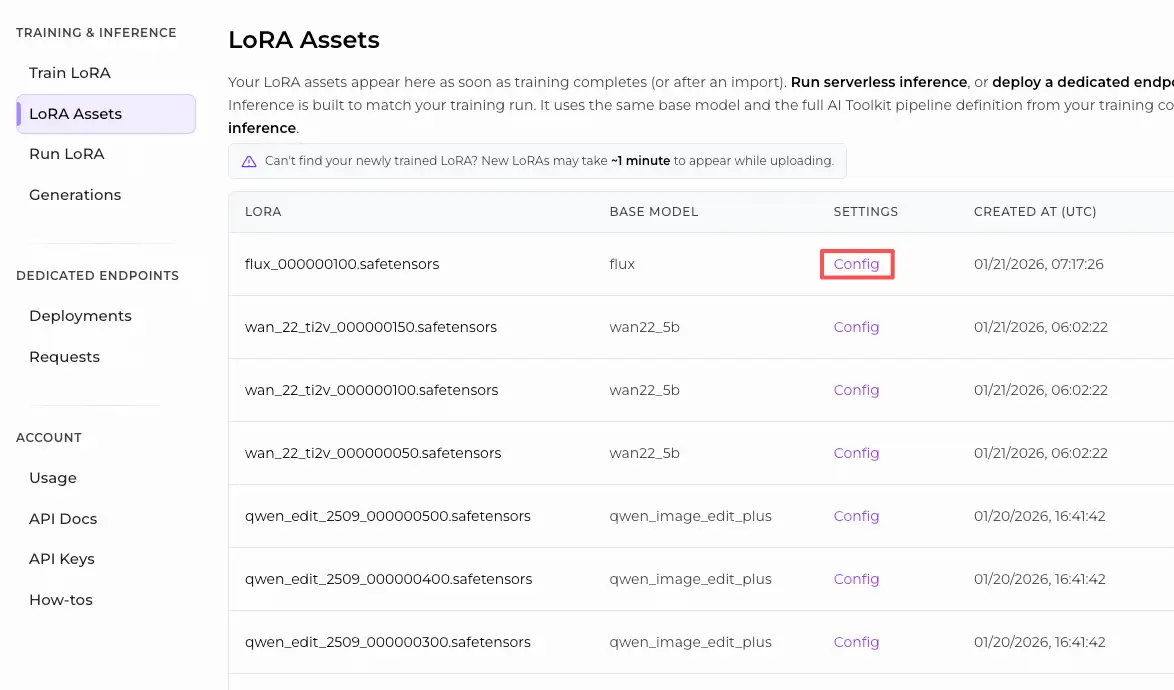
Nota de alineación de entrenamiento: si personalizaste el muestreo durante el entrenamiento, abre tu YAML de entrenamiento de AI Toolkit y refleja width, height, sample_steps, guidance_scale, seed, y lora_scale. Si entrenaste en RunComfy, abre Trainer → LoRA Assets → Config y copia los valores de vista previa/muestra en RCQwenImage2512 antes de iterar.
Paso 4: Ejecuta la Inferencia de Qwen Image 2512 LoRA#
Haz clic en Queue/Run. El nodo SaveImage guarda la imagen generada en tu carpeta de salida estándar de ComfyUI.
Solución de problemas de Inferencia de Qwen Image 2512 LoRA#
El nodo personalizado RC Qwen Image 2512 (RCQwenImage2512) de RunComfy está diseñado para mantener la inferencia alineada con la tubería con el muestreo estilo vista previa de Qwen Image 2512 mediante:
- ejecutar una tubería de inferencia nativa de Qwen dentro del nodo (no un gráfico de muestreo genérico), y
- inyectar el LoRA a través de
lora_path+lora_scaledentro de esa tubería (punto de parcheo consistente).
(1)Loras de Qwen-Image no funcionan en comfyui#
Por qué sucede esto
Los usuarios informaron que los LoRAs de Qwen-Image entrenados con AI Toolkit pueden no aplicarse en ComfyUI porque los prefijos de clave del estado-dict de LoRA no coinciden con lo que espera la ruta de carga/inferencia del lado de ComfyUI (por lo que el adaptador se carga “silenciosamente” pero en realidad no parchea los módulos de transformador de Qwen).
Cómo solucionarlo (opciones verificadas por usuarios)
- Usa RCQwenImage2512 para la inyección de LoRA a nivel de tubería: carga el adaptador solo a través de
lora_path+lora_scaleen RCQwenImage2512 (evita apilar nodos de carga de LoRA adicionales mientras depuras). Esto mantiene el punto de parcheo de LoRA alineado con la tubería de Qwen utilizada por el muestreo estilo vista previa. - Si debes usar un proveedor de inferencia no-RC / ruta de carga: una solución reportada por usuarios es renombrar las claves de LoRA reemplazando el primer segmento del prefijo de clave de LoRA de
diffusion_model→transformer, para que los pesos se asignen a los módulos de transformador de Qwen esperados (ver el problema para el contexto exacto y por qué es necesario).
(2)Parche para fallo al usar inference_lora_path con imagen qwen (permite generar muestras con turbo lora)#
Por qué sucede esto
Algunos usuarios experimentan un fallo cuando intentan cargar un LoRA de inferencia para Qwen (incluyendo Qwen-Image-2512) a través del flujo inference_lora_path de AI Toolkit. Este no es un problema de “prompt/CFG/seed”—es un problema de ruta de carga de inferencia.
Cómo solucionarlo (verificado por usuarios)
- Aplica el parche / actualiza a una versión que incluya el parche descrito en el problema. El autor del problema informa que el parche soluciona el fallo al cargar un LoRA de inferencia para Qwen (ver el problema para el cambio exacto y el contexto de configuración).
- Para la inferencia en ComfyUI específicamente: prefiere RCQwenImage2512 y carga el adaptador a través de
lora_path/lora_scaledentro del nodo RC. Esto evita depender de rutas de carga de LoRA de inferencia externas y mantiene la tubería consistente con el muestreo estilo vista previa.
(3)usar sageattention 2 qwen-image en comfyui muestra imágenes negras debido a NaNs (es decir, imágenes negras)#
Por qué sucede esto
Los usuarios informaron que ejecutar Qwen Image en ComfyUI con SageAttention puede producir NaNs que se convierten en imágenes negras. Esto puede parecer “mi LoRA está roto,” pero en realidad es el backend de atención produciendo valores inválidos—la ejecución de la tubería falla antes de que puedas evaluar significativamente el comportamiento de LoRA.
Cómo solucionarlo (verificado por usuarios)
- No uses
--use-sage-attentionpara Qwen Image cuando cause NaNs/salida negra. Valida primero una línea de base limpia (salidas no negras), luego evalúa el impacto de LoRA. - Si necesitas aceleraciones de SageAttention: arreglar la salida negra de Qwen forzando una ruta de backend CUDA. En la práctica, esto a menudo significa usar un parche a nivel de flujo de trabajo (por ejemplo, un nodo “Patch Sage Attention”) y seleccionar una variante de backend CUDA que evite la ruta Triton rota para la GPU/arq afectada.
- Después de tener salidas estables (no negras) de línea de base, ejecuta la inferencia de Qwen Image 2512 a través de RCQwenImage2512 para que la tubería + punto de inyección de LoRA se mantenga alineado con la vista previa mientras igualas
width/height/sample_steps/guidance_scale/seed/lora_scale.
Ejecuta ahora la Inferencia de Qwen Image 2512 LoRA#
Abre el flujo de trabajo compartido, pega tu URL de LoRA en lora_path, iguala tus valores de muestreo de vista previa y ejecuta RCQwenImage2512 para generaciones de Qwen Image 2512 coincidentes con el entrenamiento en ComfyUI.