

MiniMax H3 Image | Text to Image Generation#
This MiniMax H3 Image text-to-image workflow for ComfyUI generates photographs and illustrations from written prompts using the official MiniMax-H3-Image template. The saved workflow starts at 4 MP with Prompt Enhancer enabled, six sampling steps, and CFG 1. Increase resolution only when GPU memory permits.
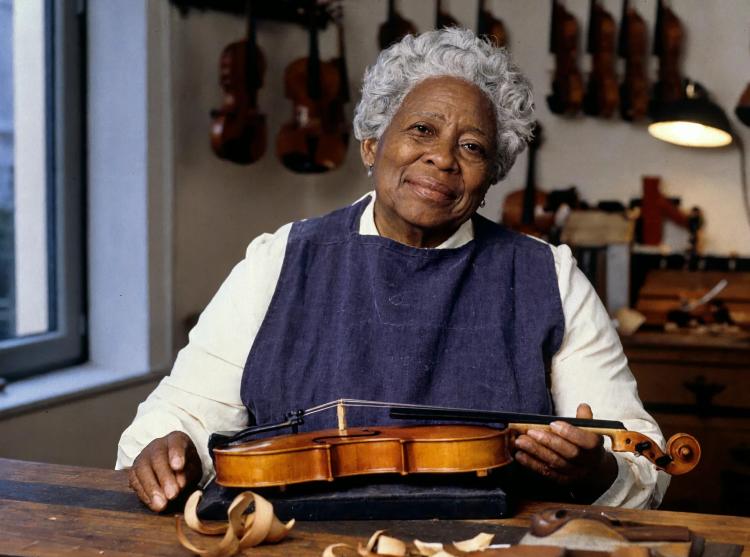
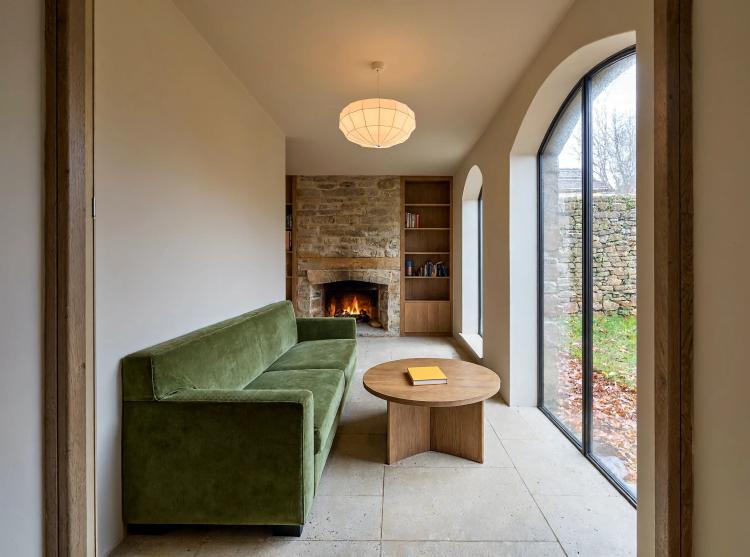
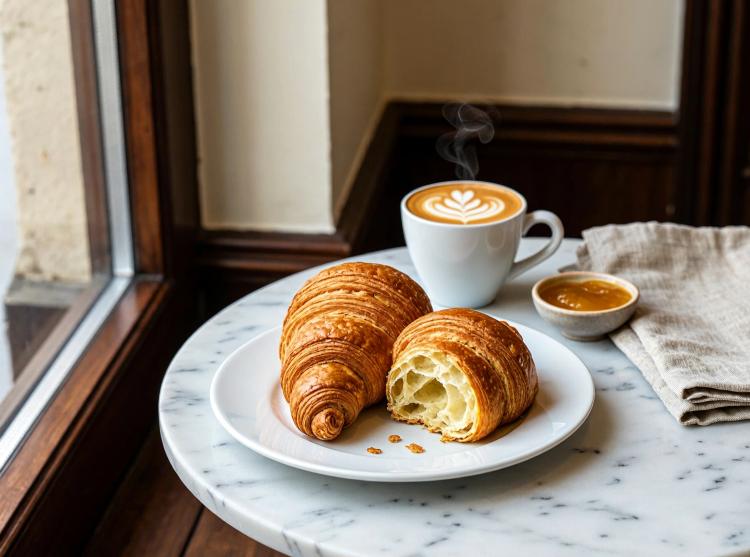
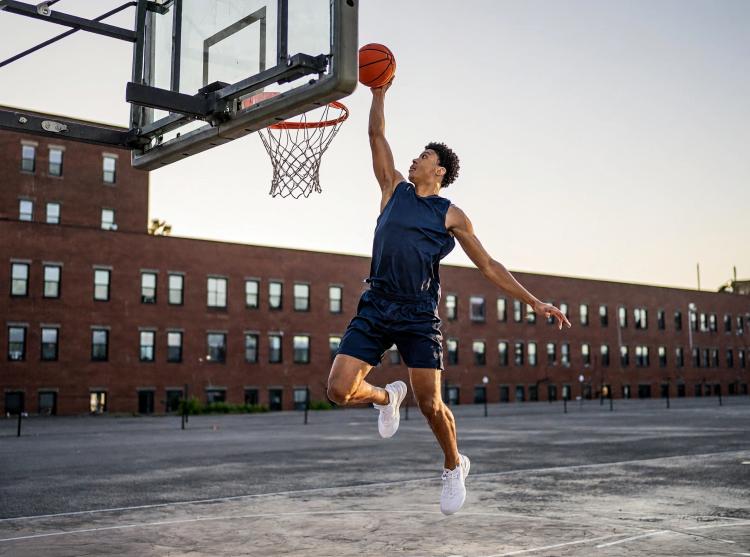
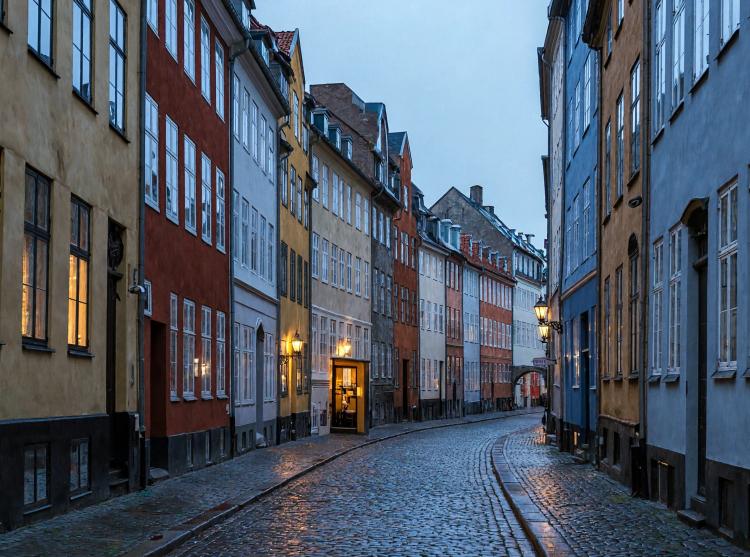
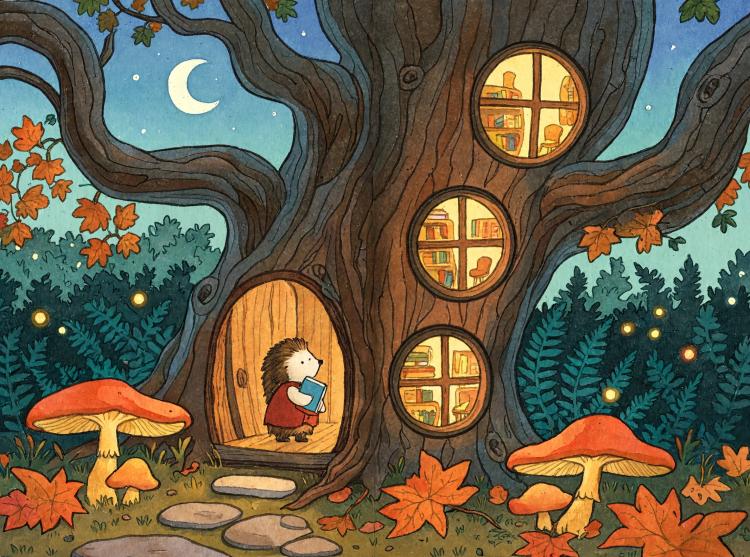
The examples cover portraits, interiors, food photography, sports scenes, cityscapes, and illustrated storytelling. This template uses text as its input; reference-image editing is a separate workflow. Reference template: image_minimax_h3_image_t2i.json.
Models used by MiniMax H3 Image#
- MiniMax‑H3‑Image diffusion model. The core image generator that denoises latents into high‑detail outputs. Weights: Comfy‑Org/MiniMax‑H3‑Image.
- MiniMax‑H3 text encoder (qwen3vl_32b for MiniMax‑H3). Encodes natural‑language prompts for the diffusion model with strong visual grounding. Weights: Comfy‑Org/MiniMax‑H3.
- MiniMax‑H3‑Image VAE. Decodes the final latent representation into RGB images with faithful color and tone. Weights: Comfy‑Org/MiniMax‑H3‑Image VAE.
- Qwen 3.5 9B (W4A8 GPTQ). A compact language model used by Prompt Enhancer to expand your idea into a precise, visual caption and to recommend an aspect ratio. Weights: Comfy‑Org/Qwen3.5.
How to use MiniMax H3 Image in ComfyUI#
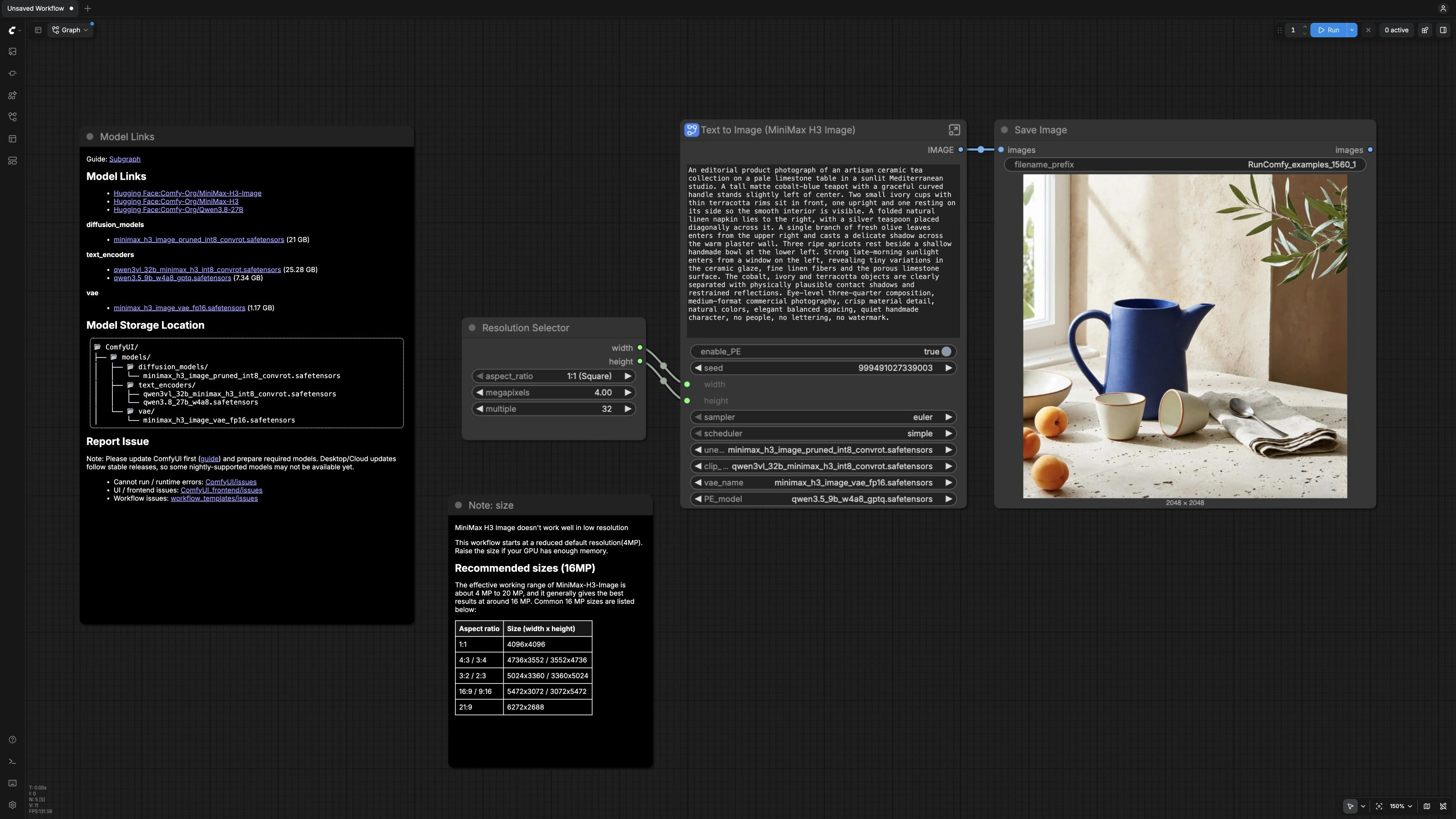
The main canvas contains the resolution selector, a text-to-image subgraph, the image output, and two notes. Open the subgraph to inspect its prompt enhancement, model loading, conditioning, sampling, and decoding nodes. You provide a prompt, the optional enhancer expands it into a detailed caption, and MiniMax-H3-Image renders and saves the picture.
- Canvas and size control
- Use
ResolutionSelector(#14) to pick aspect ratio and starting megapixels. The saved workflow opens at 4 MP to reduce memory use compared with the model’s approximately 16 MP native target; increase only when VRAM permits. - Keep the aspect ratio fixed when comparing resolutions, and inspect the output before increasing it further.
- Use
- User Prompt
- Enter your idea in the prompt field on
Text to Image (MiniMax H3 Image)(#23), which connects toText (user_prompt)(#24) inside the subgraph. For example, try “sunlit ceramic teapot on limestone table” or “night cityscape with rain reflections.” - If you already have a carefully engineered caption, you can keep it as is and disable enhancement later.
- Enter your idea in the prompt field on
- Prompt Enhancer
- The enhancer uses
TextGenerateV2(#15) with Qwen 3.5 to rewrite your idea into a detailed caption and to propose a single aspect ratio. The JSON keyexpanded_captionis extracted byJsonExtractString(#26). - Toggle enhancement using
enable_PEonText to Image (MiniMax H3 Image)(#23). When on, the enhancer’s caption feeds the renderer; when off, the renderer uses your raw prompt. - The proposed aspect ratio is advisory. The actual canvas is determined by
ResolutionSelector(#14), so adjust size there if you want to follow or override the suggestion.
- The enhancer uses
- Model setup and conditioning
UNETLoader,CLIPLoader, andVAELoaderselect the MiniMax‑H3‑Image model, the MiniMax‑H3 text encoder, and the VAE. These are the official weights listed above.MiniMaxH3ImageConditioning(#5) prepares the positive conditioning and an initial latent aligned to your chosen width and height. It passes the text conditioning and selected dimensions into the sampling chain.
- Sampling and output
KSampler(#7) uses the model’s fixed six-step schedule at CFG 1. Keep the saved Euler sampler and simple scheduler. Increasing steps or CFG is not a supported quality-tuning strategy for this distilled model, and no negative prompt is needed.VAEDecodeproduces the final RGB image, andSaveImage(#9) writes it to disk so you can compare variations and scale tests.
Key workflow nodes#
ResolutionSelector(#14)- Sets aspect ratio and pixel count. Start at the saved 4 MP setting. The official model guidance recommends approximately 16 MP when memory permits; that is a model capability, not the resolution used for the examples on this page.
Text to Image (MiniMax H3 Image)(#23)- The subgraph hub that exposes the important controls in one place. Use the prompt field, seed, and
enable_PEswitch here. The saved model selections, Euler sampler, and simple scheduler provide the validated starting configuration.
- The subgraph hub that exposes the important controls in one place. Use the prompt field, seed, and
TextGenerateV2(#15)- Expands your idea into a caption with placement, lighting, materials, and camera details, then returns JSON containing
expanded_captionand an aspect-ratio suggestion. The system and task instructions are available inside the subgraph; keep the template instructions for the initial run.
- Expands your idea into a caption with placement, lighting, materials, and camera details, then returns JSON containing
MiniMaxH3ImageConditioning(#5)- Converts the caption into conditioning for MiniMax‑H3‑Image and seeds an aligned latent. Width and height are driven by the outer resolution selector.
KSampler(#7)- Runs six steps at CFG 1 with Euler/simple. These settings follow the distilled checkpoint; retain them when changing prompts or resolution. For controlled comparisons, use a fixed seed and change one input at a time.
Prompting and resolution tips#
- Best uses
- Portraits: specify age range, pose, lens, and lighting direction to describe the intended appearance.
- Interiors: set camera height and time of day to guide perspective and lighting.
- Food: add surface, garnish, condensation, and utensil details for appetizing realism.
- Sports and cityscapes: describe motion direction, weather, and reflections to anchor dynamics.
- Illustrated storytelling: call out panels, labels, or hero subject so layout reads clearly.
- Practical tips
- Keep Prompt Enhancer on for complex scenes or when you want layout‑aware captions. Turn it off for strict prompt engineering or when matching a client script.
- For repeatable comparisons, use the exposed seed control and set
control_after_generateon the internalKSampler(#7) to fixed. The template otherwise randomizes the seed after generation. - Official examples of approximately 16 MP canvas sizes: 4096x4096 (1:1), 4736x3552 or 3552x4736 (4:3 or 3:4), 5024x3360 or 3360x5024 (3:2 or 2:3), 5472x3072 or 3072x5472 (16:9 or 9:16), 6272x2688 (21:9).
- Official weights and the template are available at Comfy‑Org/MiniMax‑H3‑Image and Comfy‑Org/workflow_templates.
Acknowledgements#
MiniMax developed MiniMax-H3-Image. Comfy-Org provides the ComfyUI template, compatible weight distribution, and integration documentation. See the original resources below for model details and usage guidance.
Resources#
- Comfy-Org/Official ComfyUI text-to-image workflow template
- Comfy/MiniMax H3 Image launch announcement
- Docs / Release Notes: MiniMax H3 Image is now available
- Comfy/MiniMax H3 Image ComfyUI tutorial
- Docs / Release Notes: MiniMax H3 Image — ComfyUI tutorial
- Comfy-Org/MiniMax H3 Image model weights
- Hugging Face: Comfy-Org/MiniMax-H3-Image
Note: Use of the referenced models, datasets, and code is subject to the respective licenses and terms provided by their authors and maintainers.