

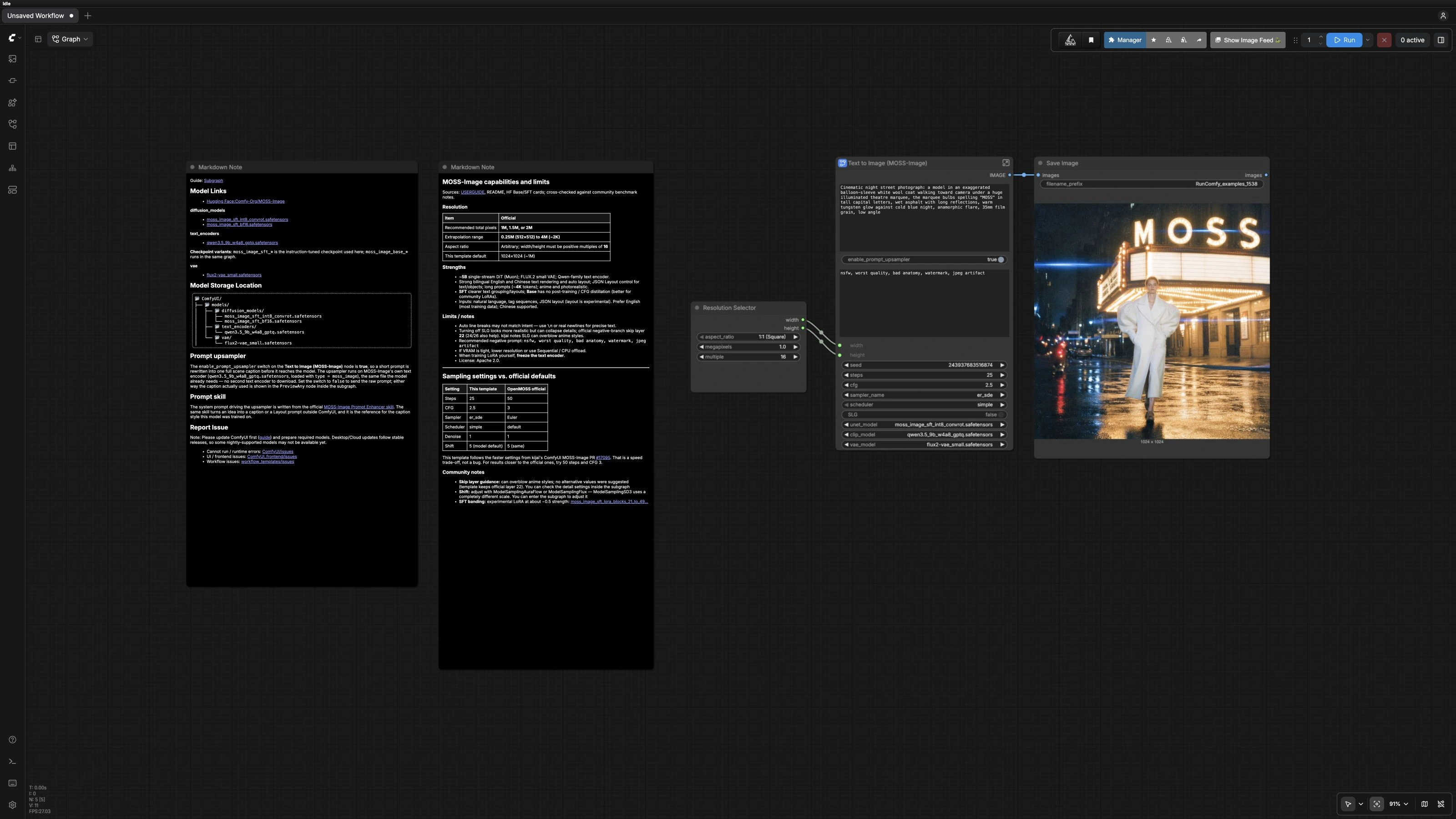


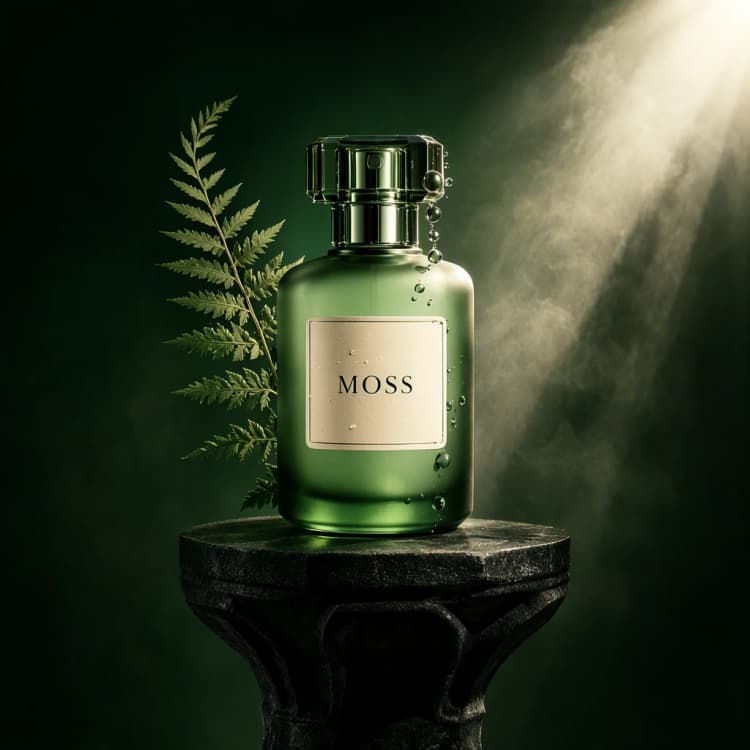
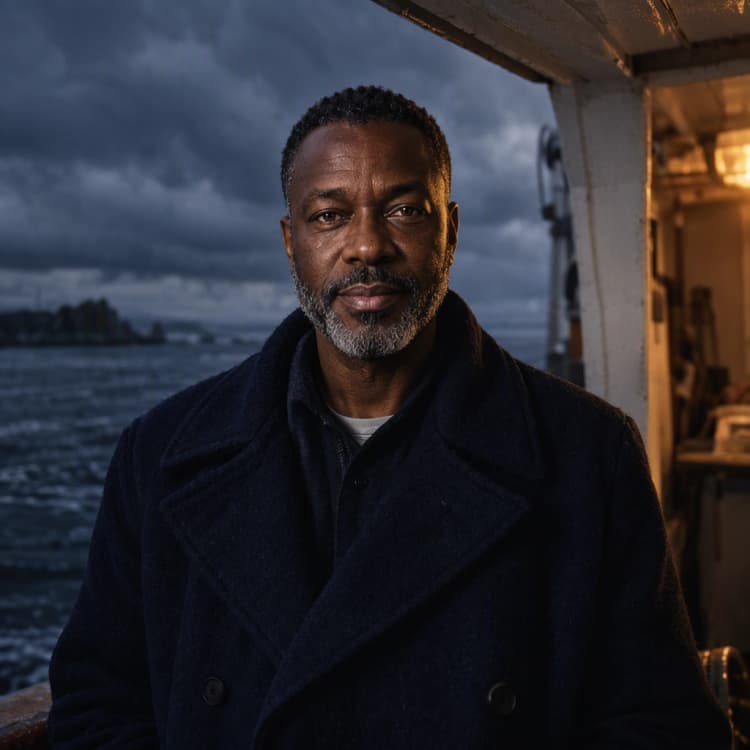
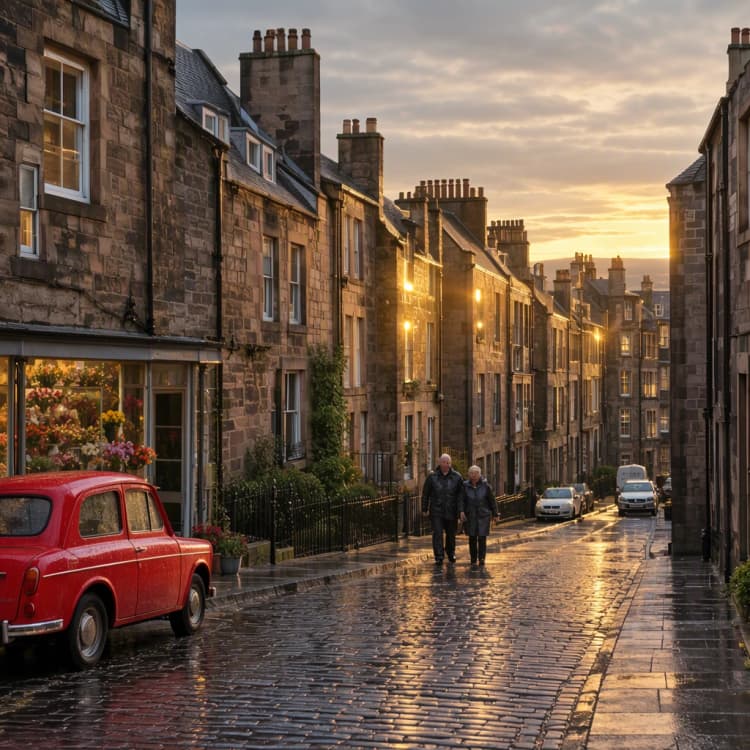
MOSS-Image Text to Image: a prompt‑upsampled ComfyUI workflow for cinematic, product, and typography visuals#
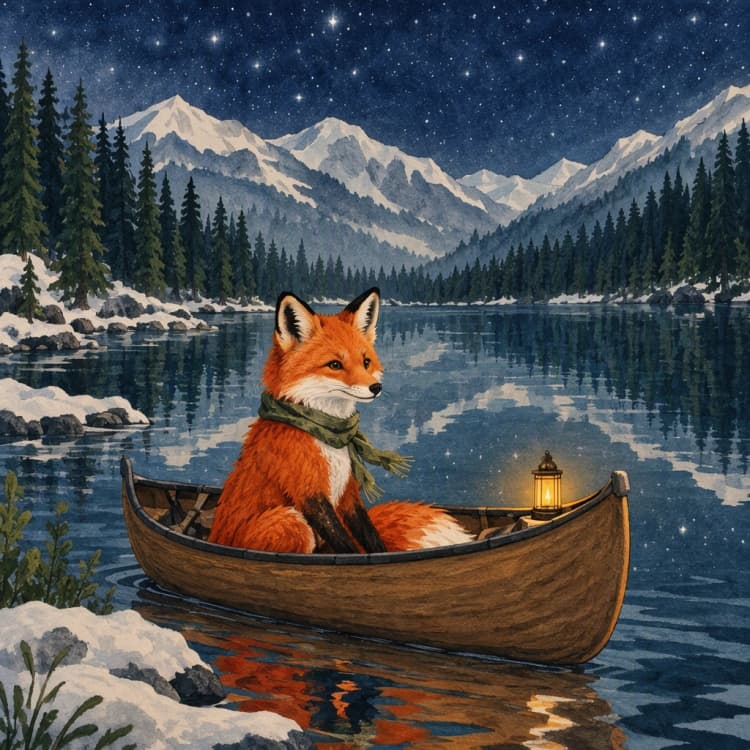
This MOSS-Image Text to Image workflow turns plain prompts into finished images with strong text rendering, clear layouts, and flexible aspect ratios. It ships with prompt upsampling enabled so short ideas are expanded into rich scene captions before generation, giving you consistent results for portraits, cinematic scenes, product visuals, and typography-led designs.
Built around the MOSS-Image SFT checkpoint, the graph exposes just the controls you need: image size, seed, sampling steps, and guidance. It is ideal for quick concept exploration and for drafting illustrated or photographic compositions directly from text inside ComfyUI.
Key models in Comfyui MOSS-Image Text to Image workflow#
- MOSS-Image SFT checkpoint. The instruction-tuned diffusion backbone that denoises latents into images. This template loads the SFT variant used by the official release. Model card and files
- Qwen 3.5 9B W4A8 GPTQ text encoder. The text encoder used by MOSS-Image and also leveraged by the built‑in prompt upsampler. File
- FLUX.2 VAE Small. Compresses images to latents for sampling and decodes the final image for preview and saving. File
Reference repos: Comfy‑Org/MOSS‑Image (Hugging Face) and OpenMOSS/MOSS‑Image (GitHub).
How to use Comfyui MOSS-Image Text to Image workflow#
At a glance, the graph sends your prompt through a prompt enhancer, encodes it with the model’s text encoder, samples latents with the MOSS‑Image SFT UNet, then decodes and saves the image. The subgraph is organized into four groups so you always know where to tweak things.
Models#
This group loads the essential assets and wiring for generation. UNETLoader (#1) loads the MOSS‑Image SFT checkpoint, while CLIPLoader (#2) loads the Qwen 3.5 text encoder used for both captioning and conditioning. VAELoader (#3) provides the FLUX.2 VAE for decode. There is an optional SkipLayerGuidanceDiTSimple (#15) stage routed through a ComfySwitchNode (#24); keep it off for a clean baseline or enable it when you want extra emphasis on structure and legibility.
Prompt#
Your final prompt flows into CLIPTextEncode (#4) for the positive branch and CLIPTextEncode (#5) for the negative branch. Leave the negative prompt empty to use the reference default in the graph, or paste your own to steer away from artifacts. KSampler (#7) generates the latent using your seed, steps, cfg, sampler_name, and scheduler choices, and VAEDecode (#8) turns it into an image. Use higher steps for more refinement, lower values for faster drafts, and adjust cfg moderately to balance adherence to the caption versus creative variation.
Image Size#
This group controls resolution. EmptyFlux2LatentImage (#6) creates the starting latent at your chosen width and height, and the top‑level ResolutionSelector (#19) offers common aspect ratios and pixel budgets. For most subjects, start at 1024×1024, then scale up for more detail if your VRAM allows. Keep width and height as multiples of 16 to stay compatible with the VAE.
Prompt Enhancer#
Short prompts are expanded into detailed, model‑friendly captions before encoding. TextGenerate (#11) runs a concise system skill tailored to MOSS‑Image to add composition, lighting, and layout hints while preserving any quoted text you provide. The ComfySwitchNode (#16) toggles this enhancer; it is on by default in this MOSS-Image Text to Image template. Use Preview as Text (final prompt) PreviewAny (#13) to read exactly what will be fed to the model, then iterate quickly by editing your idea or turning the enhancer off when you prefer raw control prose.
When you are happy with the output, the parent graph’s SaveImage (#9) writes files with your chosen prefix so you can compare variations side by side.
Key nodes in Comfyui MOSS-Image Text to Image workflow#
TextGenerate(#11). Expands your idea into a polished caption using the same text encoder family as the model. Turn it on for robust, layout‑aware results; turn it off if you already have a precise, fully specified prompt or structured copy you do not want rewritten. Keep visible text in quotes to ensure exact rendering.KSampler(#7). The main quality–speed dial. Increasestepsto refine details, and adjustcfgto trade fidelity for variation. When you raise resolution, consider a modest step increase to maintain sharpness without overshooting.SkipLayerGuidanceDiTSimple(#15). Optional stage that can boost structure and legibility by guiding specific transformer layers. Enable via the SLG switch when you want crisper text or stricter layouts; disable if results feel overly stylized for your subject.ResolutionSelector(#19). A convenience node for choosing common aspect ratios and pixel counts. Use it to standardize outputs across a project, then fine‑tune exactwidthandheightin the size group if needed.
Optional extras#
- Quote every piece of text you want rendered in the image, and insert line breaks where you need them to preserve layout.
- For product shots or designs with strict copy, disable the prompt enhancer to keep wording 100 percent literal.
- Lock a
seedyou like to make apples‑to‑apples comparisons while tuningsteps,cfg, and size. - If memory is limited, drop resolution first, then reduce
steps; revisit quality dials after you confirm the look. - Explore alternative checkpoints in the same repo, such as base vs SFT variants, by swapping the file in
UNETLoader(#1) from the official model set.
Acknowledgements#
This workflow implements and builds upon the following works and resources. We gratefully acknowledge Comfy-Org for the MOSS-Image ComfyUI tutorial and the MOSS-Image model files for their contributions and maintenance. For authoritative details, please refer to the original documentation and repositories linked below.
Resources#
- Comfy-Org/MOSS-Image ComfyUI Tutorial
- Docs / Release Notes: Official MOSS-Image ComfyUI tutorial
- Comfy-Org/MOSS-Image
- Hugging Face: Comfy-Org/MOSS-Image
Note: Use of the referenced models, datasets, and code is subject to the respective licenses and terms provided by their authors and maintainers.