MOSS-Image Base Layout-Guided Text to Image#
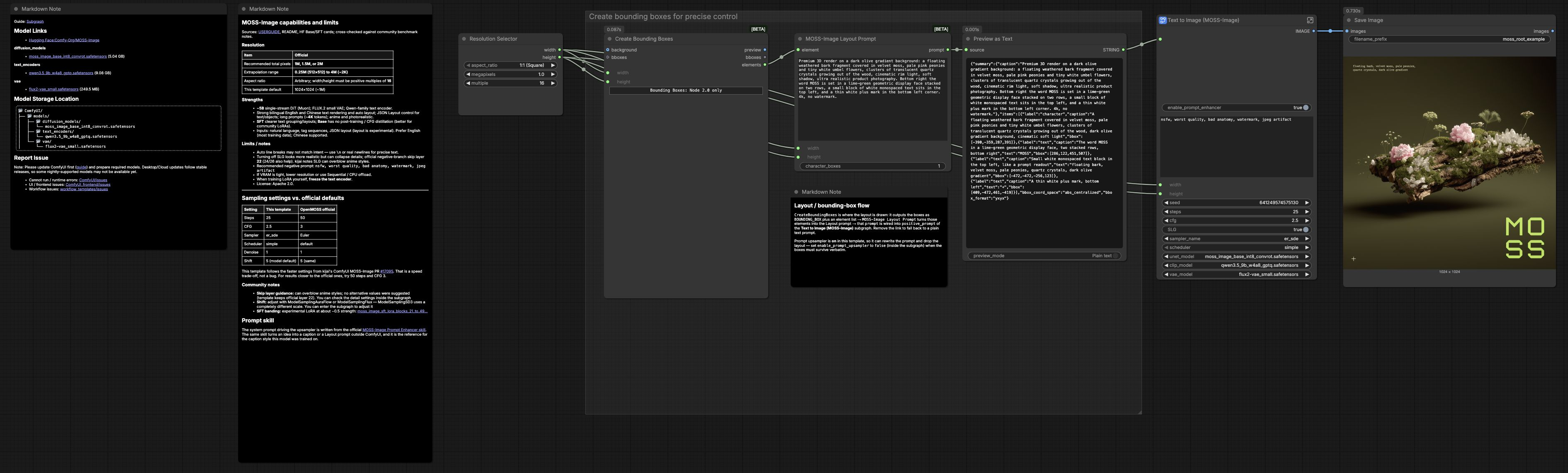
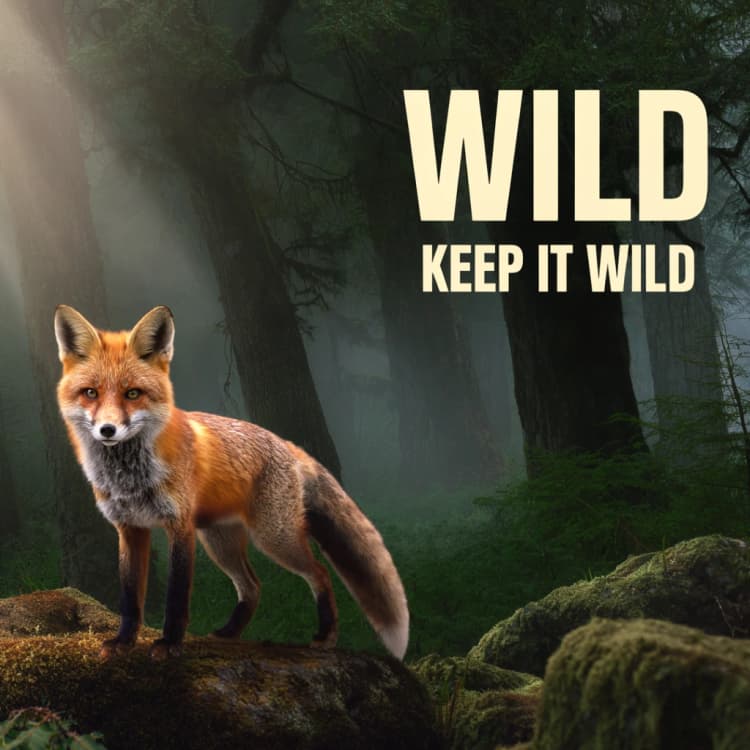
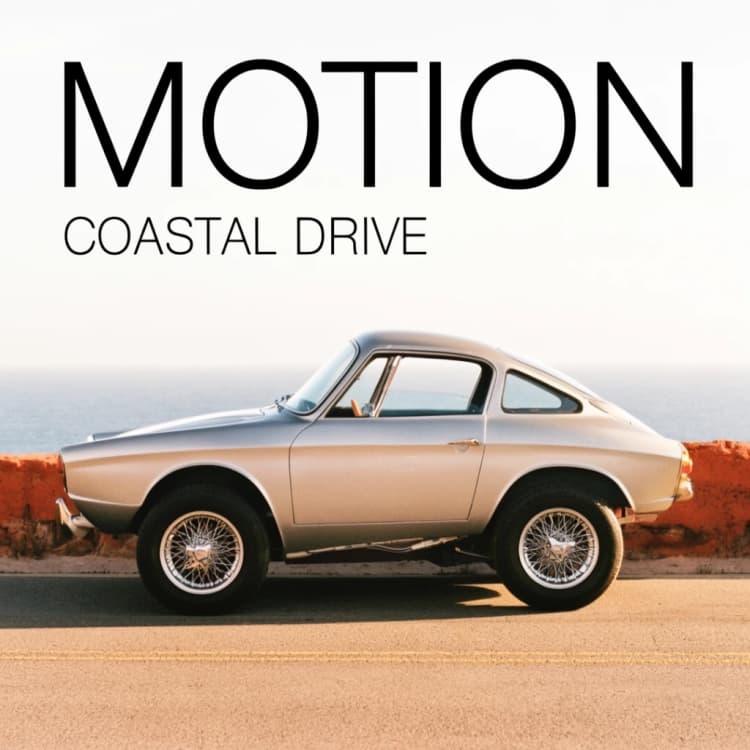
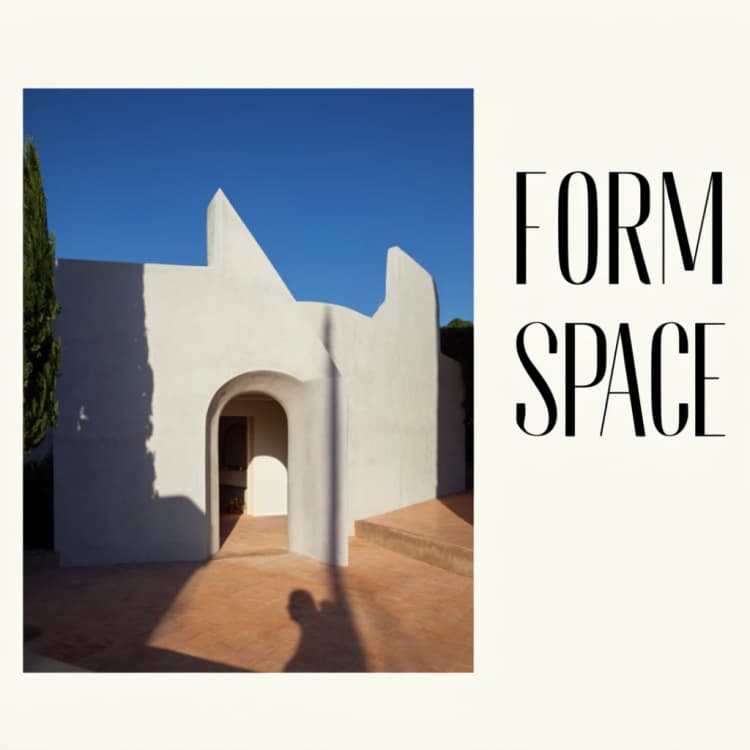
This ComfyUI workflow turns text plus bounding boxes into precise, layout-aware images with the MOSS-Image Base checkpoint. You sketch a composition with boxes, label each region as an object or text, and the workflow converts that structure into a layout prompt that steers generation. Keep prompt enhancement enabled for more expressive phrasing, or disable it to preserve the exact box-derived wording.
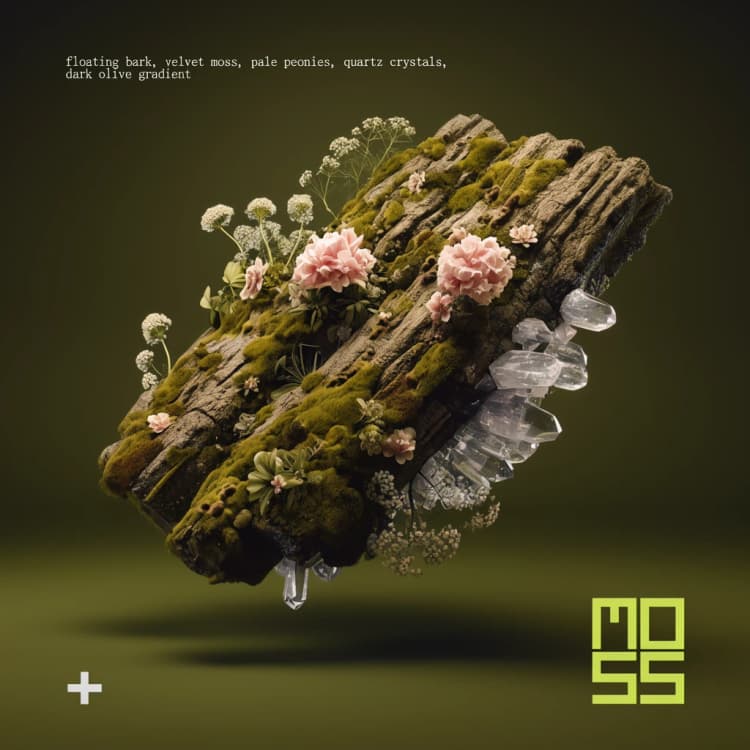
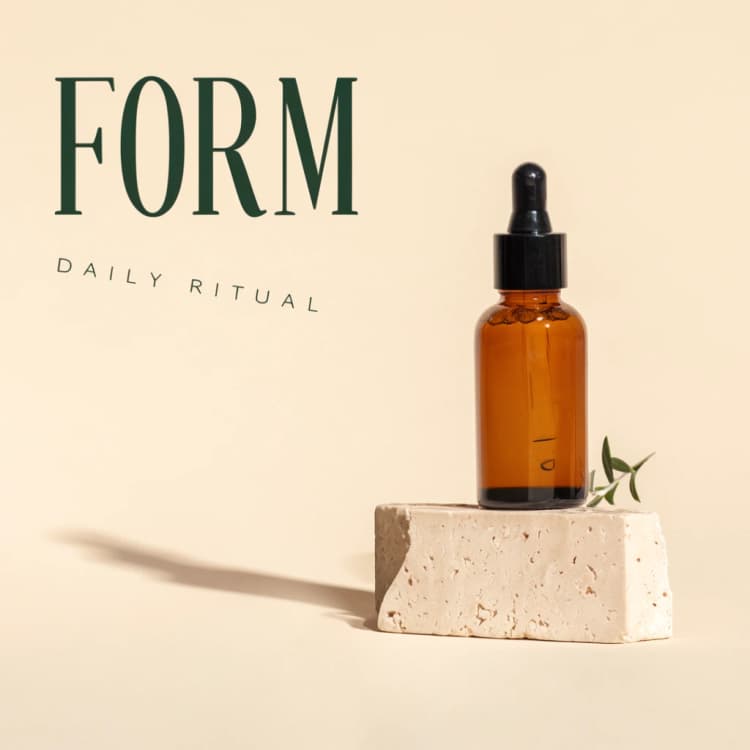
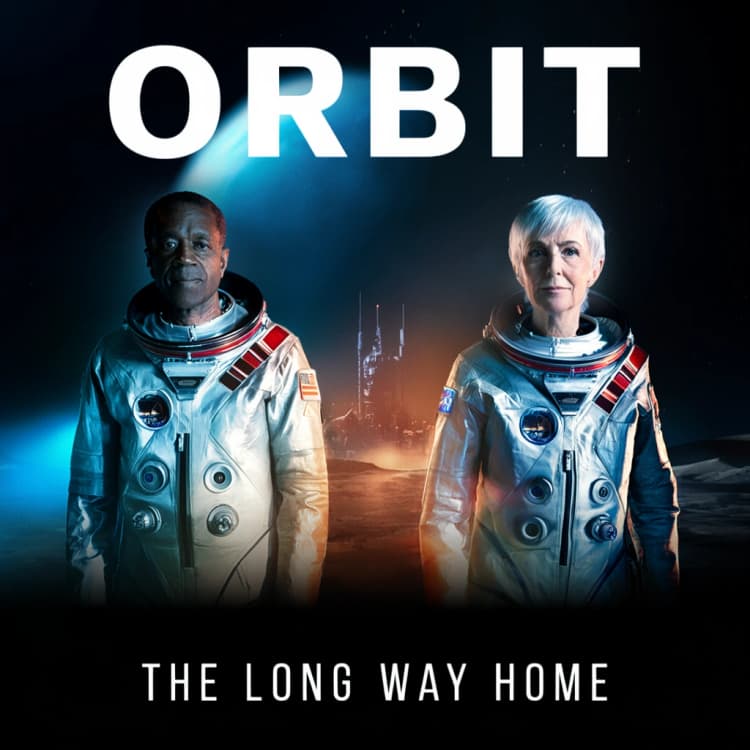
MOSS-Image Base Layout-Guided Text to Image is ideal for poster concepts, product hero shots, and any design that must respect where subjects and typography land. Start from the official base layout template, then iterate quickly by nudging box sizes, labels, and the global prompt to refine both look and layout.
- Starter template: Base layout template on GitHub
- Model project: OpenMOSS MOSS-Image on GitHub
- Weights and assets: MOSS-Image on Hugging Face
Key models in Comfyui MOSS-Image Base Layout-Guided Text to Image workflow#
- MOSS-Image Base. The primary text-to-image generator used by the workflow. It learns to follow a structured, box-aware description so objects and text appear where you intend while maintaining overall visual quality. See the project repo for background and training details: OpenMOSS MOSS-Image and the Comfy-Org weights hub: Comfy-Org/MOSS-Image.
- Autoencoder (VAE). The image decoder that converts denoised latents into pixels and back. Use the autoencoder bundled or recommended with MOSS-Image Base for color fidelity and sharpness.
- Prompt enhancer model (optional). A lightweight text rewriter used in the workflow to enrich the box-derived prompt. Toggle it off when you want strict, layout-first control with minimal wording changes.
How to use Comfyui MOSS-Image Base Layout-Guided Text to Image workflow#
At a high level, you define a canvas, draw boxes for each element, describe those elements, then generate. The workflow transforms your boxes and labels into a structured layout prompt, conditions the MOSS-Image Base model, runs a sampler to denoise latents, decodes to RGB, and saves your result.
Prepare your canvas and boxes#
Create or load a canvas at your target aspect ratio. Draw a bounding box for every major subject and each text region you plan to include. Use clear, specific labels such as “red vintage camera,” “glossy bottle,” or “headline: Bold sans serif product name.” Box placement, size, and overlap communicate composition and hierarchy to the model.
Describe objects and text regions#
Each box gets a short description. For text regions, include the intended wording so the model treats the area like typography. Keep phrasing concise and concrete. If a box is purely for spacing or negative space, label it accordingly so the generator learns to leave it light or empty.
Build the structured layout prompt#
The workflow converts your boxes into a structured layout prompt that encodes position and semantics. This step preserves spatial intent across objects and type. If you want the model to elaborate on style, keep prompt enhancement on. If you want the generated image to adhere strictly to your box descriptions, disable prompt enhancement to keep the original layout prompt intact.
Add global guidance and negatives#
Provide a short global prompt to set style, mood, or brand cues that apply across all boxes, for example “studio lighting, high contrast, clean background.” Add a negative prompt to discourage unwanted artifacts such as “blurry, distorted text, extra limbs.” The layout prompt from boxes remains the backbone, while global text nudges overall aesthetics.
Generate and iterate#
Run the sampler to produce an image. If a subject drifts, slightly enlarge or reposition that box, or strengthen its label with a clearer noun or material cue. If text placement is correct but letterforms look too painterly, tighten the description and consider turning off prompt enhancement. Reuse the same seed for controlled A-B tests, then change the seed to explore alternatives.
Decode, preview, and save#
The workflow decodes the final latent to an RGB image for preview. Save outputs with timestamps or descriptive names so you can track which layout and wording produced the best result. When you reach a strong composition, export at your target size and refine typography downstream if you need crisp, vector-set type.
Optional extras for MOSS-Image Base Layout-Guided Text to Image#
- Start from the official template and adjust only a few boxes at a time to learn how layout affects placement.
- Leave generous margins around text boxes for better legibility and fewer shape artifacts.
- Use negative prompts to suppress distractions near key subjects when boxes are close together.
- Lock the seed while you tune layout, then unlock it to explore stylistic variety without changing composition.
- For product work, add material and finish words to box labels, for example “matte glass,” “brushed aluminum,” or “matte paper poster,” to improve realism.
Acknowledgements#
This workflow implements and builds upon the following works and resources. We gratefully acknowledge Comfy-Org for the official ComfyUI tutorial, the base layout template workflow, and the ComfyUI MOSS-Image model weights, and OpenMOSS for the MOSS-Image project for their contributions and maintenance. For authoritative details, please refer to the original documentation and repositories linked below.
Resources#
- Comfy-Org/Official ComfyUI tutorial
- Docs / Release Notes: Official ComfyUI tutorial
- Comfy-Org/Official Base layout template
- GitHub: Comfy-Org/workflow_templates
- OpenMOSS/MOSS-Image project
- GitHub: OpenMOSS/MOSS-Image
- Comfy-Org/ComfyUI model weights
- Hugging Face: Comfy-Org/MOSS-Image
Note: Use of the referenced models, datasets, and code is subject to the respective licenses and terms provided by their authors and maintainers.