


ERNIE-Image ComfyUI: instruction-following text-to-image with crisp text rendering
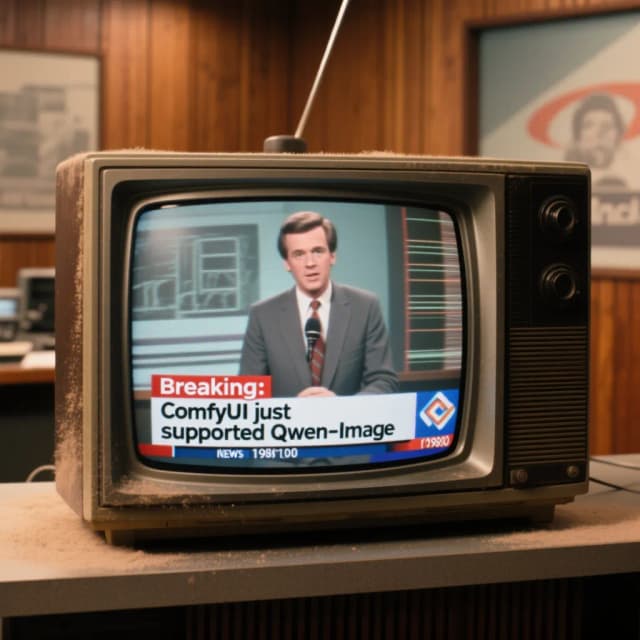
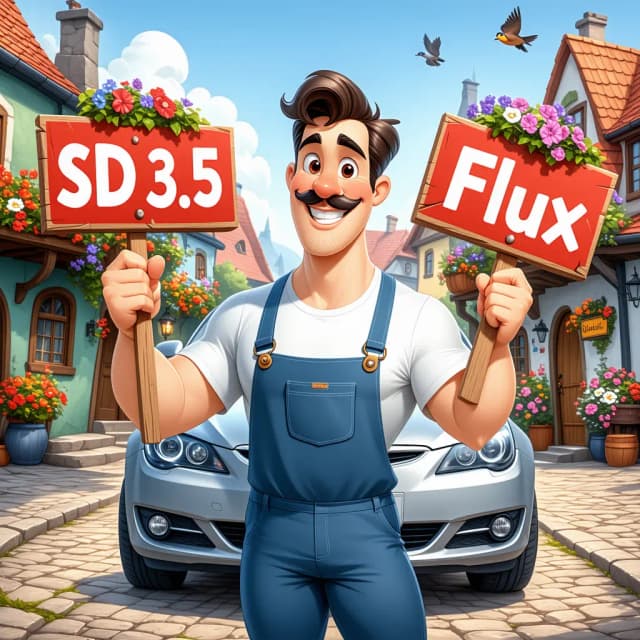
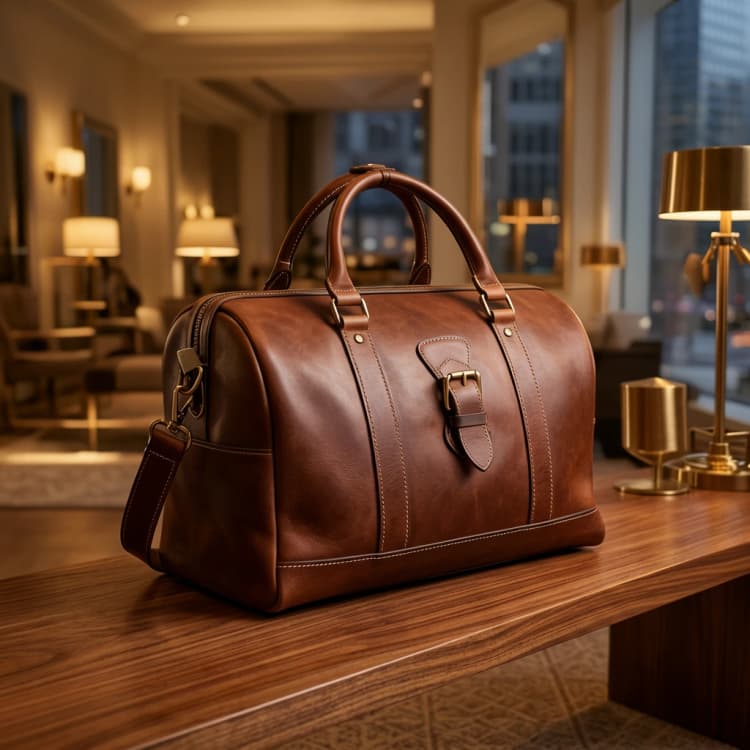
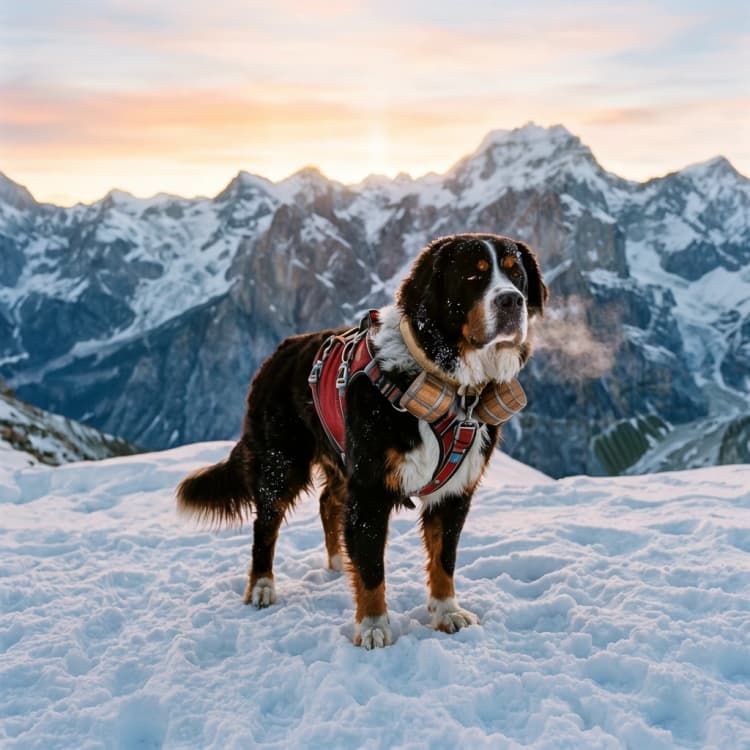
This ERNIE-Image ComfyUI workflow turns short prompts into high quality images that follow instructions and render text reliably. It combines Comfy-Org’s ERNIE-Image diffusion model with a strong text encoder, an optional prompt-enhancer, and a modern Flux2 VAE to preserve detail and typography.
Designed for fast iteration, ERNIE-Image ComfyUI accepts your prompt, optionally expands it for richer guidance, encodes it, samples with ERNIE-Image, and decodes to a final image. The prompt enhancement path is included and toggleable so you can compare original versus enhanced prompts without changing the graph.
Key models in Comfyui ERNIE-Image ComfyUI workflow
- ERNIE-Image diffusion model. The core generator that denoises latents into images, tuned for instruction following and text rendering. Model card
- Ministral-3-3B text encoder. The primary text encoder that converts your prompt into conditioning for ERNIE-Image. File
- ERNIE-Image Prompt Enhancer. An auxiliary encoder used by the enhancement branch to expand concise prompts into descriptive guidance. File
- Flux2 VAE. The decoder that turns latents from the sampler into pixels while preserving fine detail and legible text. File
How to use Comfyui ERNIE-Image ComfyUI workflow
At a high level, your prompt flows through an optional enhancement step, is encoded, then sampled by ERNIE-Image into latents that are finally decoded by Flux2 VAE and saved. The groups below map directly to the graph so you always know where to adjust inputs.
Prompt
Write what you want to see in the top-level prompt field of the ERNIE-Image ComfyUI subgraph. Clear, directive phrasing works best for instruction following and text rendering. You can include quoted text you want drawn in the image. The positive conditioning is built from this prompt; the negative path starts empty so results tend to be faithful unless you add your own negatives later.
Prompt Enhancement
Turn the enhancement path on or off using Enable prompt enhancement? (#76). When on, your short brief is expanded by TextGenerate (#74) using the ERNIE-Image Prompt Enhancer loaded via Load CLIP (PE) (#91). The enhancer uses a structured instruction to enrich your prompt and also passes target width and height to encourage coherent composition. ComfySwitchNode (#75) routes either the original or the enhanced text downstream so you can A/B test easily. For broad compatibility the toggle is off by default; enable it once the enhancer model is present.
Model
The workflow loads three assets: UNETLoader (#66) selects the ERNIE-Image diffusion model, CLIPLoader (#62) brings in the Ministral-3-3B text encoder, and VAELoader (#63) provides the Flux2 VAE. This combination is what gives ERNIE-Image ComfyUI strong instruction adherence and clean typography. If you swap any model, keep the trio coordinated to avoid mismatches.
Image Size
EmptyFlux2LatentImage (#71) defines the canvas. Set width and height to the aspect ratio you want; landscapes, portraits, and square graphics all work. These dimensions are also injected into the enhancement prompt when the toggle is on, which helps the model plan layout and text placement. Larger sizes cost more compute; for quick previews use smaller dimensions, then upscale later as needed.
Text to Image
CLIPTextEncode (#67) turns your routed prompt into positive conditioning, while CLIPTextEncode (#72) provides the negative branch (left blank by default). KSampler (#70) then generates latents using the ERNIE-Image model and your conditioning. After sampling, VAEDecode (#65) converts latents to RGB pixels. Everything is wired for one-click generation, so once your inputs are set, just queue the job and watch the preview.
Output
The image is saved by SaveImage (#73). You will see it appear in the UI preview and in your output directory. Use consistent seeds when comparing enhancement on versus off to isolate the effect of the text branch.
Key nodes in Comfyui ERNIE-Image ComfyUI workflow
KSampler (#70) The main generator that controls the diffusion trajectory. Adjust steps for quality versus speed, use cfg to tighten or relax prompt adherence, and set a fixed seed for reproducibility across prompt variants. Higher guidance can sharpen compliance but may reduce creativity; balance to taste. See ComfyUI’s sampler references for general behavior. ComfyUI
UNETLoader (#66) Loads the ERNIE-Image diffusion model that actually denoises latents into an image. Keep this set to the ERNIE-Image checkpoint to benefit from instruction following and text rendering. If you switch models, expect changes in style and typography capability. ERNIE-Image
CLIPLoader (#62) Provides the Ministral-3-3B text encoder used for the main conditioning path. Swapping encoders changes how language maps to visuals; for faithful instruction following, keep it aligned with the ERNIE-Image stack. This node affects both positive and negative encoders downstream. Ministral-3-3B file
VAELoader (#63) Supplies the Flux2 VAE used during decode. A matched VAE preserves color and edge fidelity and helps keep rendered text sharp. Use this when generating with ERNIE-Image for best results. Flux2 VAE file
EmptyFlux2LatentImage (#71) Initializes an empty latent canvas at your chosen resolution. This sets the eventual image size and subtly guides layout. Changing dimensions will also update the enhancer’s internal instruction when that path is active.
CLIPTextEncode (#67) Encodes the final routed prompt into positive conditioning. To improve text rendering, include the exact words you want to appear in quotes and specify casing if important. Keep instructions concise and concrete for best compliance.
CLIPTextEncode (#72) Encodes the negative prompt. It is blank by default to keep outputs close to your intent. If you notice unwanted artifacts, add a few concise negative terms here.
TextGenerate (#74) Generates an expanded description using the ERNIE-Image Prompt Enhancer loaded by Load CLIP (PE) (#91). Useful for turning short briefs into rich, visual directions that improve composition and detail. Keep the enhancement toggle off for literal control, on for descriptive variety. Prompt Enhancer file
ComfySwitchNode (#75) Routes either the original or enhanced prompt forward based on Enable prompt enhancement? (#76). This makes A/B testing trivial without changing connections. Use a fixed seed when comparing to isolate prompt-only differences.
VAEDecode (#65) Decodes the final latent into an image using Flux2 VAE. This step strongly influences color, clarity, and how well small text reads. Keep it paired with the Flux2 VAE from the ERNIE-Image stack.
SaveImage (#73) Writes the generated image to disk and exposes it in the UI. Use consistent naming conventions if you plan to benchmark multiple ERNIE-Image ComfyUI runs.
Optional extras
- For crisp lettering, put exact words in quotes and specify style cues like “bold serif label” or “handwritten tag”; ERNIE-Image ComfyUI is optimized for text rendering.
- Use clear directives such as “centered product photo,” “white background,” or “2:3 poster layout” so ERNIE-Image ComfyUI can follow instructions precisely.
- When comparing the enhancer path, lock the
seedand switch only the enhancement toggle to see true A/B differences. - Choose an aspect ratio that matches the scene; ERNIE-Image ComfyUI will respect size hints and plan layout accordingly.
Acknowledgements
This workflow implements and builds upon the following works and resources. We gratefully acknowledge Comfy-Org for ERNIE-Image (repackaged model files and assets), Baidu for the original ERNIE-Image model, and the ComfyUI team for the ERNIE-Image ComfyUI workflow example for their contributions and maintenance. For authoritative details, please refer to the original documentation and repositories linked below.
Resources
- ComfyUI/ERNIE-Image ComfyUI workflow source
- GitHub: comfy-org/docs
- Docs / Release Notes: ERNIE-Image ComfyUI workflow example
- Comfy-Org/ERNIE-Image
- GitHub: baidu/ERNIE-Image
- Hugging Face: Comfy-Org/ERNIE-Image
- Comfy-Org/ernie-image.safetensors
- GitHub: baidu/ERNIE-Image
- Hugging Face: ernie-image.safetensors
- Comfy-Org/ministral-3-3b.safetensors
- GitHub: baidu/ERNIE-Image
- Hugging Face: ministral-3-3b.safetensors
- Comfy-Org/ernie-image-prompt-enhancer.safetensors
- GitHub: baidu/ERNIE-Image
- Hugging Face: ernie-image-prompt-enhancer.safetensors
- Comfy-Org/flux2-vae.safetensors
- GitHub: baidu/ERNIE-Image
- Hugging Face: flux2-vae.safetensors
Note: Use of the referenced models, datasets, and code is subject to the respective licenses and terms provided by their authors and maintainers.