

CROWN MiniMax H3 4-Step ComfyUI Workflow for Video#
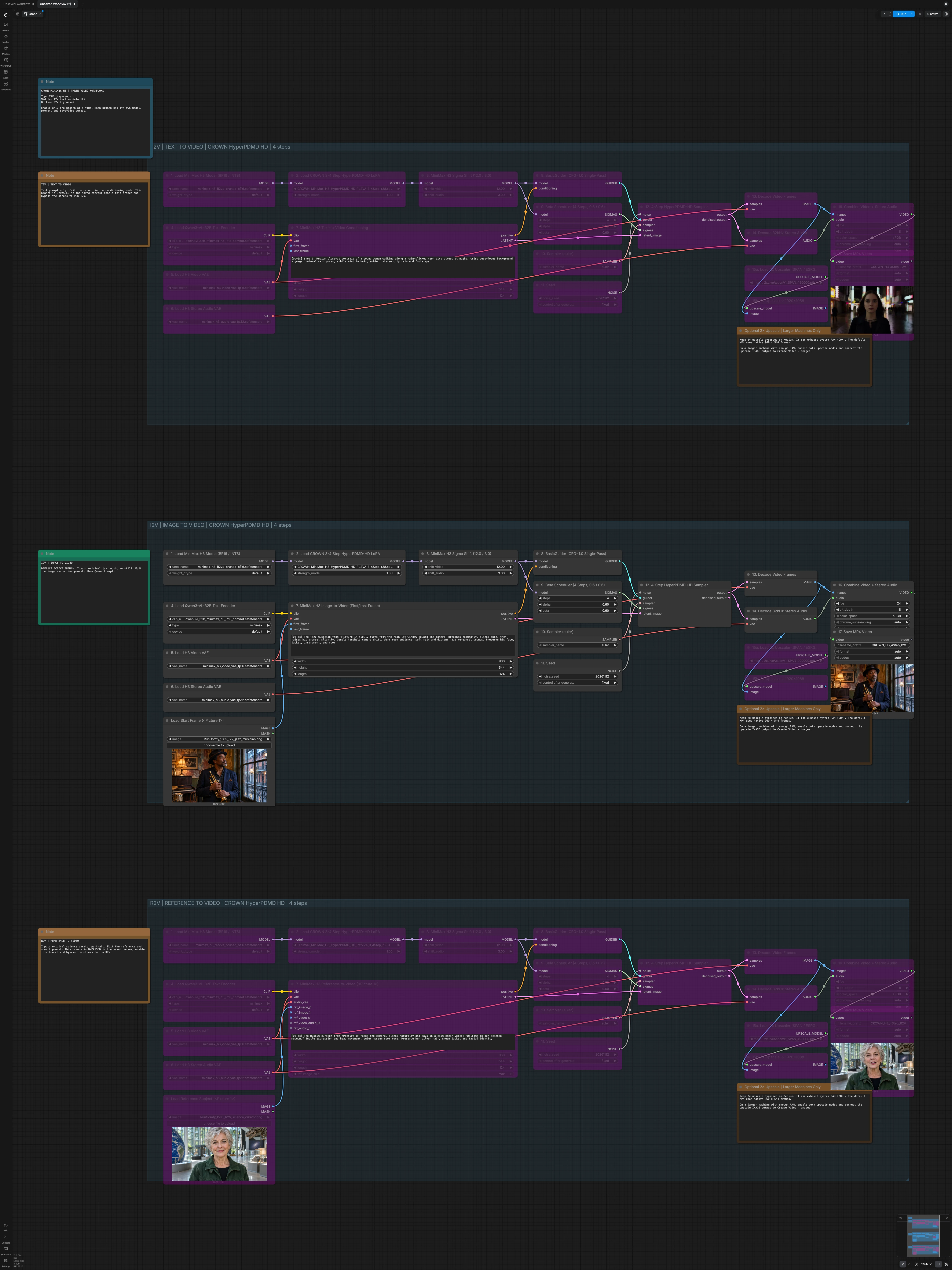
The CROWN MiniMax H3 4-Step ComfyUI Workflow unifies text-to-video, image-to-video, and reference-to-video on one labeled canvas so you can produce complete MP4s with synchronized stereo audio in minutes. It is tuned around the CROWN HyperPDMD HD LoRAs and a four-step sampling path to deliver crisp motion, stable identity, and clean sound at native 960 × 544.
Built for fast iteration on RunComfy, the workflow ships with image-to-video active by default, while text-to-video and reference-to-video are ready to enable when you need them. Each branch is isolated with its own model, prompt, and saver, and all three export finished MP4 files without any extra post steps. Optional 2× upscaling is included for larger machines and is bypassed by default on Medium instances.
Key models in Comfyui CROWN MiniMax H3 4-Step ComfyUI Workflow#
- Comfy-Org MiniMax H3 base models. The video-audio backbone that predicts joint latents for frames and stereo sound, provided as BF16 and INT8 variants for speed and memory efficiency. Model card
- CROWN MiniMax H3 HyperPDMD HD 3–4 Step LoRAs. Finetunes that compress the denoising schedule to four sampling steps while preserving detail and temporal stability, available for text-to-video, image-to-video, and reference-to-video variants. Model card
- MiniMax H3 Video VAE. Encodes and decodes the video latent stream for efficient generation and pixel-accurate reconstruction.
- MiniMax H3 Stereo Audio VAE. Encodes and decodes the audio latent stream to and from 32 kHz stereo for natural ambience and speech.
- Qwen3‑VL‑32B text encoder. Provides robust language and multimodal understanding for prompt parsing on MiniMax H3.
- Optional ESRGAN-family upscalers. Used for 2× enhancement on capable machines when you need larger frames. ESRGAN
How to use Comfyui CROWN MiniMax H3 4-Step ComfyUI Workflow#
Enable only one branch at a time. Each branch has a clear label, its own prompt field, and a dedicated Save MP4 Video node with a distinct filename prefix for easy sorting.
I2V | IMAGE TO VIDEO | CROWN HyperPDMD HD | 4 steps#
This is the default active path. Load your still in Load Start Frame (<Picture 1>) (#27), then describe the motion and ambience in MiniMax H3 Image-to-Video (First/Last Frame) (#28). The node accepts an optional last frame if you want in-out guidance for camera or subject motion. When you queue the prompt, the four-step sampler generates joint video and audio latents that are decoded and muxed in Combine Video + Stereo Audio (#38), then written by Save MP4 Video (#39). Use the seed control in Seed (#32) for exact reproducibility or to explore variations.
T2V | TEXT TO VIDEO | CROWN HyperPDMD HD | 4 steps#
Activate this branch when you want to synthesize everything from text. Enter a concise shot description, desired motion, and sound notes in MiniMax H3 Text-to-Video Conditioning (#8). This node can also accept optional first and last frames if you want to anchor composition, but it works with text alone. The core H3 path runs the same four-step schedule and produces synchronized frames and stereo audio before packaging to MP4 via Save MP4 Video (#19). Adjust the seed in Seed (#12) to lock or vary outcomes.
R2V | REFERENCE TO VIDEO | CROWN HyperPDMD HD | 4 steps#
Use this path to preserve identity from one or more reference images and optionally guide speech or room tone. Load your subject in Load Reference Subject (<Picture 1>) (#47), then craft the motion or dialogue in MiniMax H3 Reference-to-Video (<Picture 1>) (#48). You can add more reference images, a short reference video, or a reference audio clip to strengthen likeness and vocal timbre. The output is decoded, muxed in Combine Video + Stereo Audio (#58), and saved by Save MP4 Video (#59). Keep only this branch enabled while running to prevent cross-branch resource contention.
Core 4-step sampling path shared by all branches#
Each branch follows the same streamlined backbone for speed and quality. The MiniMax H3 base model is loaded, the CROWN HyperPDMD HD LoRA is applied, and MiniMax H3 Sigma Shift (#4, #23, #43) aligns video and audio schedules. Guidance is handled by BasicGuider (#9, #29, #49), scheduling by Beta Scheduler (#10, #30, #50), and algorithm choice by Sampler (euler) (#11, #31, #51). The 4-Step HyperPDMD-HD Sampler (#13, #33, #53) produces denoised latents that are decoded by Decode Video Frames (#14, #34, #54) and Decode 32kHz Stereo Audio (#15, #35, #55), then multiplexed in Combine Video + Stereo Audio (#18, #38, #58) and written to disk by the corresponding Save MP4 Video node.
Key nodes in Comfyui CROWN MiniMax H3 4-Step ComfyUI Workflow#
MiniMax H3 Image-to-Video (First/Last Frame) (#28) Generates motion from a single image with optional end-frame anchoring. Focus your prompt on subject actions, camera movement, and ambience. Add a last frame when you want a specific in-out movement path. Keep identity-critical details in the text to preserve faces, clothing, and props.
MiniMax H3 Reference-to-Video (<Picture 1>) (#48) Builds a video around a reference subject while keeping appearance and, if provided, voice. Supply one or more clean reference images and concise dialogue. When likeness matters, prefer higher quality references and keep attire and hairstyle consistent. Reference audio can help align timbre and room tone.
MiniMax H3 Text-to-Video Conditioning (#8) Translates your script into conditioning for both video and audio. Write prompts as short shots with clear verbs and sensory cues. You can optionally feed first and last frames to stabilize composition for complex scenes.
MiniMax H3 Sigma Shift (#4, #23, #43) Balances the relative sharpness and coherence of video and the clarity of audio by offsetting their effective noise schedules. Use it to fine tune crispness versus stability for motion while keeping speech and ambience clean. Change values cautiously and test short clips before long renders.
4-Step HyperPDMD-HD Sampler (#13, #33, #53) Executes the distilled four-step denoising loop matched to the CROWN LoRAs. Keeping this sampler on the intended step count preserves speed and the trained look. If you experiment with alternative samplers or schedules, adjust them together and validate results on short sequences first.
Combine Video + Stereo Audio (#18, #38, #58) Muxes decoded frames and audio into a ready-to-share video. Use it when you need to change container settings or color space for downstream workflows. The paired Save MP4 Video node finalizes filenames and formats per branch.
Optional extras#
- Native output is 960 × 544 with stereo audio for reliable completion on RunComfy Medium; enable the two upscaler nodes only on larger machines.
- To upscale, turn on
Load 2x Upscaler (SPAN / ESRGAN)and2x Upscale -> 1920x1088, then connect the upscale output toCombine Video + Stereo Audio → images. - For repeatable results, leave the seed fixed; for new takes, randomize the seed in the branch’s
Seednode. - Prompts work best as compact shot directions, for example with timing cues, verbs for subject and camera, and one line on ambience.
- Only one branch should be active at a time; each has its own loader, prompt, and saver named with the CROWN MiniMax H3 4-Step ComfyUI Workflow prefix for easy file management.
Acknowledgements#
This workflow implements and builds upon the following works and resources. We gratefully acknowledge S3ckn11g0r for CROWN-MiniMax-H3-HyperPDMD-HD-3-4Step-LoRA and Comfy-Org for MiniMax-H3 base models for their contributions and maintenance. For authoritative details, please refer to the original documentation and repositories linked below.
Resources#
- S3ckn11g0r/CROWN-MiniMax-H3-HyperPDMD-HD-3-4Step-LoRA
- Hugging Face: S3ckn11g0r/CROWN-MiniMax-H3-HyperPDMD-HD-3-4Step-LoRA
- Comfy-Org/MiniMax-H3
- GitHub: Comfy-Org/workflow_templates
- Hugging Face: Comfy-Org/MiniMax-H3
Note: Use of the referenced models, datasets, and code is subject to the respective licenses and terms provided by their authors and maintainers.