

MiniMax H3 Latent Upscaler: BUNNY Two-Pass Video Generation Workflow#
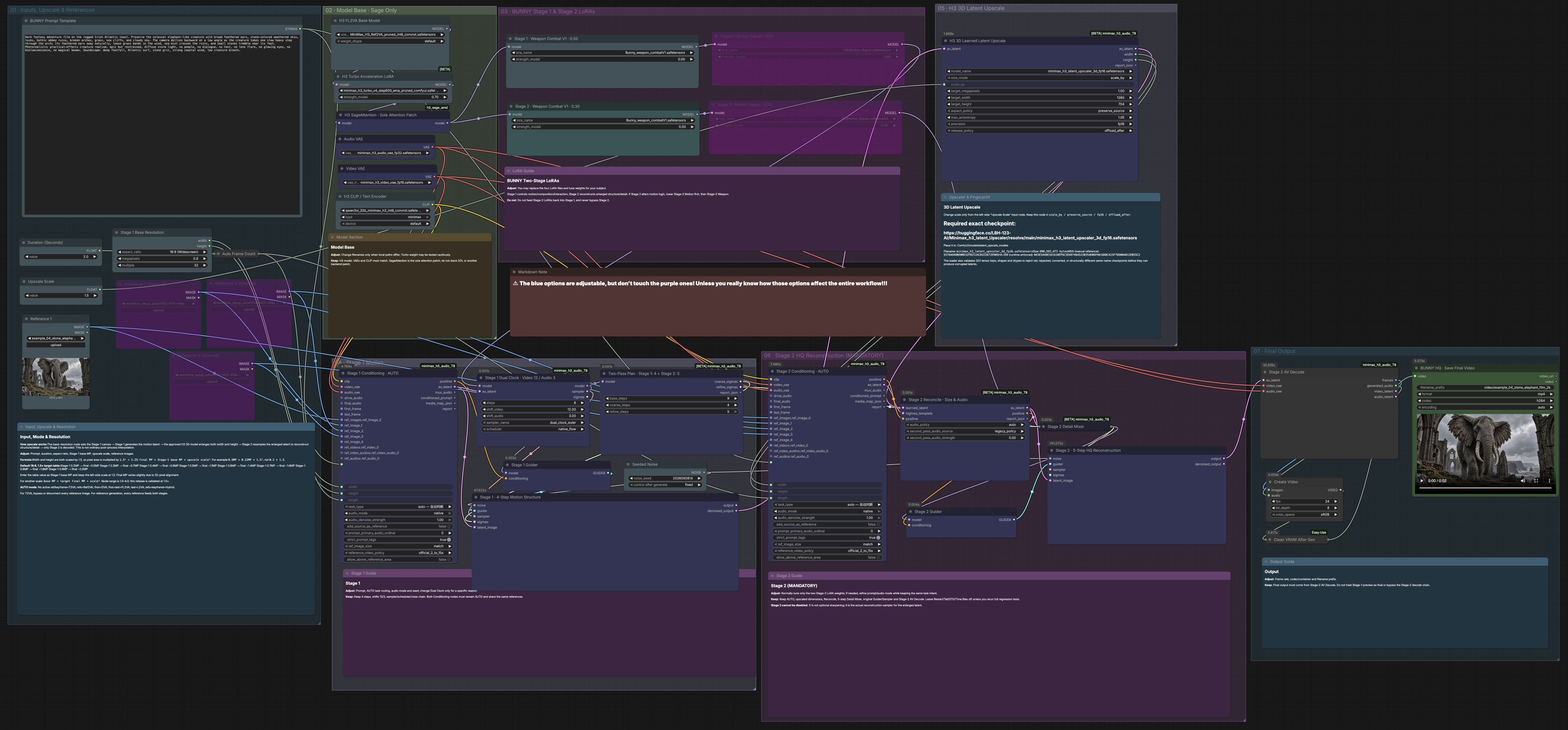
This ComfyUI workflow turns text prompts and optional reference images into short, cinematic videos with synchronized audio. It uses a BUNNY two-pass design: Stage 1 lays down motion and composition at a modest base resolution, then the MiniMax H3 Latent Upscaler enlarges the 3D video-audio latent before Stage 2 reconstructs high-frequency detail and decodes the final frames and sound. The MiniMax H3 Latent Upscaler is integrated into generation, so it is not a generic enhancer for preexisting videos; it is purpose-built for advertising cuts and stylized cinematic scenes where you want extra clarity without losing motion intent.
The result is a higher-resolution clip whose look is governed by your prompt, references, and a small set of LoRAs, while motion stability is protected by the two-pass upsample-then-reconstruct pipeline. Stage 2 is mandatory and always performs the actual detail reconstruction after the latent has been upscaled.
Key models in Comfyui MiniMax H3 Latent Upscaler workflow#
- MiniMax H3 video-audio model and T8 custom nodes. Provides the core generator, conditioning, two-pass planning, and decode utilities used throughout the pipeline. See the node suite in the T8 repository for model-specific behaviors and interfaces. GitHub: comfyui-minimax-h3-audio-T8
- MiniMax H3 Video VAE. Encodes and decodes video latents that Stage 2 eventually turns into frames. Included and consumed by the T8 nodes above. GitHub: comfyui-minimax-h3-audio-T8
- MiniMax H3 Audio VAE. Encodes and decodes audio latents to keep ambient sound coherent with the visual motion plan. GitHub: comfyui-minimax-h3-audio-T8
- MiniMax H3 Latent Upscaler 3D. A learned 3D latent upscaler that enlarges the joint video-audio latent in width and height before detail reconstruction, preserving temporal structure better than post-process interpolation. Use the official 3D fp16 checkpoint. Hugging Face: LBH-123-AI/Minimax_h3_latent_Upscaler
- SageAttention memory-efficient attention patch for H3. Serves as the sole attention patch used by this workflow for stable, memory-friendly inference. GitHub: ComfyUI-h3_sage_amd
How to use Comfyui MiniMax H3 Latent Upscaler workflow#
The workflow has seven labeled groups that cooperate to produce the final clip. Stage 1 plans motion at base resolution, the MiniMax H3 Latent Upscaler enlarges the latent, and Stage 2 reconstructs detail at the larger size before decoding to video and audio.
01 · Inputs, Upscale & References#
Use the BUNNY prompt box to describe the scene, motion, mood, and soundscape. Optionally add up to four reference images to steer identity, palette, or shot design; leave them disconnected for text-only generation. Set your target duration; frame count is computed automatically to match the model’s sampling grid. Choose a Stage 1 base resolution that suits your hardware, then adjust the Upscale Scale to determine how much the MiniMax H3 Latent Upscaler grows width and height in latent space. Remember that pixel area scales with the square of the scale factor, so VRAM and render time rise with higher upscale.
02 · Model Base · Sage Only#
This group loads the MiniMax H3 base model, applies the optional Turbo LoRA for speed, and activates the SageAttention patch as the only attention modification. Matching MiniMax H3 Video and Audio VAEs and the H3 text encoder are loaded to ensure consistent conditioning and decoding. Keep this section as-is unless you have a specific reason to swap a compatible model file; mixing attention backends is discouraged.
03 · BUNNY Stage 1 & Stage 2 LoRAs#
LoRAs in Stage 1 influence motion logic, composition, and interaction patterns; LoRAs in Stage 2 focus on reconstructing enlarged structure and fine detail. You may replace the LoRA files with ones suited to your subject and adjust their weights sparingly. If Stage 2 starts to change motion intent, reduce Stage 2 LoRA strength before touching Stage 1. Never route Stage 2 LoRAs back into Stage 1 and do not bypass Stage 2.
04 · Stage 1 Motion#
Stage 1 Conditioning · AUTO (#7) parses your prompt and references, selects the appropriate generation mode, and assembles a joint video-audio latent canvas. Stage 1 Dual Clock (#8) drives separate but synchronized video and audio schedules so motion and sound evolve coherently. The two-pass plan node allocates a small budget to Stage 1 for motion structure and reserves more for Stage 2 detail. Stage 1 · Motion Structure performs the coarse denoising that establishes composition and timing; the output is a refined latent, not final frames.
05 · H3 3D Latent Upscale#
H3 3D Learned Latent Upscale (#13) applies the MiniMax H3 Latent Upscaler to the Stage 1 latent, enlarging width and height directly in 3D latent space. Because upscaling happens before detail reconstruction, temporal consistency is preserved better than with frame-space upscalers. Use only the official 3D fp16 checkpoint and adjust the scale here if you want a different final resolution. The node also reports the new dimensions, which are handed to Stage 2 automatically.
06 · Stage 2 HQ Reconstruction (MANDATORY)#
Stage 2 Conditioning · AUTO (#14) reuses your prompt, references, and the upscaled dimensions to align guidance with the larger canvas. Stage 2 Reconcile · Size & Audio (#15) locks in those dimensions and audio policy so video and sound stay in sync. Stage 2 Detail Mixer · Fixed 5 Steps (#16) performs the decisive reconstruction pass that adds crisp texture while respecting Stage 1 motion. Stage 2 · 5-Step HQ Reconstruction denoises from seeded noise into the final latent, and Stage 2 AV Decode (#20) converts it to frames and generated audio for output.
07 · Final Output#
CreateVideo packages decoded frames and audio into a video stream at your chosen frame rate. Clean VRAM After Generation frees memory between renders. BUNNY HQ · Save Final Video writes the final file with your filename prefix, format, and codec. Always save from Stage 2 decode; Stage 1 previews are not final.
Key nodes in Comfyui MiniMax H3 Latent Upscaler workflow#
Stage 1 Conditioning · AUTO(#7). Central entry for text, references, and mode routing. Adjust prompt and, when needed, the mode that governs how references are used. Keep this on AUTO unless you have a clear reason to force a mode, and ensure references match the story you describe.Stage 1 Dual Clock · Video 12 / Audio 3(#8). Orchestrates separate sampling clocks for video and audio to keep motion beats and sonic events aligned. If you must retime, do so gently and keep both clocks consistent with your target pacing.H3 3D Learned Latent Upscale(#13). Applies the MiniMax H3 Latent Upscaler using the official 3D fp16 checkpoint. The only parameter most users should touch is the scale factor; increasing it raises width and height in latent space, and total pixels rise with the square of that factor. Use the upscaler’s validated checkpoint from the model card to avoid corrupted latents. Hugging FaceStage 2 Reconcile · Size & Audio(#15). Ensures the Stage 2 latent carries the upscaled size and the selected audio policy before reconstruction. If you experiment with audio settings, keep reconciliation enabled so timing and dimensions remain consistent.Stage 2 Detail Mixer · Fixed 5 Steps(#16). The heart of high-resolution reconstruction that adds detail without rewriting motion logic. If the result looks oversharpened or drifts in animation, reduce Stage 2 LoRA strengths first, then fine-tune mixer balances only if necessary.Stage 2 AV Decode(#20). Decodes the reconstructed latent into frames and synchronized audio. Always route outputs from this node intoCreateVideoandSave Final Videoto ensure color space and audio are handled correctly.
Optional extras#
- For text-only generation, disconnect all reference image inputs so AUTO selects a pure text-to-video path.
- When changing upscale, remember that render cost scales with the square of the factor; prefer raising Stage 1 base resolution only after the MiniMax H3 Latent Upscaler scale is set.
- To improve consistency across retries, fix the seed in
Seeded Noiseand vary it intentionally when exploring alternatives. - If Stage 2 alters motion beats, lower Stage 2 LoRA weights before touching samplers or mixer settings.
- Keep SageAttention as the sole attention patch; avoid stacking additional attention backends for stability. GitHub
- Use the official MiniMax H3 Latent Upscaler checkpoint to prevent invalid tensors and mismatched keys. Hugging Face
Acknowledgements#
This workflow implements and builds upon the following works and resources. We gratefully acknowledge RunningHub.ai for the workflow source, LBH-123-AI for the Minimax H3 Latent Upscaler model, and T8mars for the MiniMax H3 custom nodes for their contributions and maintenance. For authoritative details, please refer to the original documentation and repositories linked below.
Resources#
- RunningHub.ai/Workflow source
- Docs / Release Notes: runninghub.ai post
- LBH-123-AI/Minimax_h3_latent_Upscaler
- GitHub: LBH-123-AI/Comfyui_Minimax_h3_latent_Upscaler
- Hugging Face: LBH-123-AI/Minimax_h3_latent_Upscaler
- T8mars/comfyui-minimax-h3-audio-T8
Note: Use of the referenced models, datasets, and code is subject to the respective licenses and terms provided by their authors and maintainers.