

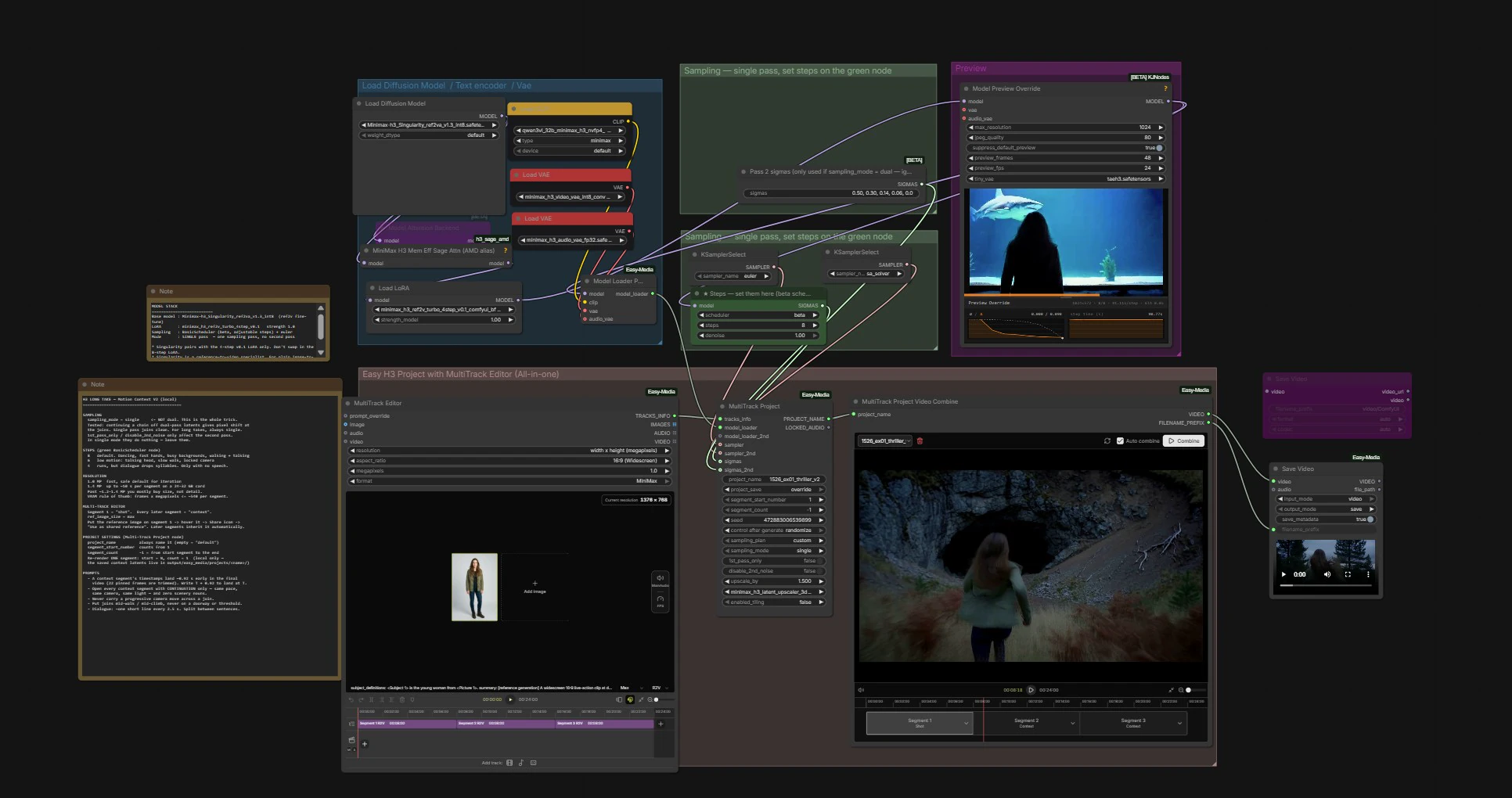
MiniMax H3 Long Video: seamless long‑take reference‑to‑video in ComfyUI#
MiniMax H3 Long Video is a purpose‑built ComfyUI workflow for creating a continuous, uncut shot by chaining multiple MiniMax H3 reference‑to‑video generations end to end. Built on a multi‑track editor with motion context, each new segment inherits the last frames and the active audio from the previous one, so camera motion, character performance, and ambience flow cleanly across joins. With a single shared reference image to lock face, hair, outfit, and palette, plus single‑pass sampling per segment, the result reads as one take without visible seams.
Use MiniMax H3 Long Video when you need chase scenes, walk‑and‑talks, travel shots, and other narrative long takes from one image and a few linked prompts. It keeps identity and tone consistent while letting you steer the story beat by beat through segment prompts and durations.
Key models in Comfyui MiniMax H3 Long Video workflow#
- MiniMax H3 reference‑to‑video model. Drives each segment from a shared reference image and the current prompt, producing temporally coherent video with native audio. Its role in this workflow is to preserve subject identity across segments while accepting prompt changes that evolve action, camera, and scene without breaking continuity.
How to use Comfyui MiniMax H3 Long Video workflow#
This workflow organizes production like a timeline: set up global assets, author a series of segments, and let motion context carry picture and sound forward at each join. You decide what changes per segment via prompts while the shared reference and single‑pass sampling keep continuity.
- Global setup and reference image
- Upload one high‑quality reference image. This becomes the canonical look for the entire take, so choose a sharp, front‑lit shot with the character framed similarly to your intended angle.
- Enter a base prompt and, if needed, a negative prompt that applies across all segments. Keep descriptors of the character and wardrobe in the base prompt to reinforce identity.
- Set your output resolution, frame rate, and overall run length target. MiniMax H3 Long Video will fill that duration by chaining segments.
- Segment timeline authoring
- Create segments in order. Each segment has a short, focused prompt that represents the change for that beat: motion (“sprints past parked cars”), camera (“handheld follows from behind”), or scene detail (“rain picks up, neon reflections on asphalt”).
- Keep prompts additive and specific. Re‑assert the subject and wardrobe in early segments, then shorten later prompts to actions and cinematography once identity is locked.
- Assign durations so the rhythm feels natural. Longer beats help the viewer register scene changes; shorter beats emphasize action. The workflow will stitch them seamlessly.
- Motion context handoff
- The final frames of segment N are passed into segment N+1 as motion context. That means body pose, camera trajectory, and scene layout continue smoothly.
- Because sampling is single‑pass per segment, there is no re‑render loop at joins. You get clean handovers without temporal mush or hallucinated re‑entries.
- If you want a visible pivot, write it. For example, “the character stops at the crosswalk, camera orbits to a front close‑up” tells the next segment to pivot naturally rather than cutting.
- Audio continuity
- Native audio from MiniMax H3 Long Video rides the timeline with gentle crossfades between segments. Ambient beds and voices continue across joins unless your next prompt introduces a clear audio change.
- To emphasize an audible transition, include it in the prompt for the first seconds of the next segment, such as “crowd noise swells, siren fades left to right” so the model steers the soundstage as the picture evolves.
- Render and export
- Queue the full timeline once you’re satisfied with prompts and segment order. The workflow will generate each segment in sequence and assemble them into a single video file at your chosen frame rate and codec.
- Review the final take end to end. If a join reads as a cut, adjust only the prompts around that boundary or slightly rebalance adjacent segment durations.
Key nodes in Comfyui MiniMax H3 Long Video workflow#
- MiniTrack timeline editor group
- Acts as your storyboard and timeline. Use it to arrange segment order, durations, and prompts in one place so you can reason about story flow without touching the generation stack.
- Keep the reference image and global prompts pinned in the timeline header. This ensures each segment pulls the same identity anchor while your beat‑specific prompts layer on top.
- Motion context bridge
- Handles the end‑to‑start frame pass‑through between segments. You rarely need to change anything here; it exists to make the joins invisible.
- If you notice minor jitter at a boundary, smooth it by slightly extending the outgoing segment or by opening the next segment with a micro‑action the model can animate through, like “breath steadies, steps resume.”
- Audio stitcher
- Aligns native audio from successive segments with short crossfades. Use segment prompts to describe notable audio changes, not this group’s internals.
- For a distinct scene shift, include a quick audible event at the start of the new segment prompt, such as “door slams, hallway reverb.”
Optional extras#
- Prompt writing that travels
- Use a compact “subject + scene + action + camera” formula per segment. Examples: “the same runner, night market alley, accelerates into a sprint, handheld follows”; “the same runner, elevated train platform, slows to a walk, dolly left.”
- Reuse anchor phrases like “the same runner” to prevent drift.
- Reference image discipline
- Crop to consistent head‑room and lens feel. Avoid extreme fisheye or low‑light noise in your reference, which can propagate across the whole take.
- Segment pacing
- Plan 3 to 6 segments for short tests, then scale up. Start with broader beats, revise prompts, and only then extend the timeline to reach your target duration.
- Diagnosing a visible join
- If a boundary pops, nudge the outgoing prompt to foreshadow the next action or add a simple transitional action to the incoming prompt. Small textual cues often fix temporal hiccups.
MiniMax H3 Long Video turns a single image and a handful of linked prompts into one continuous shot with native audio, ready for storytelling. Use the Comfyui MiniMax H3 Long Video workflow to block, refine, and ship long‑take sequences that feel filmed, not stitched.
Acknowledgements#
This workflow implements and builds upon the following works and resources. We gratefully acknowledge MiniMax for the H3 Long Video workflow source for their contributions and maintenance. For authoritative details, please refer to the original documentation and repositories linked below.
Resources#
- MiniMax/H3 Long Video Workflow Source
- Docs / Release Notes: RunningHub.ai post
Note: Use of the referenced models, datasets, and code is subject to the respective licenses and terms provided by their authors and maintainers.