

MiniMax H3 Taomate 3-Step Acceleration: reference image to cinematic video with synchronized audio#
This ComfyUI workflow turns one or two still images and a cinematic prompt into a coherent video with synced sound. Built around MiniMax H3 and the TaoMate H3 three-step acceleration LoRA, it achieves fast sampling while preserving subject identity, scene continuity, camera motion, and audio cues. The MiniMax H3 Taomate 3-Step Acceleration pipeline is ideal for character portraits, science‑fiction beats, historical recreations, and polished short‑form concepts where you want strong likeness control and natural motion.
By pairing a reference image with a shot‑structured prompt, the MiniMax H3 Taomate 3-Step Acceleration workflow yields a consistent performer on screen, steady lighting and set dressing, and an ambience track that follows your textual direction. It ships with memory‑efficient attention patches and chunked inference so you can run larger frames at low VRAM while keeping audio and video aligned.
Key models in Comfyui MiniMax H3 Taomate 3-Step Acceleration workflow#
- MiniMax H3 reference-to-video foundation model. Drives joint video and audio generation from text and visual references. See the official model card for capabilities and formats at MiniMaxAI/MiniMax-H3.
- TaoMate-H3 three-step acceleration LoRA. Reforms the denoising schedule so high quality can be reached in very few steps, enabling the 3‑step style schedule this workflow uses. Project and weights: TaoMate-H3 on GitHub and TaoLiveAIGC/TaoMate-H3.
- Qwen3‑VL 32B text encoder variant for MiniMax H3. Encodes long, shot‑aware prompts with camera and sound directives for stronger conditioning. Distributed with the Comfy‑ready H3 bundle: Comfy-Org/MiniMax-H3.
- MiniMax H3 Video VAE and Audio VAE. Decode the shared latent stream into image frames and synchronized audio, ensuring lip‑safe timing and ambience continuity. Included in Comfy-Org/MiniMax-H3.
How to use Comfyui MiniMax H3 Taomate 3-Step Acceleration workflow#
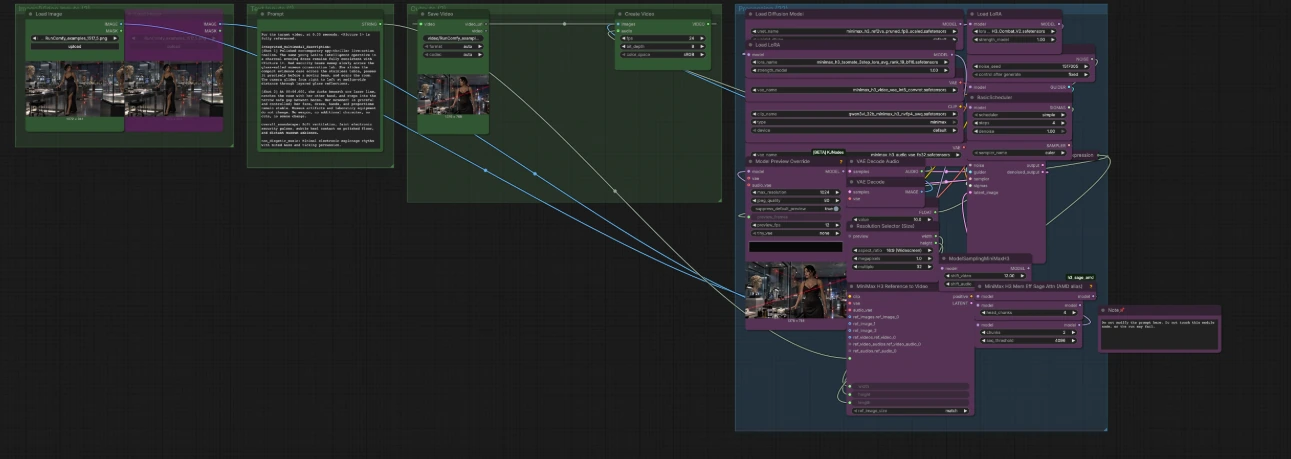
The workflow flows from inputs to a single sampler path that emits a unified latent for both video and audio, then decodes and muxes to a final file. Groups are organized so you can set references and text first, then let the MiniMax H3 Taomate 3-Step Acceleration processing stack take over.
Image/Video Inputs (2)#
Load one or two subject frames into LoadImage (#94) and LoadImage (#9). Use clean, front‑facing images with stable lighting and no heavy occlusions so identity stays locked. A single strong reference works; a second angle can help maintain clothing, proportion, and environment. The references feed MiniMaxH3ReferenceToVideo to initialize identity, pose range, and layout before denoising begins.
Text Inputs (1)#
Enter your cinematic prompt in Prompt (#93). The encoder favors structured prose with sections like shot breakdowns, camera moves, motion verbs, and two optional blocks for sound: an ambience line and a non‑diegetic music line. You can keep the provided template style and replace its content with your scene and timing markers. These directions condition both picture and sound so the MiniMax H3 Taomate 3-Step Acceleration stack can align audio events with on‑screen action.
Processing (22)#
This group loads MiniMax H3, applies the TaoMate three‑step acceleration LoRA, and installs memory‑efficient attention for low‑VRAM runs. MiniMaxH3ReferenceToVideo (#11) fuses your reference images and prompt into a latent plan; Resolution Selector (Size) (#20) sets width and height; Float (Duration) (#17) drives run time. A small expression node converts duration to an H3‑friendly frame count that aligns with internal stride so motion remains smooth. The sampler, guider, scheduler, and sigma shift then execute a short, aggressive schedule designed for MiniMax H3 Taomate 3-Step Acceleration without sacrificing identity or scene stability.
Outputs (2)#
The sampler’s denoised latent is decoded twice: VAEDecode (#25) yields frames and VAEDecodeAudio (#14) yields sound. CreateVideo (#34) muxes frames and audio at your chosen fps for a single ready‑to‑share clip, and SaveVideo (#5) writes it with your filename prefix. The output reflects your shot‑level text and preserves facial likeness from the reference images. Because video and audio share a latent, sync is maintained throughout.
Key nodes in Comfyui MiniMax H3 Taomate 3-Step Acceleration workflow#
MiniMaxH3ReferenceToVideo (#11)#
This node is the entry point for text‑image conditioning into the H3 pipeline. Use it to supply your prompt, one or two reference images, and the effective width, height, and length. For precise timing, adjust duration upstream and let the computed length auto‑align; change resolution through the selector rather than typing raw sizes here. If you swap or add references, keep framing consistent across images to avoid identity drift.
LoraLoaderModelOnly (#92) — TaoMate H3 three‑step acceleration#
Applies the TaoMate H3 LoRA that enables the MiniMax H3 Taomate 3-Step Acceleration schedule. Increase its influence only if you need more speed or stronger guidance at very low steps; decrease it slightly if you observe over‑sharpening or reduced subtle motion. Pair this with a concise, concrete prompt so the short schedule has clear targets to converge on.
MiniMaxH3SigmaShift (#38)#
Shifts the noise schedule to balance crispness and temporal coherence in video while keeping audio stable. If your frames look too soft, nudge the video shift upward; if ambience becomes too dominant or brittle, ease the audio shift. Make small, coordinated changes and preview a few seconds before committing to a full render.
SamplerCustomAdvanced (#21)#
Runs the short denoising path with your chosen sampler and the scheduler’s sigma curve. Keep the sampler consistent when comparing prompts so you can attribute changes to text and references, not sampling. For variety, change the RandomNoise seed upstream; this alters micro‑motion and camera feel without compromising identity.
ComfyMathExpression (#19) — auto frame count#
Converts duration to a frame count aligned to H3’s internal stride, preventing cadence stutter. Edit only the duration input node; the expression will round to the nearest compatible count automatically. This preserves smooth motion and keeps the audio bed in sync with visual beats.
Resolution Selector (Size) (#20)#
Picks aspect ratio and pixel budget while keeping both dimensions multiples of the model‑friendly tile size. Choose an aspect that matches your deliverable, then raise or lower megapixels to trade detail for speed and VRAM. Use this instead of arbitrary sizes to avoid misalignment in the VAE and attention windows.
CreateVideo (#34) and SaveVideo (#5)#
Mux frames and audio to a single file and save it with your preferred prefix and format. Adjust fps here to change perceived motion speed and sound timing without re‑sampling the model. Use a consistent bit depth and color space when building a series so clips grade uniformly.
Optional extras#
- Prompt craft for best results
- Open with a one‑sentence scene summary, then list 1–3 shot blocks with clear verbs and timing cues.
- Include one ambience line and, optionally, a subdued music note so audio feels intentional.
- Avoid contradictory instructions; short schedules in MiniMax H3 Taomate 3-Step Acceleration reward clarity.
- Strong reference images
- Use a clean, medium or medium‑wide frame with the subject’s face visible and wardrobe readable.
- Keep lighting temperature and background similar to the target scene to reduce color shifts.
- Fast, stable iterations
- Lock your seed to compare prompts fairly; change only one control at a time.
- Start at a moderate resolution, verify motion and sync, then scale up with the same seed for the final pass.
- Style control
- Swap the included style LoRA for another H3‑compatible LoRA if you want a different genre look.
- Keep the TaoMate H3 acceleration LoRA active to retain the MiniMax H3 Taomate 3-Step Acceleration speed profile.
Acknowledgements#
This workflow implements and builds upon the following works and resources. We gratefully acknowledge RunningHub.ai for the workflow source, TaoLiveAIGC for the TaoMate-H3 project and model, and MiniMaxAI for the MiniMax-H3 model for their contributions and maintenance. For authoritative details, please refer to the original documentation and repositories linked below.
Resources#
- RunningHub.ai/Workflow source
- Docs / Release Notes: RunningHub.ai post
- TaoLiveAIGC/TaoMate-H3 project
- GitHub: TaoLiveAIGC/TaoMate-H3
- Hugging Face: TaoLiveAIGC/TaoMate-H3
- TaoLiveAIGC/TaoMate-H3 model
- Hugging Face: TaoLiveAIGC/TaoMate-H3
- GitHub: TaoLiveAIGC/TaoMate-H3
- MiniMaxAI/MiniMax H3 official model
- Hugging Face: MiniMaxAI/MiniMax-H3
Note: Use of the referenced models, datasets, and code is subject to the respective licenses and terms provided by their authors and maintainers.