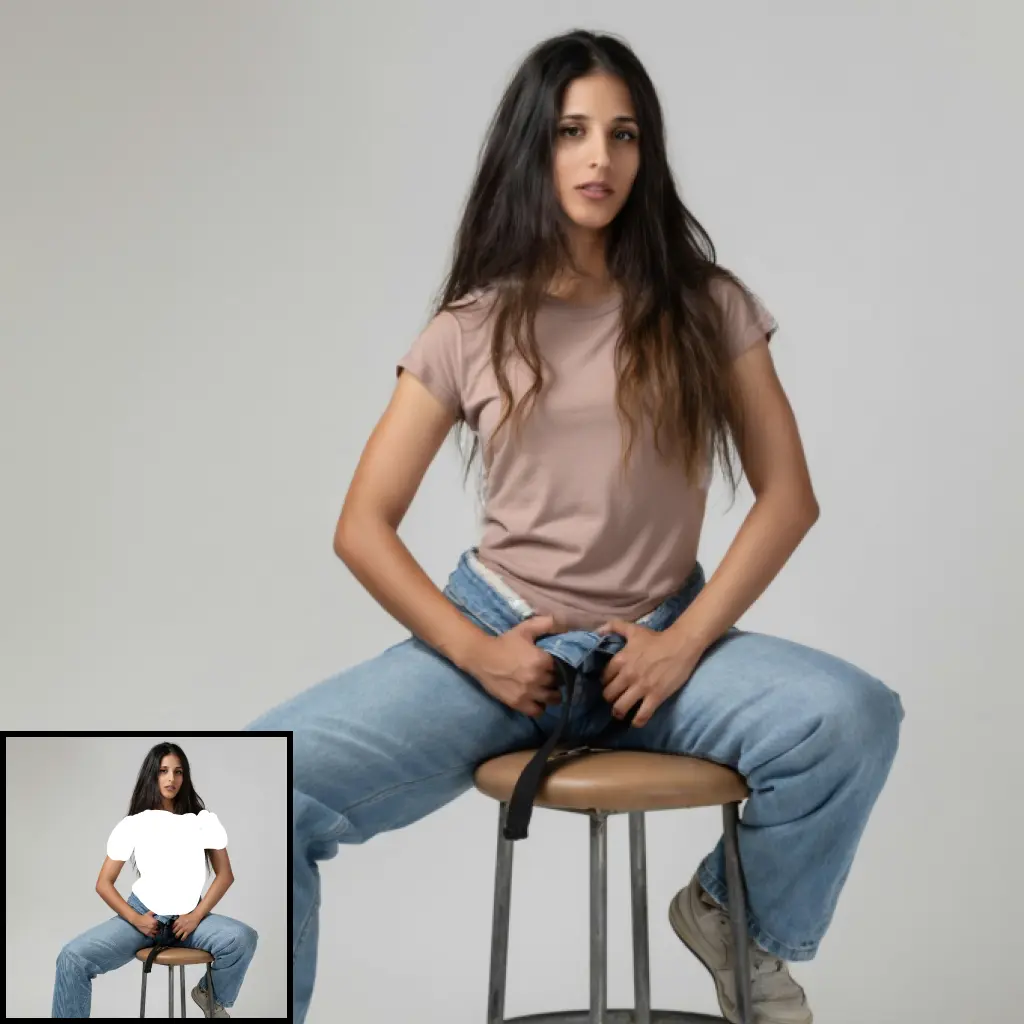
Moebius Inpaint:
MoebiusInpaint removes or replaces selected parts of an image by generating new content from the surrounding visual context. It is designed for mask-driven object removal and inpainting without a text prompt: the marked area is refilled while the rest of the image provides guidance. You can use it to remove an unwanted object or repair a distracting region. It can also blend the generated area back into the original image at full resolution, helping preserve detail outside the edit.
Moebius Inpaint Input Parameters:
pipe
A MOEBIUS_PIPE connection that supplies the Moebius pipeline used to generate the replacement image content. Connect a compatible pipeline before running the node. This required input has no numeric range or default in the node interface.
image
The source IMAGE you want to edit. The node processes its image batch and returns results at the same width and height as the input. This required input has no default or numeric range.
mask
A MASK identifying the area to remove and refill. White regions are selected for inpainting; black regions are left out. The node converts mask values to either black or white before processing, using the midpoint as its threshold. This required input has no default or numeric range.
steps
The number of DDIM denoising steps used to generate the replacement. More steps mean more processing work, though they do not guarantee a better result. The default is 20; the allowed range is 1 to 100.
guidance
The classifier-free guidance setting for generation. It changes how strongly the pipeline follows its inpainting guidance; this node does not accept a text prompt. The source notes 2.0 to 2.5 as upstream settings, making the default a practical starting point. The default is 2.5; the allowed range is 0.0 to 15.0, in increments of 0.1.
seed
The random seed used for generation. Keep the seed and other settings the same when you want to repeat a run; change it to explore another possible fill. The default is 0; the allowed range is 0 to 18446744073709551615.
image_size
The processing resolution, specified by the image’s short side. The generated result is resized back to the input image’s dimensions afterward. The source states that the model was trained at 512, so that is a sensible starting point; a larger setting also requires more processing resources. The default is 512; the allowed range is 256 to 1024, in increments of 64.
mask_dilate
Expands the selected mask area before inpainting, measured in pixels at the input image’s resolution. Increase it when an object’s edge, outline, or shadow remains just outside the original selection. The expanded mask is also used when blending the result back into the image. The default is 0, meaning no expansion; the allowed range is 0 to 128.
paste
Controls whether the generated result is blended into the original image at input resolution. When True, the node uses a softly blurred mask to mix the new area with the original, helping retain the original image outside the edit. When False, it returns the resized generated result without this node-side blend. The default is True; the options are True and False. If compensate is enabled, compensation takes precedence over this setting.
compensate
An optional advanced setting that uses the imported brightness-compensated paste operation instead of the node’s ordinary blend. It takes precedence over paste, including when paste is False. Try it when the ordinary pasted result has a noticeable brightness mismatch, and compare the outputs visually. The default is False; the options are True and False.
noise_offset
An optional initial-noise variance offset passed to the Moebius pipeline. It changes a generation setting rather than the size or position of the selected area; for predictable results, leave it at the upstream default unless you are comparing controlled variations. The default is 0.0357; the allowed range is 0.0 to 0.2, in increments of 0.0001.
Moebius Inpaint Output Parameters:
image
The resulting IMAGE batch, at the same width and height as the input. Each result contains the area generated by Moebius, with its final appearance depending on the mask and paste settings. With ordinary paste enabled, the result is blended with the original around the mask boundary. If every mask in the batch is empty after conversion to black and white, the node returns the input image unchanged.
Moebius Inpaint Usage Tips:
- Start with
stepsat20,guidanceat2.5,image_sizeat512, andpasteenabled. Change one setting at a time so you can tell what affected the result. - Cover the entire unwanted object with white in the mask, including any edge you want removed. If a thin outline remains, increase
mask_dilatemodestly and try again. - Keep
pasteenabled when preserving the original image outside the edit matters. Check the mask boundary closely: the ordinary blend softens that boundary, so nearby pixels may be mixed rather than remaining exactly unchanged. - Try a different
seedif the replacement does not fit the scene. Keep the other settings fixed while comparing alternatives. - Use
compensatewhen you notice a brightness difference after an ordinary paste. Because it replaces the ordinary paste path, compare both versions rather than enabling it automatically. - Begin at
image_size512before increasing resolution. Use a larger value only when the edit benefits from it and your system can handle the additional processing.
Moebius Inpaint Common Errors and Solutions:
[Moebius] mask is empty - returning the input unchanged
- Explanation: This is a status message, not a failure. Every mask in the batch is black after the node’s black-and-white conversion, so there is no area to inpaint.
- Solution: Check that the intended area is white and that its mask values are high enough to remain white after conversion. Preview the mask before connecting it.
Input validation error for steps, guidance, seed, image_size, mask_dilate, or noise_offset
- Explanation: ComfyUI may reject a value outside the range declared by the node, or a value of the wrong type. The exact displayed message depends on the host.
- Solution: Use the ranges listed above. In particular, keep
image_sizebetween256and1024in increments of64, and use a nonnegative integer formask_dilate.
Input type or connection error for pipe, image, or mask
- Explanation: A required connection is missing or does not provide the socket type this node expects. The exact message depends on the connected nodes and host.
- Solution: Connect a compatible
MOEBIUS_PIPEtopipe, anIMAGEtoimage, and aMASKtomask. Confirm that the upstream nodes have produced their outputs successfully.
Missing checkpoint or VAE error
- Explanation: The supplied pipeline may be unable to run if its required model files are unavailable. The precise error and download behavior cannot be determined from this node class.
- Solution: Check the pipeline-loading node and its installation instructions, confirm that its required files are available, then run the pipeline again before retrying inpainting.
Out-of-memory or allocation error
- Explanation: Processing an image or batch may exceed available memory, particularly at a higher
image_size. The exact message depends on the pipeline and device. - Solution: Lower
image_size, process fewer images at once, or reduce the input image dimensions, then retry.
Error when mask_dilate is greater than 0
- Explanation: The node imports OpenCV (
cv2) only when mask expansion is requested. An import or environment error at that point can prevent dilation. - Solution: Set
mask_dilateto0to confirm whether dilation is the trigger. If it is, install or repair the OpenCV dependency required by the node’s environment.
Error when compensate is enabled
- Explanation: This setting calls a separate imported compensation function. Its exact failures cannot be identified from the supplied node class alone.
- Solution: Turn
compensateoff and try ordinarypastefirst. If that works, check the installation and traceback for the compensation component before enabling it again.