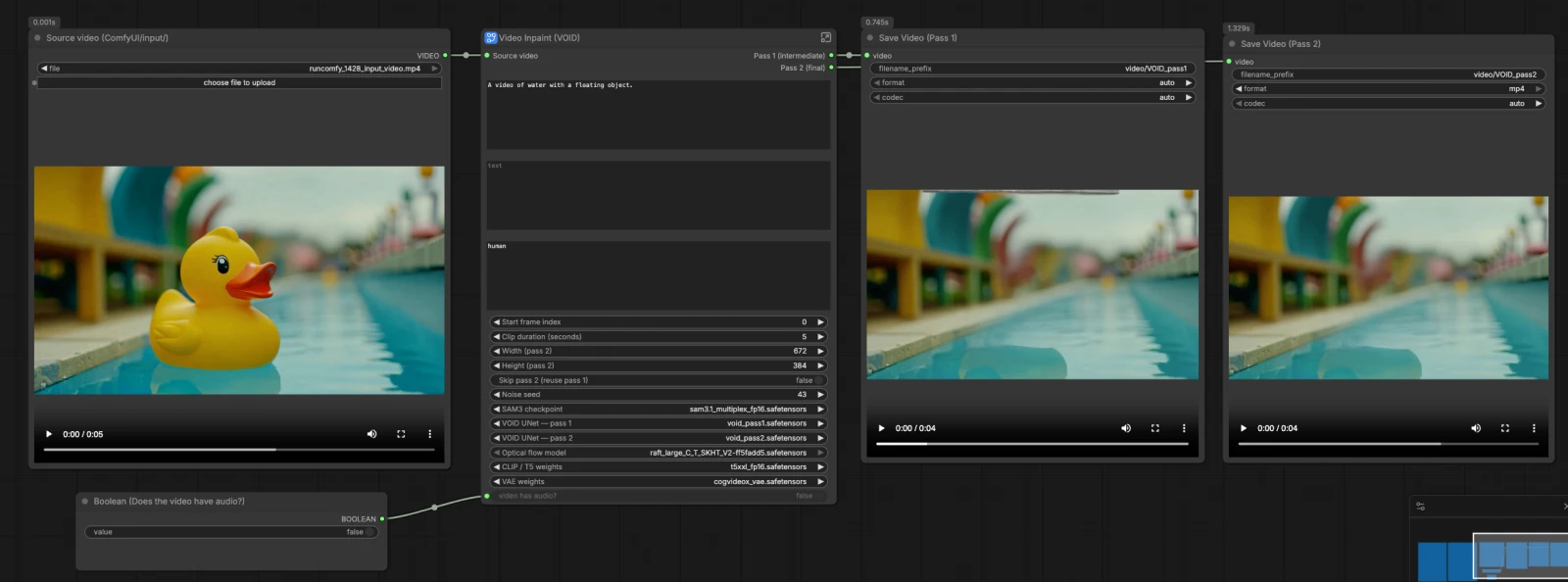
VOID Video Inpainting ComfyUI: interaction‑aware object removal for clean, consistent video#
This VOID Video Inpainting ComfyUI workflow removes objects and their visual interactions from a clip with temporal coherence. It combines Meta’s SAM3 text-driven segmentation to define the mask with Netflix VOID’s two-pass video inpainting to fill the hole over time, yielding results that look like the unwanted object and its nearby effects were never there.
Creators, editors, and VFX teams can rely on VOID Video Inpainting ComfyUI when single-frame cleanup flickers or breaks across motion. The workflow outputs two clips: Pass 1 as a fast intermediate and Pass 2 as a refined result with stronger temporal stability. Provide a source video, a short SAM3 phrase describing the object to remove, and an inpaint prompt that describes the scene you want to keep.
Key models in ComfyUI VOID Video Inpainting ComfyUI workflow#
- VOID: Video Object and Interaction Deletion. Two-pass diffusion for video object removal with temporal reasoning; the reference implementation and checkpoints are provided by Netflix. GitHub and Hugging Face
- Segment Anything Model 3.1 Multiplex (SAM3.1). Text- and promptable image segmentation used to generate the object mask that guides inpainting. Hugging Face
- RAFT: Recurrent All-Pairs Field Transforms. Optical flow used to warp noise from Pass 1 into Pass 2 so motion stays consistent across frames. arXiv and weights in the VOID model pack on Hugging Face
- CogVideoX VAE. Latent codec for encoding and decoding video frames during inpainting. Hugging Face
- T5-XXL text encoder (fp16). Language backbone that turns the positive and negative prompts into conditioning for the diffusion model. Hugging Face
How to use ComfyUI VOID Video Inpainting ComfyUI workflow#
This VOID Video Inpainting ComfyUI graph follows a clear path: load models and the source clip, create an object mask with SAM3, build shared conditioning from your prompts and mask, run Pass 1 to establish content, then run Pass 2 with warped noise for stable motion. Audio is optionally trimmed to match the processed segment. The workflow saves both Pass 1 and Pass 2 videos so you can compare or move quickly.
Models#
This group loads all required components for VOID Video Inpainting ComfyUI. CLIPLoader (#2) brings in the T5-XXL text encoder, and VAELoader (#3) provides the CogVideoX VAE. UNETLoader (#144) initializes the VOID UNet for Pass 1 and UNETLoader (#143) sets up the VOID UNet for Pass 2. OpticalFlowLoader (#142) loads the RAFT model that later drives noise warping between passes.
Input videos (place files in ComfyUI/input/)#
Point the Source video (ComfyUI/input/) loader to your clip, then GetVideoComponents (#166) splits it into frames, audio, and fps. ImageFromBatch (#145) selects a representative frame to preview the mask. GetImageSize (#43) and simple math nodes compute clip length and indexes for consistent slicing. Provide the start frame and duration to target just the section you want to process.
Create Mask#
The Image Segmentation (SAM3) subgraph generates a per-frame object mask for VOID Video Inpainting ComfyUI. SAM3_Detect (#75) uses your SAM3 text prompt to segment the object on the selected frame, with CLIPTextEncode (#78) encoding the phrase. The mask is previewed in MaskPreview (#132) so you can verify coverage and refine the wording if needed. A clean, specific phrase such as “red cup on table” or “person in blue jacket” helps SAM3 isolate the right subject.
Shared: Text & Mask Conditioning#
Positive Prompt (CLIPTextEncode (#6)) should describe the scene as it should look after removal, not the act of removal. Negative Prompt (CLIPTextEncode (#7)) optionally lists artifacts you do not want. VOIDInpaintConditioning (#10) fuses the prompts, VAE, incoming frames, your SAM3 mask, and the target dimensions into a latent conditioning pack used by both passes. Think of this as telling VOID what to keep and how motion and appearance should feel once the object is gone.
Pass 1: Sample (Random Noise → DDIM)#
Pass 1 in VOID Video Inpainting ComfyUI establishes a plausible fill using standard random noise. RandomNoise (#141) seeds the process, BasicScheduler (#138) and VOIDSampler (#133) define the diffusion schedule, and CFGGuider (#140) mixes your prompts into the model. SamplerCustomAdvanced (#49) synthesizes the latent clip, and VAEDecode (#45) turns it back into frames. CreateVideo (#46) optionally attaches audio and writes an intermediate Pass 1 video that you can inspect before refinement.
Pass 2: Sample (Warped Noise → DDIM)#
Pass 2 improves temporal stability by initializing with noise warped from Pass 1 rather than fresh randomness. VOIDWarpedNoise (#31) uses RAFT optical flow with Pass 1 frames to create aligned noise over time, then VOIDWarpedNoiseSource (#32) feeds that into sampling. CFGGuider (#136), BasicScheduler (#137), and VOIDSampler (#134) set up the second sampler, and SamplerCustomAdvanced (#35) refines the inpainted content. VAEDecode (#36) produces final frames. If you toggle skip, ComfySwitchNode (#150) routes Pass 1 frames directly to output for quick previews.
Output Video Size#
Width and height controls drive the latent resolution for Pass 2 and the warped noise generator. These values influence sharpness, stability, and compute load in VOID Video Inpainting ComfyUI. Choose dimensions that match your content goals and available memory. The same size is used consistently across the pipeline to keep motion and masks aligned.
Skip Pass 2#
When you need a fast check, use the skip control so VOID Video Inpainting ComfyUI reuses Pass 1 without running Pass 2. ComfySwitchNode (#150) selects between Pass 1 and Pass 2 images automatically. This is useful for rough cuts or when you are iterating on mask phrasing or prompts. Turn Pass 2 back on to lock in temporal consistency for the final render.
Trim Audio#
If your clip has audio, VOID Video Inpainting ComfyUI trims and reattaches it so the output length matches the processed segment. TrimAudioDuration (#158) keeps sound in sync, and ComfySwitchNode (#174) handles silent clips safely. The fps from GetVideoComponents (#166) drives both Pass 1 and Pass 2 CreateVideo nodes to avoid drift. Set the “video has audio?” switch correctly to get the expected result.
Key nodes in ComfyUI VOID Video Inpainting ComfyUI workflow#
SAM3_Detect (#75)#
Generates the object mask from a short SAM3 phrase. If the mask is too loose or tight, refine the wording to better describe the target and its context. You can also adjust internal refinement controls to crisp edges when needed. Strong masks make later inpainting more stable.
VOIDInpaintConditioning (#10)#
Builds the conditioning bundle from your positive prompt, negative prompt, VAE, frames, and SAM3 mask. The positive prompt should describe the scene that remains; avoid phrasing like “remove X.” Use the negative prompt only when consistent artifacts appear. The resulting latent and conditioning signals feed both passes.
SamplerCustomAdvanced (#49) - Pass 1#
Runs VOID sampling for the first pass with random noise. The noise seed controls repeatability; change it when you want a different fill pattern. Keep the sampler and scheduler paired with the Pass 1 UNet. Inspect this pass to validate composition and basic motion before refinement.
VOIDWarpedNoise (#31)#
Creates temporally aligned noise using RAFT optical flow computed from Pass 1 frames. This preserves motion cues into Pass 2 and reduces flicker. If motion looks unstable, revisit the mask quality or try a different seed in Pass 1 to generate a better base for warping.
SamplerCustomAdvanced (#35) - Pass 2#
Refines the inpainted region starting from warped noise. Use it to lock in textures and stabilize fine details across time. When outputs are already stable, you can skip Pass 2 to save time; otherwise, keep it enabled for final delivery.
ComfySwitchNode (#150) - Skip control#
Toggles between Pass 1 and Pass 2 frames for the final output. Use this to A/B check quality or to speed up iterations while you adjust prompts and the SAM3 mask. Turn it off for the definitive VOID Video Inpainting ComfyUI result.
Optional extras#
- Write positive prompts for the world you want to see after removal, for example “empty kitchen counter, daylight, clean tiles” rather than “remove mug.”
- Keep SAM3 phrases specific, such as “person in blue jacket” or “red cup on table,” and re-run after small edits to confirm coverage in the mask preview.
- Use start frame and duration to limit processing to the relevant section; long clips are best handled in segments.
- Skip Pass 2 for drafts, then enable it for final stabilization in VOID Video Inpainting ComfyUI.
- Adjust width and height to balance detail with GPU memory; higher resolutions look sharper but cost more compute.
Acknowledgements#
This workflow implements and builds upon the following works and resources. We gratefully acknowledge Netflix for the VOID model, Comfy-Org for the VOID and SAM3.1 model files, and RunComfy for the Cloud Save workflow source for their contributions and maintenance. For authoritative details, please refer to the original documentation and repositories linked below.
Resources#
- Netflix/void-model
- GitHub: netflix/void-model
- Comfy-Org/void-model
- Hugging Face: Comfy-Org/void-model
- Comfy-Org/sam3.1
- Hugging Face: Comfy-Org/sam3.1
- RunComfy/Cloud Save source
- Docs / Release Notes: Cloud Save source
Note: Use of the referenced models, datasets, and code is subject to the respective licenses and terms provided by their authors and maintainers.