

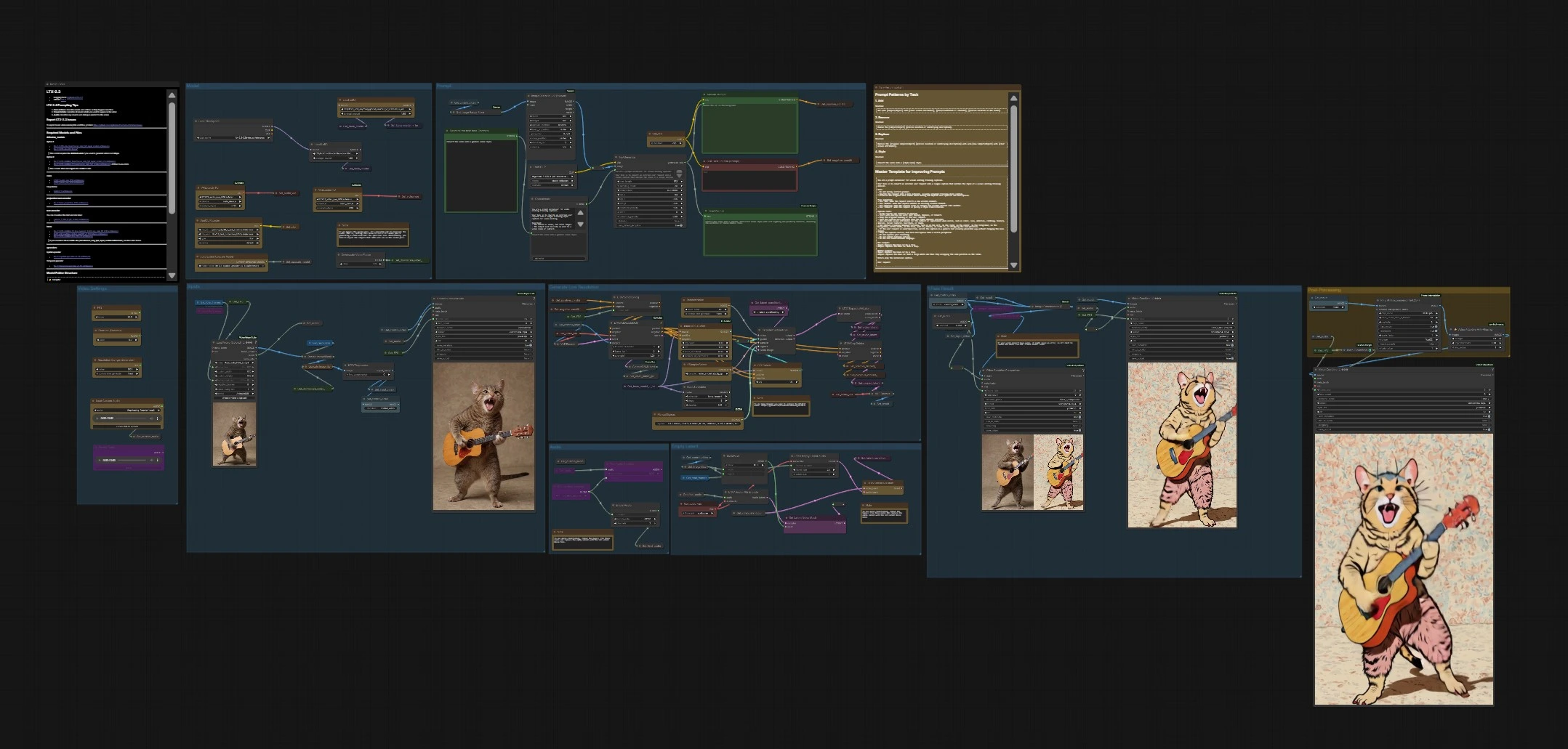
LTX 2.3 Edit Anything: prompt‑driven video‑to‑video editing workflow for ComfyUI#
This workflow turns a plain‑English edit request into a temporally coherent video edit using LTX‑2.3 with the LTX 2.3 Edit Anything LoRA. Instead of regenerating a scene, it anchors on your input clip and applies localized or global changes while preserving motion, identities, and timing. Typical uses include object insertion or removal, background cleanup, targeted replacements, and creative restyling.
The graph bundles prompt normalization, guide‑frame conditioning, and a one‑pass generation path followed by optional frame interpolation and anti‑aliasing. You can export the edited clip and a side‑by‑side comparison with the source. LTX 2.3 Edit Anything is the center of this workflow: it provides broad, promptable edit control while keeping LTX‑2.3’s high‑fidelity look.
Key models in Comfyui LTX 2.3 Edit Anything workflow#
- LTX‑2.3 base video diffusion transformer by Lightricks. Core video generation backbone that predicts temporally consistent frames from text and guides. Model card • Repo
- LTX 2.3 Edit Anything LoRA. Edit‑specialized LoRA enabling add/remove/replace/style operations without losing scene structure. Model
- LTX‑2.3 distilled LoRA 384. Distillation that enables shorter sampling schedules while preserving quality; useful when you want faster edits. Model
- Gemma 3 12B Instruct text encoder + LTX‑2.3 text projection. Encodes the normalized caption into conditioning embeddings for LTX‑2.3. Files
- LTX‑2.3 Video VAE and Audio VAE. Compress and decode video and audio latents used throughout the pipeline. Files
- LTX‑2.3 Spatial and Temporal Upscalers. Optional latent upscalers for sharper frames and steadier motion when you aim beyond the first‑pass resolution. Spatial x2 • Temporal x2
- RIFE (Real‑Time Intermediate Flow Estimation). Frame‑interpolation model that doubles playback FPS for smoother motion in the final export. Repo • ComfyUI extension
How to use Comfyui LTX 2.3 Edit Anything workflow#
At a high level, you load a video, describe the edit, and run generation. The workflow normalizes your request into a training‑style caption, conditions LTX‑2.3 with guide frames from the source clip, and samples an edited result. Optional post‑processing interpolates frames and applies adaptive anti‑aliasing before export.
Video Settings#
Use this group to define clip timing and output size. Set FPS and Duration (Seconds) to match your goal; the graph computes a frame count aligned for stable sampling. Choose Resolution (Longer dimension) for your target long side, then optionally set Downscale Video Factor if you want a faster, smaller first pass. If you plan to keep a single pass, prefer a factor of 1.0 for native‑size output.
Inputs#
Load your source clip in VHS_LoadVideo and let the workflow handle resizing. Frames are resized to the chosen long side and optionally downscaled for speed, then passed through LTXVPreprocess to prepare for LTX‑2.3. The same input is stored as a “control video” that later anchors motion and content so the edit follows the original scene.
Prompt#
Enter your request in Describe the task here (Prompt). A built‑in TextGenerate step rewrites it into a single, dataset‑style caption like “Remove the small red car in the background.” The normalized caption is displayed in “Final Prompt” and then encoded for conditioning. You can also type an exact caption in the “Manual Prompt” encoder if you prefer full control.
Model#
The loader initializes the LTX‑2.3 backbone and attaches LoRAs. Use the base model for general fidelity and add the LTX 2.3 Edit Anything LoRA for editability. Optionally include the distilled LoRA if you want shorter schedules while keeping coherence. Video and audio VAEs are prepared here for latent encode/decode.
Generate Low Resolution#
The workflow turns your caption into positive/negative conditioning and sets the video frame rate so temporal guidance matches your target. LTXVAddGuideMulti injects guide information from the control video, which helps preserve identities, layout, and motion as the edit is applied. A custom sampler then denoises from guided noise toward an edited AV latent, balancing prompt adherence with structure preservation. After sampling, the video latent is decoded to produce the first‑pass edited frames.
Empty Latent#
This path prepares audio/video latents used by the sampler. By default an empty audio latent is concatenated so you can render even when you do not edit audio. To localize edits, SolidMask together with SetLatentNoiseMask can restrict where new noise is injected, which is useful for replacing a single object without touching the rest of the scene.
Audio#
If your source clip includes audio, it can be passed through unchanged; otherwise the graph creates a silent track for reliable export. You can also load or record custom audio and trim it to match your duration. For edits focused purely on visuals, you can remove audio from the final combine steps.
1 Pass Result#
This area previews the edited frames and assembles a side‑by‑side “before vs after” comparison using the control video. It is ideal for quickly checking whether the LTX 2.3 Edit Anything prompt targeted the right region, preserved motion, and respected the scene’s composition. You can export this comparison as a quick shareable artifact.
Post‑Processing#
If you want smoother motion, the RIFE VFI stage interpolates between frames to double the FPS. VideoAdaptiveAA then applies lightweight anti‑aliasing to clean up edges before final encoding. The exporter writes the result at twice the original FPS so the motion feels natural without increasing the initial sampling cost.
Key nodes in Comfyui LTX 2.3 Edit Anything workflow#
TextGenerate (#178)#
Converts informal requests into a single training‑style caption that LTX‑2.3 understands well, improving edit precision and temporal stability. Use it when you want consistent phrasing across projects; if you need exact wording, enter it directly into “Manual Prompt.” Reference: LTX‑2.3 prompt handling in the official repo provides the broader context for conditioning behavior. Docs
LTXVConditioning (#51)#
Packages positive and negative conditioning with the intended frame rate so temporal tokens align to your clip. Keep the frame_rate consistent with your export to avoid drift; this helps LTX 2.3 Edit Anything preserve motion while applying the change. You rarely need heavy negatives; concise negatives can suffice to suppress unwanted artifacts.
LTXVAddGuideMulti (#104)#
Attaches one or more guide frames from the control video to the latent so the edit tracks original structure and timing. Changing which frame you guide with can affect identity preservation and pose consistency. For localized edits, pair this with a mask so only the target region receives meaningful noise.
SetLatentNoiseMask (#75)#
Defines where the sampler is allowed to add or keep noise, effectively controlling edit regions. A full‑white mask edits the whole frame; soft masks are ideal to blend replacements into busy backgrounds. Replace SolidMask with a painted mask when you need precise spatial control.
SamplerCustomAdvanced (#38)#
Drives the denoising process using your chosen sampler and schedule. Shorter schedules are faster but benefit from the distilled LoRA; longer ones can increase adherence at the cost of time. If you want a different look or stability profile, try alternative samplers while keeping the same guide setup. Reference: ComfyUI sampler docs explain how sampler and sigma schedules interact. ComfyUI
RIFE VFI (#205)#
Interpolates intermediate frames to increase smoothness without resampling the diffusion model. It is a post step that preserves content while improving motion cadence. Reference: RIFE model and ComfyUI integration. Model • Extension
Optional extras#
- Local edits first: Use a painted mask with
SetLatentNoiseMaskto tightly constrain where LTX 2.3 Edit Anything applies changes, then widen the mask if edges look too sharp. - Faster iteration: Lower
Downscale Video Factorfor quick proofs, then return to1.0for the final render or add the spatial/temporal upscalers for extra sharpness. - Audio‑free sources: If the input has no audio, disable audio in the final combine to avoid muxing errors, or supply a silent track via the provided nodes.
- Scheduling note: The “bong_tangent” schedule shown in the graph requires the RES4LYF node pack; if you select it, install the extension first. Repo
- Comparisons: Use the built‑in side‑by‑side export to verify that identities, lighting, and camera motion are preserved before committing to long renders.
This ComfyUI template pairs LTX‑2.3’s high‑fidelity backbone with the LTX 2.3 Edit Anything LoRA so you can add, remove, replace, or restyle elements in a clip while keeping the scene’s rhythm intact.
Acknowledgements#
This workflow implements and builds upon the following works and resources. We gratefully acknowledge LTX for LTX 2.3 Edit Anything Workflow Source for their contributions and maintenance. For authoritative details, please refer to the original documentation and repositories linked below.
Resources#
- LTX/LTX 2.3 Edit Anything Workflow Source
- Docs / Release Notes @Benji’s AI Playground: LTX 2.3 Edit Anything Workflow Source
Note: Use of the referenced models, datasets, and code is subject to the respective licenses and terms provided by their authors and maintainers.