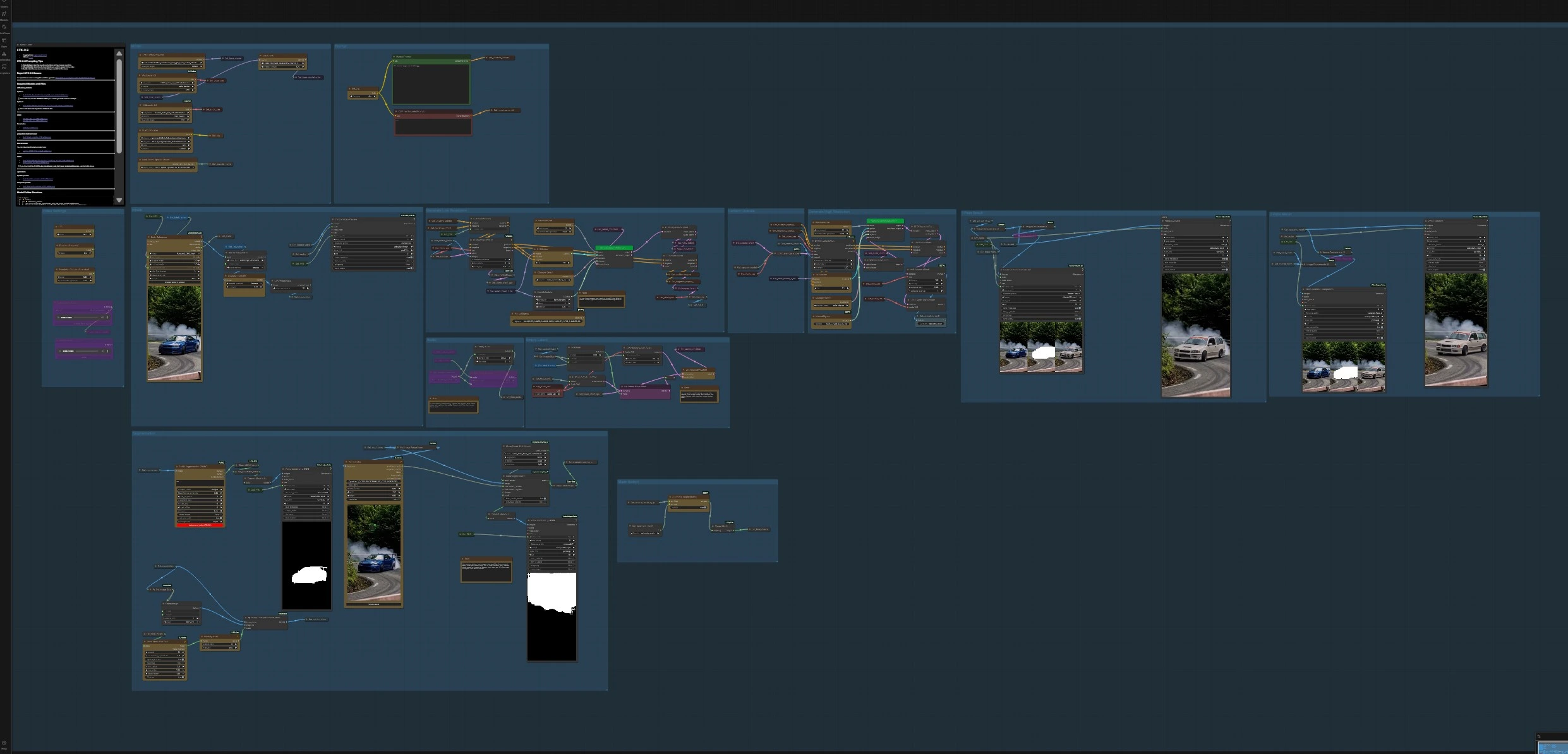
LTX 2.3 Inpaint video workflow for precise, mask‑guided edits#
This ComfyUI workflow brings targeted video editing to LTX‑2.3 by pairing the base model with the LTX 2.3 Inpaint LoRA. You define a mask over the region to change, then the pipeline regenerates only that area while preserving motion, identity, lighting, and temporal consistency in the rest of the scene. It is ideal for removing artifacts, replacing objects, refining details, or inserting new elements without rerendering the whole sequence.
LTX 2.3 Inpaint is integrated end to end: load a reference video, create or auto‑generate masks, guide the model with masked frames, sample an initial pass, then refine with a latent upscaler and an optional second inpaint pass. Audio is supported and can be passed through or generated as silence to match the edited clip’s duration.
Key models in ComfyUI LTX 2.3 Inpaint workflow#
- LTX‑2.3 22B Transformer Only (dev or distilled). The core video diffusion transformer that synthesizes temporally coherent frames from text and guides. Use the distilled build for faster 8‑step inference. Hugging Face: Lightricks/LTX‑2.3 and GitHub: LTX‑2
- LTX 2.3 Inpaint LoRA. An editing LoRA tuned for LTX‑2.3 that focuses generation inside the masked region so you can remove, replace, or refine content while keeping background motion stable. Hugging Face: Alissonerdx/LTX‑LoRAs
- Gemma 3 12B Instruct text encoder + LTX‑2.3 text projection. Provides aligned text embeddings for the LTX‑2.3 transformer during prompt conditioning. Prepackaged weights are provided for ComfyUI use. Hugging Face: Comfy‑Org/ltx‑2 (split files)
- LTX‑2.3 Video VAE and Audio VAE. Compress and decode video and audio latents used by the transformer and audio modules, enabling efficient sampling and synchronized output. Curated binaries are available for ComfyUI. Hugging Face collection
- LTX‑2.3 Spatial Upscaler x2 and Temporal Upscaler x2. Optional latent upscalers that lift spatial detail and stabilize temporal dynamics in a second pass without changing content. Hugging Face: Lightricks/LTX‑2.3
- Segment Anything 2 (SAM 2). Used for automatic, point‑guided mask generation directly on video frames, speeding up LTX 2.3 Inpaint setup. GitHub: facebookresearch/segment‑anything‑2
How to use ComfyUI LTX 2.3 Inpaint workflow#
The workflow runs in two coordinated stages. First, it creates a masked control stream from your input video and produces an edited first pass. Second, it refines quality with latent upscaling and, when enabled, a masked high‑resolution inpaint pass.
Video Settings#
This group calculates clip length and frame cadence for LTX 2.3 Inpaint. Set FPS and Duration (Seconds) to define timing; the graph computes total_frames accordingly. The workflow also lets you choose the longer image dimension as your target resolution, then resizes inputs consistently so prompts, masks, and guides line up.
Inputs#
Load a short reference clip with VHS_LoadVideo and let the graph pre‑scale frames to your chosen resolution. The pipeline saves an internal copy called input_video for mask creation and a control_video that will guide LTX 2.3 Inpaint during sampling. You can preview the control stream at any time to confirm framing and cadence.
Segmentation#
Choose how to build masks for LTX 2.3 Inpaint. Use Sam2Segmentation (#800) for point‑based, automatic masks or drive it with the PointsEditor (#860) for fine control. Post‑process the result with GrowMaskWithBlur to add a small safety margin and BlockifyMask to reduce noisy edges; the workflow stores the cleaned output as final_masks.
Control video preview#
The graph composites your masked region over a neutral frame so the model “sees” only what needs changing. ImageCompositeFromMaskBatch+ creates the masked guide frames, and VHS_VideoCombine previews the sequence at your target FPS. This focused control stream is the backbone of LTX 2.3 Inpaint and helps preserve unmasked content.
Prompt#
Write what you want to appear after editing and keep unchanged aspects explicit. Use the main Manual Prompt encoder (#389) for positives and the included negative encoder for quality suppressors like blur and watermarks. Good LTX 2.3 Inpaint prompts describe the new object, its materials, scale, and how it should sit within the existing composition and lighting.
Generate Low Resolution#
The first pass binds prompts and your control frames into the model’s guidance. LTXVAddGuideMulti (#440) attaches the masked guide to conditioning, CFGGuider (#396) balances adherence to your text, and SamplerCustomAdvanced (#382) runs inference with the selected sampler and scheduler. The result is a temporally coherent, edited clip that already respects your LTX 2.3 Inpaint mask.
Latent Upscale#
If you want more detail without changing content, enable the upsampler. LTXVLatentUpsampler (#818) applies the LTX spatial upscaler in latent space and decodes with VAEDecodeTiled for memory‑efficient reconstruction. You can compare before and after with the built‑in side‑by‑side combine nodes.
Generate High Resolution#
For higher fidelity inpaint guided by the first pass, the workflow crops and rebinds guides with LTXVAddGuideMulti (#877) and samples with SamplerCustomAdvanced (#816). This stage is still mask‑aware and will keep scene motion stable while adding crisp edges and better textures. It is the preferred way to finalize LTX 2.3 Inpaint shots when time allows.
Mask Switch#
A simple Automatic Segmentation switch routes either manual or automatic masks into the inpaint path. Use automatic when targets are well separated from the background, and switch to manual points when edges are complex or when you need surgical control over LTX 2.3 Inpaint behavior. The cleaned selection is stored as final_masks for reuse.
Masked Inpaint second pass#
A dedicated high‑resolution inpaint branch takes masking even further. SetLatentNoiseMask (#1010) injects noise only where the mask is active so the model resamples the edited region while freezing everything else. This pass is ideal for replacing labels, fixing tiny artifacts, or swapping props with maximum composition lock.
Audio#
You can load your own audio or let the graph generate a silent bed that matches the clip length. The audio is encoded to latents for synchronization, optionally previewed, then muxed back when saving. If you prefer pure visuals while you refine LTX 2.3 Inpaint settings, just keep the silent path enabled.
Exports and comparison#
Preview nodes show the control stream, pass 1, and refined outputs at your target FPS for quick QC. Side‑by‑side comparison videos are generated automatically so you can evaluate how LTX 2.3 Inpaint affected masked areas versus the original.
Key nodes in ComfyUI LTX 2.3 Inpaint workflow#
LoraLoaderModelOnly (#419)#
Attaches the LTX 2.3 Inpaint LoRA to the loaded LTX‑2.3 transformer so edits stay localized to the mask. Increase strength to bias harder toward inpaint behavior or reduce it to let the base model influence style more. Keep strength consistent across passes to avoid look drift. Reference model cards: LTX‑2.3, LTX 2.3 Inpaint LoRA.
Sam2Segmentation (#800)#
Generates clean object masks from positive points on your input_video. Feed points from PointsEditor (#860) to lock onto the target quickly, then refine with mask growth and blockify. Reliable masks reduce color bleeding and make LTX 2.3 Inpaint converge faster. Project page: Segment Anything 2.
SetLatentNoiseMask (#417)#
Applies your binary mask directly to the latent so only the selected region is resampled. Expand the mask slightly with GrowMaskWithBlur if you see seams at the boundary, or increase block size if very thin details are flickering. This node is central to keeping unmasked content perfectly stable across frames.
LTXVAddGuideMulti (#440)#
Fuses the masked control frames with text conditioning so the model is guided both by your prompt and by what changed spatially. It also supports cropping to focus compute on the relevant area. Use it in both low‑res and high‑res passes to maintain consistent LTX 2.3 Inpaint behavior.
LTXVLatentUpsampler (#818)#
Upscales latents with LTX’s dedicated x2 models, then decodes with tiled VAE for memory efficiency. It improves edges, micro‑textures, and small text without reinterpreting scene layout. Use after a successful first pass to raise quality while keeping timing and identity stable.
CFGGuider (#396)#
Controls how strongly the model should follow prompts and guides. Lower values reduce overfitting to text and can preserve subtle motion, while higher values enforce stronger adherence inside the mask. Tune this alongside LoRA strength when LTX 2.3 Inpaint looks too free or too constrained.
BasicScheduler (#575)#
Sets the noise schedule used by the sampler. The included bong_tangent schedule is supported through RES4LYF nodes; install them if you want that exact behavior. Reference: RES4LYF nodes.
SamplerCustomAdvanced (#382)#
Runs the denoising loop with your chosen sampler preset. Use the same sampler across passes for the most consistent LTX 2.3 Inpaint look. Pair with manual or basic sigmas to fine‑tune noise flow if you need extra stability.
Optional extras#
- Prompting for LTX 2.3 Inpaint: describe the new object precisely, include material, color, scale, and how it should sit in existing lighting; keep negatives active to suppress blur or overlays.
- Masking tips: give masks a small expansion to cover natural soft edges; prefer a few confident points for SAM 2 rather than many uncertain ones.
- Performance: use the downscale factor to iterate quickly on masks and prompts, then return to full scale for final passes and latent upscaling.
- Consistency: keep LoRA strength, CFG, and sampler choices stable between passes to minimize temporal or style shifts.
Acknowledgements#
This workflow implements and builds upon the following works and resources. We gratefully acknowledge Alissonerdx for LTX 2.3 Inpaint Workflow Source for their contributions and maintenance. For authoritative details, please refer to the original documentation and repositories linked below.
Resources#
- Alissonerdx/LTX 2.3 Inpaint Workflow Source
- Hugging Face: Alissonerdx/LTX-LoRAs
Note: Use of the referenced models, datasets, and code is subject to the respective licenses and terms provided by their authors and maintainers.