



ComfyUI_moebius_inpainting Introduction
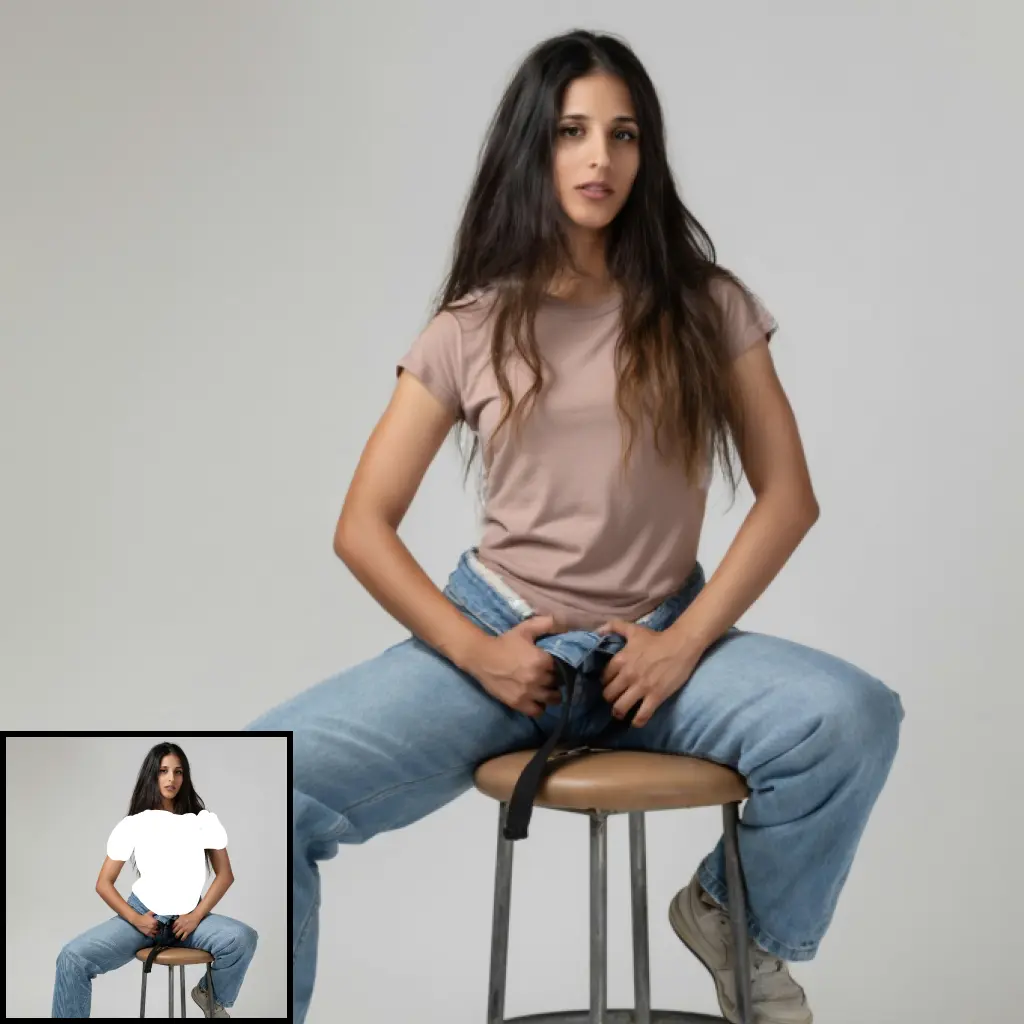
ComfyUI_moebius_inpainting adds two ComfyUI nodes for removing unwanted content from an image and filling the resulting space. You provide an image and paint a mask over what you want removed. Moebius then generates a replacement that aims to continue the surrounding scene naturally.
This is useful for removing a person from a background, cleaning up an object in a landscape, or repairing an obstruction in a close-up portrait. Moebius does not take a text prompt: you cannot ask its node to replace a car with a fountain. Its job is to make the masked area look as though the unwanted content was never there.
The extension also includes example workflows for a different kind of edit: adding or replacing something specific with FLUX.2 Klein 9B. Those workflows are clearly separated from the Moebius-only removal workflows, so you can choose the approach that matches your goal.
How ComfyUI_moebius_inpainting Works
Think of the mask as marking a hole in a photograph. Moebius looks at the visible image around that hole and generates a plausible continuation of its textures, edges, shapes, and lighting. A mask value of 1.0 marks the area to inpaint in ComfyUI; the node does not invert it.
The fill is newly generated, not copied from another part of the image. Moebius begins with noise in the masked area and gradually refines it over a series of denoising steps. The default is 20 steps. Changing the seed can produce a different fill, which is helpful when the first result is plausible but not quite right.
Moebius has learned to perform this specific task without written instructions. The surrounding image supplies its context, while learned task embeddings inside the model stand in for a text-prompt system. This focused design makes the model relatively small, but it also sets a firm boundary: the Moebius node cannot use a prompt or a second image to specify what should appear in the mask.
Choose a workflow based on what you want to accomplish:
| Your goal | Example workflow | What it uses |
|---|---|---|
| Remove something and continue the background | moebius_inpaint_example.json | Moebius only |
| Retouch an obstruction in a close-up face | moebius_face_inpaint_example.json | Moebius only |
| Add something you can describe in words | flux2_klein_inpaint_prompt_example.json | FLUX.2 only |
| Add something based on another photo | flux2_klein_inpaint_reference_example.json | FLUX.2 only |
| Replace an existing object with a described one | moebius_then_flux2_replace_example.json | Moebius removes it, then FLUX.2 fills the space |
The two standalone FLUX.2 workflows are alternatives to Moebius; they do not contain a Moebius node. In the combined replacement workflow, Moebius first removes the old object so FLUX.2 can work from a cleaner image. This helps address cases where an editing model might otherwise recreate parts of the object you meant to replace.
ComfyUI_moebius_inpainting Features
Two Nodes for Mask-Based Removal
- Moebius Model Loader selects a Moebius checkpoint and loads the shared PixelHacker VAE, which helps convert between image data and the representation the model works with. Its menu shows local checkpoints as well as
(download)choices for the official weights. - Moebius Inpaint takes an
IMAGE, aMASK, and the loaded model, then outputs an inpaintedIMAGE.
The Moebius-only example graphs include notes on the ComfyUI canvas explaining their connections and settings. You can drag a workflow JSON from example_workflows/ onto the canvas and use it as a starting point.
Settings You Can Adjust
| Setting | What it controls | When to change it |
|---|---|---|
| steps (default: 20) | How many gradual denoising passes Moebius makes. | Start with the default; adjust it while comparing results for a difficult fill. |
| guidance (default: 2.5) | How strongly the model follows its learned inpainting task. | The upstream range is about 2.0–2.5. Higher values may strengthen removal but can also invent unwanted details. |
| seed | The random starting point for generation. | Change it to explore another possible fill; reuse it to reproduce a result with the same settings. |
| image_size (default: 512) | The square processing size, in a multiple of 64. | Moebius was trained at 512 × 512. Your input can be rectangular: the node processes it as a square internally, then returns it at its original width and height. |
| mask_dilate (default: 0) | Expands the masked area by the chosen number of pixels. | Increase it when a tight mask leaves an outline, shadow, or fragment of the removed object. |
| paste (on by default) | Blends the generated area back into the original-resolution image. | Leave it on when preserving pixels outside the edited area matters. |
| fp16 / bf16 (loader options) | Alternative calculation precisions. | The upstream recommendation is fp32 for best quality; the model is small enough that fp32 may be practical. |
Because processing happens at a square size, a rectangular image is temporarily stretched and then restored to its original dimensions. If fine details look unsuitable for a particular edit, compare the result with another image_size or try a different seed.
Example Workflows and Dependencies
The two Moebius-only removal workflows do not need the extra FLUX.2 workflow dependencies. The three FLUX.2 workflows use InpaintCropImproved and InpaintStitchImproved from ComfyUI-Inpaint-CropAndStitch, plus FLUX.2 Klein 9B model components. Each FLUX.2 graph’s on-canvas notes identify its required files and locations.
ComfyUI_moebius_inpainting Models
The four Moebius checkpoints share the same underlying design. They differ in the images used to train or fine-tune them, so choose one that resembles the content you are editing.
| Checkpoint | Best starting point for | Example |
|---|---|---|
pretrained | General-purpose removal across everyday images. | Remove an object from a mixed scene when you are unsure which checkpoint to choose. |
ft_places2 | Places, buildings, landscapes, streets, interiors, and other scenery. | Remove a sign from a street scene or an item from a room. |
ft_celebahq | Portraits, particularly head-and-shoulders compositions. | Clean up an obstruction in a portrait. |
ft_ffhq | Faces that occupy much of the image. | Remove glasses or a hand obscuring a face close-up. |
For a small face within a wider scene, try pretrained or ft_places2 before the face-focused checkpoints. The portrait and face checkpoints are most relevant when the person’s face is prominent.
All four checkpoints use the same PixelHacker VAE. The Moebius model page provides the checkpoints, and the PixelHacker model page provides the VAE. Selecting a (download) checkpoint entry in the loader fetches the official weights and the shared VAE when needed.
What's New with ComfyUI_moebius_inpainting
The original development log records these changes on July 2, 2026; it does not identify separate numbered releases:
- Initial nodes and model support: The author added the model loader, inpainting node, checkpoint download support, and image-and-mask conversion needed for ComfyUI workflows.
- Five annotated example workflows: Two demonstrate Moebius removal, two show standalone FLUX.2 additions, and one combines Moebius removal with FLUX.2 replacement. The notes inside each graph explain its pipeline and settings.
- GPU smoke testing: The author verified checkpoint loading, mask behavior, repeatable same-seed output, and an unchanged result for an empty mask. In one warm 512 × 512 test on an RTX 5090, a 20-step inpaint took 0.73 seconds. Treat that as a result on that specific setup, not a speed guarantee for other hardware.
- Rectangular-image fix: An in-ComfyUI test exposed an error with non-square inputs. The pipeline was changed to process images at a square size and return them at their original dimensions; the author then tested several rectangular sizes and added a regression test.
At the time of that log, an in-ComfyUI test of the combined and standalone FLUX.2 graphs was still pending. The logged tests therefore do not establish that those three graphs have been fully verified inside ComfyUI.
Troubleshooting ComfyUI_moebius_inpainting
Part of the object remains visible
- Check that the painted mask covers the entire object, including edges that may be easy to miss.
- Increase
mask_dilateslightly if a thin outline or remnant remains. - Run the edit again. If the fill is still unsuitable, change the seed to try a different generated result.
The fill looks unnatural or invents unwanted details
- Try the checkpoint closest to your image:
ft_places2for scenery,ft_celebahqfor portraits, orft_ffhqfor a prominent face. - If you raised
guidance, return toward its default of 2.5 or the upstream range of 2.0–2.5. - Change the seed and compare several results. Moebius generates a plausible continuation, not a guaranteed reconstruction of what was behind the removed object.
I cannot find a prompt field in Moebius Inpaint
There is no prompt field because Moebius is not a prompt-guided model. For a described addition, use the standalone prompt workflow. To replace an existing object with something you describe, use the combined replacement workflow.
I want to use an object from another image
Moebius cannot take a second image as a reference. Use the standalone FLUX.2 reference workflow, where the mask marks where to add content and the second image supplies the reference for what to add.
A FLUX.2 example graph shows missing nodes or models
- Confirm whether you opened a FLUX.2 graph rather than one of the two Moebius-only graphs.
- Check that ComfyUI-Inpaint-CropAndStitch is available for its
InpaintCropImprovedandInpaintStitchImprovednodes. - Read the graph’s on-canvas notes for the FLUX.2 Klein 9B diffusion model, Qwen3 text encoder, and VAE it requires.
Frequently Asked Questions
Does Moebius change areas outside my mask?
With paste enabled, the node blends the generated region into the original-resolution image to preserve unmasked pixels. The author’s smoke test found pixels more than 10 pixels from the mask were bit-identical to the input.
Can I use a rectangular image?
Yes. The node processes it at a square size internally and returns an image with the original width and height. The author added a fix and tests for non-square inputs.
What happens if my mask is empty?
The author’s smoke test found that an empty mask returns the input unchanged.
Will the same seed always give the same result?
The author observed a bit-identical same-seed rerun in the recorded smoke test. For a useful comparison, keep the image, mask, checkpoint, and other settings the same as well.
Learn More about ComfyUI_moebius_inpainting
- Example workflows provide annotated ComfyUI graphs for removal, face retouching, prompt-based addition, reference-based addition, and replacement.
- Moebius upstream project describes the underlying inpainting model.
- Moebius model page and PixelHacker model page identify the official weights used by the extension.
- ComfyUI-Inpaint-CropAndStitch documents the additional nodes used by the FLUX.2 example graphs.