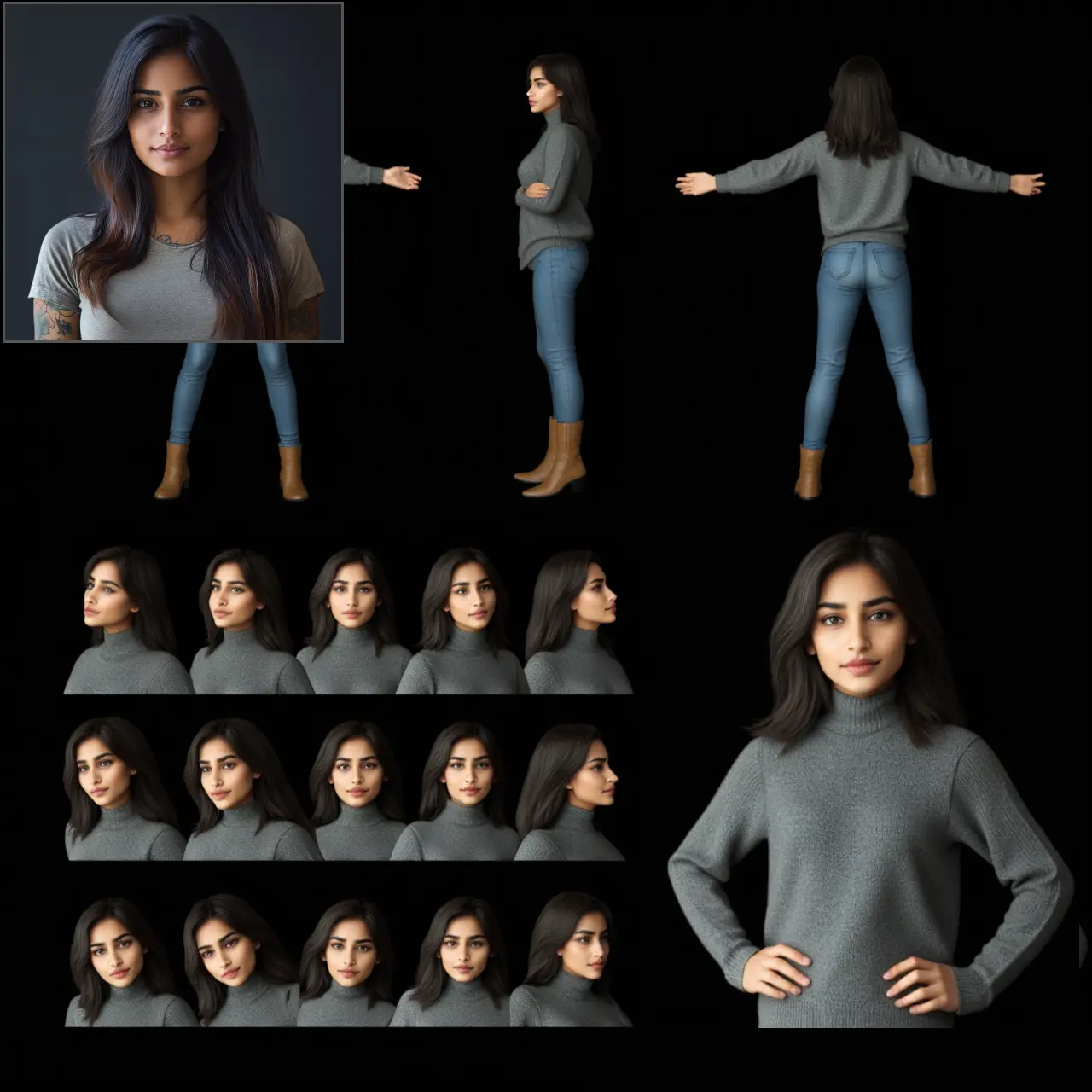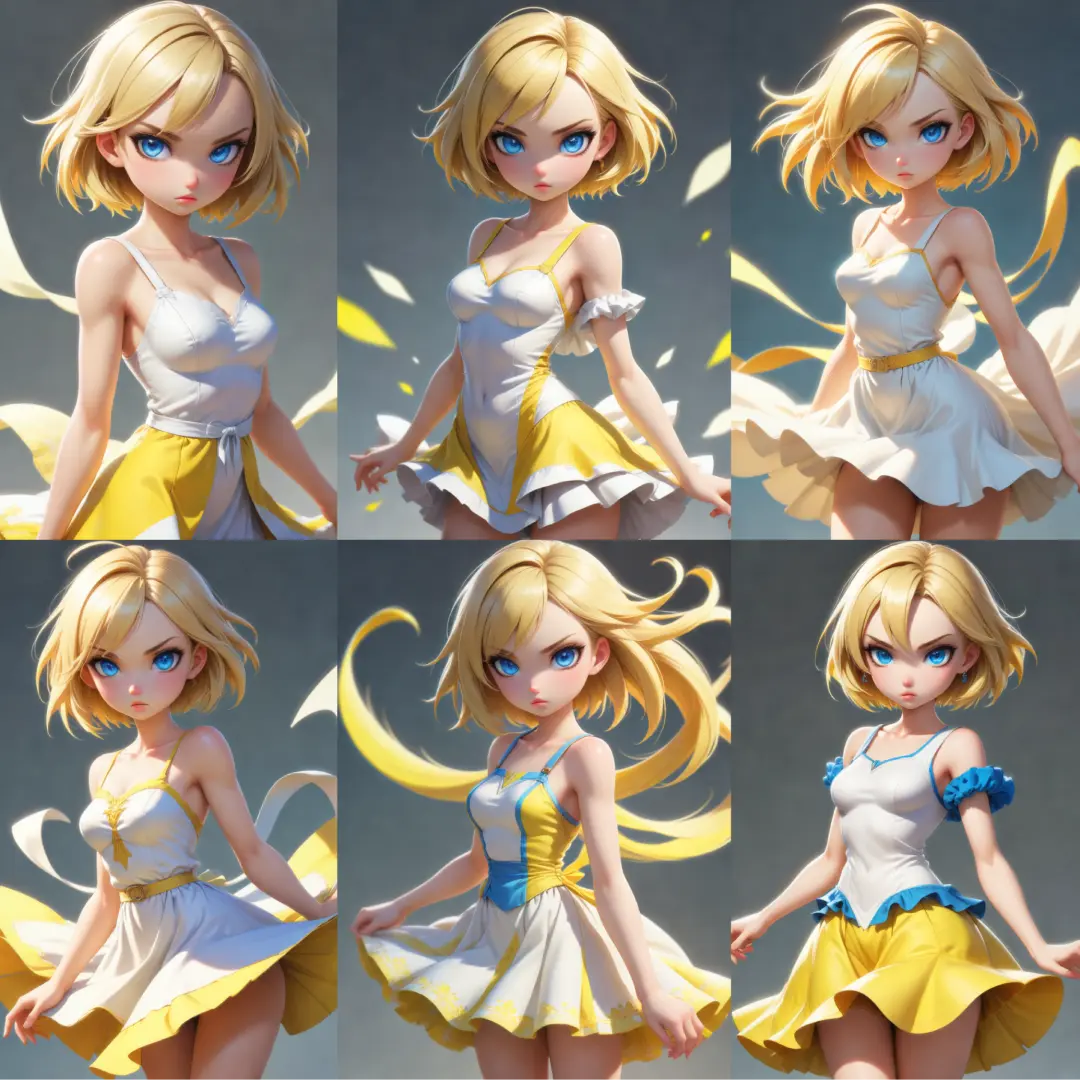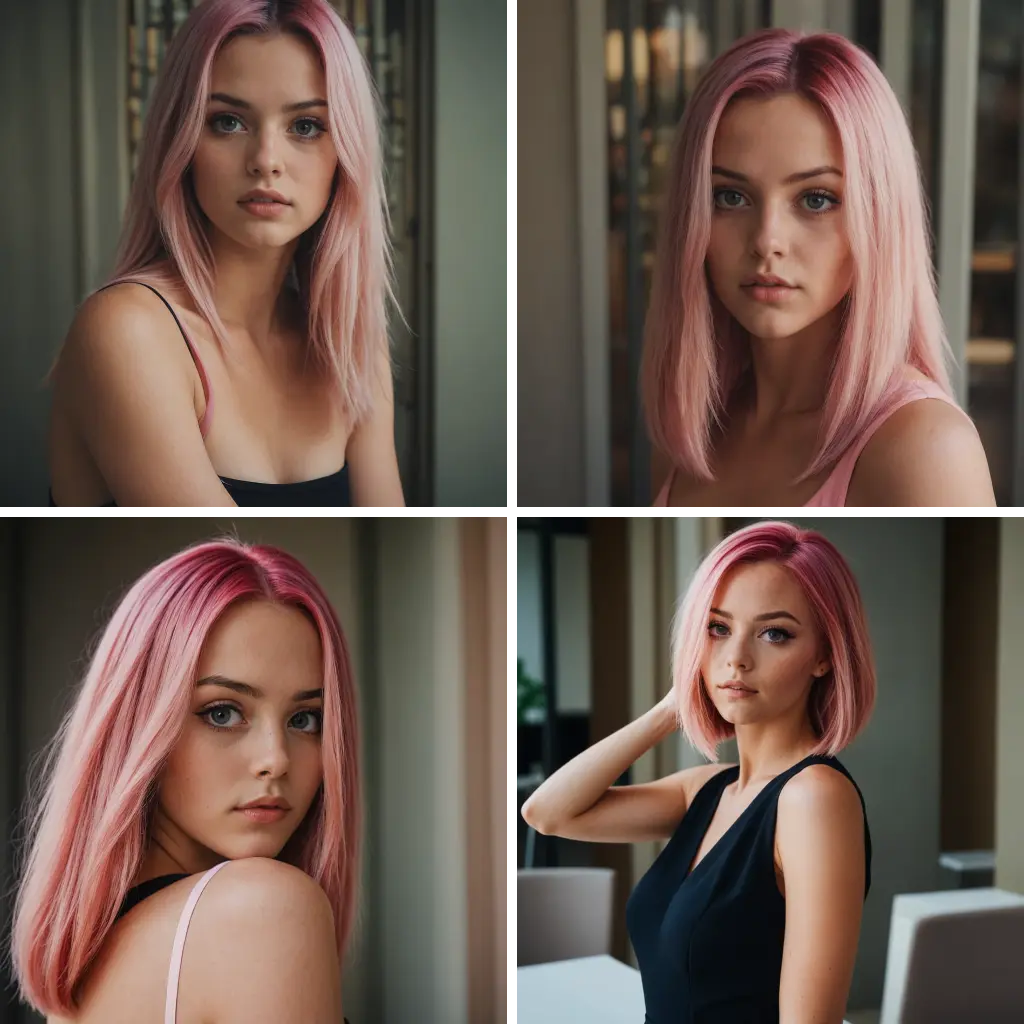
ComfyUI-RPG-Characters Introduction
ComfyUI-RPG-Characters is a collection of custom nodes for ComfyUI that helps you write prompts for RPG character portraits. Instead of describing every detail from scratch, you can choose a character’s traits, clothing, setting, and art style, then use the generated text in your image workflow.
The extension supports classic AD&D-inspired fantasy characters as well as sci-fi and cyberpunk characters. You can also mix options across those settings. For example, you might place a fantasy character in a neutral scene or create a sci-fi character with no cybernetic augmentations.
It provides two ways to describe your character: standard positive and negative prompts for image-generation workflows, and longer descriptive text intended for workflows that use an LLM such as Ollama. Its examples focus on 1024 × 1024 extreme close-up portraits, where facial details, hair, expression, and style are especially important.
Current release: V2.5.
How ComfyUI-RPG-Characters Works
Think of the extension as a character brief builder. You make selections, such as a class, hairstyle, clothing style, scene, and art style. The nodes turn those selections into prompt text that other parts of your ComfyUI workflow can use.
A typical workflow looks like this:
- Add the RPG character nodes and RPG Art Style Selector from the RPG category.
- Choose your character’s traits, clothing, scene, and visual style.
- Connect the standard prompt outputs to the prompt inputs in your image-generation workflow. If you use an LLM-based workflow, connect the descriptive outputs to the appropriate text inputs instead.
- If your workflow includes the DNA Locker, adjust individual traits or its Master Seed before generating your image.
The DNA Locker provides repeatable variation within supported character choices. For example, you can keep a clothing style selected while its underlying description varies in color, trim, or material. The same Master Seed can reproduce the same prompt variation, which is useful when returning to a character concept.
A repeatable prompt does not guarantee an identical image. The image model or checkpoint can interpret descriptive words differently, and other workflow settings can affect the result.
ComfyUI-RPG-Characters Features
Character and Scene Choices
You can build a character using selections for race, ethnicity, gender, age, class, hair, beard, clothing, emotion, and scene. The available choices include fantasy and sci-fi/cyberpunk classes and clothing, plus general or neutral, fantasy, and sci-fi/cyberpunk environments.
These choices can be mixed to suit your concept. A tavern interior can establish a fantasy setting, while a laboratory or corporate environment can give a character a research-oriented sci-fi backdrop. Sci-fi characters do not need augmentations; you can create an augment-free character or choose cybernetic details when they fit your design.
Art Styles
The RPG Art Style Selector offers:
| Style | What it aims to evoke |
|---|---|
| Anime Style | An anime-inspired character portrait |
| Dark Fantasy | A darker fantasy presentation |
| Realistic | A more realistic-looking portrait |
| Fantasy Illustration | Classic tabletop RPG illustration, with hand-painted qualities, expressive linework, and heroic forms |
| Pixel Art | Crisp, hard-edged pixels, limited palettes, dithering, and sprite-like forms |
| Sci-Fi / Cyberpunk | A sci-fi or cyberpunk visual direction |
Changing the style lets you explore different interpretations of the same character concept. For instance, Fantasy Illustration emphasizes a painted tabletop-RPG look, while Pixel Art asks for a deliberately blocky, pixel-based result. Your chosen image model still determines how closely the final image follows that direction.
Prompt Outputs
| Output | What it provides |
|---|---|
positive_prompt | A standard positive prompt describing what you want in the image |
negative_prompt | A standard negative prompt describing what to avoid |
Ollama_Positive_Textbox_1 | A longer descriptive prompt for an LLM or another tool that accepts detailed text |
Ollama_Negative_Textbox_1 | An instructional negative-prompt template for an LLM |
Ollama_Positive_Textbox_2 | Additional text for a workflow with a second LLM or advanced-generator text input |
Use the standard outputs when your image workflow expects ordinary positive and negative prompts. The Ollama-style outputs are for workflows that can make use of longer, instructional text; they are not a replacement for an Ollama server or integration node.
DNA Locker
Introduced in V2.4, the DNA Locker lets you explore supported visual traits while keeping control of combinations you like:
- Re-roll one trait to change a supported detail, such as skin tone, eye color, or hair color, without starting over.
- Re-roll the Master Seed to create a new combination across the visible DNA traits.
- Use the 2D DNA Sculptor to blend the nearest three variants for finer adjustments.
- Preview changes live, then Apply them or Cancel to discard the sculpting preview.
- Keep the Master Seed when you want to recreate the same DNA-based prompt variation.
The DNA Locker complements the normal character selections. You can choose the broad concept first, then use DNA controls to explore its finer visual details.
Variation Within Existing Choices
V2.5 adds more variation inside existing choices rather than filling the interface with many new dropdown options. Supported beard descriptions can vary in shape, length, grooming, and texture. Generic hairstyles can vary in arrangement, length, texture, or volume. Clothing descriptions can include different colors, materials, trims, and accents appropriate to the chosen style.
These variations are resolved through the character DNA system. In practical terms, your selection establishes the broad design, while the DNA determines some of its descriptive details.
ComfyUI-RPG-Characters Models
The extension generates prompts; it does not provide a separate image-generation model or checkpoint. Its standard prompt outputs are intended for workflows using Stable Diffusion, SDXL, Flux, and other models that accept structured prompts.
Which image model you choose can change the final appearance, even when the character selections and DNA seed stay the same. For a fair comparison, keep your character prompt and other workflow settings consistent while trying different models.
Ollama is an optional text-generation component, not an image model included with this extension. You only need an Ollama-based setup when using a workflow that sends the descriptive outputs to an LLM.
What's New with ComfyUI-RPG-Characters
V2.5: Richer Details and Distinct Art Styles
V2.5 keeps the existing character-selection and DNA Locker workflow while refining the descriptions behind it:
- Beard and generic hairstyle choices gain more controlled internal variation.
- Fantasy, tavern/service, and sci-fi clothing choices gain suitable color, trim, material, and detail variations.
- Tiefling pigmentation gains more red-family variants, and its human-skin fallback is removed.
- Fantasy Illustration is refined toward classic hand-painted tabletop RPG art rather than photographic realism.
- Pixel Art replaces the overlapping Digital Painting style with a substantially different visual direction.
The internal variations remain deterministic through the existing DNA system. V2.5 does not add new DNA mechanics, regional conditioning, segmentation, or a custom sampler.
V2.4: DNA Locker
V2.4 introduced the DNA Locker’s individual trait re-rolls, Master Seed control, live preview, and 2D DNA Sculptor. These controls make it easier to explore character variations and return to prompt combinations you want to keep.
See the V2.4 DNA Locker example image and its example workflow.
V2.3: Broader Character Workflows
The V2.3 example workflow expanded fantasy classes and added sci-fi/cyberpunk classes, more clothing choices, and more scenes. Its environments include neutral settings, fantasy interiors such as taverns and inns, and sci-fi settings such as laboratories and corporate or research spaces. It also supports sci-fi characters without augmentations.
For artists working with the V2.3 workflow, the upscale stages were updated to use ComfyUI Subgraphs, and an Anime Prep stage was added for Anime-style generation with likeness images.
Troubleshooting ComfyUI-RPG-Characters
The image does not match a DNA Locker trait
- Check that the trait appears in the generated prompt after you change it.
- If you used the DNA Sculptor, select Apply before running the workflow; Cancel discards the sculpting preview.
- Generate again with the same character choices and Master Seed to confirm that the prompt variation is repeatable.
- If the prompt is correct but the image differs, try a different image model or adjust the rest of your image workflow. DNA controls the prompt data, not the image model’s interpretation.
I cannot recreate an earlier character image
Check that you are using the same character selections and Master Seed, then compare the generated prompt text. Matching DNA settings reproduce the DNA-based variation, but they do not, by themselves, guarantee the same rendered image. Other image-workflow settings and the chosen model can also matter.
An Ollama-based workflow is not working
- Confirm that your workflow actually uses the Ollama-style outputs. Standard prompt workflows do not require Ollama.
- For an Ollama-driven workflow, check that the Ollama server (https://ollama.com/) is installed and running.
- Check that the ComfyUI-Ollama node used by the workflow is available.
- Compare your connections with the Ollama example image and example workflow.
I expected a Pixel Art style but see Digital Painting
Pixel Art replaced Digital Painting in V2.5. Check which extension version and workflow you are using, then select Pixel Art in the RPG Art Style Selector.
Frequently Asked Questions
Do I need Ollama to use the standard prompts?
No. The standard positive and negative outputs are intended for image-generation workflows without an Ollama-based prompt stage.
Can I make a sci-fi character without cybernetic parts?
Yes. Augment-free sci-fi characters are supported.
Does the Master Seed make every generated image identical?
No. It makes the supported DNA-based prompt variation reproducible. The final image remains subject to the image model’s interpretation and the rest of your workflow.
Which style should I choose for a classic tabletop character illustration?
Try Fantasy Illustration. In V2.5, its prompt is specifically directed toward hand-painted, expressive tabletop RPG artwork.
Learn More about ComfyUI-RPG-Characters
The repository’s Examples/ folder contains visual references and ready-made workflows. These are useful starting points if you prefer to see how nodes connect before building your own character setup.
| What you want to explore | Visual reference | Workflow |
|---|---|---|
| Standard image prompts | Standard prompt node setup | Standard prompt workflow |
| Ollama-driven prompts | Ollama node setup | Ollama prompt workflow |
| Comparing standard and Ollama results | Side-by-side comparison | Comparison workflow |
| Switching between prompt approaches | Prompt switcher example | Prompt switcher workflow |
| Exploring the DNA Locker | V2.4 DNA Locker example | V2.4 basic character workflow |
For an overview of the available nodes, see the full node collection image. The ComfyUI project provides background on the workflow environment, while the ComfyUI-Ollama node project is relevant if you choose to explore Ollama-based prompting.