

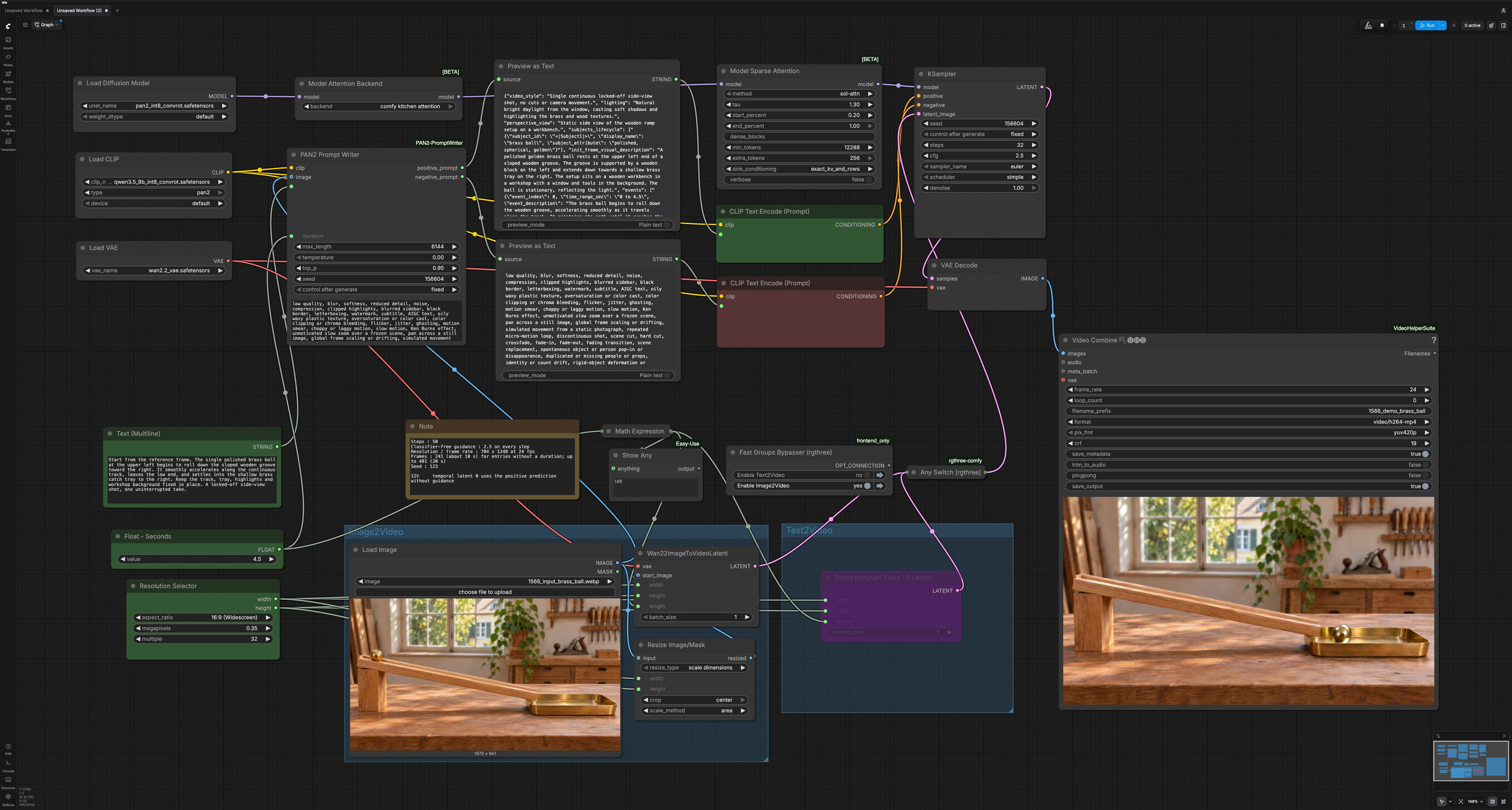
PAN2 ComfyUI Workflow: Text or image to video with a local Prompt Writer#
This PAN2 ComfyUI Workflow turns a short scene idea or a first-frame image into a coherent video. It runs the PAN 2 world model for generation and adds a local Prompt Writer that expands a brief concept into a timed caption covering subjects, actions, and camera moves.
The workflow is designed for creators who want reliable motion, consistent lighting, and stable geometry without hand-writing long prompts. Both text-to-video and image-to-video live on the same canvas, share one set of resolution and duration controls, and export directly to MP4.
Key models in Comfyui PAN2 ComfyUI Workflow#
- IFM PAN 2 world model. The core generator that predicts temporally consistent video from text or image conditioning, focusing on stable world modeling and camera motion. Source: IFM/PAN2.
- PAN 2 weights for ComfyUI. A maintained packaging of PAN2 weights compatible with ComfyUI loaders and samplers, enabling fast setup on this graph. Source: Comfy-Org/PAN2.
- Hunyuan‑style latent video VAE. A video VAE that encodes and decodes frames in a compact latent space used by the video pipeline, improving speed and memory use for multi-second clips. Background: Tencent/HunyuanVideo.
- PAN2‑compatible text encoder. A Qwen‑family encoder packaged with the PAN2 weights that turns the Prompt Writer’s timed caption into positive and negative conditioning for the sampler.
How to use Comfyui PAN2 ComfyUI Workflow#
At a glance, the graph offers two parallel paths that merge before sampling. Pick either Text2Video or Image2Video, write a short idea, set resolution and duration once, then let the Prompt Writer produce structured conditioning for PAN2. The final sampler renders latent frames that are decoded and combined into an MP4.
Image2Video group#
Use this path when you want to anchor the look with a reference still. Load a first frame in LoadImage (#32); it is resized by ResizeImageMaskNode (#33) according to ResolutionSelector (#21), then converted into a temporal latent in Wan22ImageToVideoLatent (#31). Duration comes from the shared seconds control and is translated to frame count automatically. This latent then flows into the merge point so the rest of the PAN2 ComfyUI Workflow can sample, decode, and export the video.
Text2Video group#
Choose this when you want to generate the entire scene from text. EmptyHunyuanLatentVideo (#14) creates a clean temporal latent based on the same resolution and duration controls as Image2Video. The scene’s movement and pacing come from the Prompt Writer’s caption, so you can craft camera moves and subject actions without manual keyframing. This path feeds the same merge point used by Image2Video and continues through sampling and export.
Shared core: Prompt Writer and conditioning#
Write a one to three sentence scene idea in PAN2PromptWriter (#22). The node expands it into a timed caption and an accompanying negative library that suppresses common artifacts; both outputs are previewed in PreviewAny (#9) and PreviewAny (#24) so you can copy or refine text as needed. CLIPTextEncode (#10) and CLIPTextEncode (#11) turn these strings into positive and negative conditioning for the model. You can keep the prompt minimal because the writer adds subject actions, camera motion, and continuity cues automatically.
Sampling, decoding, and export#
The model path loads PAN2 and configures efficient attention, then KSampler (#7) generates a latent video using your conditioning and the active latent path. VAEDecode (#12) converts the latent back to frames. VHS_VideoCombine (#13) assembles those frames into an MP4 with your chosen frame rate and quality, embedding workflow metadata for reproducibility.
Key nodes in Comfyui PAN2 ComfyUI Workflow#
PAN2PromptWriter (#22)#
Expands a short, natural description into a timed caption tailored to video, plus a robust negative prompt. Adjust prompt to describe subject, environment, and camera intent in plain language; use duration to target overall clip length. If you want more or less creative variation across shots, nudge temperature or top_p. For repeatable storytelling beats, keep seed fixed.
ResolutionSelector (#21)#
Sets the working width and height for both paths from an aspect ratio and megapixel target. Pick your ratio first, then raise or lower pixel count to balance quality and speed. Keeping Image2Video and Text2Video on the same selector prevents mismatched scales when switching modes.
Wan22ImageToVideoLatent (#31)#
Converts the first image into a temporally coherent latent sequence for the Image2Video route. Provide a crisp, well‑lit frame that already matches the intended ratio to avoid cropping surprises. Length is supplied automatically; you can revisit it by changing the shared seconds control.
EmptyHunyuanLatentVideo (#14)#
Creates a blank temporal latent for the Text2Video route using the selected resolution and duration. This is the cleanest way to let the model invent motion purely from the Prompt Writer’s guidance. For longer clips, consider generating several shorter takes to minimize drift, then edit them together.
Any Switch (rgthree) (#35)#
Chooses which latent path drives generation. Select the Image2Video latent when you want strict visual continuity from the reference frame, or switch to the empty latent for fully text‑driven video. It is safe to toggle between runs without rewiring the graph.
KSampler (#7)#
Performs the core denoising steps over time using the merged model and your conditioning. Tune steps for quality vs. speed, cfg for prompt adherence vs. naturalism, and denoise when refining from an Image2Video latent. Keep the scheduler and sampler_name paired sensibly; small changes here can noticeably alter motion smoothness.
VHS_VideoCombine (#13)#
Writes the final MP4 from the decoded frames. Set frame_rate to match your target delivery and adjust crf to trade file size for quality. If you intend to edit later, prefer a slightly higher quality setting.
Optional extras#
- Keep scene ideas short. One or two sentences with clear subject, setting, and camera intent produce the most reliable Prompt Writer captions.
- For Image2Video, supply a first frame that already matches your target aspect ratio and lighting; avoid heavy upscales or crops before import.
- Start with short clips (6 to 12 s). Longer durations amplify drift and require more careful prompting.
- Use the provided negative library as is, then add only the few bans that matter to your subject; overlong negatives can suppress desired detail.
- Fix the sampler
seedto iterate on wording, then vary it to explore alternatives once composition and timing feel right. - If motion looks too fast or slow, adjust the seconds control rather than the camera wording first; timing changes propagate consistently across the caption.
Links and references
- PAN 2 world model: IFM/PAN2
- PAN 2 weights for ComfyUI: Comfy-Org/PAN2
- Prompt Writer node: benjiyaya/ComfyUI-PAN2-PromptWriter
- Latent video background: Tencent/HunyuanVideo
Acknowledgements#
This workflow implements and builds upon the following works and resources. We gratefully acknowledge IFM for the PAN2 model, Comfy-Org for the PAN2 weights, and benjiyaya and AI Future Tech for the PAN2 Prompt Writer and creator walkthroughs and sample workflows for their contributions and maintenance. For authoritative details, please refer to the original documentation and repositories linked below.
Resources#
- IFM/PAN2
- Hugging Face: IFM/PAN2
- Comfy-Org/PAN2
- Hugging Face: Comfy-Org/PAN2
- benjiyaya/ComfyUI-PAN2-PromptWriter
- AI Future Tech/PAN2 walkthroughs and sample workflows
- Docs / Release Notes: Creator walkthrough and sample workflows
Note: Use of the referenced models, datasets, and code is subject to the respective licenses and terms provided by their authors and maintainers.