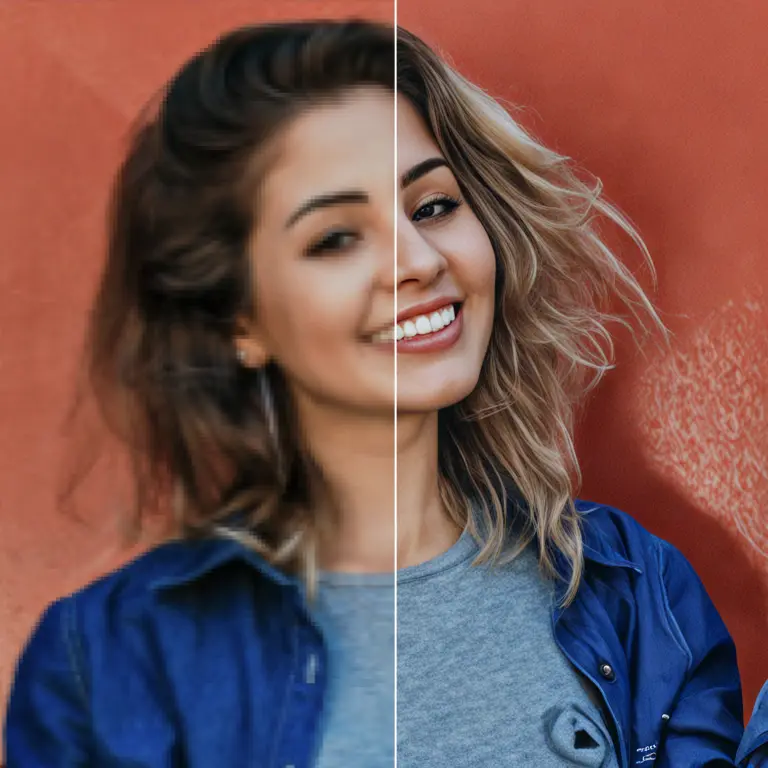
Upscaler Tensorrt ⚡:
UpscalerTensorrt enlarges images with a prepared TensorRT upscaling model, then optionally adjusts the result to a chosen final size. The model performs the detail-generating upscale; when the requested size differs from the model’s natural result, the node uses bicubic resizing to reach that size. It processes images in a batch one at a time and returns them together, making it useful when you need a larger image for display or further work in a ComfyUI workflow. It requires a working NVIDIA CUDA and TensorRT setup and a compatible prepared model; the available GPU depends on your hardware and configuration. (docs.nvidia.com (https://docs.nvidia.com/deeplearning/tensorrt/latest/installing-tensorrt/prerequisites.html?utm_source=openai))
Upscaler Tensorrt ⚡ Input Parameters:
images
The images you want to upscale, supplied through an IMAGE connection. You can provide a batch, and the node processes each image at the same input dimensions while preserving the batch order. Each image’s width and height must fall within the source’s IMAGE_DIM_MIN and IMAGE_DIM_MAX limits, but their numeric values are not included in the provided code. There is no widget default, minimum, or maximum specified for this connection.
upscaler_trt_model
The prepared UPSCALER_TRT_MODEL connection used to perform the model-based upscale. The node activates this model, prepares buffers for the incoming image dimensions, runs inference, and resets it afterward. Its reported name is also used to look up an upscale factor; the lookup function falls back to 4 when it does not find a matching name, though that does not guarantee an unmatched engine is actually a 4× model. Choose a model that works with your TensorRT installation, GPU, and image dimensions. No widget default or selectable range is specified.
resize_to
Controls the final image dimensions after model inference. Options are none, custom, HD, FHD, 2k, 4k, 1x, 1.5x, 2x, 2.5x, 3x, 3.5x, 4x, 5x, 6x, 7x, 8x, 9x, and 10x; the schema specifies no default. none keeps the model-scale dimensions, while custom uses the width and height fields below. The named presets target 1280 × 720, 1920 × 1080, 2560 × 1440, and 3840 × 2160 respectively. The x choices set the final dimensions relative to the input, but the model still runs first, so 1x does not bypass inference. For named presets, portrait images have the target width and height exchanged; square images instead become square using the preset’s height. Other non-square aspect ratios are not automatically preserved by a named preset.
resize_width
The final width in pixels when resize_to is custom. Its widget default is 1024, with a minimum of 1 and maximum of 8192. This value does not determine the model’s inference dimensions; it determines whether and how the model result is resized afterward. Very large widths can increase memory use, while very small widths can discard detail. It has no effect unless you select custom.
resize_height
The final height in pixels when resize_to is custom. Its widget default is 1024, with a minimum of 1 and maximum of 8192. Like resize_width, it sets the size after model inference rather than changing the size at which the model runs. Set it alongside the width to obtain the intended shape; an unsuitable width-to-height ratio can stretch the image. It has no effect unless you select custom.
Upscaler Tensorrt ⚡ Output Parameters:
IMAGE
The resulting IMAGE connection contains the processed image or batch of images in the same order as the input. Each image has the final pixel width and height selected by resize_to: either the model-scale size, a custom size, a named preset size, or a multiple of the input size. Where that final size differs from the model-scale result, it includes an additional antialiased bicubic resize. The node returns image data, not a saved file, so connect this output to the next image-processing or saving node in your workflow.
Upscaler Tensorrt ⚡ Usage Tips:
- Start with
resize_toset tononewhen you want the model’s natural upscale without an additional resize. For example, an accurately identified 4× model would naturally turn a 512 × 512 input into 2048 × 2048. - Select
customfor an exact delivery size, then set both dimension fields. Check the input’s proportions first if avoiding stretching matters. - Use
HD,FHD,2k, or4kwhen those exact preset dimensions are your goal. A preset does not generally preserve a non-square image’s original aspect ratio. - For a smaller final image, an
xoption such as1xor2xstill runs the TensorRT model and then resizes its result. Do not expect the lower final resolution to eliminate model inference work. - If you encounter memory errors, try a smaller input or process fewer images at once. The node allocates inference buffers for the input dimensions and also creates a batch-sized final image tensor.
- Verify that the prepared engine matches your installed TensorRT stack and NVIDIA GPU before troubleshooting image settings. Serialized TensorRT engines have platform and version compatibility constraints. (docs.nvidia.com (https://docs.nvidia.com/deeplearning/tensorrt/latest/getting-started/support-matrix.html?utm_source=openai))
Upscaler Tensorrt ⚡ Common Errors and Solutions:
Image size out of bounds
- Explanation: This exact source error means the input image’s height or width is outside the node’s permitted input range. The provided excerpt does not define the numeric limits.
- Solution: Resize the image before this node so both input dimensions fall within the plugin’s configured limits. Changing the final-size controls will not fix an out-of-range input.
'NoneType' object has no attribute 'activate'
- Explanation: A likely Python error when the
upscaler_trt_modelconnection does not supply a model object; the node callsactivate()on that object. - Solution: Connect a loaded
UPSCALER_TRT_MODELfrom the appropriate model-loading node and confirm that loading completed successfully.
CUDA error: out of memory
- Explanation: A possible CUDA error when the GPU cannot accommodate inference buffers or intermediate image data, especially with large inputs or outputs.
- Solution: Reduce the input dimensions, choose a smaller final size, or process a smaller batch. Close other GPU-intensive work if necessary.
No CUDA GPUs are available
- Explanation: A possible environment error because this node requests the current CUDA stream. A usable CUDA device must be available to the running application.
- Solution: Check that your NVIDIA GPU is supported and visible to the application, then verify the installed driver, CUDA, PyTorch, and TensorRT setup against the versions you use. The available device choices come from your hardware, not a fixed GPU selection in this node. (docs.nvidia.com (https://docs.nvidia.com/deeplearning/tensorrt/latest/installing-tensorrt/prerequisites.html?utm_source=openai))
TensorRT engine deserialization or compatibility error
- Explanation: The exact message depends on the model loader. A prepared engine may not work with the current platform, TensorRT runtime, or GPU configuration. (docs.nvidia.com (https://docs.nvidia.com/deeplearning/tensorrt/latest/getting-started/support-matrix.html?utm_source=openai))
- Solution: Use or rebuild an engine compatible with your environment, then reload it before running the workflow. Consult the loader’s full error message for the specific mismatch.
Input or output shape mismatch
- Explanation: A possible model-allocation or inference error if the engine cannot handle the incoming dimensions or its actual output does not match the scale used to allocate buffers. The node expects three-channel, single-image inference at the input width and height.
- Solution: Try input dimensions supported by your engine and confirm that the selected model’s configured scale matches its real output. If you maintain the plugin configuration, inspect its scale lookup as well: the provided fallback config stores models as a dictionary, while
get_model_scaleiterates as though each entry were a dictionary withnameandscalekeys.
'str' object is not subscriptable with a string key
- Explanation: A possible scale-lookup error with the provided fallback configuration: iterating its
modelsdictionary yields model-name strings, but the lookup then attemptsm["name"]. - Solution: Have the plugin maintainer align the configuration format and lookup code. Switching final-size options will not resolve this configuration mismatch.
Output is stretched or has unexpected dimensions
- Explanation: This is a result issue rather than a guaranteed error message. Named presets impose their target dimensions,
customuses the two entered dimensions, and thexoptions multiply the input dimensions. A separate resize occurs whenever that target differs from the model-scale result. - Solution: Use
nonefor the natural model result, or choosecustomdimensions with the intended aspect ratio. Check the resulting width and height before saving a large batch. The error strings labeled “possible” describe plausible failures from the shown code path, not messages verified by running the plugin. The provided schema was inspected, but full plugin import and GPU inference were not executed.