ComfyUI-Upscaler-Tensorrt Introduction
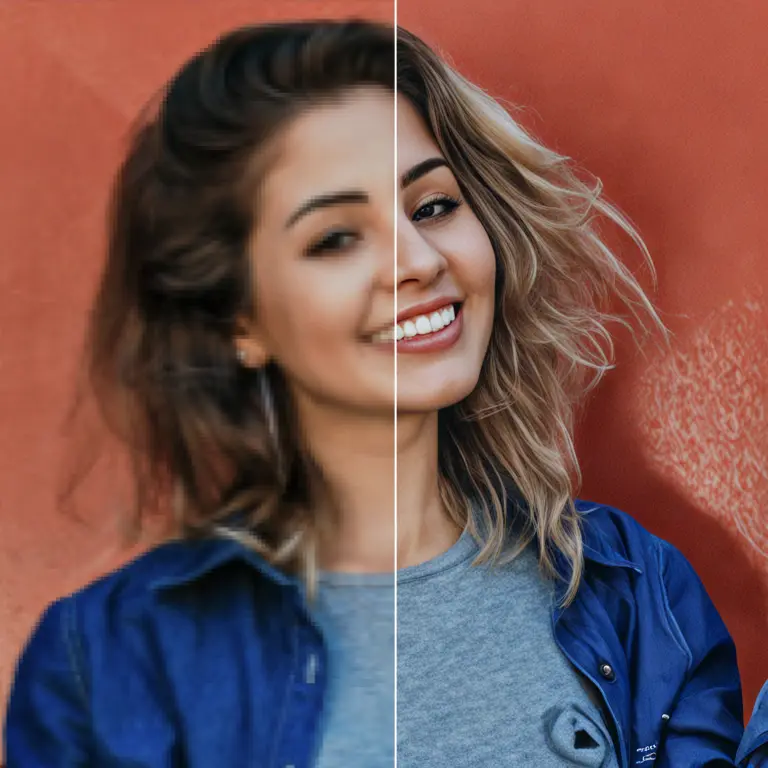
ComfyUI-Upscaler-Tensorrt helps you enlarge images in ComfyUI using NVIDIA TensorRT. Upscaling increases an image’s pixel dimensions, making it useful when you need a larger version of an AI-generated illustration, portrait, or other artwork. The extension runs supported upscaling models through a TensorRT engine, a version prepared for efficient processing.
The author reports that this approach can be 2–4 times faster, though your speed will depend on your graphics card, model, image size, and settings. The extension builds the engine automatically from the workflow, so you do not need to prepare one manually for a supported model.
ComfyUI-Upscaler-Tensorrt node screenshot
How ComfyUI-Upscaler-Tensorrt Works
Think of an upscaling model as an artist’s tool for turning a small canvas into a larger one. It examines the input image and produces a higher-resolution version. TensorRT prepares that tool to run efficiently on compatible NVIDIA hardware.
A typical workflow has four steps:
- Open the example ComfyUI workflow.
- Choose an upscaling model from the model dropdown.
- Provide an image within the supported input-size range. The extension builds a TensorRT engine automatically when needed.
- Use
resize_toif you want the upscaled result delivered at a fixed or custom resolution.
The tested exported engines accept input images from 256 × 256 through 1280 × 1280 pixels, including rectangular sizes such as 960 × 540 and 1280 × 720. Check both the width and height of your input before running the workflow.
The model’s scale and the final resize are separate choices. For example, a 4× model turns a 512 × 512 input into a 2048 × 2048 upscale before any final resizing you request. Choosing a different resize_to output size changes the delivered dimensions; it does not change which model performed the upscale.
ComfyUI-Upscaler-Tensorrt Features
- Automatic engine building: The workflow builds the TensorRT engine for the selected model when needed. This removes a manual preparation step, although the first run may involve engine-building work.
- Separate loading and processing nodes: Model loading and TensorRT upscaling are handled by different nodes, making their roles easier to identify in a ComfyUI workflow.
- Flexible input shapes: Tested exported engines support square and rectangular images within the stated 256–1280-pixel width and height limits.
- Output-size control:
resize_toprovides additional scale factors and custom-resolution resizing. Use it when a destination calls for particular dimensions, and check the resulting image to ensure its size suits your intended use. - Multiple model scale factors: The extension supports 1×, 2×, 4×, and other scale factors where the model is compatible. A 1× model can process an image without increasing its dimensions; a 2× model doubles each dimension; a 4× model quadruples each dimension.
- Model selection through configuration: The supported model list is loaded from the extension’s configuration. Experienced users can add an exported model, but the author notes that only ESRGAN-architecture models currently work.
- Optional TensorRT-RTX support: The extension also supports TensorRT-RTX. This is an optional processing option, not a different visual style or upscaling model.
Performance examples: The author benchmarked FP16 engines in ComfyUI using 100 identical frames. These are measured examples, not guaranteed speeds for every workflow.
| Graphics card | Model | Input | Output | Measured speed |
|---|---|---|---|---|
| RTX 5090 | 4x-UltraSharp | 512 × 512 | 2048 × 2048 | 12.7 FPS |
| RTX 5090 | 4x-UltraSharp | 1280 × 1280 | 5120 × 5120 | 2.0 FPS |
| RTX 4090 | 4x-UltraSharp | 512 × 512 | 2048 × 2048 | 6.7 FPS |
| RTX 4090 | 4x-UltraSharp | 1280 × 1280 | 5120 × 5120 | 1.1 FPS |
| RTX 3060 | 4x-UltraSharp | 512 × 512 | 2048 × 2048 | 2.2 FPS |
| RTX 3060 | 4x-UltraSharp | 1280 × 1280 | 5120 × 5120 | 0.35 FPS |
The larger input takes substantially longer in these tests because it produces a much larger output. For quicker previews, try an image near the lower end of the supported size range before processing your final artwork.
ComfyUI-Upscaler-Tensorrt Models
The following models are listed as tested with TensorRT. The 1×, 2×, and 4× labels describe output scale, not a guaranteed artistic look. For a 512 × 512 input, a 2× model produces a 1024 × 1024 image, while a 4× model produces a 2048 × 2048 image before any resize_to adjustment. Compare models on the same artwork to decide which result you prefer.
| Tested model | Scale | How to approach it |
|---|---|---|
| 4x-AnimeSharp (https://openmodeldb.info/models/4x-AnimeSharp) | 4× | Try it alongside other 4× models when comparing results for illustrated artwork. |
| 4x-UltraSharp (https://openmodeldb.info/models/4x-UltraSharp) | 4× | A starting point if you want to compare your results with the published speed benchmarks. |
| 4x-WTP-UDS-Esrgan (https://openmodeldb.info/models/4x-WTP-UDS-Esrgan) | 4× | Another 4× option to compare on your source image. |
| 4x_NMKD-Siax_200k (https://openmodeldb.info/models/4x-NMKD-Siax-CX) | 4× | Another 4× option to compare on your source image. |
| 4x_RealisticRescaler_100000_G (https://openmodeldb.info/models/4x-RealisticRescaler) | 4× | Another 4× option to compare on your source image. |
| 4x_foolhardy_Remacri (https://openmodeldb.info/models/4x-Remacri) | 4× | Another 4× option to compare on your source image. |
| RealESRGAN_x4 (https://openmodeldb.info/models/4x-realesrgan-x4plus) | 4× | Another 4× option to compare on your source image. |
| 4xNomos2_otf_esrgan (https://openmodeldb.info/models/4x-Nomos2-otf-esrgan) | 4× | Another 4× option to compare on your source image. |
| 4x-ClearRealityV1 (https://openmodeldb.info/models/4x-ClearRealityV1) | 4× | Another 4× option to compare on your source image. |
| 4x_UniversalUpscalerV2-Neutral_115000_swaG (https://openmodeldb.info/models/4x-UniversalUpscalerV2-Neutral) | 4× | Another 4× option to compare on your source image. |
| 4x-UltraSharpV2_Lite | 4× | Another 4× option to compare with 4x-UltraSharp. |
| 2x-ESRGAN (https://openmodeldb.info/models/2x-ESRGAN) | 2× | Choose this when doubling each image dimension is sufficient. |
| 1x-ITF-SkinDiffDetail-Lite-v1 (https://openmodeldb.info/models/1x-ITF-SkinDiffDetail-Lite-v1) | 1× | Choose this when you want to try model processing without increasing image dimensions. |
The tested ONNX model files are available here. ONNX is the model-file format used before the TensorRT engine is built. A model’s name alone does not establish how it will look on your particular image, so test a small sample before committing to a large batch.
What’s New with ComfyUI-Upscaler-Tensorrt
- June 7, 2026: Added TensorRT-RTX support and support for 1×, 2×, and other model scale factors. You have more options than the original 4×-only selection.
- January 12, 2026: Added more resizing scale factors and custom-resolution resizing. You can target a particular final image size more easily.
- August 27, 2025: Added support for 4x-UltraSharpV2_Lite, 4x_UniversalUpscalerV2-Neutral_115000_swaG, and 4x-ClearRealityV1. Models also began loading from configuration, making the supported selection easier to extend.
- April 30, 2025: Changed unsupported input dimensions to raise an error instead of leaving processing apparently stuck. This makes size-related problems easier to recognize.
- March 4, 2025 — breaking workflow change: Engine building moved into the workflow; model loading and TensorRT processing became separate nodes. The update also optimized post-processing and changed the ONNX export script. Workflows made for earlier versions may need to be updated to use the new node arrangement.
The author’s last stated test was June 7, 2026, with ComfyUI v0.23.0, Torch 2.12.0, Python 3.12.3, an NVIDIA L40S, CUDA 13.0, and Ubuntu 24.04. The readme also lists Debian 12 and Windows 11 as tested environments. Those details describe reported tests, not a guarantee that every combination of software and hardware will behave identically.
Troubleshooting ComfyUI-Upscaler-Tensorrt
The workflow reports that my image dimensions are unsupported.
- Check the input image’s width and height, rather than only its file size.
- Use an image whose width and height are each within the tested 256–1280-pixel input range.
- Run the workflow again. For example, 960 × 540 and 1280 × 720 are listed as supported input shapes.
An engine that worked before no longer works after a TensorRT upgrade.
- Check whether your TensorRT version changed since the engine was built.
- Rebuild the engine for the selected model, as the author notes that engines must be rebuilt after a TensorRT upgrade.
- Run the workflow again using the rebuilt engine.
A custom model does not work.
- Confirm that it uses the ESRGAN architecture; other architectures are listed as a current limitation.
- If you are preparing your own model, export it to ONNX with the project’s export script.
- Place the exported file at
/ComfyUI/models/onnx/YOUR_MODEL.onnxand add the model to load_upscaler_config.json. - Select it in the workflow and test with an input within the supported dimensions.
Custom-model export is an advanced task. The author warns that converting a .pth model to .onnx can use a large amount of system RAM.
The output is larger than I expected.
- Check the model’s scale label: a 4× model multiplies both width and height by four.
- Check
resize_tofor an additional fixed or custom output-size setting. - Try a smaller input or choose a 2× model if doubling the dimensions meets your needs.
Frequently asked questions
- Do I have to build a TensorRT engine myself? No. The current workflow builds it automatically when needed for a selected model.
- Can I use a rectangular image? Yes. Tested examples include 960 × 540 and 1280 × 720, provided both dimensions stay within the supported range.
- Will every upscaling model work? No. The author lists ESRGAN-architecture models as the ones currently working.
- Does a 1× model make my image bigger? No. “1×” indicates no increase in pixel dimensions from the model itself.
- Will I get the FPS shown in the table? Not necessarily. Those figures came from specific graphics cards, image sizes, an FP16 engine, and a benchmark using 100 identical frames.
For a visual starting point, compare your node setup with the node screenshot and the example workflow.
Learn More about ComfyUI-Upscaler-Tensorrt
- Example upscaling workflow: Open this in ComfyUI to see how the nodes fit together.
- Tested ONNX models: Browse the model files referenced by the project.
- OpenModelDB (https://openmodeldb.info/): Explore the linked model pages in the model table when comparing options for your artwork.
- ComfyUI: Learn more about the node-based application in which this extension runs.
- TensorRT: Read about the technology behind the extension’s accelerated processing.
- Extension repository: Check the project’s documentation and reported issues when a workflow or compatibility question is not covered here.