


RMBG 3.0 ComfyUI: fast, high‑quality background removal with transparent PNG and matte#
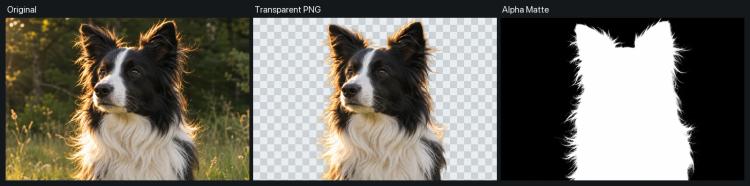
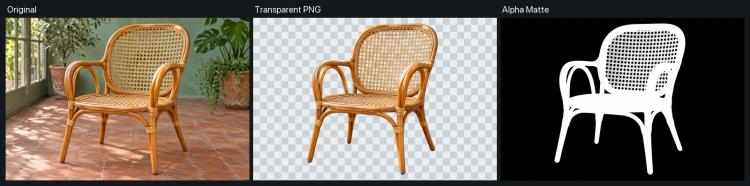
This RMBG 3.0 ComfyUI workflow removes the background from a single image and saves two deliverables: a clean cutout PNG with transparency and a separate grayscale alpha matte. It uses Bria’s RMBG 3.0 with a Fibo 2.0 instruction to drive the model to predict a matte, not a color reconstruction. The included examples demonstrate robust edge handling on backlit fur, open cane weave, and thin flower stems.
Designed for creators who need reliable, production‑friendly cutouts, this workflow favors consistency and speed. It automatically caps the working resolution for faster inference, then restores the matte to your image’s original size before producing the final transparent PNG.
What you get#
- Transparent PNG cutout
- Grayscale alpha matte
- Side‑by‑side preview of original vs cutout
- Deterministic runs when you fix the seed
Key models in Comfyui RMBG 3.0 ComfyUI workflow#
- BriaAI RMBG‑3.0. The diffusion model that predicts high‑quality subject mattes from a single input image. See the official model card and license terms in the repository. Model card
- Qwen3‑VL 4B text encoder (INT8, conv‑rot). Provides the language‑vision embedding used by the instruction encoder so the UNet is guided to output a matte. Packaged with the RMBG 3.0 ComfyUI weights. Weights
- FLUX‑2 VAE. Decodes latent predictions back to an image‑space matte at the working resolution. Packaged with the RMBG 3.0 ComfyUI weights. Weights
- RMBG 3.0 ComfyUI weight pack. The pre‑converted UNet, VAE, and text encoder bundle optimized for ComfyUI. Repository
How to use Comfyui RMBG 3.0 ComfyUI workflow#
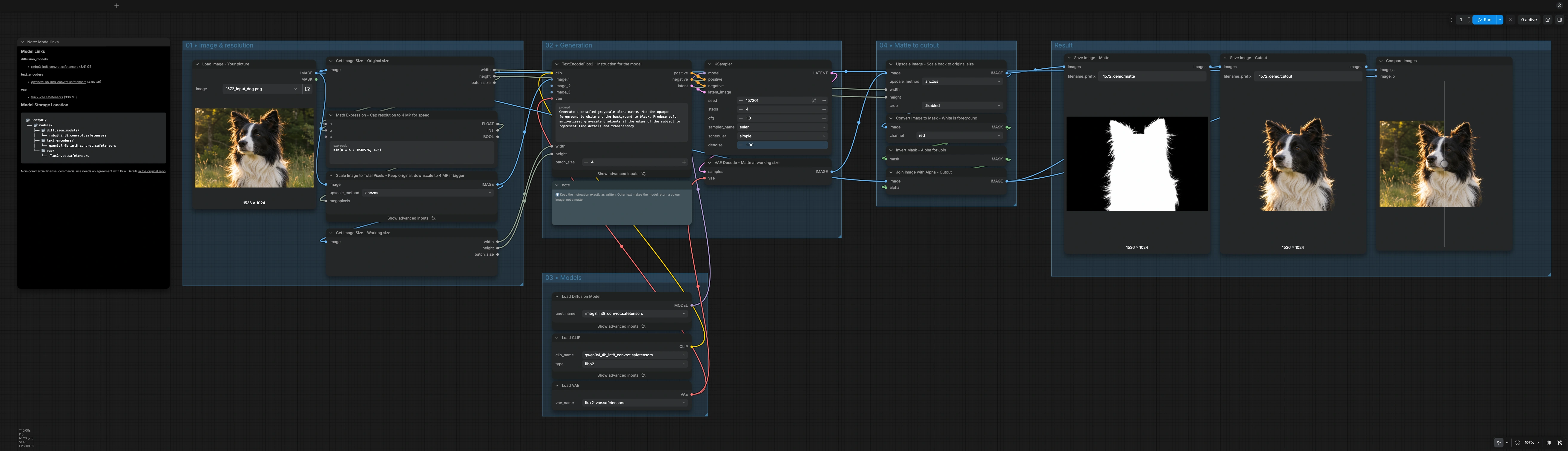
This graph runs in four stages: it prepares your image and a safe working resolution, generates a matte with RMBG 3.0 under an instruction, converts that matte to an alpha channel, and then saves both the matte and the transparent cutout.
01 • Image & resolution#
This group brings your image into the graph with Load Image - Your picture (#4) and reads the original dimensions using Get Image Size - Original size (#10). A small Math Expression - Cap resolution to 4 MP for speed (#17) computes a target megapixel budget so large images are downscaled only when beneficial for speed. Scale Image to Total Pixels - Keep original, downscale to 4 MP if bigger (#5) produces the working image used for matting. A second Get Image Size - Working size (#6) passes the exact working width and height to the instruction encoder so the model generates a 1:1 matte.
02 • Generation#
Here the instruction embedding is created with TextEncodeFibo2 - Instruction for the model (#7). The prompt explicitly asks for a soft, anti‑aliased grayscale alpha matte where white is foreground and black is background. That conditioning, together with the working image latent and the RMBG 3.0 UNet, goes into KSampler (#8) to generate the matte latent in a few fast diffusion steps. VAE Decode - Matte at working size (#9) then decodes the latent to an image‑space matte at the same working resolution for precise alignment.
03 • Models#
This group simply loads the components required for the RMBG 3.0 ComfyUI pipeline. UNETLoader (#1) pulls the RMBG‑3.0 UNet weights, CLIPLoader (#2) loads the Qwen3‑VL 4B text encoder in Fibo‑2 mode, and VAELoader (#3) provides the FLUX‑2 VAE for decoding. There are no user inputs here during normal use; the graph wires these models where needed.
04 • Matte to cutout#
Upscale Image - Scale back to original size (#11) resizes the working‑size matte back to your image’s original dimensions so it can be used as a perfect alpha. Convert Image to Mask - White is foreground (#12) turns the matte into a mask. Invert Mask - Alpha for Join (#13) orients the mask correctly for alpha composition. Finally, Join Image with Alpha - Cutout (#14) combines your original image with the matte as transparency to produce the finished cutout PNG.
Result#
Save Image - Matte (#16) writes the matte series under the filename prefix rmbg3/matte, while Save Image - Cutout (#15) writes the transparent PNG under rmbg3/cutout. An ImageCompare (#629) display lets you visually confirm edges by placing the original and the cutout side by side before you download.
Key nodes in Comfyui RMBG 3.0 ComfyUI workflow#
TextEncodeFibo2 - Instruction for the model (#7)#
This node supplies the instruction that steers RMBG 3.0 to output a grayscale alpha matte. Keep the provided instruction text unchanged; altering it usually makes the model return a color image instead of a matte. If you need batching for multiple inputs, adjust the batch size here to balance speed and VRAM.
KSampler (#8)#
Runs the diffusion process for matte prediction using the RMBG‑3.0 UNet plus the instruction conditioning. Set a fixed seed for reproducible cutouts or vary it for slight differences in edge softness. You can increase steps modestly if you want smoother micro‑transitions in hair or mesh, noting that returns diminish quickly relative to runtime.
Math Expression - Cap resolution to 4 MP for speed (#17)#
Computes a working resolution budget based on your image size, capped around 4 megapixels for a good quality‑to‑speed tradeoff. Raise this cap if you consistently work with very detailed product textures or dense hair, understanding that VRAM use and time will increase. Lower it for rapid previews.
ImageToMask - White is foreground (#12)#
Converts the decoded matte into a ComfyUI mask where white represents kept pixels. If you ever see an inverted result, use the following Invert Mask - Alpha for Join (#13) to flip foreground/background. This pairing ensures the alpha channel matches the intended subject.
Join Image with Alpha - Cutout (#14)#
Applies the matte as an alpha channel to your original image to create the transparent PNG. This guarantees the cutout retains the source color data while respecting soft edges and semi‑transparency from the matte. It is the final gate before saving, so verify alignment here if you modify upstream scaling.
Optional extras#
- Start by running the workflow as is. If you ever get a color image instead of a matte, restore the exact instruction in
TextEncodeFibo2(#7). - For very large images, consider bumping the resolution cap in the math node to preserve ultra‑fine strands; for quick drafts, reduce it for faster iterations.
- Export both deliverables. Use the grayscale matte for compositing audits or to drive effects like shadows and glows in your editor, while the cutout PNG goes straight into layouts.
- The RMBG‑3.0 repository details license scope; the default is non‑commercial unless you have a commercial agreement with Bria. Review the terms before publishing. License
- Credits and references: Bria RMBG‑3.0 and the Comfy conversion pack are available on Hugging Face, and this graph builds on the community study workflow. RMBG‑3.0 card • Comfy weights • Original workflow
Acknowledgements#
This workflow implements and builds upon the following works and resources. We gratefully acknowledge Bria AI for RMBG-3.0 model card and license, Bria AI for RMBG-3.0 ComfyUI weights, and novmikvis for the original community ComfyUI workflow for their contributions and maintenance. For authoritative details, please refer to the original documentation and repositories linked below.
Resources#
- Bria AI/RMBG-3.0
- Hugging Face: briaai/RMBG-3.0
- Bria AI/RMBG-3.0-Comfy
- Hugging Face: briaai/RMBG-3.0-Comfy
- novmikvis/RMBG-3.0-study
- GitHub: RMBG-3.0 Fibo2.json
Note: Use of the referenced models, datasets, and code is subject to the respective licenses and terms provided by their authors and maintainers.