






Flux 3 Klein Native RGBA Generation: Transparent PNGs from Text in ComfyUI#
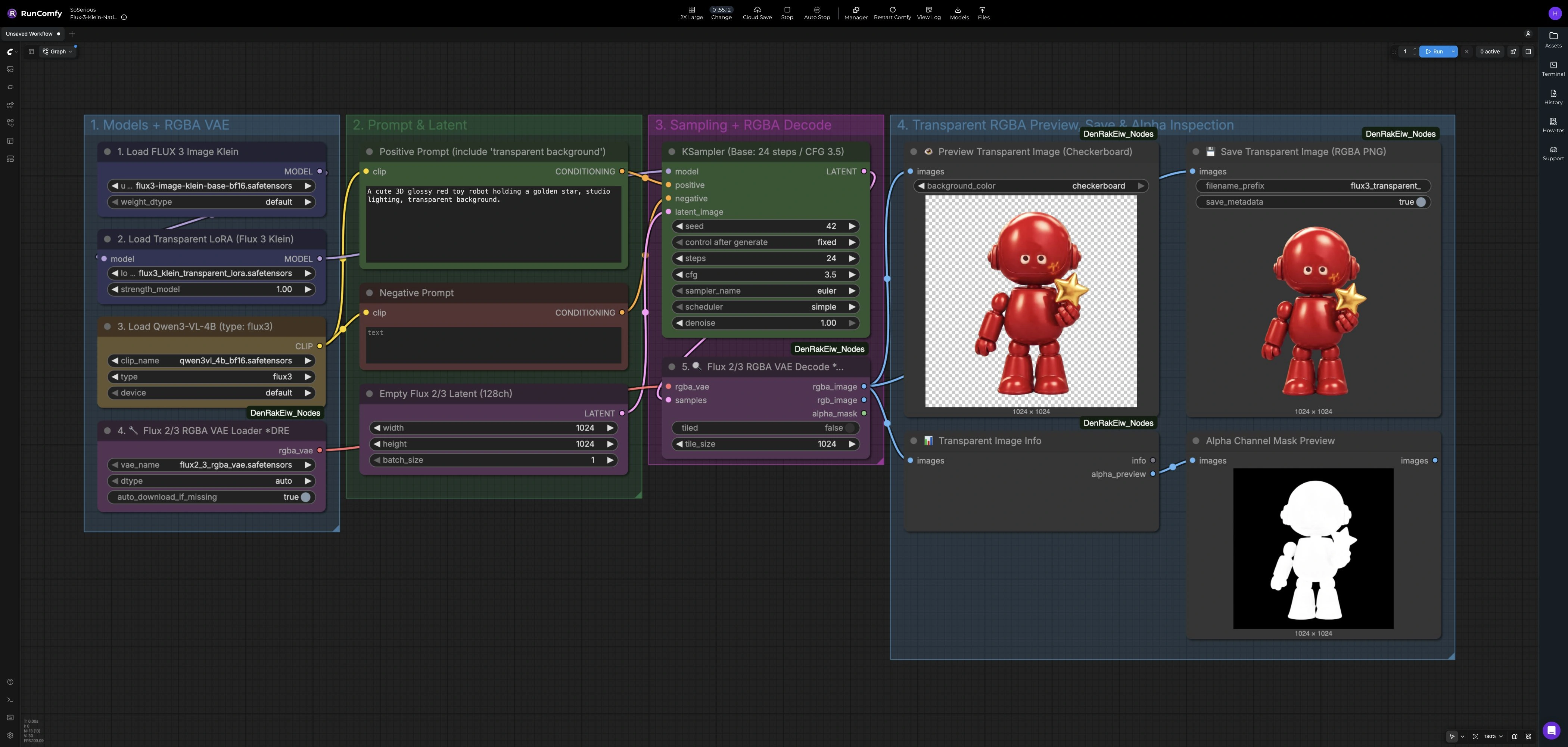
Flux 3 Klein Native RGBA Generation creates images with an alpha channel directly from text prompts. The workflow combines the FLUX 3 Image Klein Base model, DenRakEiw's transparency LoRA, and a four-channel RGBA VAE. It includes checkerboard and alpha previews and saves RGBA PNGs automatically during each run.
The validated examples include headphones, a Christmas wreath, an autumn bouquet, a retro space rocket, and a porcelain dragon. They were generated at 1024 × 1024 and inspected against checkerboard, white, and dark backgrounds. The gallery uses lossless RGBA WebP copies of the generated PNGs, with every RGBA pixel preserved and no alpha cleanup applied. These examples show uses for product concepts, seasonal decorations, and stylized assets; inspect each result's edges before compositing.
Models used in this workflow#
- FLUX 3 Image Klein Base:
flux3-image-klein-base-bf16.safetensors, loaded byUNETLoader(#1). Official model repository - Qwen3-VL text encoder:
qwen3vl_4b_bf16.safetensors, loaded byCLIPLoader(#3) with typeflux3. Official model files - Native RGBA transparency LoRA:
flux3_klein_transparent_lora.safetensorsby DenRakEiw, applied byLoraLoaderModelOnly(#2) at strength1.0. LoRA and workflow - RGBA VAE:
flux2_3_rgba_vae.safetensors, loaded byFlux23RGBAVAELoader_DRE(#4). The VAE originates from trmz's flux2-klein-alpha project and is provided under this filename in the LoRA repository. Original VAE project
How to use Flux 3 Klein Native RGBA Generation in ComfyUI#
1. Load the models#
Keep the four model selections listed above to use the validated configuration. The transparency LoRA is applied to the base model, while the RGBA VAE decodes the sampled latent into an image with an alpha channel. The saved workflow already contains these selections.
2. Describe the subject#
Edit the positive prompt in node #5 and include “transparent background” or “RGBA transparent background, isolated foreground object,” as recommended by the LoRA author. Describe the subject, materials, and composition, leaving room around thin or protruding parts. The saved negative prompt (#6) is empty.
The text encoder loaded by node #3 supplies both prompt-encoding nodes. EmptyFlux2LatentImage (#7) sets a 1024 × 1024 canvas and a batch size of 1 in the tested configuration. The saved default prompt describes a red toy robot; replace it to generate your own subject.
3. Run sampling and RGBA decoding#
KSampler (#8) uses 24 steps, CFG 3.5, Euler sampling, the simple scheduler, and denoise 1.0. The saved default seed is 42; the gallery examples use their own prompts and seeds. Keep a fixed seed when comparing prompt or parameter changes.
Flux23RGBAVAEDecode_DRE (#9) decodes the sampled latent. Its RGBA image output feeds the preview, save, and image-info nodes. It also exposes separate RGB and alpha-mask outputs, which are unconnected in this saved graph. The validated runs used tiled decoding disabled.
4. Inspect the saved result#
PreviewTransparentImage (#10) displays the RGBA image over a checkerboard. TransparentImageInfo (#12) supplies an alpha_preview to PreviewImage (#13), allowing you to inspect the alpha channel separately.
SaveTransparentImage (#11) automatically saves an RGBA PNG during the same run, with metadata enabled. Saving does not wait for a separate approval or inspection step. Use its filename_prefix to organize outputs, then check the saved image against light and dark backgrounds before placing it in a composition.
What the validated results show#
The selected examples retained their subject silhouettes and visible openings, including the wreath's center, the headphone headband gap, and gaps between bouquet stems. Their PNG outputs contain native alpha, and the gallery conversions preserve that alpha exactly.
Some background pixels can retain very low nonzero alpha, so a transparent output does not guarantee a perfectly clean matte in every composition. Inspect thin edges, internal gaps, and faint residue at the intended display size.
A glass-bottle trial had a transparent background but a visually opaque bottle body. This workflow's validation does not establish realistic glass transmission or reliable semi-transparent smoke. Check transparency within the subject separately from transparency around it.
Adjusting settings#
Start with the tested settings above. The validation did not compare different step counts, CFG values, LoRA strengths, or resolutions, so it does not establish that increasing any of them improves alpha quality. If you change a setting, compare the results with the same prompt and seed and inspect both the color image and alpha preview before choosing an output.
Acknowledgements#
This workflow implements and builds upon the following works and resources. We gratefully acknowledge DenRakEiw for the Native RGBA LoRA and workflow, black-forest-labs for the FLUX 3 Image Klein model files, trmz for the Original RGBA VAE, and DenRakEiw for the RGBA loading, preview and saving nodes for their contributions and maintenance. For authoritative details, please refer to the original documentation and repositories linked below.
Resources#
- DenRakEiw/FLUX3-Image-Klein-Native-RGBA-Transparent-LoRA
- Hugging Face: DenRakEiw/FLUX3-Image-Klein-Native-RGBA-Transparent-LoRA
- Docs / Release Notes: Native RGBA LoRA and workflow
- black-forest-labs/flux-3-image-klein-comfy
- Hugging Face: black-forest-labs/flux-3-image-klein-comfy
- Docs / Release Notes: FLUX 3 Image Klein model files
- trmz/flux2-klein-alpha
- Hugging Face: trmz/flux2-klein-alpha
- Docs / Release Notes: Original RGBA VAE by trmz
- DenRakEiw/DenRakEiw_Nodes
- GitHub: DenRakEiw/DenRakEiw_Nodes
- Docs / Release Notes: RGBA loading, preview and saving nodes
Note: Use of the referenced models, datasets, and code is subject to the respective licenses and terms provided by their authors and maintainers.