

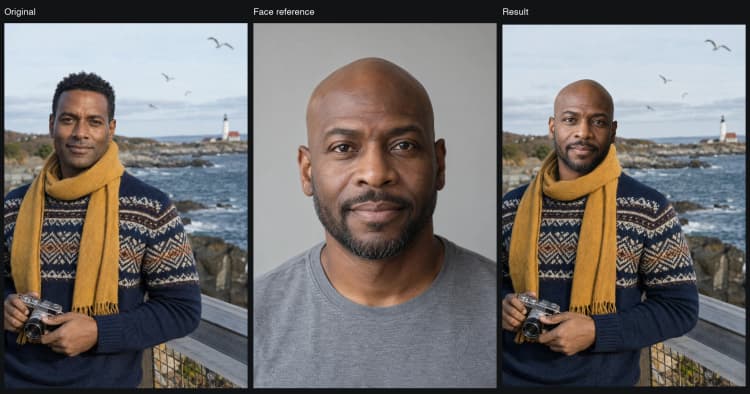
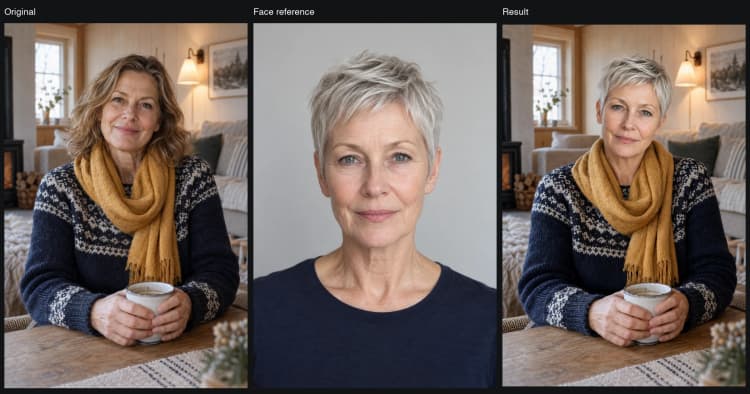
Qwen Image 2.1 Face Swap ComfyUI Workflow: natural head replacement with prompt‑guided identity transfer#
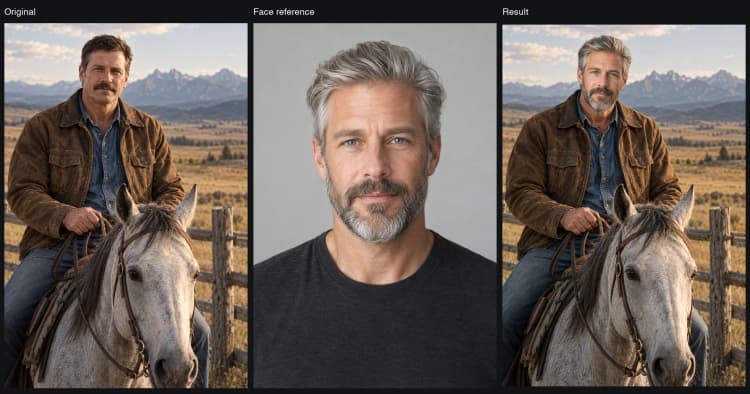
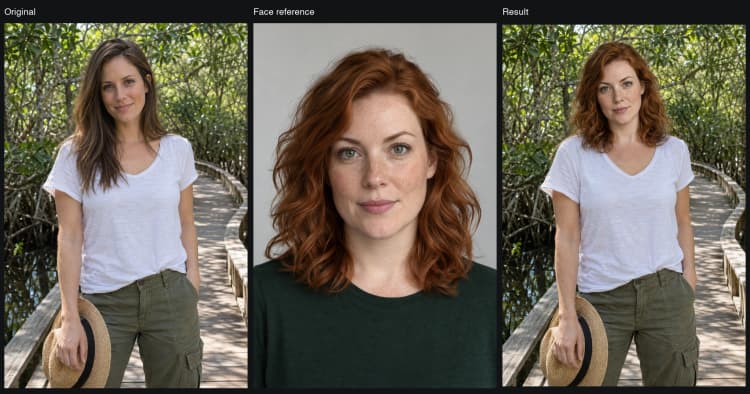
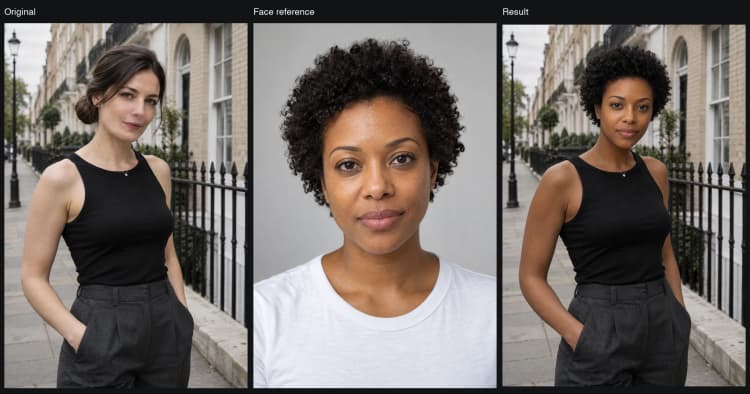
This Qwen Image 2.1 Face Swap ComfyUI Workflow replaces a subject’s head and face in an existing scene using a separate identity reference. Powered by Qwen‑Image‑2.1 image editing and a lightweight prompt‑generation stage, it transfers facial features, hairstyle and facial hair while preserving the original scene’s pose, clothing and background.
Built for character recasting, editorial portraits and creative head‑swap scenes, the workflow is simple to drive: provide your original scene, add an identity portrait, run the prompt generation, and sample the final composite. Clear, well‑lit reference portraits help the Qwen Image 2.1 Face Swap ComfyUI Workflow produce seamless, photorealistic blends.
Key models in Comfyui Qwen Image 2.1 Face Swap ComfyUI Workflow#
- Qwen‑Image‑2.1. The core image editing diffusion model that performs the head replacement while respecting text and visual conditioning. See the official model card on Hugging Face: Qwen/Qwen-Image-2.1.
- Qwen‑Image‑2.1 VAE. The variational autoencoder used to decode the final latent to RGB and preserve color fidelity. Packaged weights are available in the Comfy‑Org distribution: Comfy‑Org/Qwen‑Image‑2.1 • vae.
- Qwen‑Image‑2.1 text encoder (Qwen‑VL family, 8B). The cross‑modal encoder that turns the generated instruction and the reference images into conditioning for the diffusion process. See the text encoder assets in the Comfy‑Org repository: Comfy‑Org/Qwen‑Image‑2.1 • text_encoders.
How to use Comfyui Qwen Image 2.1 Face Swap ComfyUI Workflow#
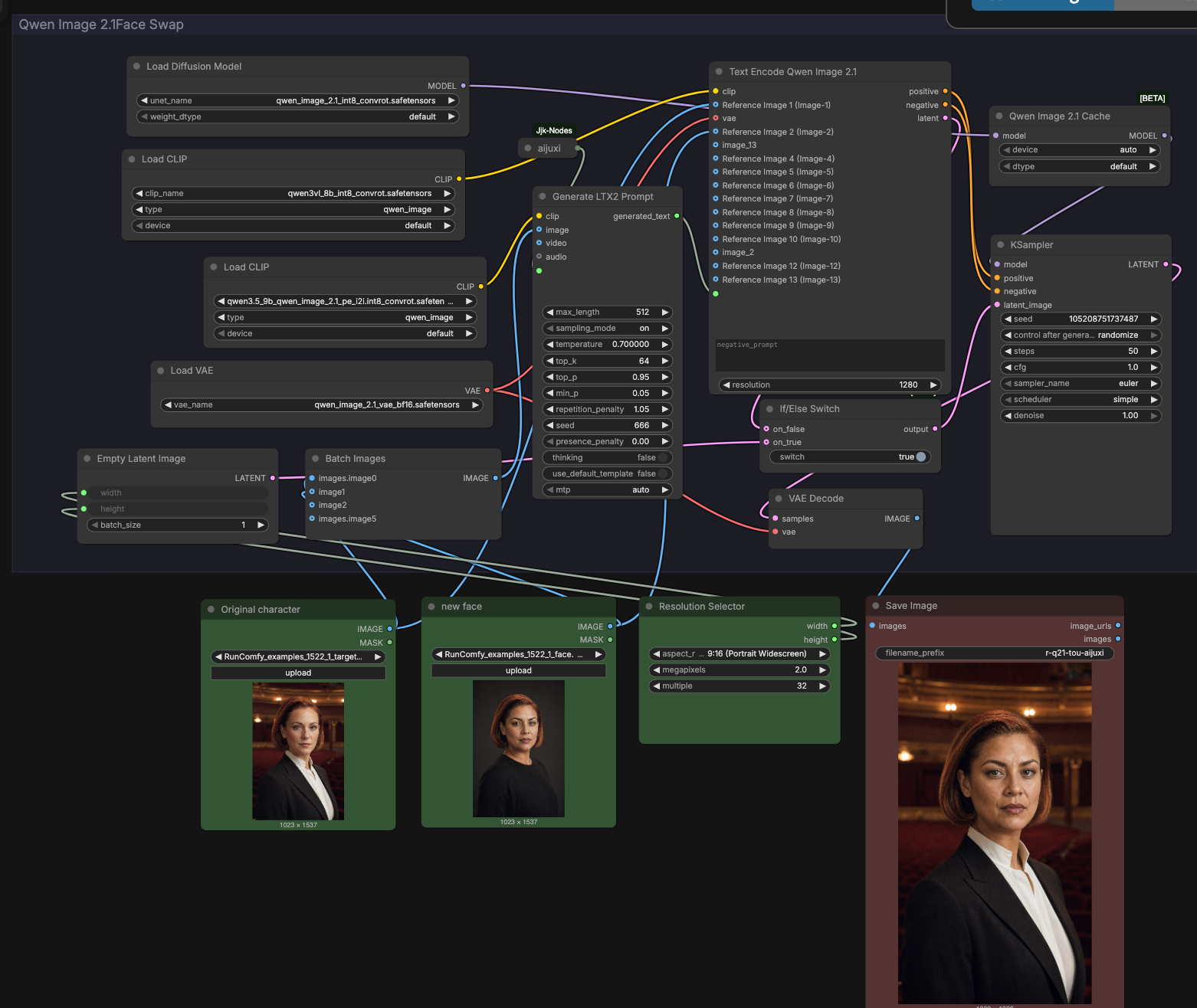
The graph is organized as a single group titled “Qwen Image 2.1Face Swap” that orchestrates inputs, prompt generation, multimodal conditioning, sampling and saving. At a high level, you load two images, let the prompt block craft a concise edit instruction, encode everything for Qwen‑Image‑2.1, choose whether to start from an empty canvas or from an image‑guided latent, then sample and decode.
Inputs: original scene and identity portrait#
- Load your scene or target character into
Original character(#470). This image provides body, pose, clothing and environment that should be preserved after the face swap. - Load the face to transfer into
new face(#510). Use a sharp, frontal or three‑quarter portrait with consistent lighting; include hairline if you want hairstyle to carry over. - The workflow also batches these two inputs so the prompt generator can “see” both images together for better instruction crafting.
Prompt generation: turn your intent into a precise edit cue#
- A short directive is provided via
aijuxitext nodeJjkText(#516) and combined with the batched images inTextGenerateLTX2Prompt(#502). - The generator produces a compact, editing‑focused instruction (for example, “Replace the head of the person in Image 1 with the person from Image 2, keep pose, outfit and background”).
- This automatically created instruction reduces prompt engineering overhead and helps the Qwen Image 2.1 Face Swap ComfyUI Workflow remain consistent across runs.
Conditioning: multimodal guidance for Qwen‑Image‑2.1#
TextEncodeQwenImage21(#485) ingests the instruction along with the two images to produce positive and negative conditioning that describe what to replace and what to preserve.- The encoder also prepares a latent blueprint influenced by your references. This setup is what lets the model transfer identity traits while keeping the original scene intact.
Resolution and latent routing: choose composition and control strength#
- Set your desired aspect ratio and pixel budget in
ResolutionSelector(#13). The resolution feeds anEmptyLatentImagethat defines the canvas size for synthesis. ComfySwitchNode(#483) selects the starting latent:- On: start from an empty latent for maximum creative freedom and stronger identity transfer.
- Off: start from the encoder’s latent for image‑guided swaps that hew more tightly to the original composition.
- This switch lets you dial how “strong” the swap is without changing other settings.
Sampling, decoding and saving#
- The UNet weights are loaded once and cached (
UNETLoadertoQwenImage21Cache), thenKSampler(#482) runs the diffusion process using your conditioning and chosen latent source. VAEDecodeconverts the sampled latent to an RGB image, andSaveImage(#518) writes the result with a timestamped filename.- The Qwen Image 2.1 Face Swap ComfyUI Workflow is deterministic per seed, so you can reproduce a favorite look by keeping the same seed and configuration.
Key nodes in Comfyui Qwen Image 2.1 Face Swap ComfyUI Workflow#
TextEncodeQwenImage21 (#485)#
This is the heart of the swap: it fuses the generated instruction with both images to produce the guidance Qwen‑Image‑2.1 follows. For tighter preservation of the scene, keep your instruction focused on replacing only the head while retaining pose, outfit and background. If you need gentler edits, use image‑guided mode (see the switch below) and keep negative language concise to avoid over‑constraining the model.
TextGenerateLTX2Prompt (#502)#
This node distills your intent and the two images into a concise edit instruction. Use it when you want consistent phrasing and less manual prompting. If you prefer your own wording, you can bypass the generator by feeding a custom instruction and keeping it short, specific and scene‑preserving.
ComfySwitchNode (#483)#
This switch routes the starting latent. Use the empty‑latent path for stronger identity transfer and stylization, or the encoder‑latent path when you want composition and lighting to cling closely to the original scene. Flip this when you see either too much drift (go image‑guided) or not enough identity transfer (go empty‑latent).
KSampler (#482)#
Controls the sampling strategy and strength of the edit. A lower denoise factor will preserve more of the original head structure in image‑guided mode; a higher value will push a stronger replacement. Choose a sampler and scheduler you trust for portraits, and fix the seed when comparing variations.
ResolutionSelector (#13)#
Sets the aspect ratio and pixel budget for generation. Match the original scene’s framing to reduce warping, or try a slightly larger canvas if you plan to crop. Higher resolutions capture hair detail better but increase runtime.
Optional extras#
- Use a clean, unobstructed identity portrait; avoid sunglasses and heavy occlusions if you want eyes and eyebrows to transfer faithfully.
- Match head scale: if the original subject is close to camera, crop the identity reference for a similar head size.
- Keep lighting consistent between images for more natural blends; if lighting differs, prefer the image‑guided latent for better scene adherence.
- For batch exploration, lock the seed and change only the identity portrait; this isolates the effect of the new face.
- If results look “over‑edited,” use the image‑guided latent and reduce overall edit strength; if identity won’t stick, start from an empty latent and strengthen the prompt instruction.
- Model assets used by this workflow are available from Hugging Face: Qwen/Qwen‑Image‑2.1 and Comfy‑Org/Qwen‑Image‑2.1.
Acknowledgements#
This workflow implements and builds upon the following works and resources. We gratefully acknowledge aijuxi for Original workflow, Qwen for Qwen-Image-2.1 (official model), and Qwen for Qwen-Image-2.1 official announcement for their contributions and maintenance. For authoritative details, please refer to the original documentation and repositories linked below.
Resources#
- aijuxi/Original workflow
- Docs / Release Notes: Original workflow by aijuxi
- Qwen/Qwen-Image-2.1
- Hugging Face: Qwen/Qwen-Image-2.1
- Qwen/Qwen-Image-2.1 official announcement
- Docs / Release Notes: Qwen-Image-2.1 official announcement
Note: Use of the referenced models, datasets, and code is subject to the respective licenses and terms provided by their authors and maintainers.