

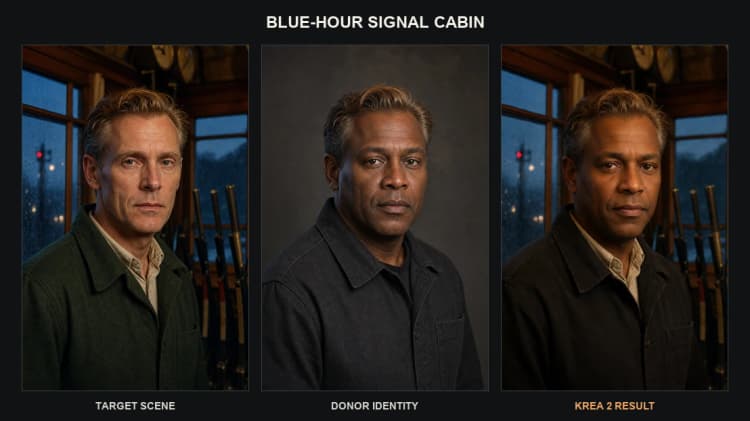
Krea 2 Identity Edit ComfyUI workflow: Two-Image Inner-Face Identity Transfer#
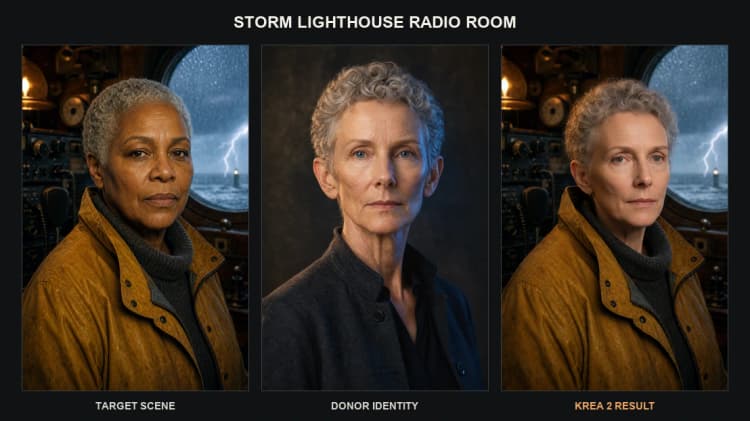
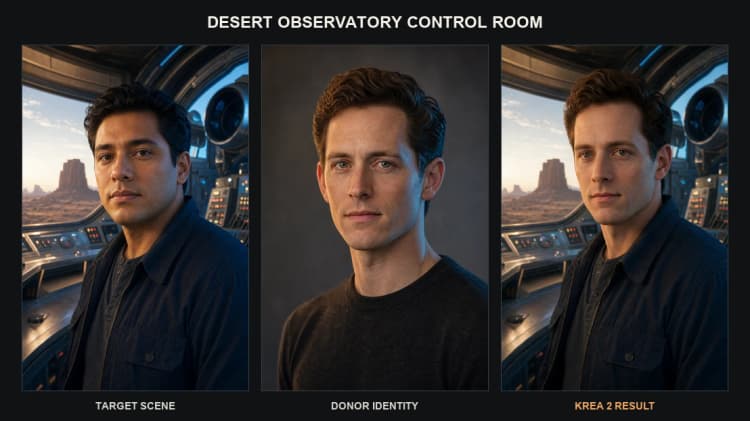
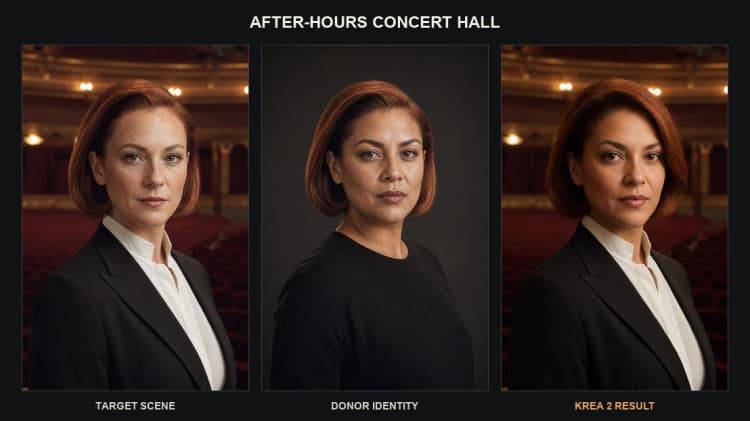
This Krea 2 Identity Edit ComfyUI workflow performs two-image, instruction-driven identity replacement inside the face region of a target portrait while preserving hair, pose, clothing, framing, and background. You provide a target image and a donor reference; the workflow restages the target with the donor’s inner-face identity, guided by a short natural-language prompt.
It combines the community Krea 2 Identity Edit v1.2 LoRA with dual conditioning that fuses VAE image tokens and image-grounded language understanding. It is not an official Krea Edit checkpoint, and it is not a deterministic pixel-level face-swap or inpainting tool. Use it for consented character restaging, face or head replacement, and identity-preserving creative edits that benefit from two-image control.
Key models in ComfyUI Krea 2 Identity Edit ComfyUI workflow#
- Krea-2 Turbo. The base image generator that provides fast, high-fidelity synthesis and strong editability; it serves as the foundation the workflow patches and samples from. See the official model card for details and intended use cases. Krea-2 Turbo
- Krea 2 Identity Edit v1.2 LoRA. A community LoRA that turns Krea-2 Turbo into an instruction-following identity editor, improving likeness transfer while keeping scene details intact. It is trained for two-image conditioning and is required for the identity edit behavior. Krea 2 Identity Edit v1.2
- Qwen3-VL-4B-Instruct. A vision-language model used inside the conditioning nodes to interpret your prompt in the context of both images, which helps constrain the edit to only the inner face and preserve everything else. This delivers image-grounded prompt understanding for reliable edits. Qwen3-VL-4B-Instruct
How to use ComfyUI Krea 2 Identity Edit ComfyUI workflow#
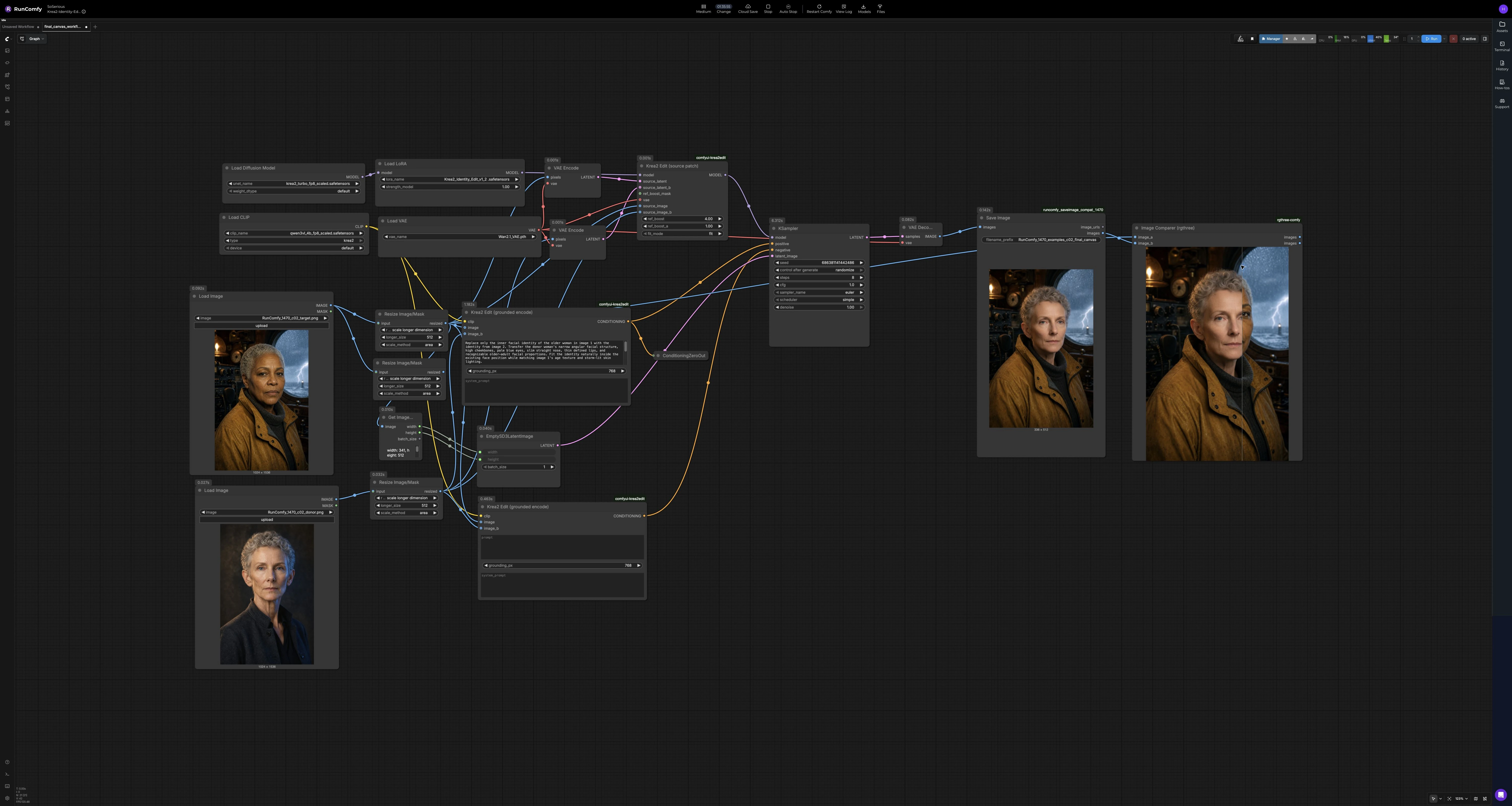
This graph routes two image branches through grounded encoders, patches the base model for identity editing, then samples a new image that matches the target’s composition. The stages below describe what each cluster does and what you control.
Target and donor images: LoadImage (#104) and LoadImage (#162)#
Load your target portrait in the first node and your donor reference in the second. The workflow resizes each to a working size with ResizeImageMaskNode (#129 and #160) to keep aspect ratio stable. It automatically reads the target image dimensions via GetImageSize (#164) and creates a matching latent canvas with EmptySD3LatentImage (#126), so the output composition aligns with the target. Choose images with compatible pose and camera angle for best identity fit. Faces should be well lit and unobstructed.
Grounded understanding and prompt: Krea2EditGroundedEncode (#110) and Krea2EditGroundedEncode (#167)#
These encoders pair each image with your instruction to form dual, image-grounded conditioning. The positive encoder Krea2EditGroundedEncode (#110) reads both target and donor plus your prompt like “Replace only the inner face; keep hair, outfit, and background unchanged,” which constrains the edit. The second encoder Krea2EditGroundedEncode (#167) supplies a negative or counter-conditioning signal to suppress unwanted leakage from the donor (for example, donor hair or studio background). You can keep prompts concise and descriptive; emphasize what to preserve in the target. This stage is what makes the Krea 2 Identity Edit ComfyUI workflow instruction-following rather than template-driven.
Image tokenization: VAEEncode (#108) and VAEEncode (#163)#
Both images are compressed into latent representations that act as in-context visual tokens. These latents help the patching node understand identity geometry, skin features, and proportions without copying the entire image. You do not need to adjust anything here; just ensure your inputs are clean and well exposed. The outputs feed directly into the model patch.
Identity-aware model patch: Krea2EditModelPatch (#109)#
This node injects the Krea 2 Identity Edit v1.2 LoRA into Krea-2 Turbo and attaches the two image latents and pixels, enabling identity replacement that respects your prompt. Internally, it balances donor identity strength against target preservation so the new face fits naturally within the original pose and lighting. If your result under-transfers or over-transfers features, adjust the node’s reference influence controls and fit strategy, then re-sample. This patch is the core of the Krea 2 Identity Edit ComfyUI workflow. The node pack is available here for reference if you want to learn more about its mechanics: comfyui-krea2edit.
Sampling and decoding: KSampler (#112) and VAEDecode (#149)#
KSampler (#112) renders the edited image from the patched model under your positive and negative conditioning. Control the seed for reproducibility, steps for quality-time tradeoffs, guidance for prompt adherence, and your preferred sampler and scheduler. The denoise setting lets you move between subtle edits and stronger identity restaging; start moderate and refine from there. VAEDecode (#149) converts the latent back to an image that matches the target’s framing and aspect ratio. Save results with SaveImage (#157).
Review and iterate: Image Comparer (rgthree) (#147)#
The comparer displays a before-and-after view so you can quickly judge fidelity and preservation. If hair, clothing, or background drift, tighten your instruction and lower identity strength; if likeness is too weak, raise identity emphasis or try a closer-pose donor. Iterate on the same seed for controlled A/Bs, then randomize seeds for diverse options. This step is optional but speeds up convergence on the look you want.
Key nodes in ComfyUI Krea 2 Identity Edit ComfyUI workflow#
Krea2EditModelPatch (#109)#
Applies the Krea 2 Identity Edit LoRA to Krea-2 Turbo and fuses both images as references. Use the reference strength controls to tune how assertively the donor’s inner-face identity is imposed, and the fit mode to decide how strictly features conform to the target’s head geometry. If donor traits are bleeding into hair or clothing, reduce reference emphasis and re-sample; if likeness is soft, nudge it upward.
Krea2EditGroundedEncode (#110)#
Builds positive, image-grounded conditioning that the sampler follows. Keep prompts concise and explicit about what must change (inner face) and what must stay the same (hair, pose, outfit, background). Increasing spatial grounding can improve localization at the cost of some VRAM and time; balance this against your hardware budget.
KSampler (#112)#
Generates the final image from the patched model and conditioning. Use seed to lock composition for fair comparisons; increase steps for tougher cases; choose a sampler and scheduler that give you a good sharpness-versus-stability balance. Extremely high guidance can distort identity, so favor moderate values when likeness matters most.
Optional extras#
- Use consented images only; the Krea 2 Identity Edit ComfyUI workflow is for ethical, identity-preserving creative work.
- Match donor and target pose, camera angle, and expression for the most natural fit.
- Write instructions that both specify the identity transfer and explicitly protect hair, clothing, background, and framing you want preserved.
- If backgrounds creep in from the donor, strengthen negative phrasing like “do not alter the background” and reduce identity strength slightly.
- For consistent multi-shot sets, keep the same seed and adjust only the prompt or donor image; then vary the seed for alternatives.
- Avoid stacking strong style LoRAs or heavy stylization prompts that conflict with identity transfer; add style after you lock the likeness.
Acknowledgements#
This workflow implements and builds upon the following works and resources. We gratefully acknowledge RunningHub for the workflow source, conradlocke for the Krea 2 Identity Edit v1.2 community LoRA, lbouaraba for the ComfyUI-Krea2Edit nodes, and Krea for the Krea 2 Turbo official model for their contributions and maintenance. For authoritative details, please refer to the original documentation and repositories linked below.
Resources#
- RunningHub/RunningHub workflow source
- Docs / Release Notes: RunningHub post
- conradlocke/Krea 2 Identity Edit v1.2 community LoRA
- Hugging Face: conradlocke/krea2-identity-edit
- lbouaraba/ComfyUI-Krea2Edit nodes
- GitHub: lbouaraba/comfyui-krea2edit
- krea/Krea 2 Turbo official model
- Hugging Face: krea/Krea-2-Turbo
Note: Use of the referenced models, datasets, and code is subject to the respective licenses and terms provided by their authors and maintainers.