



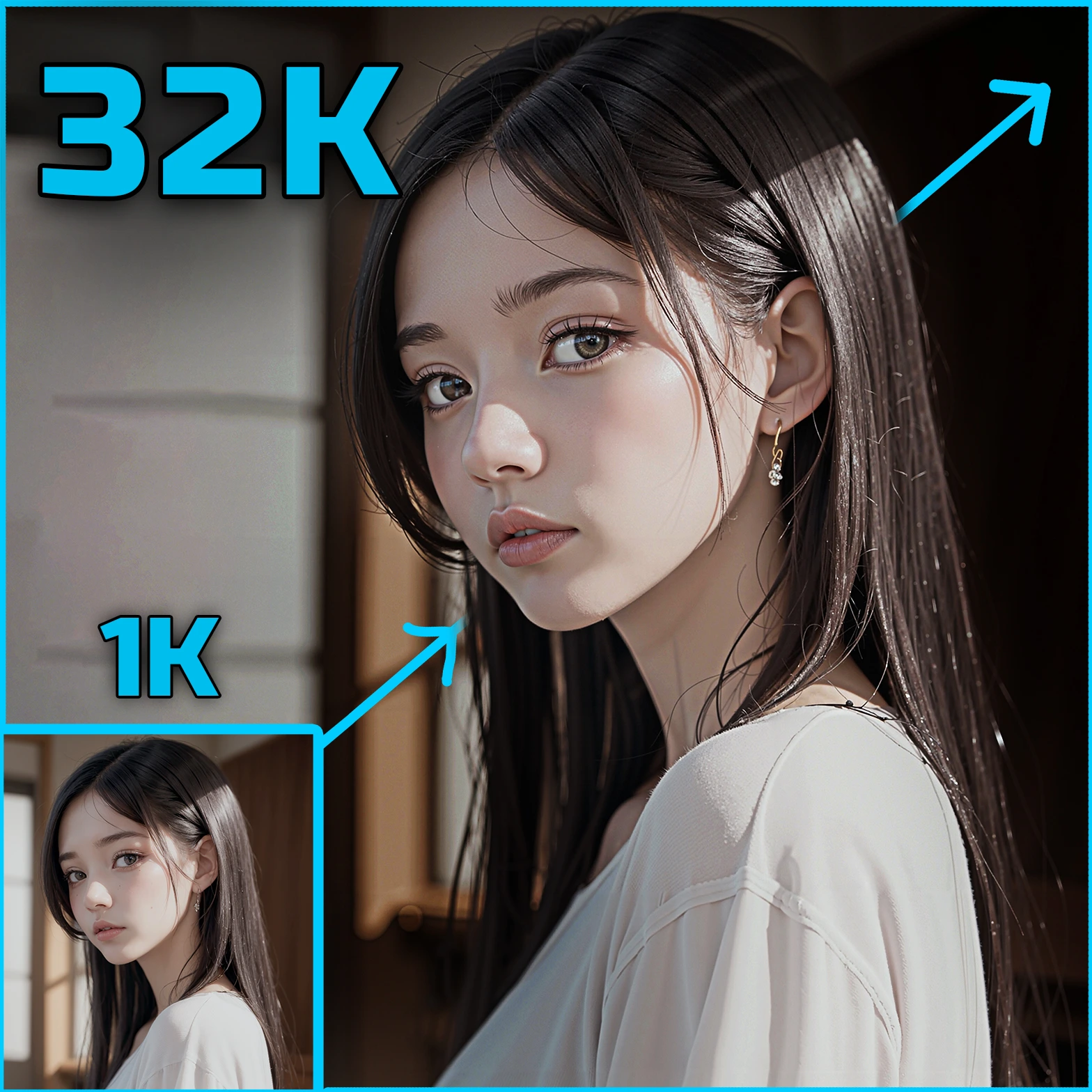
💎 Pony Ultimate Pro:
PonyUltimatePro generates an image from a checkpoint and text prompts in one workflow. It adds scoring tags to the prompts, applies a selected visual style, creates an image at the chosen dimensions, and can run an optional face-detailing pass. It can also place the original and detailed images side by side for comparison. The node reports progress and warnings in the console. Face detailing depends on a separately available detector and detailer; when those steps cannot run, the node generally keeps the base image.
💎 Pony Ultimate Pro Input Parameters:
ckpt_name
Selects the checkpoint used to generate the image. The available options come from the checkpoints detected by ComfyUI, so the list depends on your installation. The configured default is Pony\realismByStableYogi_v60FP16.safetensors; that file must actually be installed for the default to work. This node does not verify that a selected checkpoint is a Pony model.
style
Adds a preset phrase to the end of your positive prompt to steer the image’s appearance. Options are None, Cinematic, Photographic, Digital Art, Anime, Vintage, 3D Render, Watercolor, Oil Painting, and Sketch. The default is Photographic, which adds raw photo, realistic skin texture, bokeh, 35mm lens. None adds no style phrase, but the node still adds its scoring tags to both prompts.
aspect_ratio
Sets the image dimensions and shape. Options are 1024x1024 (1:1), 832x1216 (Portrait), 1216x832 (Landscape), 768x1344 (9:16), 1344x768 (16:9), 512x1024 (1:2), 1024x512 (2:1), and 896x896 (Square). The default is 832x1216 (Portrait). Choose a portrait option for tall compositions or a landscape option for wide scenes; larger dimensions generally require more processing resources.
positive
Provides the text describing what you want in the image, such as the subject, setting, and visual details. It is a multiline string with the default 1girl, solo, masterpiece and no specified length limit. Before generation, the node prefixes it with score_9, score_8_up, score_7_up and appends the selected style phrase, if any.
negative
Provides the text describing elements you want the generation to avoid. It is a multiline string with the default source_furry, source_pony and no specified length limit. The node prefixes it with score_5_up, score_4_up before encoding it. Negative prompts guide the generation but do not guarantee that an unwanted feature will be absent.
seed
Sets the starting random value for the base image generation. Its minimum is 0, maximum is 18446744073709551615, and default is 0. Keeping the seed and other settings the same is useful when comparing prompt or style changes; changing the seed gives the generation a different starting point. The same seed is also passed to face detailing when that pass runs.
steps
Sets how many sampling steps the base image uses. Its minimum is 1, maximum is 100, and default is 30. More steps can take longer without necessarily improving the result; the node logs a time-related warning above 50. The face-detailing pass uses a separate, fixed value of 20 steps, so this setting does not change its step count.
cfg
Controls how strongly sampling follows the encoded prompts. Its minimum is 0.0, maximum is 20.0, default is 5.5, and adjustment increment is 0.1. Higher values can push the result toward the prompt more strongly, but the node warns that values above 10.0 may reduce image quality. When face detailing runs, it uses this value too.
sampler_name
Chooses the sampling algorithm for image generation. Options come from the installed ComfyUI KSampler sampler list; the configured default is dpmpp_2m_sde. The choice affects how the image is produced, and the same selection is passed to face detailing. The source does not provide a fixed list of every available sampler, so check the node’s menu in your installation.
scheduler
Chooses how sampling is scheduled across the generation steps. Options come from the installed ComfyUI KSampler scheduler list; the configured default is karras. The same selection is passed to face detailing. Available alternatives depend on your ComfyUI installation.
face_detailer
Controls whether the node attempts an additional face-processing pass. Options are Enabled and Disabled; the default is Enabled. When enabled, the node tries to load an UltralyticsDetectorProvider face detector and then use FaceDetailer. If the detector cannot load or detailing fails, it falls back to the base image. Select Disabled to skip this extra processing.
face_denoise
Sets the denoise strength passed to FaceDetailer when face detailing runs. Its minimum is 0.0, maximum is 1.0, default is 0.55, and adjustment increment is 0.01. A higher setting gives the detailing pass more scope to change detected face regions; a lower setting is more conservative. It has no effect when face_detailer is Disabled or face detailing cannot run.
show_comparison
Controls whether the node attempts to return the base image and face-detailed image side by side. Options are Yes and No; the default is No. The comparison is created only when face detailing is enabled and a detector loads; the base image is placed on the left and the detailing result on the right. Otherwise, selecting Yes does not by itself create a comparison.
💎 Pony Ultimate Pro Output Parameters:
image
The generated image. Normally this is the base result, the face-detailed result when detailing succeeds, or a side-by-side base-versus-detailed image when comparison is requested and can be created. If face detection or detailing fails, the node generally returns the base image. A broader generation failure instead triggers a fallback black image of 64x64 pixels, which should not be mistaken for a successful generation.
model
The model loaded from the selected checkpoint. You can connect it to subsequent nodes that accept a MODEL input. If generation fails before a model is available, this output may be None rather than a usable model.
vae
The VAE loaded from the selected checkpoint and used to decode the generated image. You can connect it to subsequent nodes that accept a VAE input. If generation fails before a VAE is available, this output may be None.
💎 Pony Ultimate Pro Usage Tips:
- Start with the default
30steps and5.5CFG, then change one setting at a time. Keep the seed fixed while comparing settings so differences are easier to assess. - Choose
styleasNonewhen you want to write all visual style terms yourself. The scoring tags are still added automatically, so account for them when composing your prompts. - Use
832x1216 (Portrait)for a tall subject composition or1216x832 (Landscape)for a wider scene. If generation is slow or memory is limited, try one of the smaller dimension options. - Set
face_detailertoDisabledwhen a face pass is unnecessary or its dependencies are unavailable. This avoids attempting detector loading and the extra detailing step. - Set
show_comparisontoYeswhile tuningface_denoise. Check the base image on the left against the processed result on the right; switch comparison off when you need only the final image. - Check the console when an image looks unchanged after enabling face detailing. The node logs whether the detector loaded, whether detailing succeeded, and when it returned the base image instead.
💎 Pony Ultimate Pro Common Errors and Solutions:
Checkpoint '<name>' not found
- Explanation: The selected checkpoint could not be resolved in the checkpoints directory, so generation stops before loading a model.
- Solution: Select an available file from
ckpt_name. If you expected a file to appear there, confirm that it is in your configured checkpoints location and refresh the checkpoint list.
UltralyticsDetectorProvider not available
- Explanation: The optional face detector provider is not registered in the current ComfyUI setup. The node returns the base image without face enhancements.
- Solution: Disable face detailing if you do not need it, or install and configure a compatible provider that registers
UltralyticsDetectorProviderand make its face detector model available.
Could not load face detector after 3 attempts
- Explanation: A detector provider was found, but the node could not obtain a usable detector using the model names and loading methods it tries. Face detailing is skipped.
- Solution: Check the preceding console warnings for the failed method and model name. Confirm that the provider supports one of the attempted loading methods and that the required
face_yolov8m.ptdetector model is installed where that provider expects it.
Face detection failed - using base image without face enhancements
- Explanation: No detector was loaded, so the node kept the base image.
show_comparisoncannot produce a side-by-side view in this case. - Solution: Review the detector-loading messages above this warning, then correct the missing provider or detector model. If you do not need face processing, set
face_detailertoDisabled.
FaceDetailer node not available
- Explanation: The detector loaded, but the optional
FaceDetailernode is not registered. The node returns the base image. - Solution: Install or enable a compatible node package that registers
FaceDetailer, or disable face detailing.
Face detailer application failed (attempt 1): <details>
- Explanation: The optional face-processing step raised an error. The node clears its cache and retries once; if the second attempt also fails, it returns the base image.
- Solution: Read the specific error details and the subsequent retry message in the console. Verify that the detector and detailer are compatible; if the error concerns available memory, try smaller image dimensions or disable detailing.
Failed to create comparison view: <details>
- Explanation: The node could not join the base and detailed images side by side, so it returns the detailing result instead.
- Solution: Check the reported details for an image-shape or compatibility problem. Set
show_comparisontoNoto obtain a single image while resolving the issue.
Failed to encode prompts: <details>
- Explanation: The checkpoint’s CLIP component could not turn the prepared prompts into conditioning for generation. The main generation process then enters its failure fallback.
- Solution: Check the specific console error, confirm the checkpoint loads with a compatible CLIP component, and retry with simpler prompt text to help isolate the cause.
Base image generation failed: <details>
- Explanation: Sampling or VAE decoding failed before a usable base image was produced. The node then enters its failure fallback.
- Solution: Check the accompanying error details. If memory is the issue, try smaller dimensions; otherwise verify that the checkpoint, sampler, and scheduler work together in your installation.
Generation failed: <details>
- Explanation: A required generation stage raised an exception. The node attempts to return a
64x64black image, with the model and VAE only if they were already available. - Solution: Treat the black image as an error indicator, not a completed result. Read the
Debug infotraceback immediately below the message, then address the underlying checkpoint, prompt-encoding, sampling, or decoding error.
High steps (<value>) may increase generation time significantly
- Explanation: This is a warning, not a failure. The selected base-generation step count is above
50. - Solution: Reduce
stepstoward the default of30if generation takes longer than you need.
High CFG (<value>) may reduce image quality
- Explanation: This is a warning, not a failure. The selected CFG is above
10.0. - Solution: Try a lower
cfgvalue, such as the default5.5, and compare the result while keeping the seed unchanged.