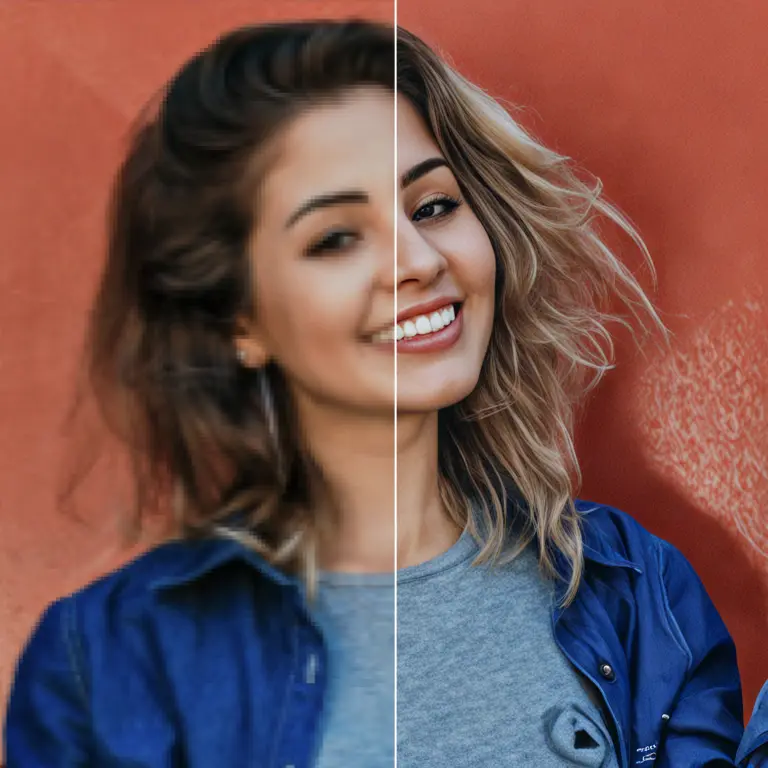
ComfyUI-SeedVR2_VideoUpscaler Introduction
ComfyUI-SeedVR2_VideoUpscaler brings SeedVR2 video and image upscaling into ComfyUI. You can use it to enlarge a finished image, improve the resolution of video frames, or prepare an image sequence for a higher-resolution export. It is designed to add detail while keeping successive video frames visually consistent.
The extension gives you separate controls for the upscaling model, the image encoder and decoder, and the processing settings. That matters when a project is too large for your graphics card: you can choose a smaller model, process an image in tiles, or move parts of a model out of graphics-card memory. You can also adjust color matching if the enhanced result drifts away from the look of your original.
A version 2.5 walkthrough shows the current four-node workflow described in the supplied documentation. You can also inspect the first workflow example and second workflow example.
How ComfyUI-SeedVR2_VideoUpscaler Works
Think of the process as restoring and enlarging a sequence of pictures:
- You supply an image or video frames. In ComfyUI, the main upscaler receives frames as an image batch.
- The VAE prepares the frames. A VAE is a model that converts images into a compact working representation and later converts the result back into viewable images.
- The DiT enhances them. The diffusion transformer, or DiT, performs the main upscaling work. SeedVR2 uses a one-step diffusion approach.
- The VAE turns the enhanced result back into frames. Optional color correction helps the output stay closer to the source.
- Your workflow saves the result. Connect the upscaler’s output to the appropriate frame or video-saving nodes.
For video, the extension can consider several frames together rather than treating every frame as an unrelated picture. Imagine checking nearby drawings in an animation before refining one of them: shared context helps details remain more consistent from frame to frame. Batch size determines how many frames are processed together, while temporal overlap helps blend the boundaries between batches.
Upscaling still requires artistic judgment. Compare the output with the source, especially around faces, fine patterns, transparency, and scene changes. More apparent detail is not always a better match for the original artwork.
ComfyUI-SeedVR2_VideoUpscaler Features
The Four ComfyUI Nodes
| Node | What you use it for |
|---|---|
| SeedVR2 (Down)Load DiT Model | Choose the main enhancement model and control its graphics-card memory use. |
| SeedVR2 (Down)Load VAE Model | Choose the image encoder/decoder and enable tiling for large frames. |
| SeedVR2 Torch Compile Settings | Optionally trade a slower first run for faster repeated processing. |
| SeedVR2 Video Upscaler | Connect your frames and models, then set resolution, frame handling, color correction, and other output controls. |
For a basic workflow, connect an image or batch of video frames, the DiT loader, and the VAE loader to the main upscaler. Connect its output to the saving step already used in your ComfyUI workflow. The Torch Compile Settings node is optional.
Resolution and Frame Handling
resolutionsets the target size of the shortest image edge, in pixels. The other edge scales to preserve the original proportions. The documented default is1080.max_resolutioncaps the size of either edge. Its documented default,0, means no cap. A cap can help when a very wide or tall image would otherwise become too large to process.batch_sizesets how many frames the model handles together. Use values following 4n + 1:1,5,9,13,17, and so on. The documented default is5. Use1for a single image or when video-frame consistency is not needed; for video, the documentation recommends at least5. Larger batches can improve temporal context but need more graphics-card memory.uniform_batch_sizepads a short final batch so it is processed at the same size as earlier batches. This can help avoid an uneven-looking ending, at a small additional memory cost.temporal_overlapblends frames at batch boundaries to reduce visible transitions. Its documented range is0–16frames, with0as the default.prepend_framestemporarily adds reversed frames at the beginning to reduce start-of-video artifacts. The added frames are removed afterward. Its documented range is0–32, with0as the default.seedcontrols reproducibility. With the same inputs and settings, the same seed should produce the same result; the documented default is42.
For example, start a short video with batch_size=5. If you notice a change in appearance where batches meet, try a small temporal_overlap. If the processing runs out of memory, address memory use before dropping to batch_size=1, since that also gives up the intended multi-frame context.
Color and Detail Controls
The main node offers these color_correction choices:
| Setting | Intended effect |
|---|---|
lab | Perceptual color matching that aims to retain the source colors while preserving detail; recommended in the documentation for high fidelity. |
wavelet | Natural-looking color adjustment with good detail preservation. |
wavelet_adaptive | Wavelet-based adjustment with targeted saturation correction. |
hsv | Saturation matching that takes hue into account. |
adain | Statistical color and style transfer. |
none | No color correction. |
The supplied documentation calls LAB a recommended option but lists wavelet as the main node’s default. If the colors of an upscaled shot feel different from the source, compare wavelet and lab on a short section before processing the full video.
Two optional noise controls can help with unwanted artifacts:
input_noise_scaleadds a controlled amount of noise to the incoming frames. It defaults to0.0; the documentation suggests trying0.1–0.3for artifacts at very high output resolutions.latent_noise_scaleadds noise within the model’s working representation. It also defaults to0.0; the documentation suggests trying0.05–0.15if input noise does not help or detail looks excessive.
Change one setting at a time and compare the same frame or short clip. That makes it easier to tell whether an adjustment actually improved your result.
Memory and Speed Controls
BlockSwap moves some DiT model blocks between the GPU and an offload device while processing. It can make a large model usable with less graphics-card memory, but transfers may slow the run. Set offload_device to cpu or another GPU before using blocks_to_swap; 0 disables swapping. You can also enable swap_io_components for additional savings. On Apple Silicon Macs, BlockSwap is automatically disabled because CPU and GPU share unified memory.
VAE tiling divides large frames into smaller pieces during encoding, decoding, or both. Enable encode_tiled if memory runs out during encoding, or decode_tiled if it runs out during decoding. The documented tile-size default is 1024 pixels and tile-overlap default is 128 pixels for each phase. Smaller tiles can reduce memory use; more overlap can help conceal tile seams, but increases processing work.
Offloading and caching offer another tradeoff. A model loader’s offload_device determines where its model rests when it is not actively processing. Its cache_model option keeps the model loaded between workflow runs and requires an offload device. The main node’s separate offload_device controls intermediate data between processing phases; its documented default is cpu.
Attention modes control an internal calculation used by the DiT. sdpa is the default PyTorch option. Flash Attention 2/3 and SageAttention 2/3 are available for supported hardware and software, with fallback behavior when an optional backend is unavailable. If you are unsure which to choose, start with sdpa.
Torch compilation is optional. The author reports potential speedups of 20–40% for the DiT and 15–25% for the VAE, but the first run takes time to compile. It is most useful when you will process many batches, long videos, or many tiles; it may not pay off for one image. The documented starting configuration is the inductor backend, default mode, and fullgraph=False.
The extension also supports RGB and RGBA inputs, including transparency handling; progress reporting; and an enable_debug option that displays processing and memory details when you need to diagnose a problem. Its standalone command-line mode supports folder processing, long-video streaming, and multi-GPU processing, though the ComfyUI nodes are the more visual way to work.
ComfyUI-SeedVR2_VideoUpscaler Models
The DiT model makes the main creative and performance difference. The VAE model prepares and reconstructs the frames. In general, 3B DiT models are the lighter choice, while 7B models demand more memory and can provide higher-quality results. Precision and quantization affect the memory-versus-quality tradeoff: FP16 is the higher-precision choice; FP8 uses less memory; GGUF Q8 and Q4 provide progressively more aggressive memory savings.
| Model or family named in the documentation | When to consider it |
|---|---|
seedvr2_ema_3b_fp16.safetensors | A 3B FP16 choice when you have sufficient graphics-card memory and want the documented best-quality option in the 3B family. |
seedvr2_ema_3b_fp8_e4m3fn.safetensors | A lower-memory 3B alternative with documented good quality. |
seedvr2_ema_3b-Q8_0.gguf | An 8-bit GGUF 3B option with documented good quality; useful when FP16 needs too much memory. |
seedvr2_ema_3b-Q4_K_M.gguf | A 4-bit GGUF 3B option for stronger memory savings, with a greater quality tradeoff. |
seedvr2_ema_7b_fp16.safetensors | A higher-memory 7B FP16 option for the documented best quality in its family. |
seedvr2_ema_7b_fp8_e4m3fn_mixed_block35_fp16.safetensors | A mixed-precision 7B option designed to reduce artifacts while using less memory than full FP16. |
seedvr2_ema_7b-Q4_K_M.gguf | A lower-memory 7B choice when you want to try the larger model but cannot accommodate its FP16 version. |
seedvr2_ema_7b_sharp_* | A family of 7B variants intended to produce a sharper-looking result. Compare them with a standard 7B model if natural texture matters more than apparent sharpness. |
ema_vae_fp16.safetensors | The default, recommended VAE listed in the documentation. |
The readme also mentions additional 7B sharp models and mixed FP8 variants but does not provide a complete filename-by-filename inventory. Check the model choices presented by your loader. The supplied documentation lists model collections at numz/SeedVR2_comfyUI, AInVFX/SeedVR2_comfyUI, and cmeka/SeedVR2-GGUF.
As a practical starting point, try a 3B model for faster previews or limited memory. Compare a 7B model on a short, representative clip when final quality is the priority. Evaluate hair, fabric, fine lines, faces, and motion rather than judging only a single still frame.
What's New with ComfyUI-SeedVR2_VideoUpscaler
Version 2.5.0, November 7, 2025, was a breaking workflow change: the nodes and command-line parameters were redesigned. Older single-node workflows need to be recreated for the four-node architecture. The version 2.5 tutorial is the relevant walkthrough for that design.
The following release history summarizes the changes included in the supplied readme, newest listed release first. It describes those supplied notes rather than claiming to verify later releases.
| Release | What changed and why it matters |
|---|---|
| 2.5.24 · December 24, 2025 | Restored Apple Silicon MPS cache clearing after VAE encoding and decoding, addressing a memory-leak regression. |
| 2.5.23 · December 24, 2025 | Hardened .pth model loading against malicious code execution; fixed FFmpeg writer hangs, GGUF VAE convolution support, VAE-slicing crashes, LAB color-transfer errors, and compatibility issues. Also improved Apple Silicon memory use and the PyTorch 2.9+ memory workaround. |
| 2.5.22 · December 13, 2025 | Added a standalone FFmpeg video-output option with 10-bit x265 encoding, which can reduce visible gradient banding. Fixed Apple Silicon interpolation and improved cross-platform histogram matching. |
| 2.5.21 · December 12, 2025 | Fixed GGUF dequantization on MPS and reduced unnecessary Apple Silicon data transfers and cleanup work. |
| 2.5.20 · December 12, 2025 | Expanded Flash Attention and SageAttention support with fallbacks; improved Apple Silicon compatibility and handling of broken optional attention packages; addressed an AMD ROCm dependency conflict. |
| 2.5.19 · December 10, 2025 | Improved graphics-card memory reporting and backend detection, reinforced attention fallback, removed unused attention code, and reversed the physical-VRAM limit enforcement introduced in 2.5.14. |
| 2.5.18 · December 9, 2025 | Added chunked standalone processing for long videos, more memory-efficient multi-GPU streaming, and a fix for large-video transfer errors. |
| 2.5.17 · December 5, 2025 | Improved detection of bfloat16 support on older GPUs. |
| 2.5.16 · December 5, 2025 | Added an older-GPU fallback, addressed a quality regression, and exposed environment information in debug output. |
| 2.5.15 · December 3, 2025 | Fixed Apple Silicon and autocast compatibility issues, improved memory reporting, and addressed a Triton/bitsandbytes compatibility error. |
| 2.5.14 · December 1, 2025 | Improved MPS device handling and reported GPU-memory overflow or swapping. Its VRAM-limit enforcement was later reversed in 2.5.19. |
| 2.5.13 · November 30, 2025 | Fixed a newer-Triton import error, added a fallback for long-video memory pressure, and fixed a macOS command-line watermark error. |
| 2.5.12 · November 28, 2025 | Reversed an operation that had introduced color artifacts on some images. |
| 2.5.11 · November 28, 2025 | Added a cuDNN attention option; reduced long-video decoding memory spikes; fixed LAB tile-boundary artifacts and color-reference alignment; improved MPS, multi-GPU, debugging, and memory handling. |
| 2.5.10 · November 13, 2025 | Improved reproducibility with the same seed, repaired model caching with BlockSwap, and expanded model-path debugging. |
| 2.5.9 · November 12, 2025 | Fixed tile-debug and macOS loading errors, improved Windows log visibility, and added visible version information to help with troubleshooting. |
| 2.5.8 · November 10, 2025 | Fixed duplicate Windows folder processing, clarified standalone output locations, and preserved transparency in standalone PNG upscaling. |
| 2.5.7 · November 10, 2025 | Improved compatibility of a three-dimensional convolution memory workaround across platforms. |
| 2.5.6 · November 9, 2025 | Restored a more natural look for the 7B model after an optimization caused an overly plastic appearance; fixed a RAM leak affecting long videos. |
| 2.5.4 · November 8, 2025 | Fixed an AdaIN color-correction error and an AMD ROCm convolution error. |
| 2.5.3 · November 8, 2025 | Fixed Apple Silicon device selection and a Windows error involving MPS detection. |
| 2.5.0 · November 7, 2025 | Introduced the four-node ComfyUI design, shared model caching, RGBA support, flexible resolution handling, new batch controls, GGUF support, Apple Silicon and AMD improvements, and substantial speed, color, and memory-management work. Existing workflows need recreation. |
| August 7, 2025 | Improved debug logging, FP8 handling, model discovery and caching, and memory management. |
| July 17, 2025 | Added two sharper-output 7B models. |
| July 11, 2025 | Announced an in-depth AInVFX tutorial covering the earlier workflow, BlockSwap, and transparent image sequences. |
| July 3, 2025 | Added standalone multi-GPU operation. |
| June 30, 2025 | Reduced memory use, fixed a 3B memory leak, made processing interruptible, and removed the Flash Attention dependency. |
| June 24, 2025 | Reported processing speed improvements of up to four times. |
| June 22, 2025 | Added FP8 compatibility alongside speed and memory improvements. |
| June 20, 2025 | Initial release. |
The source notes also date a BlockSwap integration entry September 7, 2025. It introduced a memory-saving option especially relevant to lower-VRAM GPUs.
Troubleshooting ComfyUI-SeedVR2_VideoUpscaler
Turn on enable_debug in the main node before diagnosing an unsuccessful run. The processing phase shown in the logs can tell you whether the problem occurred while preparing frames, enhancing them, or turning them back into images. The node screenshots can help you locate the relevant settings.
“Out of memory” during upscaling
- Check whether the failure occurs in the DiT upscaling phase.
- Try a lower-memory DiT variant, such as FP8 or GGUF.
- On a supported non-Mac setup, set the DiT loader’s
offload_devicetocpu, then increaseblocks_to_swapgradually. The documentation suggests starting at16; higher values save more memory but take longer. - If needed, enable
swap_io_components. - Reduce the requested resolution or set
max_resolutionif the output is still too large. Keep a video batch of at least5where possible if you need multi-frame consistency.
On Apple Silicon, BlockSwap is disabled automatically. Focus on model choice, resolution, and VAE tiling instead.
“Out of memory” during encoding or decoding
- Read the debug output to identify Encoding or Decoding.
- In the VAE loader, enable
encode_tiledfor an encoding failure ordecode_tiledfor a decoding failure. - If memory still runs out, lower the corresponding tile size from its documented
1024-pixel default; the readme suggests trying768or512. - Test a short section before committing to a full video.
Visible tile seams or changes between frame batches
- If you see lines between image tiles, increase the relevant VAE tile overlap from its documented
128-pixel default and compare the result. - If you see a change in appearance over time where frame batches meet, try
temporal_overlap. - If only the last part of a video looks different, try
uniform_batch_size, particularly when using large batches. - If the first frames have artifacts, try a small
prepend_framesvalue. - Recheck the result in motion; a boundary may be hard to judge from one still frame.
Output colors or textures do not match the source
- Compare the same short clip with
waveletandlabcolor correction. Trynoneas a reference when you need to see what the model produced without correction. - If a high-resolution result has artifacts, try a small
input_noise_scalevalue within the documented0.1–0.3suggestion. - If that does not help, compare a small
latent_noise_scalevalue within the documented0.05–0.15suggestion. - If a 7B sharp model looks too harsh for the artwork, compare it with a non-sharp model. Change one setting per test so you can identify the cause.
A workflow or optional speed setting fails
- If the workflow was built before version 2.5.0, recreate it with the separate DiT loader, VAE loader, and main upscaler. Do not expect the older single-node layout to match.
- If an optional attention mode fails, return
attention_modetosdpa, the documented default, and test again. - If compilation fails or makes a short task slower overall, disconnect the optional Torch Compile Settings node and test the basic workflow.
- Keep the displayed extension version and debug output available when seeking help in the project’s Issues or Discussions.
Frequently Asked Questions
Can I upscale a single image?
Yes. Set batch_size=1 when processing one image. Multi-frame consistency is not needed for a still.
What batch sizes are valid?
Use the documented 4n + 1 sequence: 1, 5, 9, 13, 17, and so on. For video consistency, the documentation recommends at least 5.
Which model should I try first with limited graphics-card memory?
Start with a 3B FP8 or GGUF model, then consider offloading and VAE tiling as needed. The documentation presents GGUF Q4_K_M with BlockSwap and tiling as an option for systems with 8 GB of VRAM or less, although actual capacity depends on your frames and settings.
Will a sharper model always make better art?
No. A sharp variant emphasizes apparent detail; compare it against a standard model for the texture and style of your particular shot.
Does the extension preserve transparency?
The supplied documentation describes RGB and RGBA support and edge-guided alpha upscaling. Check your saving workflow as well when exporting transparent results.
Why is the first run with torch compilation slow?
Compilation performs preparatory work on the first run. Its reported speed gains are intended for repeated work, such as long videos, many batches, or many tiles.
Can I process a long video?
The extension describes memory-conscious processing for videos of varying lengths. Its standalone mode also offers chunked streaming for long files. Processing time and memory needs still depend on resolution, model choice, and settings.
Learn More about ComfyUI-SeedVR2_VideoUpscaler
- Version 2.5 deep-dive video: Start here for the four-node workflow, model choices, low-memory strategies, transparency, and image and video examples.
- Earlier tutorial: Useful background on BlockSwap and memory management, but it shows the older single-node interface, not the version 2.5 layout.
- Project source and documentation: Consult the author’s repository for the extension and its supporting materials.
- SeedVR project: Read about the underlying SeedVR work.
- Project Discussions: Ask workflow questions and learn how other artists use the extension.
- Project Issues: Check known problems or report a reproducible bug. Include the version, model, settings, processing phase, and relevant debug output.