



😺NKD Preview 3D:
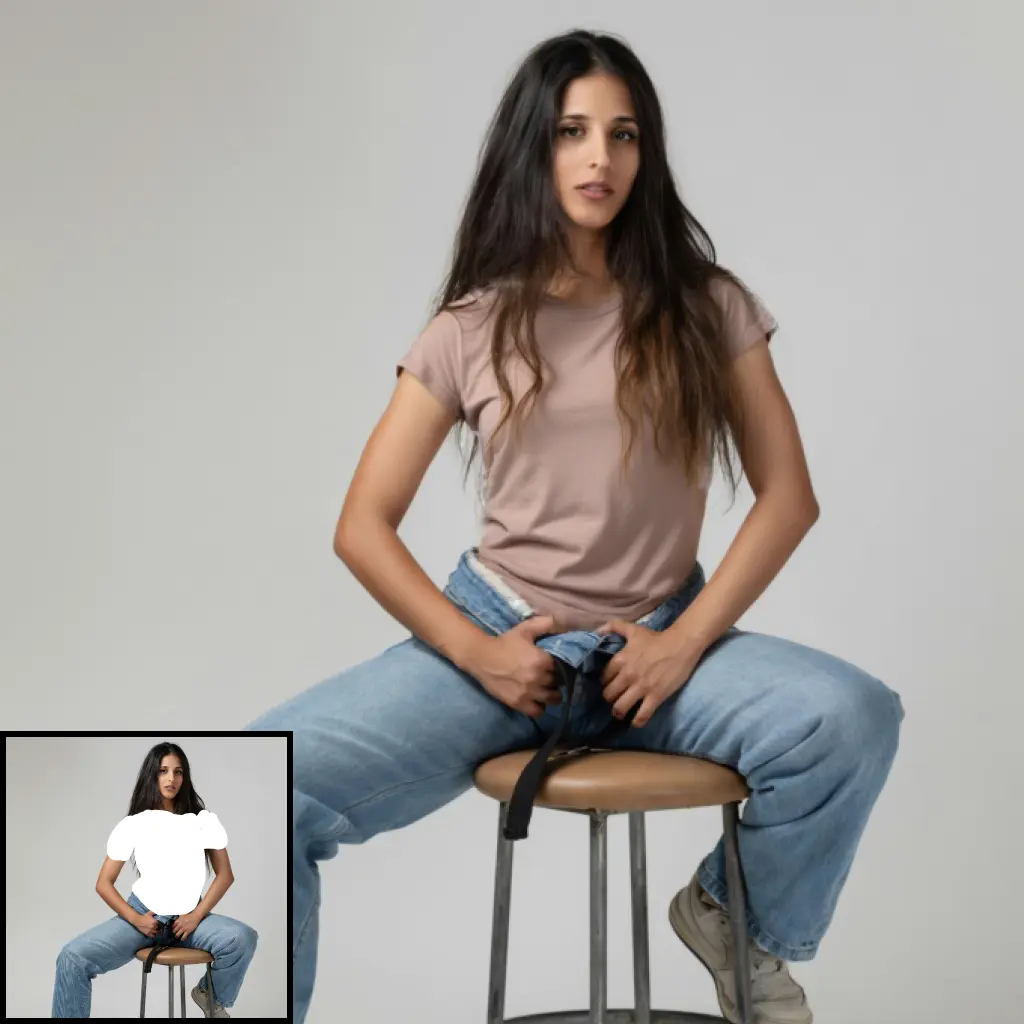
The NKDPreview3D node is a specialized 3D viewport tool designed to render and export 3D scenes within the ComfyUI environment. Its primary purpose is to allow you to place a 3D model against a background photo using a solved camera setup, and then export the resulting render for further processing in the graph, such as inpainting, relighting, or compositing. Unlike the core Preview3D, which results in a static output, NKDPreview3D enables dynamic interaction with the rendered output, allowing it to be fed into subsequent nodes for additional manipulation. This node captures the render client-side using WebGL and uploads it for further processing, ensuring that the rendered output can be seamlessly integrated into your workflow. The node adheres to a right-handed coordinate system with Y-up, making it compatible with other NKD nodes and future camera nodes.
😺NKD Preview 3D Input Parameters:
model
This parameter specifies the 3D model to be rendered in the viewport. It is crucial for defining the visual content of the scene. The model's appearance and position will directly affect the final render output.
bg_image
The background image parameter allows you to set a photo or image as the backdrop for the 3D model. This image provides context and environment for the model, enhancing the realism of the render.
camera_info
This parameter contains the camera settings used to capture the scene. It includes details such as position, orientation, and field of view, which are essential for aligning the model and background correctly.
width
The width parameter defines the horizontal resolution of the rendered output. It impacts the clarity and detail of the final image, with higher values resulting in more detailed renders.
height
Similar to the width, the height parameter sets the vertical resolution of the render. It works in conjunction with the width to determine the overall resolution and aspect ratio of the output.
scene_depth_near
This parameter sets the near clipping plane for the depth rendering, determining how close objects can be before they are clipped from the view.
scene_depth_far
The far clipping plane is defined by this parameter, setting the maximum distance at which objects are rendered before being clipped.
scene_depth_invert
A boolean parameter that, when enabled, inverts the depth rendering, which can be useful for certain visual effects or depth-based processing.
scene_depth_space
This parameter specifies the space in which depth is calculated, with options such as "inverse" to adjust how depth values are interpreted.
😺NKD Preview 3D Output Parameters:
output_image
The output image is the final rendered scene, combining the 3D model and background image. It serves as the primary visual output for further processing or display.
object_rgba
This output provides the RGBA data of the rendered model, including its alpha channel, which is useful for compositing and inpainting tasks.
output_mask
The output mask is a binary image representing the silhouette of the 3D model. It is essential for tasks that require isolating the model from the background.
depth_image
The depth image output contains depth information for each pixel in the scene, which can be used for depth-based effects or further 3D processing.
camera_info
This output returns the camera settings used during rendering, allowing for consistent camera alignment in subsequent nodes.
😺NKD Preview 3D Usage Tips:
- Ensure that your 3D model is properly aligned with the background image and camera settings to achieve realistic renders.
- Use the depth outputs to create advanced effects like depth of field or to integrate the model into complex scenes.
- Experiment with different resolutions to balance between render quality and performance, especially for high-detail scenes.
😺NKD Preview 3D Common Errors and Solutions:
😺NKD Preview 3D has no render to export yet.
- Explanation: This error occurs when the node attempts to export a render before it has been captured.
- Solution: Run the node with the model loaded to ensure the viewport captures the render. If the issue persists, check the browser console for initialization errors.
ValueError or TypeError during capture
- Explanation: These errors indicate that the viewport data could not be parsed correctly.
- Solution: Verify that the viewport data is correctly formatted and that the capture process is functioning as expected.