





ComfyUI-InstantHMR Introduction
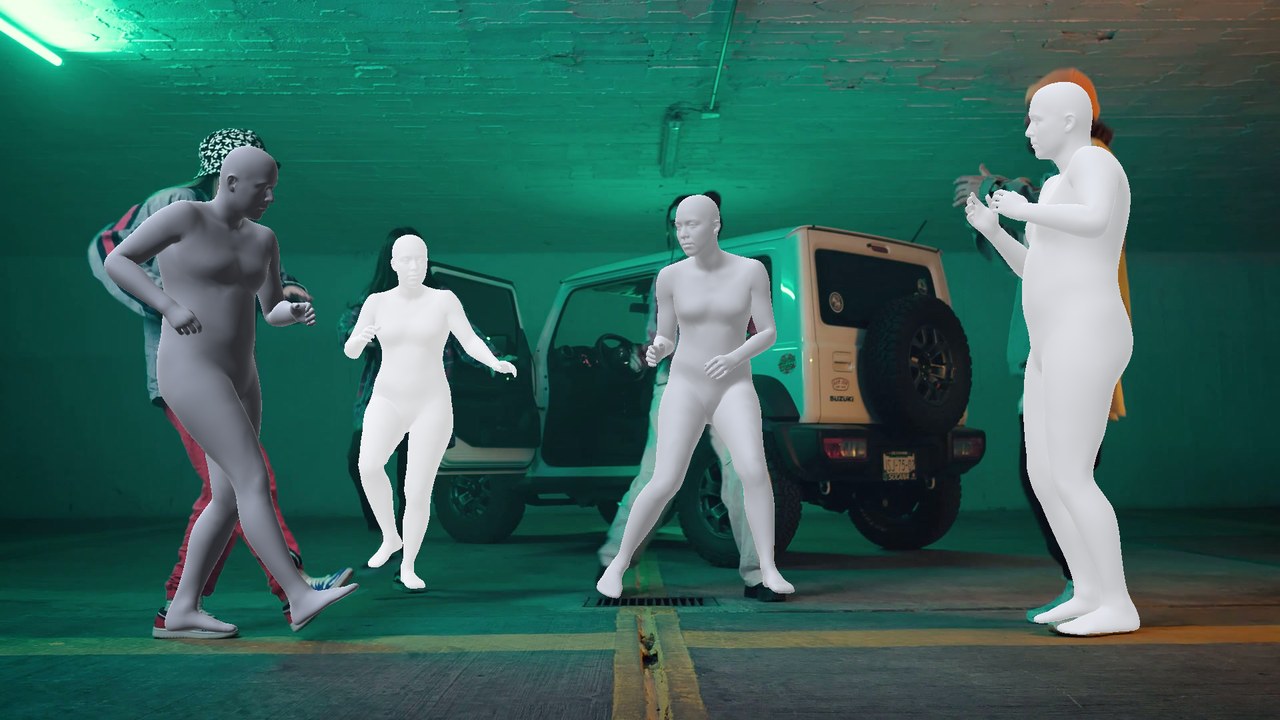
ComfyUI-InstantHMR brings InstantHMR human body reconstruction into ComfyUI. It estimates a person’s 3D pose, body shape, hands, and full body mesh from a photograph, video, or live camera feed.
For each person, it produces:
- A 3D pose: how the body and limbs are positioned.
- Body shape: an estimate of the person’s proportions.
- 70 keypoints in 2D and 3D: reference points that describe the body and hands.
- An MHR body mesh: a three-dimensional body surface built with Meta’s Momentum Human Rig.
The extension uses the same MHR body representation as ComfyUI’s native SAM 3D Body nodes. This means you can pass its results into existing nodes for smoothing motion, rendering pose references, and exporting animations.
What can you use it for?
- Create pose references from photographs. Turn a person’s pose into a mesh, silhouette, or OpenPose-style rendering.
- Recover motion from video. Estimate body movement across frames, smooth the results, and export an animation.
- Capture your own performance. Use a webcam or phone camera to preview reconstructed motion and record a clip.
- Preview motion on a character. Drive a supported rigged character in the live 3D view.
- Send live motion to another application. Stream the first detected person’s pose to an application that receives the VMC protocol.
InstantHMR is a compact model family, with approximately 20–32 million parameters. Its body-prediction stage is fast, but your overall workflow speed also depends on person detection, tracking, rendering, and hardware.
How ComfyUI-InstantHMR Works
Think of the workflow as finding a person, fitting a digital mannequin to them, and then choosing how to display or reuse that mannequin.
1. Identify each person
The prediction node needs to know which part of the image belongs to each person. It can use:
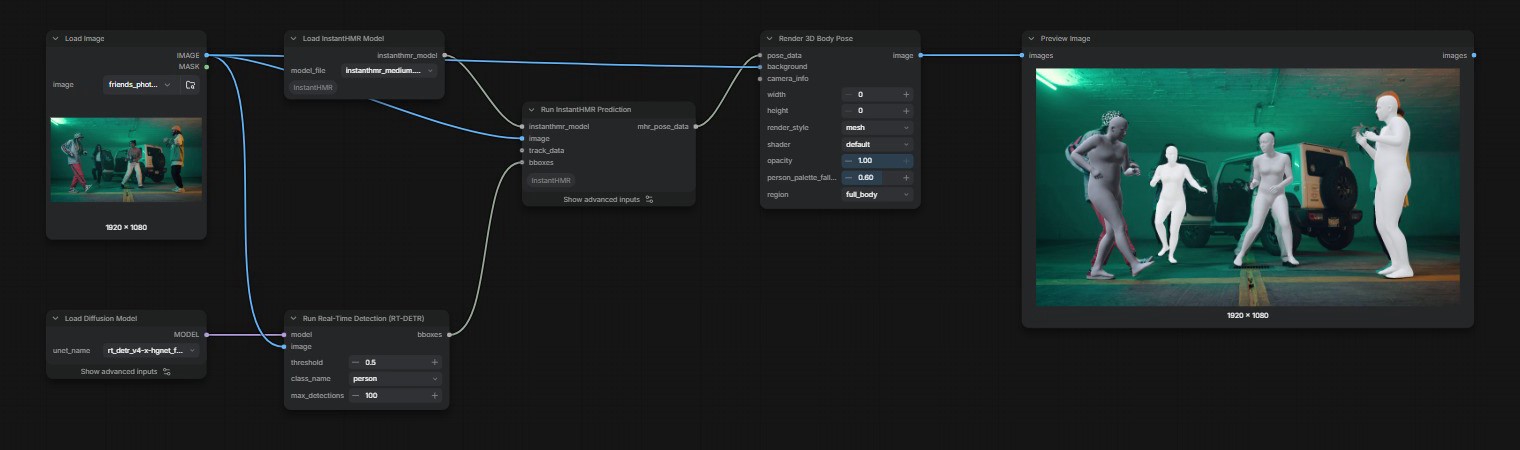
RT-DETR Detect, with thepersonclass, to provide rectangular person boxes.SAM3 Video Trackto follow people through a video.- The entire frame, if neither boxes nor tracks are connected. In this case, the frame is treated as one person.
For a group photograph, boxes let the model process each person separately. For a video with several people, tracking also helps maintain a consistent identity for each person across frames.
2. Estimate the body
InstantHMR examines each person’s image region and predicts their pose, proportions, and keypoints.
The MHR body model then provides the corresponding 3D body. You can think of MHR as an adjustable mannequin: its joints describe the pose, while its shape settings describe body proportions.
This is an estimate from an image—not a direct measurement of the person. The author notes that full-body images generally align more closely than close-ups that cut off much of the body.
3. Account for the camera
The fov setting describes the camera’s vertical field of view, in degrees. This helps relate the 3D reconstruction to the camera image.
You can:
- Connect
MoGethroughMoGe Geometry To FOVto estimate the camera field of view for a video. - Leave
fovat0to use the documented fallback: a focal length equal to 1.05 times the image diagonal.
Field of view is a camera setting, not a pose-strength control. It affects how the reconstructed body is placed and projected into the image.
4. Render, smooth, or export the result
Run InstantHMR Prediction outputs MHR_POSE_DATA, a structured body-pose result rather than a finished image.
Compatible native ComfyUI nodes can then:
- Reduce frame-to-frame jitter.
- Render meshes, silhouettes, and pose skeletons.
- Create supported 3D animation files.
A typical video pipeline is:
Video frames → person tracking → InstantHMR prediction → smoothing → rendering or animation export
ComfyUI-InstantHMR Features
Main nodes
| Node | Purpose | When to use it |
|---|---|---|
Load InstantHMR Model | Loads an InstantHMR checkpoint from models/detection. | Select the model used for image or video prediction. |
Run InstantHMR Prediction | Predicts one MHR body per person box and outputs MHR_POSE_DATA. | Process photographs or video frames. |
InstantHMR Live Capture | Provides live camera and 3D previews, character driving, VMC streaming, and recording. Outputs the selected recorded clip as VIDEO when the workflow runs. | Capture or preview a live performance. |
Rendering and animation export
The prediction output works with these native nodes:
| Native node | What it adds |
|---|---|
Smooth SAM3D Body Pose Data | Reduces jitter in reconstructed video motion. |
Render 3D Body Pose | Renders meshes, silhouettes, OpenPose 2D/3D, and SCAIL representations. |
Create 3D Animation File | Creates animated GLB files in the openpose and scail styles. Other supported export options require an additional rig input, as explained below. |
Important export requirement: the body_mesh and bones_only styles, as well as BVH export, read the MHR rig through a sam3d_body_model input. Connect a SAM 3D Body loader when using those options.
The InstantHMR checkpoint contains the rig needed for its own prediction, but those native export paths still require their documented SAM 3D Body model input.
Multi-person video tracking
For videos containing several people, the author recommends using SAM3 tracks.
Smoothing relies on each person keeping the same index across frames. Tracking helps prevent the motion of one person from being mixed with another person’s motion.
Additional behavior and controls:
- Tracks whose predicted body falls mostly outside their own SAM3 mask are dropped. This can reject false tracks, such as an isolated raised arm detected as a separate person.
- If you know how many people are in the clip, set
max_objectsinRun SAM3 Video Trackto that number.
Live camera preview
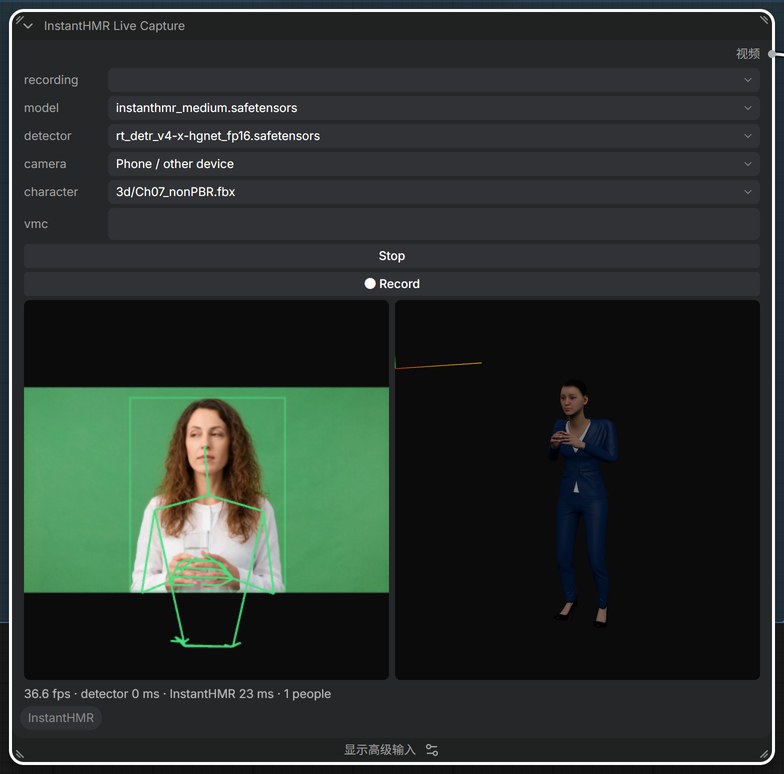
InstantHMR Live Capture runs RT-DETR and InstantHMR on a camera feed.
The preview shows:
- Left: the camera image with 2D skeletons.
- Right: reconstructed 3D bodies. Drag in this view to orbit around them.
Choose the InstantHMR model, RT-DETR detector, and camera, then press Start. These selections are saved with the workflow.
Camera choices
- This device: uses the webcam connected to the browser displaying ComfyUI. Both previews are mirrored, like a video call. Recordings and VMC output preserve the real left and right.
- Phone / other device: displays a QR code. Scan it with a phone on the same network. The phone streams its camera and displays skeletons, while the ComfyUI node displays the 3D view.
The phone acts as the camera source; ComfyUI performs the processing on the computer running it.
Recording a performance
- Start the live preview.
- Press ● Record to record incoming camera frames.
- Recordings are stored in
input/instanthmr_live/. - The new clip becomes selected in the
recordinglist. - Run the workflow to output that clip as
VIDEO.
To reconstruct the recorded clip, use:
InstantHMR Live Capture → Get Video Components → Run InstantHMR Prediction
The included live workflow demonstrates the rest of this pipeline.
Live smoothing and performance controls
| Setting | What it does | Practical effect |
|---|---|---|
smoothing | Steadies the pose between frames. | Higher values reduce movement while you hold still, but add some lag to slow movements. 0 shows the raw per-frame result. |
detect_every | Runs person detection every N frames and reuses the boxes between detections. | Values of 2–3 can improve preview smoothness because detection is the slowest step. |
fov | Sets the vertical camera field of view. | Uses the same interpretation as the prediction node. |
The live 3D view, driven character, and VMC output all use the smoothed pose.
For example, a held pose may benefit from more smoothing. If you are evaluating the model’s immediate response, setting smoothing to 0 lets you inspect the unfiltered result.
Driving a rigged character
The character selector lists supported rigged character files found in the ComfyUI input folder, including subfolders such as input/3d/.
Supported formats are:
.fbx.glb.gltf.vrm
Selecting a character replaces the MHR body in the live 3D preview with that character, with one copy per detected person.
The extension matches bones:
- By name for Mixamo, Unreal, and similar rigs.
- Through the humanoid table for VRM characters.
Both T-pose and A-pose characters are supported. The character is scaled to match the performer’s leg length.
Streaming motion with VMC
The vmc field sends the first person’s humanoid pose to an application that supports the VMC protocol.
Examples include VSeeFace, Warudo, VNyan, VMC Link for Blender, and VMC4U for Unity.
Enter a destination in this format:
host:port
For example:
127.0.0.1:39539
ComfyUI sends the stream, so the address must be reachable from the computer running ComfyUI, not necessarily the device displaying the browser. Clear the field to stop streaming.
Using an existing VMC Link setup in Blender
- Import a T-pose character, such as a Mixamo FBX.
- Apply its rotation and scale using Object → Apply → All Transforms.
- Select the character’s armature in the VMC Link panel.
- Press Start Receiver.
- Enter the receiver’s host and port in the live node.
- Use Start Recording in VMC Link to key the motion onto the armature.
For Mixamo rigs, the author specifies these manual bone mappings under VMC Link’s advanced settings:
| Humanoid bone | Mixamo name |
|---|---|
| UpperLeg | UpLeg |
| LowerLeg | Leg |
| Toes | ToeBase |
| Chest | Spine1 |
| UpperChest | Spine2 |
| Fingers | HandThumb1–3, HandIndex1–3, and equivalent finger chains |
| Little finger | HandPinky |
Adding facial expressions
InstantHMR itself predicts body, hands, and shape, not facial expressions.
For facial animation:
- Add
Face Expression to SAM3D BodyafterRun InstantHMR Prediction. - Supply a model from
Load SAM3D Body Model.
The expression node uses MediaPipe to read faces and drive MHR’s facial expression blendshapes. The expressions can then be included in the rendered mesh and GLB/BVH export.
ComfyUI-InstantHMR Models
Five checkpoints are documented for this extension.
| Checkpoint | Backbone | Parameters | 3DPW error, mm ↓ | Usage restriction |
|---|---|---|---|---|
instanthmr_nano.safetensors | HGNetV2-B0 | 20.0 M | 46.6 | SAM License; non-commercial only |
instanthmr_tiny.safetensors | HGNetV2-B1 | 20.3 M | 44.0 | SAM License; non-commercial only |
instanthmr_small.safetensors | HGNetV2-B2 | 24.4 M | 41.7 | SAM License; non-commercial only |
instanthmr_medium.safetensors | HGNetV2-B4 | 32.2 M | 40.0 | SAM License; non-commercial only |
instanthmr_medium_commercial.safetensors | HGNetV2-B4 | 32.2 M | 50.7 | SAM License; commercial use permitted under its terms |
The error column uses PA-MPJPE, a research measure of average joint-position error after alignment. Lower is better on that benchmark; it is not a guarantee of the error in your own footage.
Choosing a model
- Nano: useful when prioritizing speed and responsiveness.
- Tiny: a lightweight alternative with better reported accuracy than nano.
- Small: a middle ground between model size and reported accuracy.
- Medium: the strongest reported baseline accuracy among the listed checkpoints.
- Medium commercial: the option for commercial projects, subject to the SAM License. It has the same model size as medium but a higher reported benchmark error.
Smaller models may make live capture more responsive, while larger models may provide more accurate poses. However, reducing model size will not necessarily produce a large overall speed improvement if detection or tracking is the bottleneck.
Model files and compatibility
Extension-ready checkpoints are available on Hugging Face. The model loader reads them from models/detection.
Each checkpoint includes:
- The prediction network.
- The MHR body rig it was trained on.
No separate body model is needed for InstantHMR prediction itself. Additional native export or facial-expression nodes may still require a SAM 3D Body loader.
The upstream project also distributes ONNX models. These are a different format; the extension provides scripts/convert_onnx.py for conversion to its checkpoint format.
Performance expectations
The upstream paper reports approximately 1 ms per person on a desktop GPU and approximately 5 ms per person on a phone NPU for the model stage, depending on model size and execution settings.
These are not end-to-end ComfyUI timings. They do not include all detection, tracking, frame handling, rendering, or export work. The phone NPU results also do not mean that the extension’s phone-camera mode runs inference on the phone.
Licensing
All five checkpoints are subject to the SAM License.
The nano, tiny, small, and medium checkpoints additionally carry a non-commercial restriction because of their training images. The commercial medium model uses commercially usable training images, but remains subject to the SAM License’s conditions.
Do not assume the upstream code’s Apache-2.0 license also applies to the model weights.
What’s New with ComfyUI-InstantHMR
The supplied documentation does not include a versioned changelog for the ComfyUI extension. The dated updates below belong to the upstream InstantHMR project and should not be interpreted as confirmed new controls in the ComfyUI nodes.
| Date | Upstream update | Why it matters |
|---|---|---|
| November 6, 2026 — v1.0 | First release, including four model sizes, a commercially usable medium model, ONNX graphs, demo, training code, and dataset pipeline. | Established the model choices used by the extension. |
| November 8, 2026 — v1.1 | Added an in-graph kinematic fit and two video pose filters. | The fit adjusts the 3D pose toward the model’s predicted 2D keypoints; the filters aim to reduce motion jitter. |
| November 10, 2026 | Released PyTorch checkpoints and configuration files for all five models. | Provides a starting point for advanced users who want to fine-tune models on their own data. |
The upstream v1.1 options such as --fit and --pose-filter are documented for its own tools. The provided extension documentation does not establish that these options are exposed in ComfyUI. For documented ComfyUI smoothing, use the live node’s smoothing control or Smooth SAM3D Body Pose Data.
ComfyUI-InstantHMR Example Workflows
The included workflows demonstrate three starting points:
| Workflow | What it demonstrates |
|---|---|
| Image workflow | Finds people in a photograph with RT-DETR and renders reconstructed meshes over the image. |
| Video workflow | Uses SAM3 tracks, MoGe field-of-view estimation, smoothing, a rendered video, and SCAIL GLB export. |
| Live-recording workflow | Processes a clip recorded with InstantHMR Live Capture through the video pipeline. |
Start with the image workflow to understand prediction and rendering. Use the video workflow when consistent tracking and smoothing are important, or the live workflow to reuse your own recorded performance.
Troubleshooting ComfyUI-InstantHMR
Only one body appears in a group image
Without boxes or tracks, the prediction node treats the entire image as one person.
- Check whether a detection or tracking input is connected.
- For a photograph, use
RT-DETR Detectwith thepersonclass. - For a multi-person video, use
SAM3 Video Track. - Confirm that the detector or tracker identifies the intended people.
The mesh does not line up closely with a cropped person
InstantHMR is trained on whole people. The author notes that chest-level close-ups can retain a good pose while the mesh sits a few percent away from the person in the image.
- Test a full-body frame to compare alignment.
- Check the person boxes or tracks supplied to prediction.
- Review the camera
fovinput. - For video, use
MoGethroughMoGe Geometry To FOVwhen appropriate.
Video motion jitters or people become mixed during smoothing
- Use SAM3 tracks so each person keeps a consistent index across frames.
- Set
max_objectsto the known number of people. - Pass the result through
Smooth SAM3D Body Pose Data. - For live capture, increase
smoothinggradually.
More live smoothing makes held poses steadier, but introduces some delay during slow movements.
The live preview is slow
- Try
nanoortiny. - Set the advanced
detect_everyinput to2or3. - Compare the preview again.
Detection is the documented slowest step in live capture, so changing detector frequency may help more than changing the body model alone.
The browser cannot open the camera
Browsers allow camera access only on localhost or HTTPS.
- If using a webcam on the same computer, open ComfyUI through
localhost. - If accessing ComfyUI over the network, use an HTTPS address.
- For a phone, confirm that it is on the same network as the ComfyUI computer.
- If the HTTPS setup uses a self-signed certificate, accept its warning on both the computer and phone.
A plain HTTP LAN address does not meet the documented camera-access requirement.
The preview looks mirrored
This is expected with This device camera mode. Both previews are mirrored for a video-call-style experience.
Recordings and VMC output keep the real left and right.
VMC motion does not reach the receiving application
- Confirm that the receiver is running.
- Check that the
vmcfield matches its host and port. - Interpret the address from the computer running ComfyUI.
- If the receiver runs on another computer, do not use
127.0.0.1, which refers to the ComfyUI computer itself. - In Blender, check that the correct armature is selected and Start Receiver has been pressed.
Only the first detected person is streamed through VMC.
A character’s motion looks incorrect
- Confirm that the file contains a rigged character in a supported format.
- Review bone names or the VRM humanoid mapping.
- For the documented Blender workflow, apply the character’s transforms.
- For Mixamo in VMC Link, review the manual bone mappings listed above.
The documentation describes support for Mixamo, Unreal-like naming, and VRM humanoid mappings; it does not promise automatic matching for every custom rig.
body_mesh, bones_only, or BVH export needs a model input
Connect a SAM 3D Body loader to the export node’s sam3d_body_model input. These export paths obtain their MHR rig from that input.
Frequently asked questions
Does InstantHMR predict facial expressions?
No. Add Face Expression to SAM3D Body with a SAM 3D Body model to estimate expressions separately.
Can I record a live session and process it afterward?
Yes. Select the recording and run the workflow to output it as VIDEO, then extract its frames with Get Video Components.
Do I always need a separate SAM 3D Body model?
No. InstantHMR prediction includes its own required rig. Certain native export options and the facial-expression workflow require an additional SAM 3D Body model input.
Can I use the models commercially?
Only the commercial medium checkpoint permits commercial use, subject to the SAM License. The other four checkpoints are non-commercial only.
Will a larger model always make the whole workflow slower?
Not necessarily by a noticeable amount. Detection and tracking can dominate processing time.
Learn More about ComfyUI-InstantHMR
Practical resources
- Included image workflow: a starting point for turning photographs into rendered body references.
- Included video workflow: demonstrates tracking, camera estimation, smoothing, and animation export.
- Included live workflow: shows how to process recorded camera performances.
- Extension-ready checkpoints: model files and their license.
- VMC protocol documentation: explains the live-avatar streaming format.
- VMC Link for Blender: a receiver for bringing streamed motion into Blender.
Background and deeper reading
- InstantHMR upstream project: model documentation, research updates, and standalone tools. Its command-line settings are separate from the extension’s node controls.
- InstantHMR paper: the method and benchmark results.
- Momentum Human Rig: background on the body model used for reconstruction.
- Interactive MHR visualization notebook: an interactive resource for exploring the underlying body representation.
- SAM 3D Body: background on the body-reconstruction system whose MHR representation is shared with InstantHMR.