
MiniMax Story Builder ComfyUI | Story to Film and Single‑Shot Render#
MiniMax Story Builder ComfyUI is a two‑in‑one, story‑driven video pipeline that turns a written idea into a finished short film, or regenerates a single shot with precise timing. It plans your beats, casts characters and locations, renders with MiniMax‑H3, and assembles picture with synchronized audio.
The canvas ships with two paths: Story to Film is active by default and runs the complete plan‑to‑edit process, while Single‑Shot Render is bypassed for targeted shot iterations. Switch modes by setting the Story to Film group to Bypass and the Single‑Shot Render group to Always. The project is based on the open source Minimax Story Builder by lumosai8 and keeps the original creative controls intact (GitHub).
Key models in Comfyui MiniMax Story Builder ComfyUI workflow#
- MiniMax‑H3 video diffusion (Ref2VA and Hybrid FL2VA+Ref2VA). Core video generation uses the official MiniMax‑H3 UNets with paired video and audio VAEs for end‑to‑end picture and sound synthesis. These assets are provided in the maintained model set with ready‑to‑use text encoders and LoRAs (Comfy‑Org/MiniMax‑H3, hybrid variants: smhfacct/Minimax‑H3‑fl2va‑ref2va‑hybrid‑models).
- MiniMax‑H3 Turbo LoRAs. Lightweight adapters accelerate and stylize H3 for fast iterations and consistent direction across shots; the workflow includes turbo LoRAs prepared for H3 (Comfy‑Org/MiniMax‑H3 LoRAs).
- Krea‑2 Turbo diffusion for casting stills. A compact, high‑speed image model generates character sheets and location plates that downstream H3 uses for continuity (Comfy‑Org/Krea‑2).
- Qwen‑VL text encoders packaged with the model sets. Optimized Qwen encoders power story understanding and prompt conditioning for both Krea‑2 and MiniMax‑H3, distributed with the above model repositories so they load out of the box.
How to use Comfyui MiniMax Story Builder ComfyUI workflow#
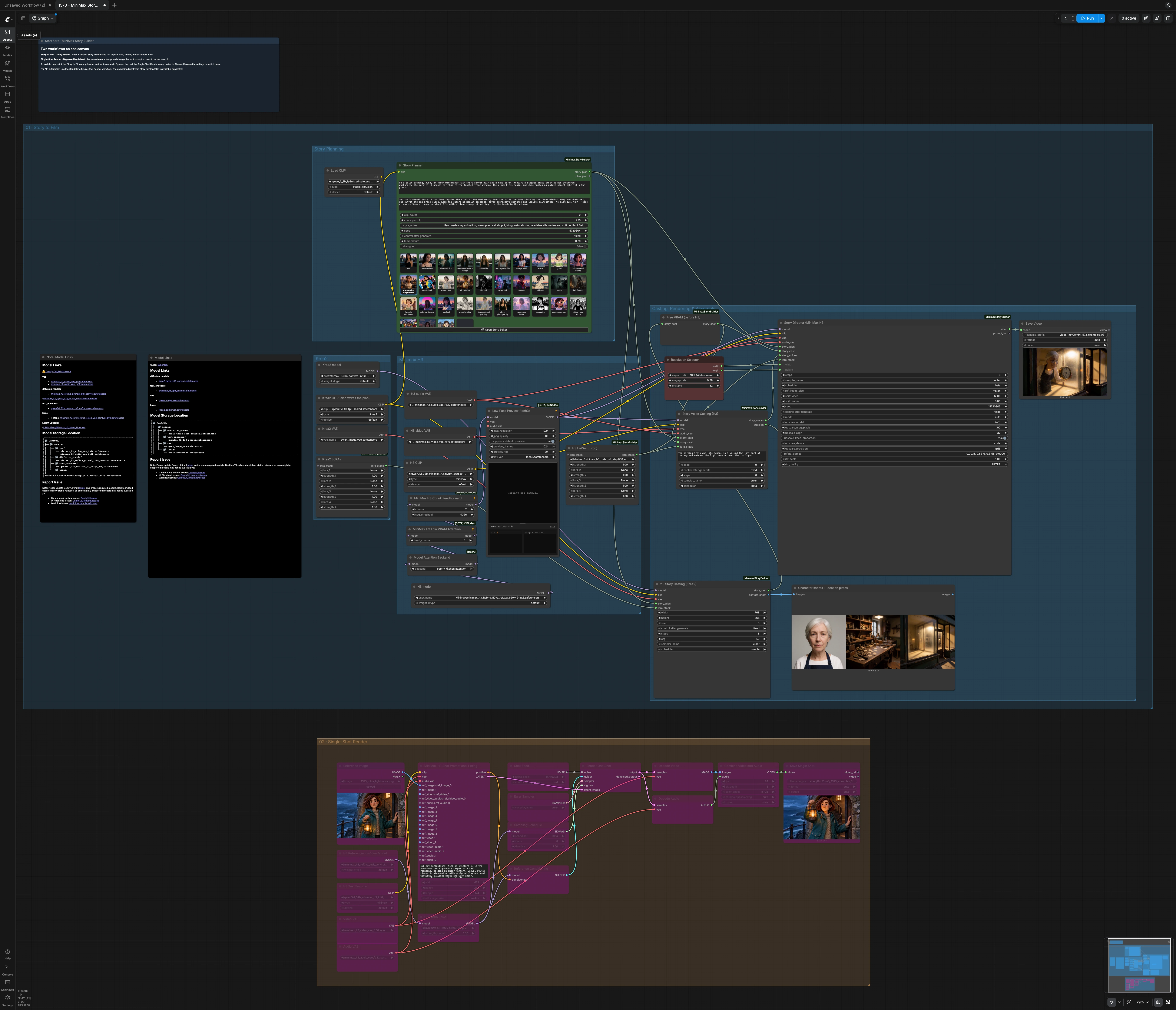
The canvas contains two independent paths that share creative inputs. Story to Film runs end‑to‑end from text to final video. Single‑Shot Render focuses on one reference‑guided clip. To switch, right‑click a group header: set 01 · Story to Film to Bypass and 02 · Single‑Shot Render to Always, or reverse to return to the full pipeline.
Story Planning (group)#
Use the planner to turn your idea into a beat‑by‑beat plan with consistent style guidance. Enter your story, add concise context, choose a style preset, and open the editor if you want to refine beats or clip counts. The planner writes a structured plan and passes it forward as STORY_PLAN. Internally the MinimaxStoryPlanner (#32) couples language understanding with style notes so later stages can keep characters, props, and staging coherent.
Krea2 (group)#
This block produces character sheets and location plates that anchor visual continuity. The Krea‑2 model, CLIP, VAE, and optional LoRAs flow into MinimaxStoryCasting (#6), which interprets the plan and drafts consistent looks. The contact sheets preview in “Character sheets + location plates,” so you can sanity‑check wardrobe, props, and silhouette readability before video rendering. The resulting STORY_CAST travels to the H3 stages.
Minimax H3 (group)#
This area prepares the H3 backbone for efficient inference and responsive previews. Attention and feed‑forward chunking nodes balance speed and VRAM, while the preview node provides a low‑pass visual check as shots are staged. The configured H3 model and encoders then fan out to voice audition and directing so both audio and video share the same scene understanding.
Casting, Rendering & Assembly (group)#
Voice audition uses MinimaxStoryVoiceCastingH3 (#36) to search naturalistic timbres that match your cast, producing STORY_VOICES and a quick “Audition the voices” preview. The director, MinimaxStoryDirector (#34), converts plan beats into timed shots, conditions H3 with your cast and voices, and renders picture with synchronized audio. Choose a resolution with ResolutionSelector and review the assembled cut; the final video is written by SaveVideo (#23). A lightweight “Free VRAM” step maximizes stability before H3 rendering when long scenes are queued.
02 · Single‑Shot Render (group)#
Use this for targeted fixes or style experiments without re‑rendering a whole film. Load a Reference Image (#137), write a tight shot prompt, and set width, height, and length inside MiniMax H3 Shot Prompt and Timing (#136). The H3 Turbo LoRA (#164) and scheduler/sampler nodes shape speed, detail, and style, while Shot Seed (#129) locks reproducibility. Render One Shot (#125) denoises to latent video and audio, which are decoded, combined, and saved by Save Single Shot (#92).
Key nodes in Comfyui MiniMax Story Builder ComfyUI workflow#
MinimaxStoryPlanner (#32)#
Turns your text into a structured STORY_PLAN with clip counts, beat goals, and a style baseline. Adjust the story, context, and style preset to steer shot selection and staging. Use the editor control if you want to expand or compress beats. This node is part of the open Minimax Story Builder project and designed to preserve character, prop, and setting continuity across the pipeline (repo).
MinimaxStoryCasting (#6)#
Generates character and location boards from the plan using Krea‑2 plus optional LoRAs. A small set of steps and a compact resolution keep iteration fast while preserving shape language and wardrobe consistency. Use the preview contact sheet to verify designs before you commit to long H3 runs. Krea‑2 model assets are available from the official repository (Krea‑2 models).
MinimaxStoryVoiceCastingH3 (#36)#
Searches and assigns voice characteristics that fit each character, then outputs STORY_VOICES for the director and an audition clip for review. The node shares encoders and VAEs with the video stack so timing and timbre remain aligned with the visuals. If you change the reference text or seed here, re‑audition to confirm the match. MiniMax‑H3 audio and video VAEs are provided in the official model set (MiniMax‑H3).
MinimaxStoryDirector (#34)#
Orchestrates shot prompts, timings, and conditioning from the plan, cast, and voices to render your film. Set output dimensions via ResolutionSelector (#29) and keep them consistent with your target delivery. The director handles render order and audio shifting so beats cut together cleanly, then writes the master video. For longer scenes on limited GPUs, keep the built‑in low‑VRAM path enabled for stability.
MiniMax H3 Shot Prompt and Timing (#136)#
The single‑shot control surface for reference‑to‑video. Provide a strong reference image, a clear prompt, and set width, height, and shot length to define framing and duration. Use ref_image_size to decide whether to match the reference aspect or adapt to your target resolution. When exploring looks, combine this with H3 Turbo LoRA (#164) and lock Shot Seed (#129) for fair comparisons. The underlying model and LoRAs are maintained in the official releases (MiniMax‑H3).
Optional extras#
- To switch modes, set 01 · Story to Film to Bypass and 02 · Single‑Shot Render to Always; reverse to restore the full pipeline.
- For reproducibility, keep the planner seed stable for a project, then vary
Shot Seedonly when exploring alternates. - If VRAM is tight, prefer modest resolutions and keep the low‑VRAM attention and chunking path active; it is already wired for stability.
- For automation, use the standalone
minimax_h3_single_shot.json. To inspect the unmodified upstream graph, openstory_to_film.jsonin a fresh canvas. - Character continuity improves when names, wardrobe descriptors, and prop phrases remain consistent between story, plan, and shot prompts.
This MiniMax Story Builder ComfyUI workflow is built to plan, cast, render, and iterate quickly, so you can move from a page of text to a cohesive short film or a surgically precise single‑shot fix with minimal friction.
Acknowledgements#
This workflow implements and builds upon the following works and resources. We gratefully acknowledge lumosai8 for MinimaxStoryBuilder, the original story_to_film.json workflow, and the upstream MIT license, and RunComfy for the Serverless deployment guide, for their contributions and maintenance. For authoritative details, please refer to the original documentation and repositories linked below.
Resources#
- lumosai8/MinimaxStoryBuilder
- GitHub: lumosai8/MinimaxStoryBuilder
- lumosai8/Original workflow JSON (story_to_film.json)
- GitHub: lumosai8/MinimaxStoryBuilder
- lumosai8/Upstream MIT license
- GitHub: lumosai8/MinimaxStoryBuilder
- RunComfy/Serverless deployment guide
- Docs / Release Notes: RunComfy Docs
Note: Use of the referenced models, datasets, and code is subject to the respective licenses and terms provided by their authors and maintainers.