



ComfyUI-ReCaVSR Introduction
<picture>
<source media="(prefers-color-scheme: dark)" srcset="assets/banner-dark.png">
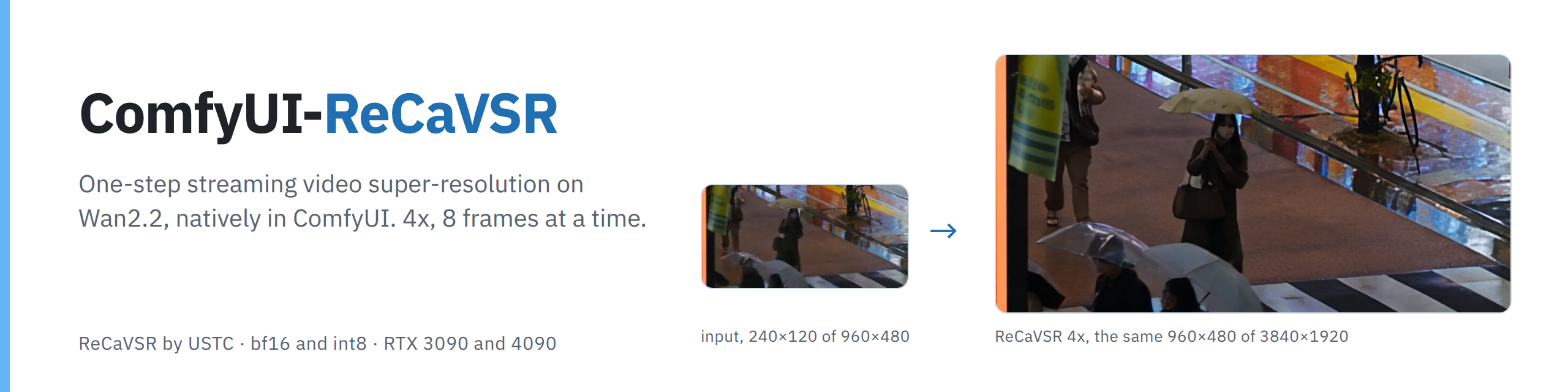
ComfyUI-ReCaVSR brings ReCaVSR video super-resolution directly into ComfyUI. It increases the resolution of your footage while using information from earlier frames to help maintain detail over time.
ReCaVSR is built on Wan2.2 TI2V-5B. Rather than processing every frame as an unrelated image, it works through a video in small groups of frames, carrying useful information forward. This makes it suited to enlarging video where consistent detail between frames matters.
For AI artists, the extension offers:
- 4× upscaling: Turn a 960 × 480 clip into 3840 × 1920 footage, for example. A scale of 4 multiplies both width and height—not just the total pixel count.
- Streaming video processing: With a VIDEO input and FlashDecoder, the extension reads and writes the clip in blocks rather than keeping all decoded frames in memory.
- A smaller model option: The int8 ConvRot transformer reduces model size and can improve speed on supported GPUs.
- A choice between speed and finer texture: Use FlashDecoder for efficient processing, or the optional Wan 2.2 VAE when additional texture detail is worth a longer wait.
- Automatic memory management: ComfyUI manages model placement, while the extension adapts its processing strategy for larger outputs.
- Audio and frame-rate preservation: When you connect a VIDEO input, the output retains the input’s audio and frame rate. The model was trained for 4× upscaling. The reference implementation also documents 2× and 1.5× scales.
Example results
|

|
These examples show crops from 4× outputs, compared with the input enlarged using ordinary bicubic resizing. The rainy-street clip goes from 960 × 480 to 3840 × 1920; the portrait goes from 360 × 360 to 1440 × 1440.
The examples use the bf16 transformer, fast kernels, FlashDecoder, seed 42, and no color correction. They show the first 72 frames from clips in ReCaVSR’s real-world demo set.
How ComfyUI-ReCaVSR Works
Think of ReCaVSR as an artist enlarging a sequence of drawings while keeping notes about the drawings already completed. Those notes help the next group of frames remain connected to what came before.
1. It processes a small block of frames
ReCaVSR starts with a 21-frame block, then continues 8 frames at a time. Each block uses a single diffusion denoising step.
“One step” describes the model’s generation process for each block. It does not mean the whole video is processed instantly: reading the input, moving model data, decoding frames, and encoding the output still take time.
2. It reuses compact representations of earlier results
The model works with latents, which are compact internal representations of visual content.
Instead of starting from scratch for every block, ReCaVSR reuses previously generated latents. These provide nearby visual context for later frames.
3. It keeps a selective visual memory
ReCaVSR also maintains an attention cache—stored information from earlier processing that the model can consult.
Different transformer layers use different amounts of history within a fixed cache budget. In plain language, some parts of the model look back further than others, rather than retaining an unlimited record of the entire clip.
4. A decoder turns the internal result into visible frames
The default FlashDecoder converts the generated latents into output frames. It also uses the low-resolution input as a guide.
Because it decodes each block immediately, the extension can begin encoding that block while the next one is being processed.
The optional Wan 2.2 VAE follows a different path: it decodes the generated latents at the end. It can produce finer texture, but it is much slower and does not offer the same block-by-block decoding workflow.
5. ComfyUI manages the available memory
The extension uses ComfyUI’s model and memory management. When all model weights cannot remain on the graphics card, ComfyUI can move portions as needed.
For particularly large outputs, the extension can also:
- Process the input projection in smaller groups of frames.
- Move the attention cache to system RAM.
- Stop with a clear error identifying a smaller scale if the output still cannot fit. Longer clips primarily increase processing time and disk use in the streaming VIDEO/FlashDecoder path. Larger frame dimensions increase memory requirements.
ComfyUI-ReCaVSR Workflow
Once the extension and model files are available, you can use the included workflow without building a graph from scratch.
Open the example
In ComfyUI, choose:
Templates → ComfyUI-ReCaVSR → recavsr_video_4x
Alternatively, drag example_workflows/recavsr_video_4x.json into ComfyUI.
The main video path is:
Load Video → ReCaVSR Upscale Video → Save Video
                       ↑
              ReCaVSR Model Loader
Run your first clip
- Load your footage in Load Video.
- Select an available transformer in ReCaVSR Model Loader.
- Start with
scale = 4,decoder = flashdecoder, andkernels = fast. - Keep a fixed
seedwhile comparing settings. - Queue the workflow.
- Review the saved video, paying attention to motion, fine texture, and transitions between shots. The terminal displays processing stages, progress for each block, transformer and decoder timings, and a final frame-rate summary.
Understand the two input types
| Input | How it behaves | When to use it |
|---|---|---|
video | Reads the clip in blocks and preserves its audio and frame rate. | Prefer this for video upscaling, especially longer clips. |
images | Uses ComfyUI image frames already held in memory. The output uses the fps setting and has no source audio. | Use this when an earlier workflow stage produces IMAGE frames. |
Connect one input type, not both.
The node outputs a VIDEO. Save Video stores the encoded file without re-encoding it. If a later node needs IMAGE frames, use Get Video Components, keeping in mind that extracting all frames increases memory use.
ComfyUI-ReCaVSR Features and Settings
Model loading
ReCaVSR Model Loader selects the transformer and reads its supporting files from the same model folder.
The standard folder is:
ComfyUI/models/recavsr
A different location can be configured through the recavsr: entry in extra_model_paths.yaml. The loaded weights wait in system RAM until a run needs them.
Upscaling controls
| Setting | What it does | Practical guidance |
|---|---|---|
scale | Multiplies the input width and height. Each dimension is rounded half up. | Start with 4, the training scale. Use a lower scale if the requested output is too large for your GPU. |
seed | Controls the noise used by the one-step generation process. | Keep it unchanged when comparing decoders, color correction, or model precision. |
color_fix | Selects none, adain, or wavelet. | Compare these if the generated colors differ from the source. |
decoder | Selects flashdecoder or vae. | FlashDecoder favors speed and streaming; VAE favors finer texture. |
kernels | Selects fast or exact computation. | Use fast for everyday work; exact is intended for reference comparisons. |
kv_offload | Keeps attention history in system RAM between blocks instead of GPU memory. | Useful when large outputs do not otherwise fit. It can slow processing. |
encoder | Chooses how output frames are compressed into video. | Leave on auto unless you need a particular encoding path. |
Output dimensions do not need to be multiples of 32. The extension pads frames for the model and crops them back afterward.
Color correction
The color-correction options follow StableSR:
none: Applies no color correction.adain: Matches each output frame’s mean and variance to the input. Think of this as aligning broad color and contrast statistics.wavelet: Uses the input’s broad, slowly changing color information underneath the generated fine detail. For a useful comparison, render the same short shot with the same seed and change onlycolor_fix.
FlashDecoder versus Wan 2.2 VAE
| Decoder | Strengths | Trade-offs |
|---|---|---|
| FlashDecoder | Fast, compact, conditioned on the input, and decodes each block immediately. | Can appear softer in very fine texture. |
| Wan 2.2 VAE | Produces crisper fine texture in the documented comparisons, including hair, fabric, and skin. | Much slower; decodes at the end and may require tiled decoding. |
In the author’s tests, FlashDecoder decoded 25–40× faster than the Wan 2.2 VAE. That figure describes decoding, not the speed difference of the entire workflow.
For a 180-frame portrait at 1440 × 1440 on an RTX 4090, the documented node times were 17 seconds with FlashDecoder versus 119 seconds with the VAE, using the bf16 transformer and fast kernels.
Comparison of FlashDecoder and Wan 2.2 VAE on a portrait crop
FlashDecoder is shown beside the Wan 2.2 VAE. The decoder comparison is enlarged to make subtle texture differences easier to inspect.
Fast versus exact kernels
“Kernels” are the small GPU operations used to perform the model’s calculations.
fast, the default, uses optimized operations. In the documented tests, it reduced node time by approximately 7–24% in most configurations, with a smaller gain in a memory-transfer-limited case.exactfollows the reference implementation’s calculation sequence. Fast mode produced very small numerical differences from exact mode in the supplied comparisons, measuring approximately 49–50 dB PSNR against it. PSNR here measures similarity to a chosen reference output—not artistic quality.
Bit-for-bit reference matching is conditional: it depends on the same GPU and compatible attention behavior. Different attention backends or GPU architectures can change numerical results.
Streaming output and encoding
With VIDEO input and FlashDecoder, generated blocks are converted to 8-bit frames, transferred, and encoded while the next block computes.
The default encoder = auto tries:
- HEVC NVENC
- H.264 NVENC
- H.264 through x264 on the CPU NVENC uses NVIDIA’s dedicated video-encoding hardware rather than the CUDA cores doing model inference.
The documented encoder limits are up to 4096 pixels per side for H.264 NVENC and 8192 for HEVC NVENC. The extension selects the first encoder that opens successfully at the requested size; a specific encoder choice also falls back through the remaining order.
The x264 path is the broadly compatible H.264 option.
ComfyUI-ReCaVSR Models
There are two transformer choices, along with supporting model files. These are precision variants of the same ReCaVSR model, not separate artistic styles.
Transformer choices
| Model | File size | Best suited to |
|---|---|---|
| bf16 transformer | 10.6 GB | Working with the original released transformer precision or making reference comparisons. |
| int8 ConvRot transformer | 6.27 GB | Reducing model storage and GPU memory use, with faster transformer computation on supported hardware. |
bf16 stores model numbers at higher precision than int8. The int8 ConvRot version compresses selected transformer weights while leaving other parts in bf16. In the documented tests, int8:
- Used about 4 GB less VRAM.
- Ran the transformer approximately 1.75–1.8× faster with fast kernels.
- Retained similar sharpness, with differences mainly in the finest texture. The whole workflow speeds up less than the transformer alone because decoding and frame transfer still take time.
Comparison of bf16 and int8 output on a rainy-street crop
The bf16 result is above the int8 result.
Supporting files
| File | Size | Purpose |
|---|---|---|
| prompt.safetensors | 4.2 MB | Supplies the model’s prompt embedding. It is a model asset, not a text prompt you need to write. |
| flashdecoder.safetensors | 229 MB | Supplies ReCaVSR’s input-conditioned streaming decoder. |
| wan2.2_vae.safetensors | — | Optional ComfyUI-compatible Wan 2.2 VAE for decoder = vae. |
The transformer, prompt, and FlashDecoder files belong in models/recavsr. The optional Wan VAE belongs in models/vae and connects to the node’s optional vae input.
Important: The extension uses ComfyUI’s wan2.2_vae.safetensors, not the vae.safetensors used by the standalone ReCaVSR repository. The transformer checkpoint already includes ReCaVSR’s merged adapters; no separate adapter conversion is needed.
ComfyUI-ReCaVSR Performance and Hardware
Tested setup
The documented tests used:
- ComfyUI 0.44.0
- RTX 3090 and RTX 4090, each with 24 GB VRAM
- Linux
- PyTorch 2.14.1 with CUDA 13.2
- Sage attention and dynamic VRAM These describe the tested environment, not a promise of identical performance on every system.
Example processing times
The following examples use int8 ConvRot, fast kernels, and FlashDecoder:
| Clip | Resolution change | Frames | RTX 3090 | RTX 4090 |
|---|---|---|---|---|
| Rainy street | 960 × 480 → 3840 × 1920 | 149 | 67 s | 36 s |
| Portrait | 360 × 360 → 1440 × 1440 | 180 | 23 s | 15 s |
These measurements came from the earlier IMAGE-output implementation after a warm-up. They include model movement and node processing but exclude first-use kernel compilation, initial disk reads, and final MP4 writing. The newer streaming VIDEO output can be faster.
Smaller GPUs
A 1440 × 1440 output was tested with only 8 GB of VRAM available, using an RTX 3090 with memory reserved by another process. The 180-frame portrait took 27 seconds with int8, fast kernels, and FlashDecoder, compared with 23 seconds when 24 GB was available.
This demonstrates the extension’s memory-management behavior; it does not guarantee the same speed on a physical 8 GB GPU.
Large frame dimensions remain demanding. The documented activation requirements are approximately:
- 5 GB at 1440 × 1440
- 18 GB at 3840 × 1920 Model weights also need memory, though ComfyUI can move weights as needed.
kv_offload reduces GPU memory use by storing attention history in system RAM. It preserves the output bit for bit, but adds transfer overhead. The extension can enable it automatically when necessary.
Hardware-dependent acceleration
- Accelerated int8 GEMM requires an NVIDIA GPU with compute capability 7.5 or newer, such as RTX 20-series and later. Otherwise, ComfyUI dequantizes the weights, so the speed advantage is not retained.
- FlashDecoder’s accelerated window-attention operation requires compute capability 8.0, such as RTX 30-series and later. Fallback operations are available.
- Without Triton, attention falls back to PyTorch and can be many times slower.
- Without OpenCV, resizing uses PyTorch bilinear filtering and introduces small differences from the reference.
- CPU execution exists in the code paths but is not a performance target.
Troubleshooting ComfyUI-ReCaVSR
The output is too large for GPU memory
- Read the error message. When the automatic fitting options are insufficient, the node reports the largest scale it estimates will fit.
- Lower
scaleto that value or below. - Alternatively, use a smaller input.
- Prefer the int8 transformer to reduce model memory use.
- Use FlashDecoder rather than the VAE when efficient decoding is the priority.
- If you are processing a long sequence through
images, switch to VIDEO input to avoid accumulating all source frames in RAM. Reducing clip length does not solve every GPU-memory problem: the dimensions of each frame are a major factor.
System RAM usage keeps growing
- Check whether the clip enters through
images. - Use
Load Videoand thevideoinput where possible. - Keep the result as VIDEO through Save Video rather than extracting the entire output into IMAGE frames. ComfyUI IMAGE frames use float32 storage. A single 3840 × 1920 frame occupies approximately 88 MB, so long image sequences become large quickly.
The first run is much slower than later runs
- Allow the first run at a new output size to finish.
- Run the same size again before judging normal processing speed.
- Account for the initial model read from disk. Triton may spend 10–30 seconds building attention kernels on first use at an output size. These kernels are then cached on disk.
VAE decoding takes minutes
This is expected at large resolutions.
- Confirm whether
decoderis set tovae. - Switch to
flashdecoderif turnaround time matters more than the finest texture. - If you prefer the VAE result, compare a short shot first before processing the full clip. When the VAE cannot fit a decode in memory, ComfyUI uses tiled decoding, which adds further overhead.
The VAE option is not using the expected model
- Check that you are using ComfyUI’s
wan2.2_vae.safetensors. - Confirm it is available in
models/vae. - Connect the loaded VAE to the optional
vaeinput. - Set
decoder = vae. Do not substitute the standalone repository’svae.safetensorsand expect the same ComfyUI setup.
There is shimmer immediately after a scene cut
ReCaVSR treats its input as one continuous shot. After a cut, cached information and recycled latents from the previous shot can briefly affect the new scene.
- Split the footage into individual shots.
- Upscale each shot separately.
- Reassemble the upscaled shots afterward. Automatic cache resets at scene cuts are not documented as an available feature.
Output colors differ from the source
- Keep the same input and seed.
- Compare
color_fix = nonewithadain. - Try
waveletif you want to retain the source’s broad color information beneath the generated detail. - Choose the correction that best fits the shot.
Frequently asked questions
Does it keep audio?
Yes, when using VIDEO input. IMAGE input has no source audio and uses the specified fps.
Can I use 2× or 1.5× instead of 4×? Yes, these scales are documented by the reference implementation. However, 4× is the model’s training scale.
Does a longer clip need proportionally more VRAM? Not in the streaming VIDEO/FlashDecoder path. It takes more time and disk space, while the processing history remains bounded. IMAGE input and VAE decoding have different memory behavior.
Why does int8 not make my whole workflow 1.8× faster? That improvement applies to transformer computation in the documented tests. Reading, decoding, transferring, and encoding frames do not all receive the same acceleration.
Why does exact mode differ from someone else’s result?
Exact matching depends on GPU architecture and attention backend, as well as matching input and settings. exact does not guarantee identical results across all systems.
Are the standalone ReCaVSR script’s limitations also extension limitations? Not necessarily. The supplied standalone documentation describes buffered video reading/writing and outputs without audio. This ComfyUI extension adds block-by-block VIDEO handling and preserves audio from VIDEO input.
Learn More about ComfyUI-ReCaVSR
Workflows and model resources
- Example workflows: Ready-made graphs for learning the node connections.
- 4× video workflow: The main starting point for upscaling footage.
- ComfyUI-ReCaVSR repository: The author’s extension documentation and source.
- Extension model collection: Includes the int8 ConvRot transformer.
- Original pretrained models: The released ReCaVSR weights.
- Real-world demo footage: Source clips used in the documented visual examples.
Visual explanations and research
- ReCaVSR project page: A useful starting point for visual results and the method overview.
- ReCaVSR reference repository: Documentation for the original implementation. Its command-line options are separate from the ComfyUI node controls.
- ReCaVSR paper: Detailed architecture, experiments, and research background.
- StableSR project page: Background on the image-restoration work behind the color-correction approach.
ComfyUI-ReCaVSR License and Credits
The extension integrates ReCaVSR into ComfyUI’s workflow and memory-management system.
ReCaVSR was developed by Xijun Wang, Xin Li, Suhang Yao, Zirui Lang, Bingchen Li, and Zhibo Chen at the University of Science and Technology of China. It builds on Wan2.2 TI2V-5B from the Alibaba Wan team. Color correction follows StableSR.
Licensing differs between components:
- Extension code: GPL-3.0; see
LICENSE. - Ported ReCaVSR runtime components and attention kernels: Apache-2.0; see
LICENSE-APACHEandNOTICE. - Model weights: The supplied documentation notes that the original ReCaVSR model repository does not state a weight license. The converted int8 weights follow the source weights’ terms.
- Demo footage: Remains subject to its respective terms. Do not assume that the code license also grants permission to use or redistribute the model weights or footage. Review the relevant repositories’ current terms before using them in a commercial project or redistributing assets.