



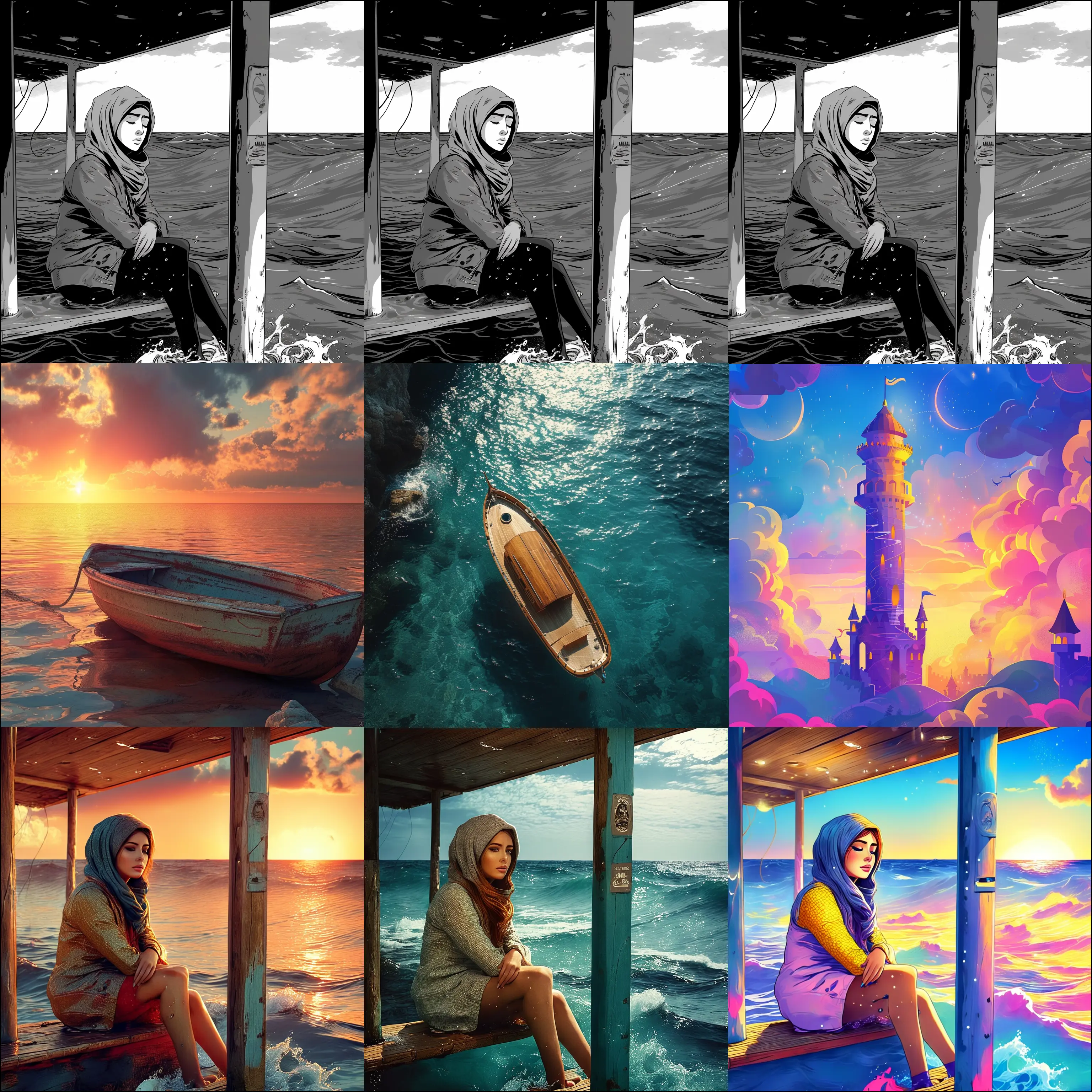
ComfyUI-EasyIllustrious Introduction
ComfyUI-EasyIllustrious is a collection of custom nodes for creating and refining images in ComfyUI. The author designed it primarily for Illustrious XL models. It brings prompt building, image generation, editing, and color correction tools into one node suite, so you can assemble workflows for different artistic tasks without starting from scratch each time.
You can use the extension to:
- Build prompts from character, artist, hairstyle, clothing, pose, and scene choices.
- Generate an image in one pass or refine it through multiple passes.
- Give different parts of an image different prompts.
- Repair a selected area, extend an image beyond its edges, or adjust its colors.
Other SDXL-based models may work, but the author notes that their settings may need adjustment. The extension is in beta: some nodes may need tuning for your setup, and interfaces or defaults may change.
ComfyUI-EasyIllustrious node interface
How ComfyUI-EasyIllustrious Works
A ComfyUI workflow is a set of connected nodes. Think of the nodes as stages in an art process: one prepares your instructions, another guides image generation, and another turns the result into an image you can view. ComfyUI-EasyIllustrious provides nodes for each of these stages, plus tools for more targeted edits.
A typical text-to-image workflow follows this pattern:
- Describe the image. Prompt and selector nodes help you assemble a subject, style, scene, and other details.
- Prepare the instructions. CLIP encoder nodes turn positive and negative prompts into information the model can use. A positive prompt describes what you want; a negative prompt describes what you want to avoid.
- Create and sample an image. An empty latent node sets up the image’s working canvas. A sampler gradually develops the image using your model, prompts, and settings.
- View and refine the result. A VAE Decode node converts the working image into a viewable one. You can then correct its colors or use another pass to refine it.
For edits to an existing image, VAE Encode converts that image into a form the sampler can work with. In inpaint mode, it uses a mask to identify the area you want to change.
The extension also supports regional prompting, which serves a different purpose. Instead of replacing part of an existing image, you assign prompts to areas of an image: for example, “sunset sky” above and “flowers” in the foreground. Each region has a mask, a weight that controls its influence, and start/end values from 0 to 1 that control when its guidance applies during sampling.
ComfyUI-EasyIllustrious Features
Prompt and scene building
The Prompt node (IllustriousPrompt) helps you assemble and format prompts through connected nodes. Characters and Artists provide searchable selectors; the character selector supports weighted mixing of up to five choices, while the artist selector supports weighted style blending. The suite includes Danbooru and E621 character and artist variants, along with Hairstyles, Clothing, Poses, and a Pony Tokens compatibility node. Adjusting a selector or its weight changes which details receive emphasis in your prompt.
Scenes Plus (IllustriousScenesPlus, also described as Smart Prompt) generates scene prompts from templates. Its controls let you shape the resulting text:
- Quality Block adds a configurable list of quality terms. You can change the terms and their weight or turn the block off.
- Quality Weight Scheme controls how weights are written.
autochooses grouped weighting for four or fewer terms and per-token weighting for longer lists;comfyuses grouped weighting unless you enable per-token weights;A1111uses per-token weighting. - Upscale Tags add detail or resolution terms. The generator can prune these terms when they would push a selected soft text budget too far.
- Subject Fallback supplies baseline subject terms, such as
1girl, solo, when they are not already present. You can place them before or after upscale tags. - Negative Preset offers
standard,aggressive,anime_clean,photoreal, orcustomchoices. Enable Generate Negative Output to make the negative prompt available on a second output. - Absolute Token Count, when set to a specific count, makes the generator truncate or add comma-separated terms to reach that count.
The node’s metadata records decisions such as quality-block settings, pruned upscale terms, and token-count adjustments. Existing workflows retain the previous default behavior described by the author. For fully manual quality terms, disable both the quality block and upscale tags.
The TIPO Optimizer (TIPOPromptOptimizer) offers another way to restructure a prompt before generation.
Sampling and image size
KSampler Pro (IllustriousKSamplerPro) provides an enhanced sampler with a live preview. KSampler Presets offers preset-based settings for quicker experiments. Multi-Pass Sampler develops structure and detail in two stages; Triple-Pass Sampler uses three stages when you want a more involved refinement workflow. The Custom Scheduler controls how sampling noise changes through generation.
The author’s suggested starting points for Illustrious XL are CFG 4.0–6.5 (around 5.0 as a starting point), 24–28 steps at standard resolution, and 30 or more steps at higher resolution. The readme describes euler_ancestral as a balanced sampler choice and DPM++ 2M Karras as a smoother one. These are starting points, not guarantees: if an image looks too intense or too soft, the troubleshooting section below suggests adjustments.
Empty Latent creates a canvas with model-aware sizing. The author lists these example dimensions:
| Composition | Suggested size |
|---|---|
| Square | 1024 × 1024 |
| Portrait | 832 × 1216 |
| Landscape | 1216 × 832 |
| Widescreen | 1344 × 768 |
Latent Upscale enlarges an image in its working form before further processing. VAE Encode and VAE Decode move between viewable images and that working form; tiled VAE operation is available for large images.
Editing specific areas
Choose the tool that matches the change you want to make:
| Goal | Tool | What it does |
|---|---|---|
| Fix a hand, replace a face, or change a background patch | VAE Encode: inpaint mode | Limits edits to a mask; white marks the area to change. You can optionally supply a reference image to pre-fill that area. |
| Give parts of one image different concepts or styles | Regional Conditioning | Applies separate prompts through masks, with a weight and sampling time range for each region. |
| Extend an image past its current borders | Auto Outpaint | Builds a border mask and handles sampling with soft-mask blending. |
To build regional prompts, start with Empty Regions (IllustriousEmptyRegions), create each masked prompt with Make Region (IllustriousMakeRegion), and collect them with Append Region (IllustriousAppendRegion). Connect the resulting regions to Regional Conditioning (IllustriousRegionalConditioning), then send its conditioning output to your sampler.
You do not need VAE “regional” mode for Regional Conditioning. Keep VAE in standard mode unless you are explicitly inpainting. Feathering, or slightly blurring, a mask can help its edges blend more naturally. Complex multi-region prompts may benefit from additional sampling steps.
Auto Outpaint builds its own border mask; it also does not require VAE “regional” mode. To combine outpainting with regional prompts, you can outpaint first and use Regional Conditioning on a second pass, or build a manual outpainting workflow that applies Regional Conditioning before sampling. The author provides a fuller guide at web/docs/guides/inpainting_and_regional.md.
Color, attention, and workflow help
Color Suite (IllustriousColorSuite) combines color correction with a live preview, so you can assess a change while adjusting it. Attention Couple (IllustriousAttentionCouple) helps coordinate multiple concepts in conditioning.
The suite also includes on-screen help, parameter tooltips and validation, fuzzy search suggestions, context-menu actions, and node-specific shortcuts. For learning by example, look in example_workflows/ for:
Basic.json— introductory text-to-image generationMulti Pass.json— multi-stage refinementColor Corrector.json— color adjustmentsCustom Scheduler.json— sampling schedule experimentsNode Gallery.json— an overview of the nodes
These are workflow examples rather than fixed recipes; you can adapt their prompts, models, and settings to your artwork.
ComfyUI-EasyIllustrious Models
ComfyUI-EasyIllustrious is a node suite, not a collection of included image-generation models. Its Base Model node (IllustriousMasterModel) loads a model with Illustrious-specific optimizations. Its CLIP Text Encoder and CLIP Negative Encoder prepare positive and negative prompts for that model.
The suite is intended chiefly for Illustrious XL. You can learn more about the model family through the author’s Illustrious XL model reference. Other SDXL-based models may be usable, but you should expect to revisit prompts and sampling settings rather than assuming Illustrious-tuned defaults will produce the same look.
What’s New with ComfyUI-EasyIllustrious
The provided readme identifies v2.6 as an update to Scenes Plus / Smart Prompt. It does not provide a version-by-version history for earlier releases.
In v2.6, the scene generator gained configurable quality terms and weighting styles, subject fallback ordering, upscale-tag pruning, negative prompt presets, an optional negative-prompt output, and an exact comma-separated token-count option. Its metadata now shows more of the choices it made, including which upscale terms were removed. For you, these controls make it easier to decide how much of the prompt is generated automatically, keep longer prompts within a chosen budget, and inspect why the final prompt differs from your inputs.
The author states that existing workflows continue to work with defaults that reproduce the previous behavior.
Troubleshooting ComfyUI-EasyIllustrious
The extension is in beta, so results can vary by model, workflow, and system. Change one setting at a time when diagnosing an image; that makes it easier to see what helped.
The image looks oversaturated or overprocessed
- Lower CFG toward 4.0–4.5 and generate another image.
- At high resolutions, try the Karras scheduler.
- If your workflow exposes Dynamic Thresholding in its advanced settings, try enabling it.
The image looks soft or foggy
- Raise CFG toward 5.5–6.5.
- Try 28–35 sampling steps.
- Check that the selected model is compatible with the Illustrious XL-focused workflow you are using.
Character or artist search is not finding an entry
- Enter at least two characters in the search field.
- Try a name with underscores, such as
character_name. - If database updates are failing, check your network connection.
A large image runs out of memory or becomes difficult to process
- Reduce the batch size, especially at high resolutions.
- Use tiled VAE operations for large images.
- If you use Smart Cache, set a limit appropriate for your system.
A masked edit changes the wrong area
- Confirm that VAE Encode is set to inpaint mode.
- Check that the mask covers the intended area; white means change.
- If the edit has an abrupt boundary, soften the mask edge.
- If you meant to give different areas different prompts rather than repair an existing area, use Regional Conditioning instead.
Frequently asked questions
Do I need VAE “regional” mode for regional prompts?
No. Use Regional Conditioning for masked prompts and leave VAE in standard mode unless you are inpainting.
Does Auto Outpaint need me to draw a border mask?
No. The Auto Outpaint node builds its own border mask and handles sampling.
Can I use a model other than Illustrious XL?
The author says other SDXL-based models are supported, but their prompts and sampling parameters may need adjustment.
How do I stop Scenes Plus from adding quality terms?
Set Use Quality Block to false. Disable Upscale Tags as well if you want to handle quality and detail terms manually.
Where can I see how a generated scene prompt was adjusted?
Inspect the node’s metadata for quality-block settings, upscale-tag pruning, and token-count enforcement details.
Learn More about ComfyUI-EasyIllustrious
- Built-in node help: Use the help available in the ComfyUI interface for guidance while working with a node.
- Documentation and examples: Explore
web/docs/for node guides, workflow practices, and performance guidance, andexample_workflows/for workflows you can study and adapt. - Inpainting and regional prompting: Read
web/docs/guides/inpainting_and_regional.mdwhen deciding between a masked repair and area-specific prompts. - ComfyUI fundamentals: Visit the ComfyUI project for information about the application that runs these nodes.
- Questions and bug reports: Check the extension’s GitHub Issues for reported problems or to describe a reproducible issue.