
flux-1-kontext/pro/edit
Edit images precisely and fast with FLUX Kontext Pro.
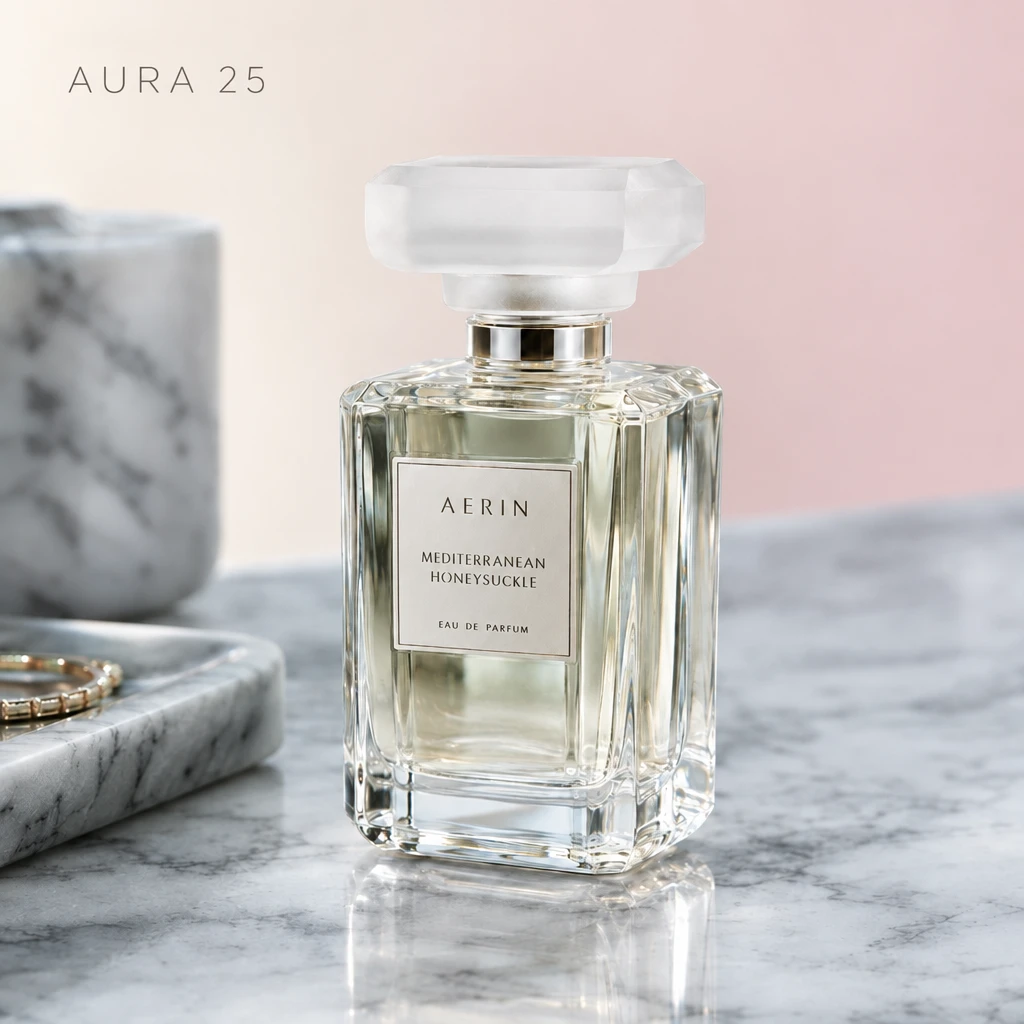
GPT Image 2.5 Flare is the speed-focused option for teams making frequent image revisions. On this RunComfy editing page, start with a photo and describe the version you need: a new backdrop, a different product setting, or a fresh visual for a social post. Use it to explore several directions before spending time on final polish.
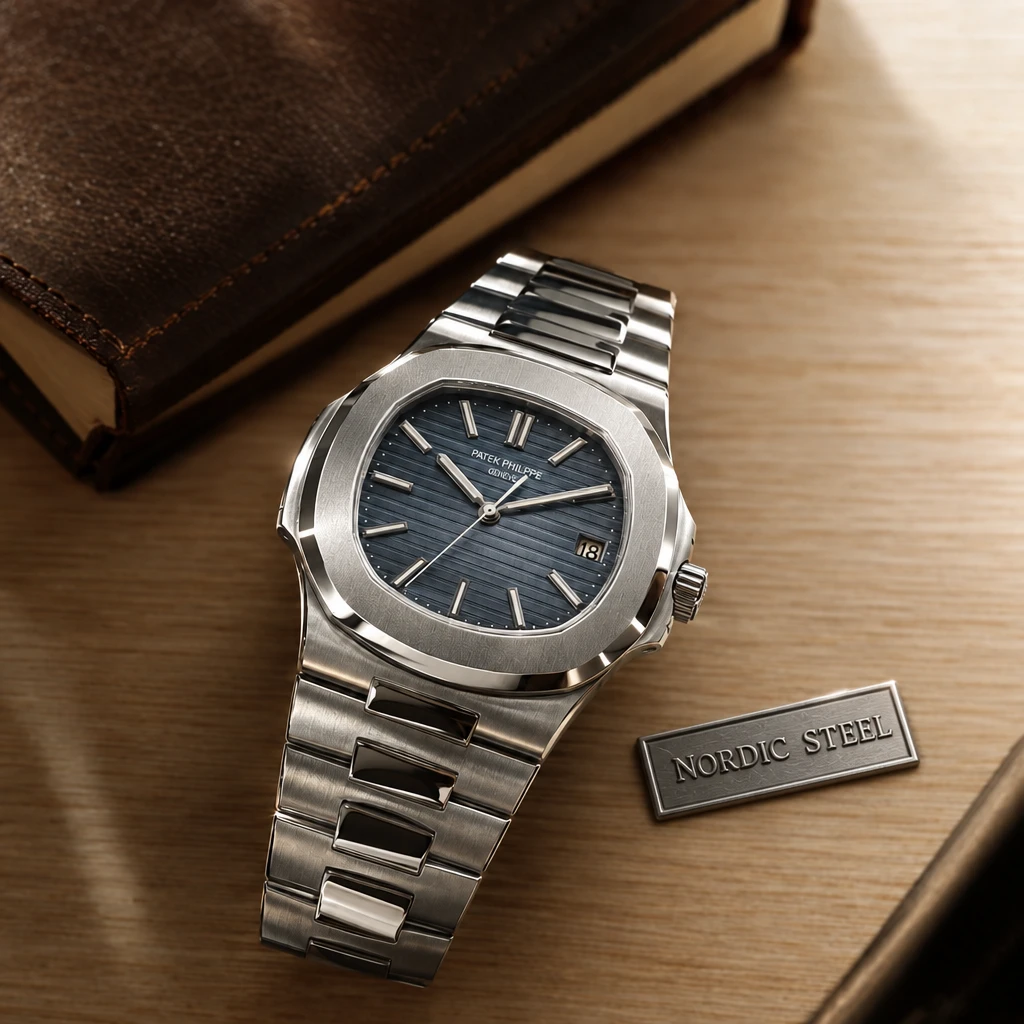
GPT Image 2.5 Flare is a practical starting point when your workflow involves many image variations. This RunComfy page edits uploaded images from written instructions, so you can work from an existing portrait, product shot, or visual concept.
OpenAI positions Flare around faster generation and iteration. For a creator or social team, that makes it a useful option for exploring backgrounds, seasonal treatments, and alternative compositions. Its value is the shorter feedback loop between an idea and an image you can review. Model details.
Check faces, product shapes, and small text before using a result.
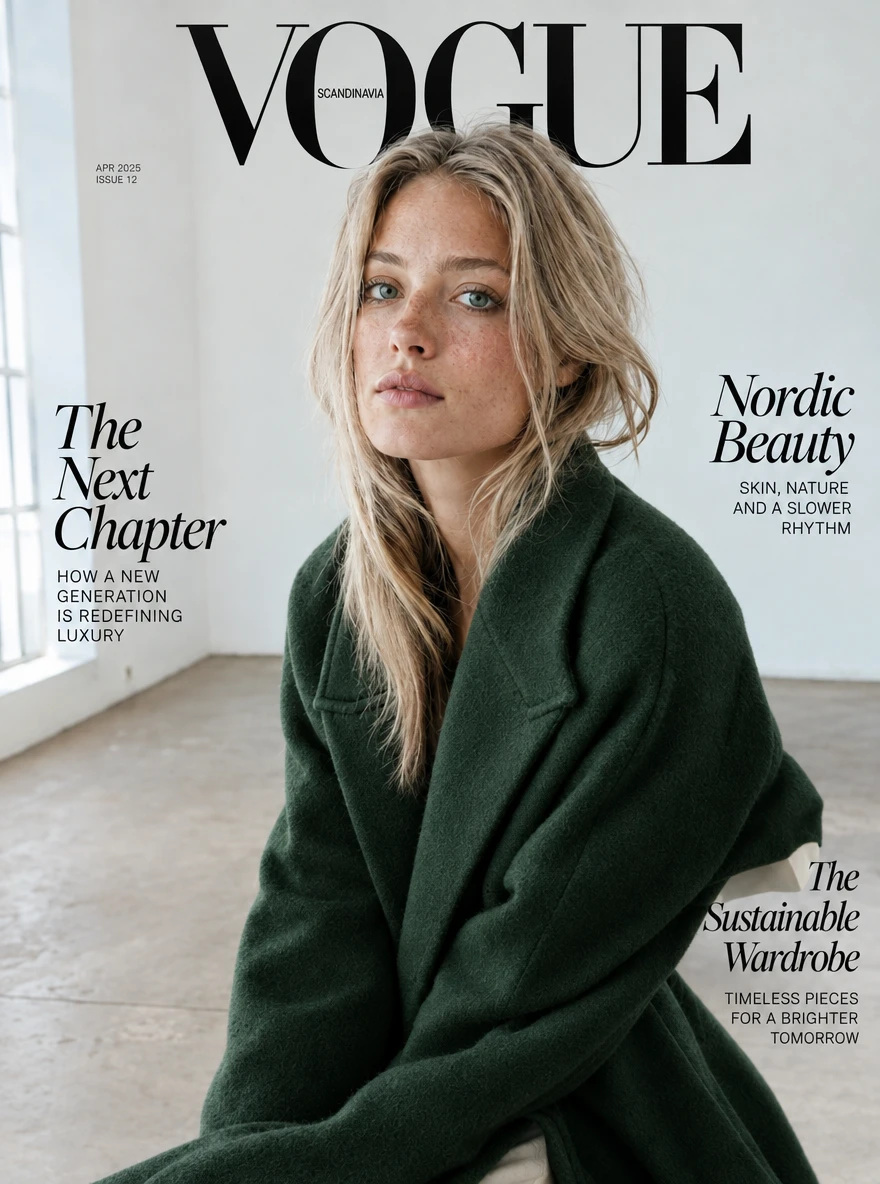
> Use the uploaded portrait as the source. Replace the room behind the person with a pale blue studio backdrop. Keep the person's face, hairstyle, clothing, and pose. Leave space above the head for a headline that I will add later. Do not add text or extra objects.
This gives the model a concrete task and leaves final typography under your control. If the face or clothing changes, revise the instruction or return to the original source.
Start with Flare when you need frequent revisions for creator, social, or product content. Try Sunburst when tighter editing control matters more than turnaround, such as a final campaign asset. OpenAI reports improvements over GPT Image 2 in reference preservation, lighting, texture, and editing reliability across the 2.5 family. Release announcement.
If you already use another image editor, compare it with Flare using the same references and instructions. Judge unwanted changes and usable outputs as well as visual appeal.
| Control | Current options | Default |
|---|---|---|
| images | 1 to 16 reference images | Required input |
| prompt | Written editing instruction | Required input |
| aspect_ratio | 1:1, 3:2, 2:3, 3:4, 4:3, 4:5, 5:4, 9:16, 16:9, 21:9, 2:1, 1:2, 3:1, 1:3, 9:21 | 3:4 |
| resolution | 1k, 2k, 4k | 1k |
| quality | low, medium, high, xhigh, max | medium |
| output_format | png, jpeg, webp | png |
Check the current RunComfy price for the selected settings before running. Quality, resolution, reference count, and output count can affect the total.
See the OpenAI image prompting guide for examples of reference-based editing. The controls above describe this RunComfy page; other interfaces may expose additional options.
Edit images precisely and fast with FLUX Kontext Pro.

Text-to-image stills at 1K, 2K, or 4K, from square frames to 8:1.

Qwen Image 3.0 Pro: production-grade text-to-image generation

Qwen Image 3.0: detailed text-to-image with legible typography

High-speed model for rapid text-to-image creation with rich detail and flexible format control.

Transforms images into editable RGBA layers for precise object isolation and seamless design control.
It is the speed-focused choice for frequent image revisions, including creator assets, social content, and product photo variations. This RunComfy page starts from uploaded images and a written editing instruction.
Start with Flare when you want to explore and revise frequently. Choose Sunburst when more precise editing is the priority, such as finishing campaign artwork. Compare both on a representative image if the choice affects a larger project.
No. This editing page requires a prompt and at least one image. Use a text-to-image page when you want to create an image without a source.
The current page accepts 1 to 16 reference images. Explain each image’s role, such as the main subject, setting, or visual style. More references are not automatically better.
Choose 1K, 2K, or 4K resolution; low, medium, high, xhigh, or max quality; and PNG, JPEG, or WebP. The current defaults are 3:4, 1K, medium, and PNG.
Reuse your original reference and change one part of the brief for each run, such as the setting or composition. Review the subject and product details in every version before selecting your final assets.
Not necessarily. State the details that should stay, but inspect the result for unintended changes. For another revision, upload the chosen result and repeat the requirements that still matter.
Check the current RunComfy price for your selected quality, resolution, reference count, and number of output images before generating. The model name alone does not determine the final cost.
RunComfy is the premier ComfyUI platform, offering ComfyUI online environment and services, along with ComfyUI workflows featuring stunning visuals. RunComfy also provides AI Models, enabling artists to harness the latest AI tools to create incredible art.