

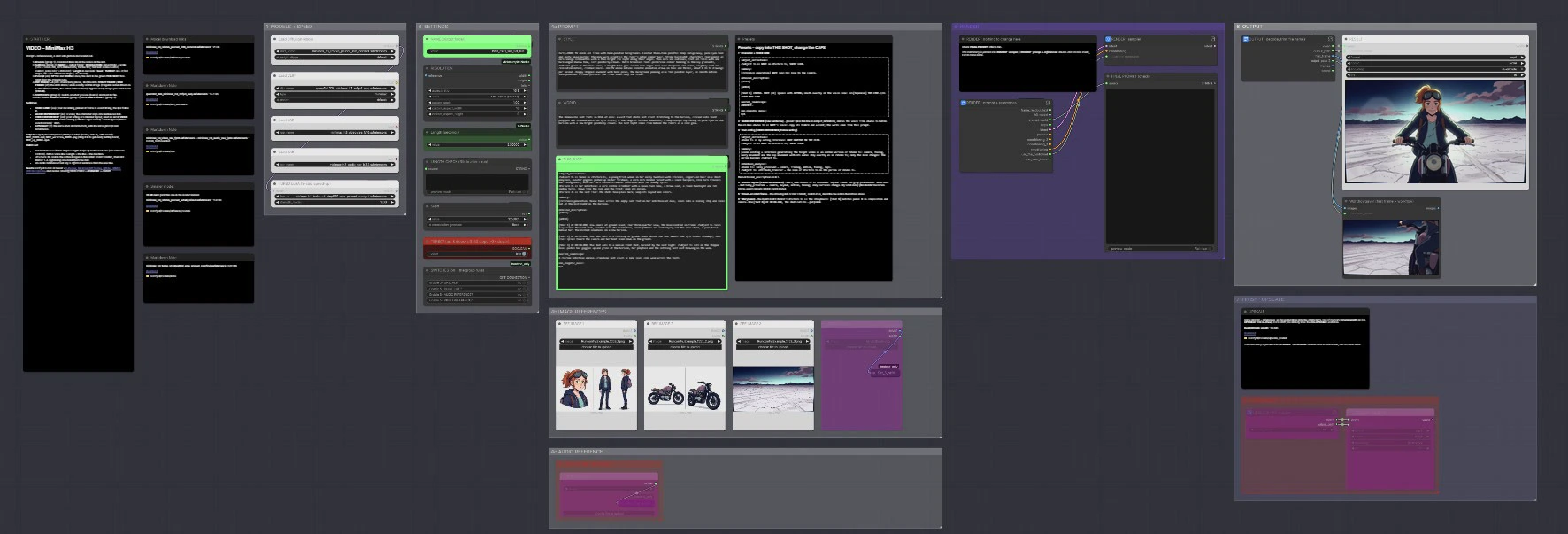
MiniMax H3 Anime Video Generator#
MiniMax H3 Anime Video Generator is a one-graph, reference-to-video pipeline for ComfyUI that turns prompts and reference images into finished animated shots with synchronized sound. Designed by Mickmumpitz, it lets you define your world and visual style once, then write a timecoded shot list so a single generation can produce multiple cuts and camera angles while characters, vehicles, and locations stay consistent.
If you create anime shorts, music videos, cinematic previz or storyboard sequences, this MiniMax H3 Anime Video Generator compresses the usual concept art, shot planning, animation, and finishing steps into a streamlined workflow. Up to four image references establish continuity, optional switches add start and end frames, pinned voice lines or voice references for timing, acting or Blender layout videos for motion guidance, and a same-prompt H3 upscale for final polish.
Key models in Comfyui MiniMax H3 Anime Video Generator workflow#
- MiniMax H3 reference-to-video model. The core model drives visual generation from text prompts and reference images, enabling multi-shot timelines with stable character and world identity. Its role is to translate your timecoded prompts and references into consistent animated footage, with an optional final pass for same-prompt H3 upscale that sharpens and refines output.
How to use Comfyui MiniMax H3 Anime Video Generator workflow#
This ComfyUI graph is organized around a clear path from project setup to timeline authoring, guided generation, and export. You provide the style and world once, add up to four reference images, write a shot list with timecodes, and the MiniMax H3 Anime Video Generator produces an edited sequence with synchronized audio and optional upscale.
World and style setup#
Start by defining the overall look and tone for the entire piece. Use a concise global description of genre, mood, palette, lighting, and camera language so the model can anchor every shot in the same universe. Because the world description is persistent, you can vary shot prompts without breaking continuity. Keep this section stable across iterations to maintain identity while you fine-tune individual cuts. The MiniMax H3 Anime Video Generator applies this style context throughout the timeline.
Timeline and shot list#
Author your sequence as a list of timecoded shots. Each entry specifies a start, an end, and a prompt that describes the action and camera move for that interval. Short, directive phrasing tends to yield cleaner visual beats and transitions. Write coverage like an editor: alternate wides, mediums, and close-ups to build rhythm. The graph parses your timecodes and assembles the generated clips into a single timeline.
Reference images and consistency#
Add up to four images that define recurring characters, vehicles, props, and locations. These references act as anchors so the same people and places persist across multiple cuts. Choose clear, front-lit images with uncluttered backgrounds for best identity transfer. Keep the references stable across the project and adjust only when you intend a design change. The MiniMax H3 Anime Video Generator blends these references with each shot prompt to preserve continuity.
Acting or Blender layout video (optional)#
If you have an acting plate or a quick Blender layout pass, feed it to guide motion, blocking, or camera parallax. This hint clip helps align performance and spatial staging, especially for complex moves. Think of it as an underlay the model interprets rather than a hard constraint. Short, readable beats with deliberate motion work best. Use this when timing and choreography matter more than freeform motion.
Audio and sync (optional)#
Pin a voice line or provide a voice reference to drive timing and lip rhythm. The workflow aligns shot boundaries and key visual accents to the audio so important words and beats land cleanly. This is especially useful for music videos, trailers, and dialogue-driven scenes. Keep your script and prompts in sync to avoid mismatches. The MiniMax H3 Anime Video Generator then renders video against the provided audio for a coherent final take.
Start and end frames (optional)#
Enable start or end frames when you need a static opening card, a scene hold, or a clean outgoing frame for editing. These frames can also help with transitions between sequences. Use them to pace your cut, to give viewers a beat to read a title, or to smooth an audio pickup. They are inexpensive to render and often elevate perceived quality. Toggle them per sequence as needed.
Generation core#
Kick off generation once your world, references, shot list, and any optional guides are set. The model processes shots in timeline order, honoring your timecodes and context so cuts feel intentional. Character and set identity remain stable thanks to the reference images and shared world description. Use short test runs to check timing and framing before committing to longer renders. The MiniMax H3 Anime Video Generator is built to iterate quickly while keeping continuity intact.
Same-prompt H3 upscale (optional)#
After a satisfactory base pass, trigger the same-prompt H3 upscale for added detail and crispness. This pass reuses the same prompt context to avoid drift while improving perceived sharpness. It is most effective on hero shots, close-ups, and finals that benefit from extra microdetail. Consider running upscale only on approved takes to save time. The result is a cleaner master while retaining the original intent.
Output and export#
The workflow assembles your timeline into a single playable render with synchronized sound. You can also save intermediate shots if you plan to re-edit externally. Keep your naming consistent to track iterations across animation and upscale passes. For handoff, export with clear version tags tied to prompt and reference changes. The MiniMax H3 Anime Video Generator is designed to produce editor-friendly outputs ready for post.
Optional extras#
- Use consistent phrasing for character names, outfits, and locations across all shot prompts.
- Keep shot prompts brief and focused on one action and one camera idea per interval.
- Favor clear, high-contrast reference images with neutral expressions for identity stability.
- Start with shorter timelines to validate pacing before scaling to full sequences.
- Reserve the same-prompt H3 upscale for final picks to save compute and turn-around time.
- When using acting or layout videos, keep motion readable and avoid rapid, ambiguous gestures.
- If audio drives the cut, lock voice timing first, then conform the shot list to the waveform.
Acknowledgements#
This workflow implements and builds upon the following works and resources. We gratefully acknowledge Mickmumpitz for the MiniMax H3 Anime Video Generator Workflow Source for their contributions and maintenance. For authoritative details, please refer to the original documentation and repositories linked below.
Resources#
- Mickmumpitz/MiniMax H3 Anime Video Generator Workflow Source
- Hugging Face: Comfy-Org/MiniMax-H3
- Docs / Release Notes: MiniMax H3 Anime Video Generator Workflow Source
Note: Use of the referenced models, datasets, and code is subject to the respective licenses and terms provided by their authors and maintainers.