

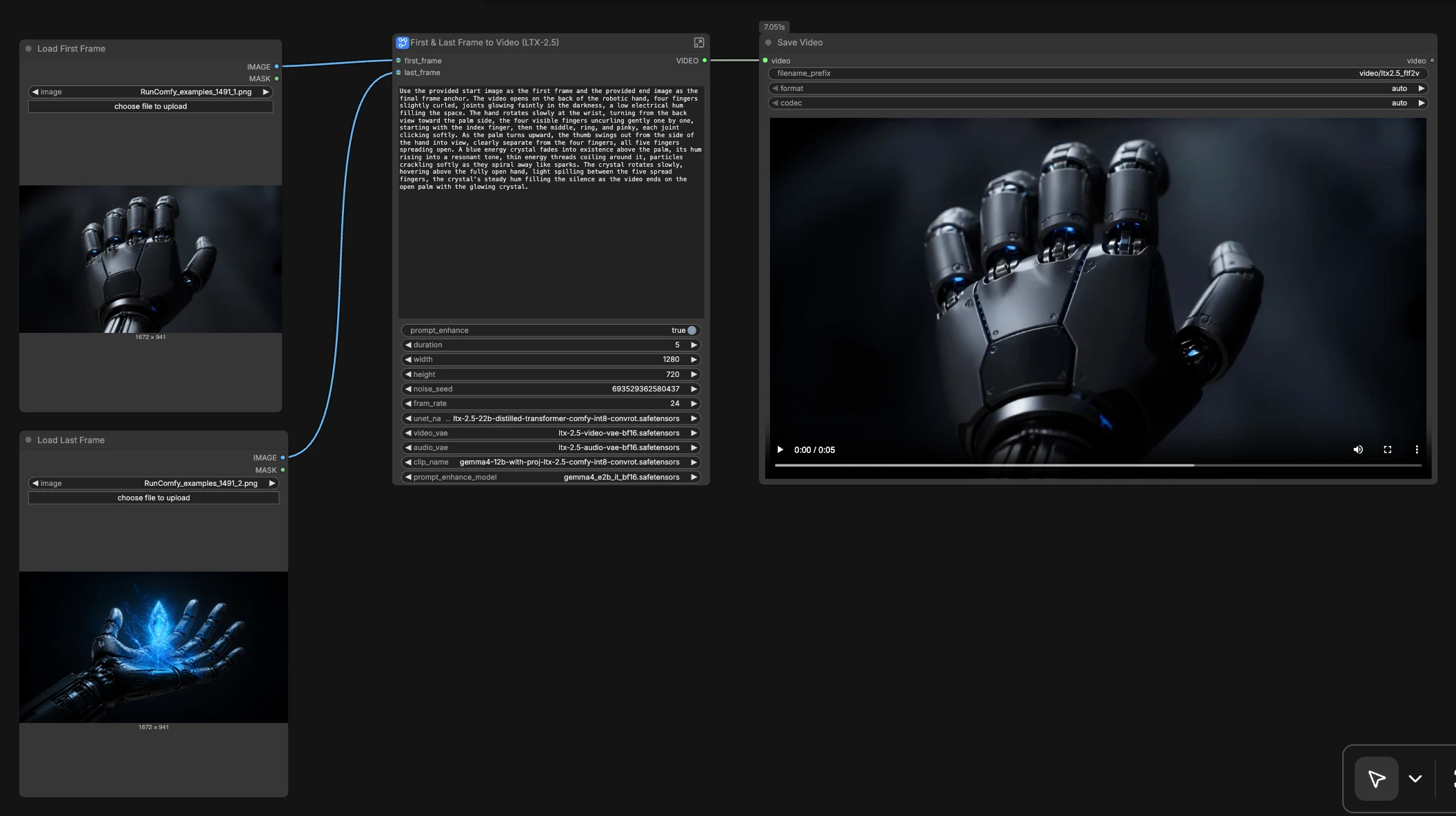
LTX 2.5 First Last Frame to Video: two-frame anchored, cinematic clips with synced audio#
This RunComfy-ready workflow turns a matched start and end image into a short cinematic video with synchronized audio. By guiding generation from your first and last frame anchors, it preserves composition, lighting, subject identity, and style while creating coherent motion between the two. LTX 2.5 First Last Frame to Video is ideal for controlled character actions, product beats, camera moves, and scene transitions inside ComfyUI.
Under the hood it pairs Lightricks’ LTX-2.5 transformer with dedicated video and audio VAEs plus a Gemma-based prompt enhancer. The graph ships with clear groups for Prompt, Video Settings, First/Last Frame prep, Conditioning, Sampling, and Decoding so you can get reliable, repeatable results without touching low-level wiring.
Key models in Comfyui LTX 2.5 First Last Frame to Video workflow#
- Lightricks LTX-2.5 distilled transformer. The core video generator that learns motion, appearance, and temporal consistency from text and visual guides. Model page
- LTX-2.5 Video VAE. Compresses and decodes video latents for sharp frames while keeping memory use practical. Included in the LTX-2.5 repository. Model page
- LTX-2.5 Audio VAE. Generates and reconstructs synchronized audio latents to match visual events. Included in the LTX-2.5 repository. Model page
- Gemma 4 12B text encoder with projection for LTX-2.5. Encodes your prompt into rich conditioning that covers subjects, actions, lighting, and camera direction. Included in LTX-2.5 assets. Model page
- Gemma 4 E2B instruction-tuned variant for prompt enhancement. Expands short inputs into cinematic directions when enhancement is enabled. Model page
- Optional Diffusers reference for LTX-2.5 pipelines and schedule behavior. Useful for understanding sampler tradeoffs. Project page
How to use Comfyui LTX 2.5 First Last Frame to Video workflow#
The workflow takes two images as anchors, transforms them into guidance, then denoises video and audio latents under text control before decoding to a ready-to-share clip. Each group below plays a specific role; most users will only touch Prompt, Prompt Enhancement, and Video Settings.
Prompt#
Write a concise but descriptive instruction in the Prompt (#252) node. The positive text is encoded by CLIPTextEncode (#222) using the Gemma 4 12B encoder so the model understands subjects, actions, lighting, and camera intent. Keep the end state described as well as the opening beat to help the model respect both anchors. If you need strict wording or brand terms, write them explicitly in the prompt.
Prompt Enhancement#
Short prompts can be auto-expanded with TextGenerateLTX2Prompt (#247). The ComfySwitchNode (#248) routes either your raw prompt or the enhanced text to the encoder, and PreviewAny (#249) lets you inspect the final text. Enable enhancement when you want cinematic phrasing and richer motion cues; disable it when prompt wording must remain exact.
Video Settings#
Set clip length, frame rate, and resolution with Duration (#198), Frame Rate(int) (#205), Width (#215), and height (#216). The graph computes total frame count via ComfyMathExpression (#226) and allocates video latents in EmptyLTXVLatentVideo (#201) and audio latents in LTXVEmptyLatentAudio (#197). Higher resolution or frame rate increases VRAM and time; start modest, then scale once you like the motion.
First Frame#
Load your start image, which is resized in ResizeImageMaskNode (#213) to match the target resolution. LTXVPreprocess (#199) normalizes tone and detail for stable guidance. Clean, well-exposed, and compositionally clear images make the model lock on faster and reduce unintended drift from the anchor.
Last Frame#
Load your end image; it is resized in ResizeImageMaskNode (#214) and normalized in LTXVPreprocess (#195). Aim for matching aspect ratio, perspective, and subject scale relative to the first frame so the transition feels physically plausible and the anchor is preserved at the end.
Conditioning#
Text conditioning is composed in LTXVConditioning (#202), which also receives the target frame rate so timing aligns across branches. Image guidance is attached in two passes with LTXVAddGuide (#206) for the first frame and LTXVAddGuide (#204) for the last frame, ensuring both anchors influence the trajectory. LTXVCropGuides (#200) reconciles any residual size differences so guidance lines up perfectly with the latent canvas.
Sampling#
Noise is seeded in RandomNoise (#196), and denoising is driven by SamplerCustomAdvanced (#211) with SamplerEulerAncestral (#208) and a ManualSigmas (#239) schedule for crisp, motion-stable updates. Guidance comes from LTXVDualCFGGuider (#235) powered by the UNETLoader (#230), blending positive and negative conditions to steer look and movement. Audio and video latents are concatenated and later separated with LTXVConcatAVLatent (#210) and LTXVSeparateAVLatent (#221) so motion and sound evolve together.
Decoding and output#
Latents are decoded to frames with VAEDecodeTiled (#219) using the video VAE and to audio with LTXVAudioVAEDecode (#220) using the audio VAE. CreateVideo (#218) muxes images and audio at your chosen FPS to produce a final clip. Back in the top graph, SaveVideo (#68) writes the result; rename or change location there if desired.
Key nodes in Comfyui LTX 2.5 First Last Frame to Video workflow#
TextGenerateLTX2Prompt (#247)#
Expands brief inputs into a cinematic, LTX-friendly prompt. Use it when you want richer verbs, lighting, and camera language with minimal effort. If you need exact phrasing or brand-safe wording, turn enhancement off via ComfySwitchNode (#248) and supply the final text yourself.
LTXVDualCFGGuider (#235)#
Combines the LTX-2.5 model with positive and negative conditioning to balance adherence and freedom. Raise guidance for stronger prompt and anchor fidelity; lower it for looser, more organic motion. Extremely high guidance can overconstrain movement or introduce saturation, so tune in tandem with your negative prompt strength.
SamplerCustomAdvanced (#211)#
Runs the denoising loop using SamplerEulerAncestral (#208) and the chosen sigma schedule. Use shorter schedules for speed tests and longer ones when you need more detail retention across motion. If motion looks jittery, try a smoother sigma ramp or slightly lower guidance to reduce overcorrection between steps.
ManualSigmas (#239)#
Defines the noise schedule that trades crispness against temporal smoothness. Front-loaded noise can encourage bigger moves early, while a gentler tail can preserve details near the end anchor. Adjust only after you are happy with the prompt and anchors.
VAEDecodeTiled (#219)#
Decodes video latents to images using tiled processing to fit larger resolutions in memory. Smaller tiles reduce VRAM but may risk tile seams; larger tiles are cleaner but heavier. Keep resolution and tile size in balance for your GPU.
LTXVAudioVAEDecode (#220)#
Reconstructs the synchronized audio track from audio latents. To export a silent clip, temporarily disable the audio branch inside the subgraph before CreateVideo (#218). If the final sound feels too busy, reduce action density in the prompt so the audio model follows a simpler beat.
RandomNoise (#196)#
Seeds the generation. For reproducible results, open the subgraph and set a fixed seed instead of randomizing. When exploring motion options from the same anchors and prompt, vary the seed to sample different trajectories.
Optional extras#
- For the cleanest transitions, keep first and last frames aligned in aspect ratio, horizon, and subject scale; mismatches force the model to warp geometry.
- Describe the motion explicitly: “starts facing left, turns to camera, hand opens, blue crystal rises above the palm” reads better than a style-only prompt.
- Duration and FPS interact; increasing both raises memory and render time. Stretch one at a time and preview before scaling up.
- If edges shimmer, reduce fine texture adjectives in the prompt or slightly lower guidance to favor temporal stability.
- To speed iteration, test at a smaller resolution, then raise width and height once the motion and framing are locked.
- When you need brand-perfect end frames, emphasize them in the prompt and keep the last frame clean and high contrast so LTX 2.5 First Last Frame to Video can lock on reliably.
Acknowledgements#
This workflow implements and builds upon the following works and resources. We gratefully acknowledge Comfy.org for the Source workflow template, Lightricks for LTX-2.5 model weights, and Lightricks for the LTX-2.5 Diffusers project for their contributions and maintenance. For authoritative details, please refer to the original documentation and repositories linked below.
Resources#
- Comfy.org/Source workflow template
- Docs / Release Notes: Source workflow template
- Lightricks/LTX-2.5
- Hugging Face: Lightricks/LTX-2.5
- Lightricks/LTX-2.5-Diffusers
- Hugging Face: Lightricks/LTX-2.5-Diffusers
- Lightricks/Hugging Face organization
- Hugging Face: Lightricks
Note: Use of the referenced models, datasets, and code is subject to the respective licenses and terms provided by their authors and maintainers.