

IndexTTS2 ComfyUI workflow: Emotional voice cloning with reference audio#
This IndexTTS2 ComfyUI workflow turns a short reference clip into natural, expressive speech that matches the speaker’s timbre and style. You provide clean reference audio, optional emotion prompting, and your script; the graph generates high‑quality voice clones and exports them as FLAC for archival use or MP3 for quick sharing.
Built around the IndexTTS‑2 model and ComfyUI IndexTTS nodes, the workflow is ideal for creators, character designers, educators, and RunComfy users who want fast, reproducible emotional TTS. Everything happens inside ComfyUI, so you can inspect inputs, tweak settings, and iterate quickly on narration, dialogue, and voice‑over examples.
Key models in Comfyui IndexTTS2 ComfyUI workflow#
- IndexTTS‑2 by IndexTeam. A modern text‑to‑speech system that performs reference‑conditioned voice cloning and expressive prosody control. It conditions on a short speaker example and optionally on emotion cues to render natural speech from text. See the model card on Hugging Face and the accompanying paper for architectural and training details: IndexTTS‑2, IndexTTS project, IndexTTS‑2 paper.
How to use Comfyui IndexTTS2 ComfyUI workflow#
At a high level, the graph takes three inputs — reference timbre audio, text, and optional emotion audio — then runs generation and exports the result. The groups below show where to add inputs and how they connect to the final speech.
Upload Voice Reference Audio#
This group prepares the speaker identity. Load a clean sample of the target voice into LoadAudio (#13), ideally a single speaker speaking clearly without music or effects. Use AudioCrop (#37) to isolate a stable segment so the system learns a consistent timbre. Short segments with steady pitch and neutral delivery typically produce the most reliable cloning. The cropped reference is sent forward to condition the generator.
Upload Text#
Enter your script in PrimitiveStringMultiline (#14). Clear punctuation helps the model infer pauses and emphasis, so write the text the way you want it spoken. If you plan multi‑sentence reads, keep each sentence well formed and avoid emojis or uncommon symbols. The text flows directly into the synthesis node for rendering.
Upload Emotion Reference Audio#
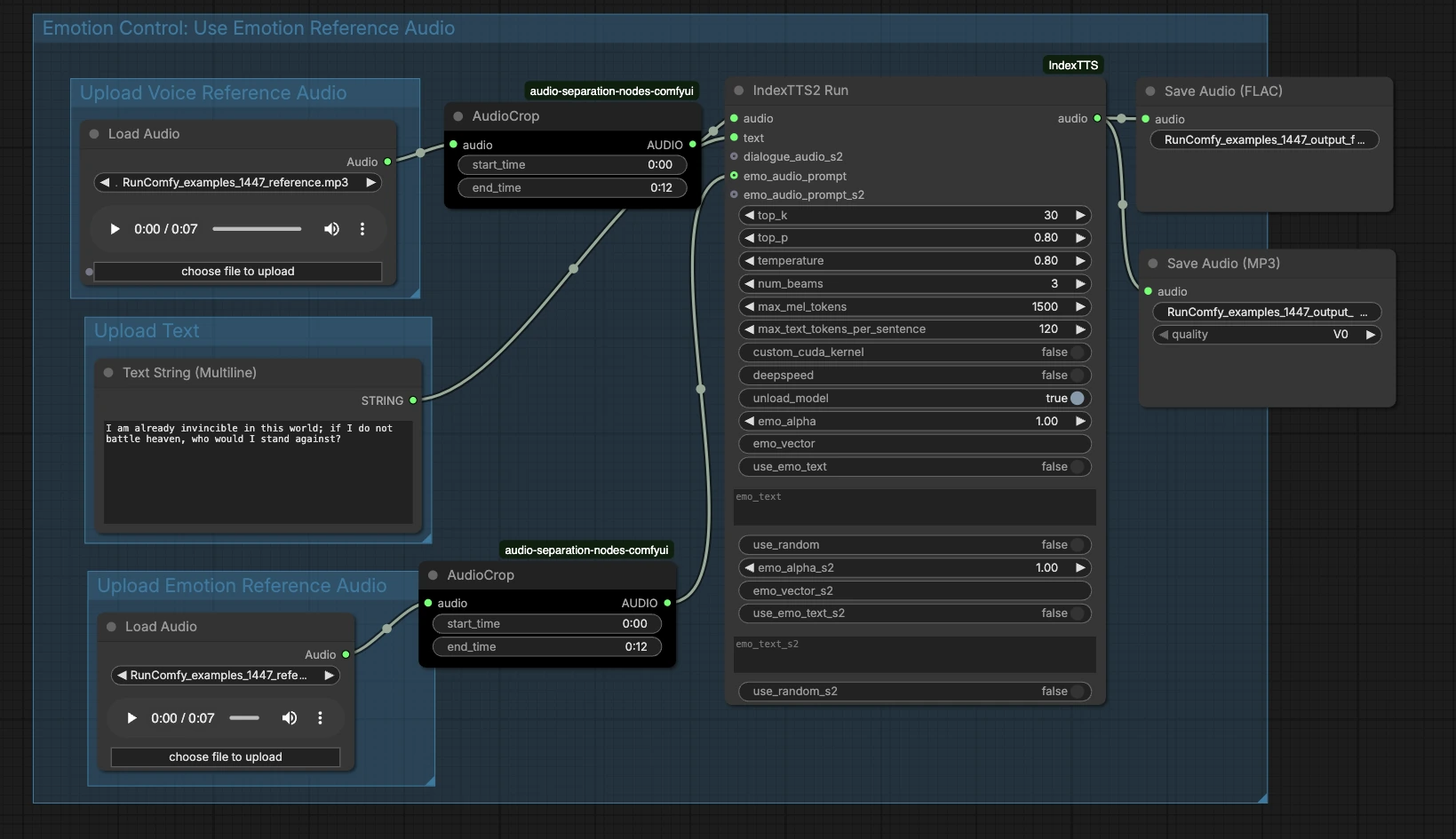
Provide an optional clip that captures the emotion or delivery you want — for example excited, calm, or somber — via LoadAudio (#15). Trim it with AudioCrop (#38) to keep only the expressive portion you want to imitate. This is separate from the timbre reference and focuses on rhythm, energy, and tone. If you skip this step, the IndexTTS2 ComfyUI workflow will rely on the text alone for prosody.
Emotion Control: Use Emotion Reference Audio#
This area connects your emotion prompt to the generator. The cropped emotion clip feeds the emo_audio_prompt input on IndexTTS2Run (#12), guiding cadence and intensity while preserving the target voice. You can also use the node’s emotion text controls to nudge style if you do not have an emotion audio example. In practice, emotion audio tends to give stronger, more consistent expressiveness, while emotion text provides lighter steering. Combine them when you want both a concrete example and a textual hint.
Generate and Export#
IndexTTS2Run (#12) synthesizes speech using your text, timbre reference, and any emotion guidance. The output routes to SaveAudio (#17) for a lossless FLAC and to SaveAudioMP3 (#39) for a small, web‑friendly preview. Use the filename fields on the save nodes to keep takes organized across iterations. This design makes it easy to A/B different texts or emotions while keeping the same speaker identity.
Key nodes in Comfyui IndexTTS2 ComfyUI workflow#
IndexTTS2Run (#12)#
This is the core generator that wraps IndexTTS‑2 and exposes controls for sampling, beam search, and emotion conditioning. Adjust top_p, top_k, and temperature to balance stability and variety — lower values give more consistent reads, higher values increase spontaneity. Use num_beams when you want the node to search more candidate readings, trading speed for quality. For long scripts, max_mel_tokens and max_text_tokens_per_sentence help prevent overruns by limiting audio and text chunk sizes. Emotion can be steered with emo_audio_prompt, emo_alpha for mix strength, or with use_emo_text and emo_text when you prefer a textual cue. Performance helpers such as deepspeed, custom_cuda_kernel, and unload_model are available depending on your hardware. The node implementation is provided by the ComfyUI IndexTTS custom nodes: ComfyUI_IndexTTS, and the underlying model is documented here: IndexTTS‑2, IndexTTS project.
AudioCrop (#37) — reference timbre#
Use this node to isolate a clean, steady excerpt from your speaker sample. Avoid background noise, laughter, or extreme emotion because those details can leak into the cloned voice. Cropping to a consistent tone improves identity lock and reduces unwanted artifacts.
AudioCrop (#38) — emotion prompt#
This crop selects the expressive cue that controls delivery. Choose a portion with the exact rhythm or intensity you want, and keep it concise to avoid diluting the signal. For best coherence, use emotion prompts from the same speaker as the timbre reference when possible.
Optional extras#
- Keep reference audio dry and monophonic; remove reverb, background music, and heavy compression for cleaner cloning.
- Punctuate intentionally. Commas, periods, and question marks help the model place pauses and inflections that match your intent.
- For reproducible takes, disable randomness in the node or keep notes on text and audio selections so you can regenerate the same output later.
- If VRAM is tight, enable model unloading between runs; it may add a small time cost but frees memory for other graphs.
- Respect voice rights. Only use reference recordings you are authorized to clone and disclose synthetic speech where required.
Acknowledgements#
This workflow implements and builds upon the following works and resources. We gratefully acknowledge RunningHub for the workflow reference, RunComfy for the Cloud Save workflow, Index Team for IndexTTS and IndexTTS-2, the authors of the IndexTTS2 paper, and billwuhao for the ComfyUI IndexTTS custom nodes for their contributions and maintenance. For authoritative details, please refer to the original documentation and repositories linked below.
Resources#
- RunningHub/Workflow Reference
- Docs / Release Notes: RunningHub post
- RunComfy/Cloud Save Workflow
- Docs / Release Notes: RunComfy workflow
- index-tts/index-tts
- GitHub: index-tts/index-tts
- IndexTeam/IndexTTS-2
- Hugging Face: IndexTeam/IndexTTS-2
- IndexTTS2/Paper
- arXiv: 2506.21619
- billwuhao/ComfyUI_IndexTTS
- GitHub: billwuhao/ComfyUI_IndexTTS
Note: Use of the referenced models, datasets, and code is subject to the respective licenses and terms provided by their authors and maintainers.
