

Woosh Sound Effect Generation: prompt and video‑conditioned audio in ComfyUI#
Woosh Sound Effect Generation is a ComfyUI workflow that turns either text prompts or video clips into polished sound effects using Sony Research’s Woosh foundation model. It is built for creators who need one place for prompt‑based Foley, tightly video‑matched sound design, and quick switching between high‑quality and fast distilled variants.
The workflow exposes both families of Woosh models: Flow/DFlow for text‑to‑audio and VFlow/DVFlow for video‑to‑audio. A shared sampler drives generation in both paths, outputting audio for immediate preview and, in the video path, frame previews that are recombined for quick dailies. Under the hood it relies on the official ComfyUI Woosh nodes and VideoHelperSuite for seamless video IO, so Woosh Sound Effect Generation stays fast and simple while remaining flexible. References: SonyResearch/Woosh, drbaph/Woosh on Hugging Face, paper, ComfyUI-Woosh, ComfyUI-VideoHelperSuite.
Key models in Comfyui Woosh Sound Effect Generation workflow#
- Sony Research Woosh — Flow: core text‑to‑audio generator used for high‑fidelity Foley and ambience, trained with flow‑matching objectives. See SonyResearch/Woosh and the paper.
- Sony Research Woosh — DFlow: distilled text‑to‑audio model optimized for speed with far fewer sampling steps, ideal for rapid iteration. Weights are available via drbaph/Woosh.
- Sony Research Woosh — VFlow‑8s: video‑conditioned generator that synchronizes audio onsets and textures to visual motion cues for video‑to‑audio. See SonyResearch/Woosh.
- Sony Research Woosh — DVFlow‑8s: distilled video‑to‑audio model for real‑time‑lean workflows and quick previews. Weights: drbaph/Woosh.
- Woosh‑AE: the audio autoencoder used to reconstruct waveforms from model latents; required by all generators. Weights: drbaph/Woosh.
- TextConditionerA and TextConditionerV: text conditioning modules that embed prompts appropriately for text‑to‑audio or video‑to‑audio runs. Details and usage are documented in ComfyUI-Woosh and the paper.
How to use Comfyui Woosh Sound Effect Generation workflow#
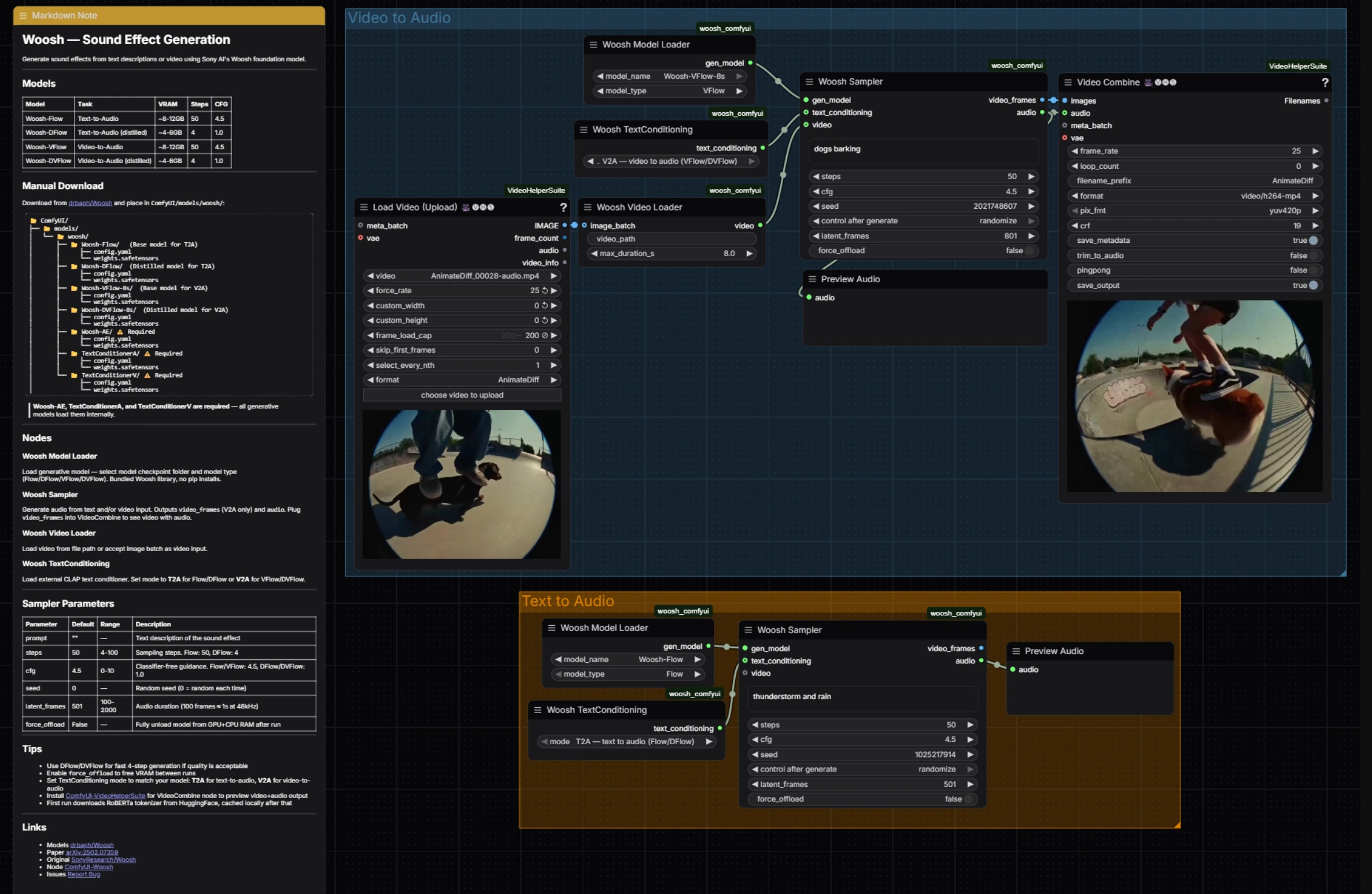
This workflow has two parallel groups that you can run independently: Video to Audio for visual‑matched sound design and Text to Audio for pure prompt‑based Foley. Both converge on the same sampler logic and quick audio preview, making Woosh Sound Effect Generation consistent to operate regardless of input.
Video to Audio#
The Video to Audio group loads a clip, aligns frames and conditioning, then generates synchronized sound. Start by feeding your clip into VHS_LoadVideo (#34); it extracts frames at your chosen rate so downstream nodes see a clean, bounded sequence. Those frames are packed as a video conditioning stream by WooshLoadVideo (#37), which standardizes duration so the generator receives steady windows.
Choose a video‑conditioned model in WooshLoadFlow (#7), typically VFlow for fidelity or DVFlow for speed. Provide a short descriptive prompt in the sampler (for style or intent) and set WooshTextEncode (#19) to V2A so text is embedded with the correct conditioning branch. Run WooshSample (#38) to synthesize audio; it outputs both audio for PreviewAudio (#9) and video_frames that flow into VHS_VideoCombine (#33) for a quick stitched preview, keeping Woosh Sound Effect Generation tight for editorial review.
Text to Audio#
The Text to Audio group focuses on clean prompt‑driven generation. Select a model in WooshLoadFlow (#40), using Flow when you want maximum quality and DFlow when you need very fast, iterative passes. Set WooshTextEncode (#41) to T2A so your prompt is embedded for text‑only generation. Enter your description in WooshSample (#39) and execute; the result is sent to PreviewAudio (#43) for instant listening. This path keeps Woosh Sound Effect Generation lightweight when you are crafting libraries or layering effects without picture.
Key nodes in Comfyui Woosh Sound Effect Generation workflow#
WooshSample (#38)#
Central sampler for video‑conditioned generation. Adjust the prompt to steer style and onsets, then tune steps for the quality–speed tradeoff (use fewer steps when running DVFlow). cfg controls prompt adherence, and latent_frames determines output length so it matches or intentionally offsets the clip. Set seed to reproduce takes, and enable force_offload when you need to clear memory between long runs. Node implementation and behavior follow the official ComfyUI-Woosh.
WooshSample (#39)#
Sampler for text‑to‑audio with the same controls and behavior, minus the video stream. For quick ideation pick DFlow and low steps; for finals switch to Flow and raise steps for detail. Keep cfg moderate for natural textures, nudge higher for stylized, prompt‑locked outcomes. Use latent_frames to set duration precisely when building assets for libraries or DAW timelines.
WooshLoadFlow (#7)#
Model selector for the Video to Audio path. Choose VFlow for highest fidelity alignment to motion, or DVFlow when you need near‑real‑time previews. Ensure WooshTextEncode is set to V2A so embeddings match the chosen model family. See drbaph/Woosh for model variants.
WooshLoadFlow (#40)#
Model selector for the Text to Audio path. Pick Flow for rich detail and wider texture variety, or DFlow for rapid iteration with minimal steps. Pair it with WooshTextEncode in T2A mode to avoid conditioning mismatches. Node behavior and options track the official ComfyUI-Woosh.
VHS_VideoCombine (#33)#
Utility for assembling the generated audio with the video_frames preview from the sampler to produce a reviewable clip. Use it to spot sync, evaluate transitions, and share dailies without leaving ComfyUI. Part of ComfyUI-VideoHelperSuite.
Optional extras#
- Use DVFlow/DFlow for quick scouting passes, then switch to VFlow/Flow for finals when Woosh Sound Effect Generation must shine.
- Keep your input clip within the selected model’s window (for example, the 8‑second VFlow variants) and process longer scenes in overlapping chunks you can crossfade.
- Maintain a consistent frame rate from
VHS_LoadVideothroughVHS_VideoCombineto reduce drift between audio and picture. - For prompts, pair action words with texture and acoustic context (for example, “fast metallic whoosh in a concrete stairwell”) to get predictable results.
- Turn on
force_offloadin the sampler between heavy runs if GPU memory is tight.
Acknowledgements#
This workflow implements and builds upon the following works and resources. We gratefully acknowledge Sony Research for Woosh (project and paper), Saganaki22 for ComfyUI-Woosh (ComfyUI node), and Kosinkadink for ComfyUI-VideoHelperSuite for their contributions and maintenance. For authoritative details, please refer to the original documentation and repositories linked below.
Resources#
- Saganaki22/ComfyUI-Woosh
- GitHub: Saganaki22/ComfyUI-Woosh
- drbaph/Woosh
- Hugging Face: drbaph/Woosh
- SonyResearch/Woosh
- GitHub: SonyResearch/Woosh
- Sony Research/Woosh (paper)
- arXiv: 2502.07359
- Kosinkadink/ComfyUI-VideoHelperSuite
Note: Use of the referenced models, datasets, and code is subject to the respective licenses and terms provided by their authors and maintainers.