

ComfyUI MiniMax H3 Talking Digital Human: portrait and voice to a lip‑synced avatar video#
This workflow turns a single, front-facing portrait and a short voice reference into a high-quality talking-head clip with synchronized speech on RunComfy. Built around MiniMax H3 reference-to-video-and-audio with QwenVL image grounding, it preserves identity and background while generating the speaking voice from your sample. ComfyUI MiniMax H3 Talking Digital Human is ideal for product explainers, presenter avatars, social posts, and short spokespeople videos without a separate TTS or lip-sync stack.
You provide one image and one voice clip. The workflow infers a compact description of the face and scene, conditions MiniMax H3 with that guidance, and co-generates video frames and the matching audio in a unified latent so lips and voice stay aligned. The result is rendered to a single video file you can download and share.
Key models in Comfyui ComfyUI MiniMax H3 Talking Digital Human workflow#
- MiniMax H3 Reference-to-Video-and-Audio diffusion model. Core generator that uses a portrait and optional audio as references to produce a synchronized talking head. Hosted by Comfy-Org for easy use in ComfyUI. Hugging Face: Comfy-Org/MiniMax-H3
- MiniMax H3 Video VAE. Encodes and decodes the video portion of the shared latent space used by MiniMax H3, helping keep identity and background stable. Distributed with the same model package. Hugging Face: Comfy-Org/MiniMax-H3
- MiniMax H3 Audio VAE. Encodes and decodes the audio portion of the shared latent so speech is generated in lockstep with mouth motion. Also available in the model package. Hugging Face: Comfy-Org/MiniMax-H3
- Qwen3-VL 4B Instruct. A vision-language model used to ground prompts in visual details of the uploaded portrait, which improves identity retention and scene consistency. Hugging Face: Qwen/Qwen3-VL-4B-Instruct
How to use Comfyui ComfyUI MiniMax H3 Talking Digital Human workflow#
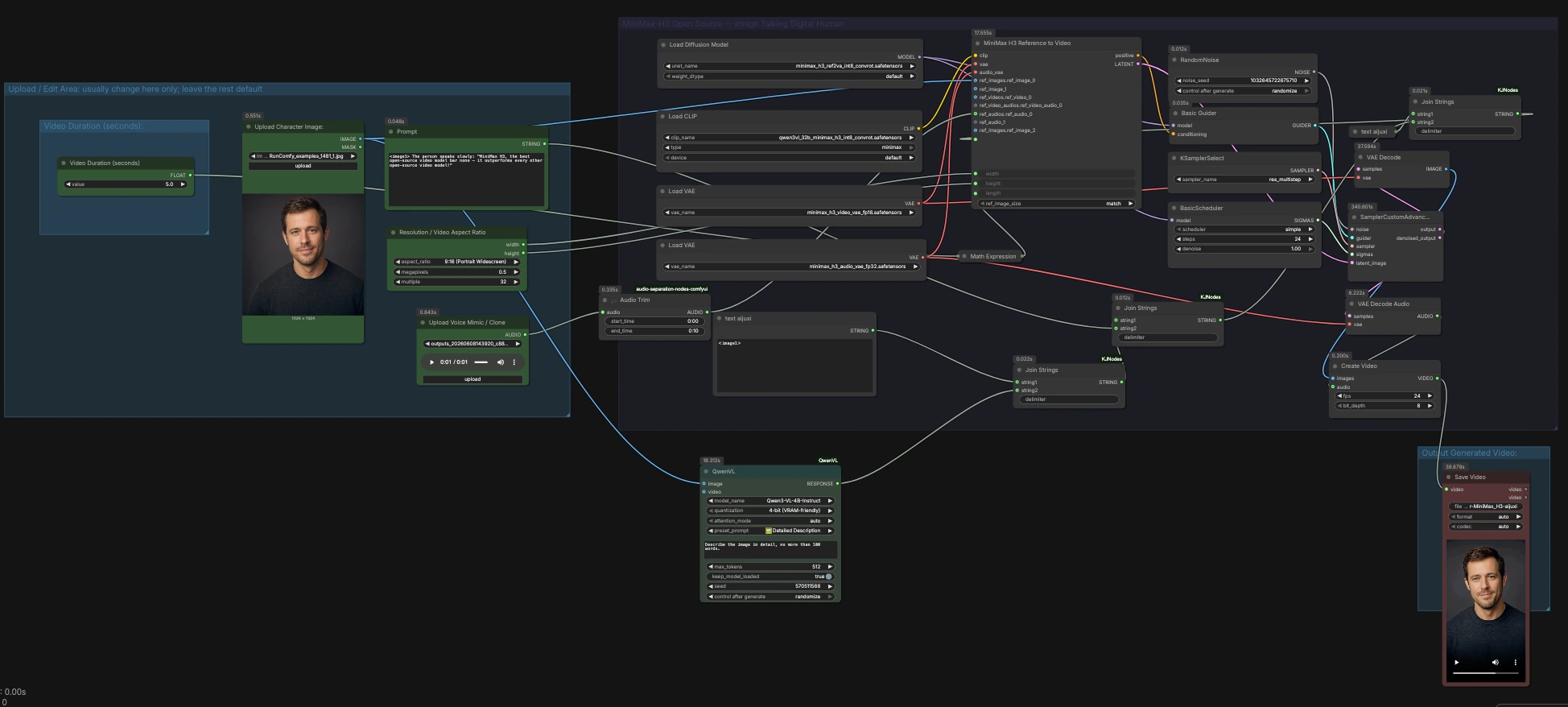
This workflow is organized into four areas: an upload and edit section, a duration helper, the MiniMax H3 generation core, and the output stage. Work left to right, starting with media inputs, then prompt guidance, then run generation and save the video.
Upload / Edit Area: usually change here only; leave the rest default#
Use LoadImage (#137) to upload a single, front-facing character portrait. Frontal or near-frontal framing with visible eyes and mouth works best for natural lip motion. Use LoadAudio (#141) to upload a clean speech sample whose timbre you want to mimic; it can be a few seconds of talking with minimal background noise. If needed, trim the voice sample with AudioCrop (#142) by setting start and end to the spoken segment you want the avatar to match. Add any style or content guidance in Prompt (#138); the workflow will append automatic image-grounded details for better consistency.
Video Duration (seconds):#
Set a target duration using the numeric control at the top of the duration group. A helper ComfyMathExpression (#131) converts seconds to a valid frame count for the model and aligns it to the sampler’s requirements. This keeps timing stable and avoids cutoff mid-phoneme. If you change duration later, update the audio trim so the final speech and lip motion align.
MiniMax-H3 Open Source - Image Talking Digital Human#
This is the core generation path built around MiniMaxH3ReferenceToVideo (#136). The node receives your portrait as the reference image and your trimmed voice clip as the reference audio, plus width, height, and length from the selectors. A QwenVL-based description of the portrait is joined with your written prompt so the model gets both visual grounding and your instructions. The model emits a single latent that contains both video and audio, as well as conditioning used by the sampler stack, which is why lip sync is robust without a separate lip-sync stage.
Prompt grounding with QwenVL#
AILab_QwenVL (#152) analyzes the uploaded portrait and returns a concise, factual description. The workflow concatenates that description with your directive text via JoinStrings (#150, #148, #144), producing a final prompt that tells the model to keep the background unchanged and to use your audio for the speaking voice. This automatic grounding noticeably strengthens identity and background stability. You can keep your written prompt short and let the grounding fill in accurate facial and scene details.
Resolution / Video Aspect Ratio#
Choose aspect and target resolution with ResolutionSelector (#115). It outputs width and height that are friendly to the model and your GPU, which the core node uses directly. For portrait avatars, tall aspects maintain more of the subject while leaving space for natural head motion. If you adjust aspect ratio after testing, keep the same framing in your input portrait for consistent results.
Output Generated Video#
The sampler path denoises the joint latent, then VAEDecode (#122) turns it into frames while VAEDecodeAudio (#121) turns it into a waveform. CreateVideo (#130) merges frames and audio into a single clip at your chosen frame rate, and SaveVideo (#92) writes the file. The saved result contains both picture and synchronized voice from the same generation run. Download and review; if timing feels off, tweak the audio trim or duration and run again.
Key nodes in Comfyui ComfyUI MiniMax H3 Talking Digital Human workflow#
MiniMaxH3ReferenceToVideo (#136)#
The heart of the pipeline that accepts a reference portrait and a voice sample to co-generate video and audio. Key controls are prompt for content and style, width and height for framing, and length for duration in frames. Use a single, sharp portrait as the first reference image and keep ref_image_size matched so facial proportions transfer correctly. If you see drift or background changes, strengthen your directive text to explicitly keep the background unchanged.
ResolutionSelector (#115)#
Sets aspect ratio and overall pixel count, then emits width and height aligned to model-friendly multiples. Pick an aspect that matches your portrait crop to reduce resampling artifacts. Increasing total resolution can improve detail but also increases VRAM and time; test at smaller settings before scaling up. Keep framing consistent across runs for reproducible identity.
AudioCrop (#142)#
Trims the uploaded reference voice to the segment you want the avatar to speak. Set start and end to the spoken portion, leaving a small margin of silence at the ends for natural onsets and offsets. Matching the trimmed audio length to your target video duration helps the generator align phonemes to mouth shapes. If plosives or sibilants look off, try a cleaner recording or shorten the trimmed range.
AILab_QwenVL (#152)#
Generates an image-grounded description that is automatically appended to your prompt. This adds concrete details about face, hair, clothing, and background, which helps the model preserve identity and scene. If the grounded description overconstrains style, keep your written prompt minimal and neutral so the grounding can do its job. For multi-character images, upload a tighter crop so the description focuses on a single subject.
CreateVideo (#130)#
Combines decoded frames and audio into a single playable file. You can change fps if you need to match a downstream timeline, but keep it consistent with the duration-to-frame conversion earlier. If you see stutter on certain platforms, re-export at a common frame rate for that platform. The bit_depth control can be left at its default for web delivery.
ComfyMathExpression (#131)#
Converts your duration in seconds to a valid frame count for the generator and aligns it to the sampler’s stride. This prevents partial steps that can cause timing drift. If you change the frame rate downstream, revisit duration to keep mouth motion aligned to syllables. Treat this node as the timing source of truth for the whole run.
Optional extras#
- Use a clean, evenly lit portrait with eyes and mouth unobstructed for the most natural articulation.
- Record 5 to 10 seconds of clear speech in a quiet room; avoid music or heavy compression in the reference clip.
- For reproducible results, fix the
RandomNoiseseed inRandomNoise(#129) instead of randomizing between runs. - If you need captions, add them in post rather than baking into the prompt, so the model focuses on face and voice.
- Respect likeness and voice rights when creating a ComfyUI MiniMax H3 Talking Digital Human for real people.
Acknowledgements#
This workflow implements and builds upon the following works and resources. We gratefully acknowledge MiniMax for the MiniMax H3 model, Comfy-Org for the MiniMax-H3 model weights, and Comfy.org for the MiniMax H3 tutorial for their contributions and maintenance. For authoritative details, please refer to the original documentation and repositories linked below.
Resources#
- MiniMax/MiniMax H3 official announcement
- Docs / Release Notes: MiniMax H3 official announcement
- Comfy-Org/MiniMax-H3 model weights
- Hugging Face: Comfy-Org/MiniMax-H3
- Comfy.org/MiniMax H3 tutorial
- GitHub: comfy-org/docs
- Hugging Face: Comfy-Org/MiniMax-H3
- Docs / Release Notes: Comfy.org MiniMax H3 tutorial
Note: Use of the referenced models, datasets, and code is subject to the respective licenses and terms provided by their authors and maintainers.