

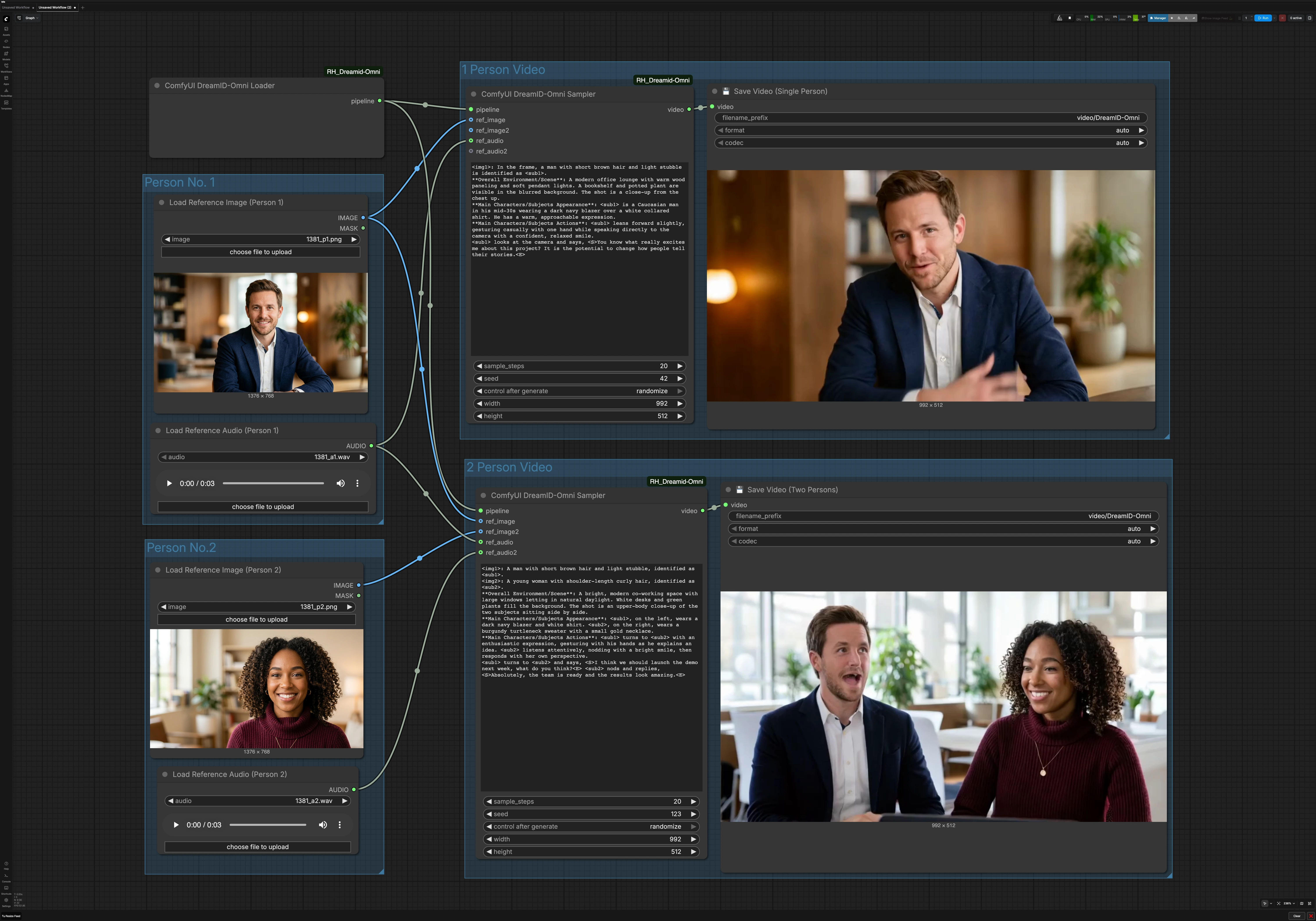
DreamID-Omni single and dual character talking video workflow for ComfyUI#
This workflow turns a single reference photo and an audio clip into an identity‑preserving talking‑head video. Powered by the DreamID-Omni model, it blends a modern video backbone with MMAudio‑driven lip motion so the subject speaks naturally while keeping the face from your image. It also supports two characters, enabling side‑by‑side conversational clips driven by two voices.
Designed for creators, product teams, and researchers, the DreamID-Omni workflow in ComfyUI is ideal for digital avatars, personalized announcements, tutorial intros, and AI dialogue scenes. You supply photos and audio, optionally describe the shot in a short prompt, and the graph renders a polished video ready to share.
Key models in Comfyui DreamID-Omni workflow#
- DreamID-Omni. The core identity module that preserves the person in your reference image across frames while responding to audio for realistic lip movements. See the official repo and weights for details: DreamID-Omni and DreamID-Omni on Hugging Face.
- Wan 2.2 video generation. A high‑capacity video diffusion backbone that synthesizes coherent motion, lighting, and shot composition while DreamID-Omni steers facial identity.
- MMAudio. An audio representation model that conditions the mouth shapes and subtle facial cues to align with the supplied speech, improving lip‑sync realism.
How to use Comfyui DreamID-Omni workflow#
This graph has two parallel paths. The single‑person path uses one image and one audio. The two‑person path uses two images and two audios to produce a conversational clip. A shared DreamID-Omni loader initializes the pipeline for both.
Person No. 1#
Use Load Reference Image (Person 1) (#6) to select a clear, front‑facing portrait with even lighting and minimal occlusion. Use Load Reference Audio (Person 1) (#7) to provide the speech you want the character to say. Cleaner audio produces better lip‑sync, so prefer speech without music or strong background noise. This pair feeds both single‑person mode and, when enabled, the left or first subject in two‑person mode.
Person No. 2#
Use Load Reference Image (Person 2) (#9) and Load Reference Audio (Person 2) (#11) when creating a dialogue. Choose a photo that matches the framing of Person 1 to keep the composition balanced. Ensure the second audio is similar in loudness to the first to avoid abrupt perceptual shifts. If you are only making a single‑person clip, you can ignore this group.
1 Person Video#
The single‑speaker path is driven by ComfyUI DreamID-Omni Sampler (#21). It fuses the DreamID-Omni pipeline with Person 1’s photo and audio, then renders a shot consistent with your brief scene description in the node’s prompt area. Keep your prompt concise and practical, for example describing background, camera distance, and demeanor. The result is written by 💾 Save Video (Single Person) (#4), which names and exports the file for you.
2 Person Video#
The dialogue path uses ComfyUI DreamID-Omni Sampler (#22) to compose two identities in one frame and drive each mouth with its paired audio. Provide a short prompt to set the environment and interaction style, such as a co‑working space, casual tone, or who speaks first. This helps stabilize camera placement and gestures while DreamID-Omni and MMAudio maintain identity and lip alignment. The clip is exported by 💾 Save Video (Two Persons) (#5).
Shared DreamID-Omni pipeline#
ComfyUI DreamID-Omni Loader (#23) initializes the DreamID-Omni components used by both paths. You normally do not need to adjust anything here. As long as the weights and the ComfyUI node are available, the loader prepares the pipeline so the samplers can render.
Key nodes in Comfyui DreamID-Omni workflow#
ComfyUI DreamID-Omni Loader (#23)#
Initializes the DreamID-Omni pipeline and makes its weights available to downstream samplers. There are no typical user inputs here. If you maintain multiple model variants, confirm the correct weights are installed before queuing renders.
ComfyUI DreamID-Omni Sampler (#21)#
Single‑person rendering. This node combines the loader pipeline with the first reference image and audio to synthesize an identity‑preserving talking head. The prompt field is where you define the scene and demeanor; the seed controls repeatability; resolution determines framing and face detail; and steps trade speed for fidelity. For consistent results across takes, reuse the same seed and keep prompt changes minimal.
ComfyUI DreamID-Omni Sampler (#22)#
Two‑person rendering. This instance accepts two photos and two audios, pairing each voice to its subject for synchronized lip movement. The prompt can stage the conversation and camera layout. Adjust seed and resolution as you would in single‑person mode, and ensure both audios are trimmed to the desired timing before rendering.
💾 Save Video (Single Person) (#4)#
Writes the single‑speaker output to disk. Set the folder or base name to keep versions organized. If available, leave codec and frame‑rate options on automatic when you are unsure.
💾 Save Video (Two Persons) (#5)#
Writes the dialogue output to disk. Use a distinct base name so single‑ and dual‑person clips are easy to distinguish. Keep automatic export settings for reliability unless you have a specific delivery requirement.
Optional extras#
- Keep faces large enough in the reference images to occupy a meaningful portion of the frame for stronger identity lock.
- Use clean, well‑leveled speech audio. Trim silences at the start to avoid initial frozen lips.
- For a steadier look, reuse the same seed when iterating on prompts or outfits.
- If two‑person spacing feels tight, rephrase the prompt to widen the camera or increase shoulder room rather than cropping faces.
- For assets and updates, see the official model and node: DreamID-Omni, ComfyUI_RH_Dreamid-Omni, and DreamID-Omni weights.
Acknowledgements#
This workflow implements and builds upon the following works and resources. We gratefully acknowledge Guoxu1233 for the DreamID-Omni model/workflow, HM-RunningHub for the DreamID-Omni ComfyUI node, and XuGuo699 for the DreamID-Omni model weights for their contributions and maintenance. For authoritative details, please refer to the original documentation and repositories linked below.
Resources#
- DreamID-Omni Official Repository - https://github.com/Guoxu1233/DreamID-Omni
- GitHub: Guoxu1233/DreamID-Omni
- DreamID-Omni ComfyUI Node (RunningHub) - https://github.com/HM-RunningHub/ComfyUI_RH_Dreamid-Omni
- DreamID-Omni Model Weights (Hugging Face) - https://huggingface.co/XuGuo699/DreamID-Omni
- Hugging Face: XuGuo699/DreamID-Omni
Note: Use of the referenced models, datasets, and code is subject to the respective licenses and terms provided by their authors and maintainers.