

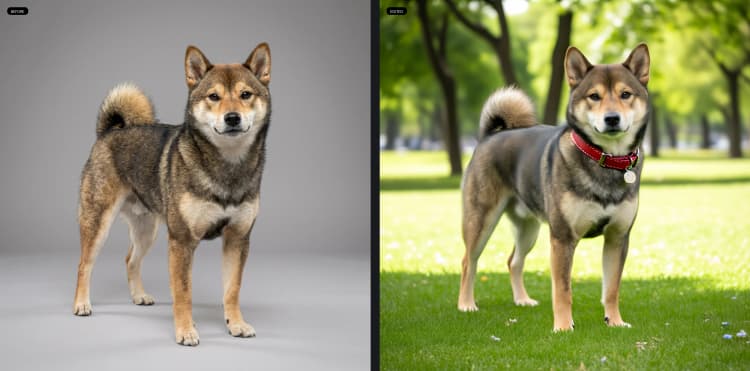


Capybara ComfyUI Workflow v0.1: one unified template for images and videos#
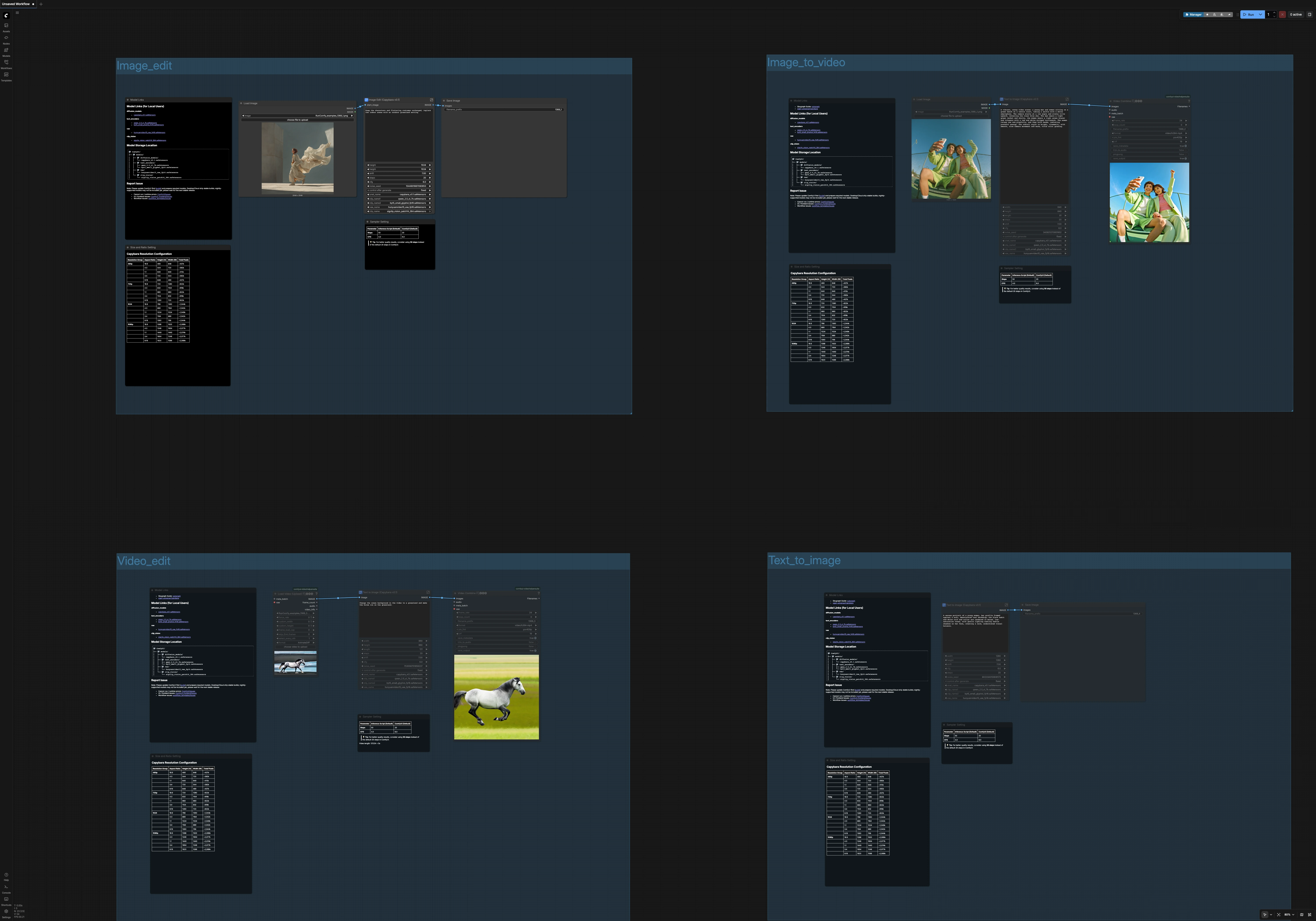
Capybara ComfyUI Workflow is a 4‑in‑1 template bundle that covers text‑to‑image, instruction‑based image editing, image‑to‑video, and prompt‑based video editing in ComfyUI. It is built around the Capybara v0.1 diffusion model and a single, unified pipeline so you can move between image and video tasks with consistent behavior and predictable results.
This Capybara ComfyUI Workflow is ideal for creators who need prompt‑driven edits, quick iteration, and reliable aspect‑ratio presets. Each path reuses the same model stack and prompting strategy, which keeps color science, composition, and style coherent across tasks.
Note: If you want to use the video editing capability, it is recommended to use 2XL or higher GPU instances, otherwise the process may be very slow.
Key models in Comfyui Capybara ComfyUI Workflow#
- Capybara v0.1 (diffusion UNet). The core generator that unifies image and video behavior; it steers how content is composed and stylized in all four templates. See the project repo and model card for details: xgen-universe/Capybara (GitHub) and xgen-universe/Capybara (Hugging Face).
- Qwen2.5‑VL‑7B text encoder. Provides strong, instruction‑friendly language understanding for prompts and edit directives, improving alignment between what you write and what is generated. See Qwen/Qwen2.5-VL-7B.
- ByT5‑small text encoder. A byte‑level encoder that helps with robust tokenization and text handling inside prompts, complementing the primary language model. See google/byt5-small.
- HunyuanVideo 1.5 VAE. Handles latent decoding/encoding across image and video branches so both share the same reconstruction characteristics. See Tencent/HunyuanVideo (GitHub) and the repackaged assets in Comfy-Org/HunyuanVideo_1.5_repackaged.
- SigCLIP Vision (patch14, 384). Supplies image features that help preserve structure and identity during edits and when turning images into videos. See Comfy-Org/sigclip_vision_384.
How to use Comfyui Capybara ComfyUI Workflow#
The workflow is organized into four groups that you can run independently. Each group shares the same Capybara model stack and prompt strategy, so style and fidelity carry over between images and videos. Use the built‑in Size and Ratio panels to pick from sensible resolution presets before you generate.
- Image Edit
- Load a source still with
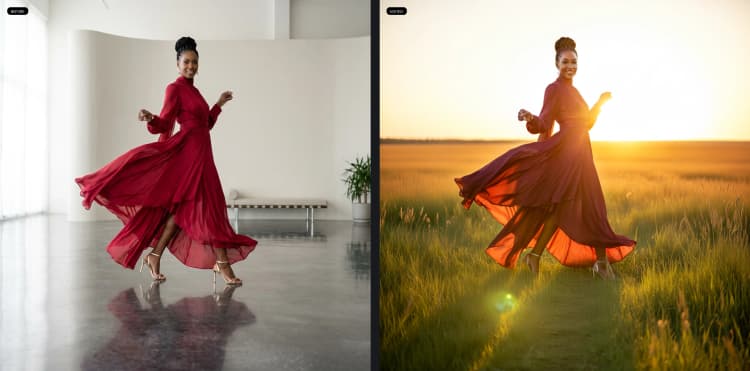
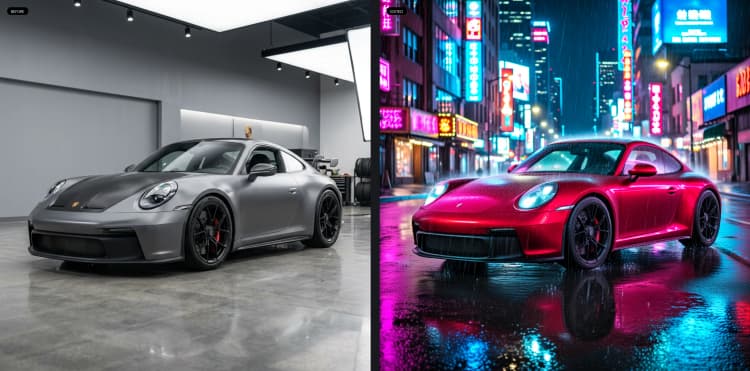
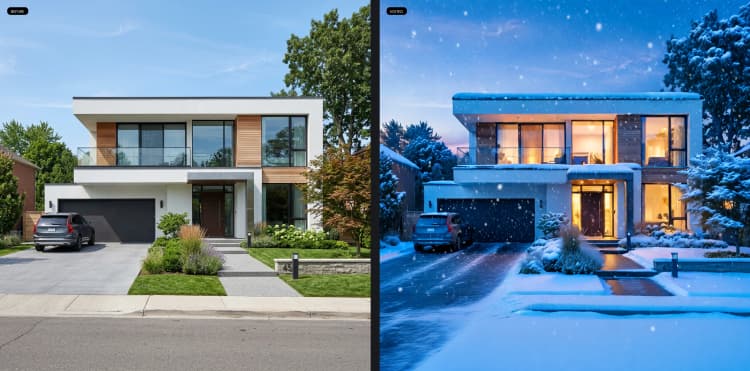
LoadImage(#80), then openImage Edit (Capybara v0.1)(#103). Write instruction‑style prompts such as “Keep the subject and outfit; replace the indoor scene with a sunlit meadow.” Use the negative prompt to suppress artifacts like “watermark, text, low quality.” - The editor uses CLIP vision to anchor the subject and layout while Capybara applies your instruction to the rest of the scene. This is great for fast background swaps or global look tweaks without losing identity.
- Output is saved by
SaveImage(#102). If you need a specific ratio, set the width/height controls exposed on the node to one of the included presets.
- Load a source still with
- Text to Image
- Open the
Text to Image (Capybara v0.1)subgraph (#143) and write a descriptive prompt. This branch generates a clean still image using the same language encoders and scheduler as the other paths, so it matches the look of your edits and videos. - Add a short negative prompt for quality control. If you want a square, 16:9, 9:16, or 4:3 output, choose the matching preset in the Size panel before running.
- Images are saved for review and can be reused as starting points in the image‑to‑video or edit paths to keep visual continuity.
- Open the
- Image to Video
- Load a reference still with
LoadImage(#131), then run the generator subgraph (#130). Write a motion‑aware prompt (for example, “slow dolly forward, warm cinematic grade”) to animate the input while respecting its composition and identity. - Under the hood,
HunyuanVideo15ImageToVideo(#115) turns the still and your prompt into a short sequence of latent frames that Capybara refines. Use the included length control to choose how long the clip should be. - Frames are encoded to MP4 with
VHS_VideoCombine(#144) at a default cinematic frame rate. Use this when you want quick social‑ready motion from an art‑directed keyframe.
- Load a reference still with
- Video Edit
- Import a clip with
VHS_LoadVideo(#146), then open the editing subgraph (#136). Write an instruction such as “Change the ocean background to grassland; keep the horse and motion.” - The edit path fuses CLIP vision with your prompt so subjects remain stable while scenes, lighting, or weather adapt over time. Negative prompts help suppress flicker or unwanted overlays.
- The result is compiled with
VHS_VideoCombine(#145) to MP4. Pick a resolution preset that matches your source to avoid stretching.
- Import a clip with
Key nodes in Comfyui Capybara ComfyUI Workflow#
Image Edit (Capybara v0.1)(#103)- A compact, instruction‑based editor that preserves structure using vision features while applying your text edit globally. Adjust the
textprompt to describe what should change and what must stay, then usestepsfor quality/smoothness andcfgto balance prompt strength against the source image. Increasestepsfor more detail; moderatecfgvalues usually keep edits faithful.
- A compact, instruction‑based editor that preserves structure using vision features while applying your text edit globally. Adjust the
HunyuanVideo15ImageToVideo(#115)- The bridge from stills to motion and the engine behind prompt‑based video edits. It creates a short latent sequence conditioned on your prompt and, when provided, a start image. Tune
lengthfor duration andwidth/heightto match a preset; larger sizes increase detail and render time. This node is the backbone of both the Image‑to‑Video and Video Edit groups, leveraging the HunyuanVideo design for stable temporal generation while Capybara handles denoising.
- The bridge from stills to motion and the engine behind prompt‑based video edits. It creates a short latent sequence conditioned on your prompt and, when provided, a start image. Tune
VHS_VideoCombine(#145)- The finalizer that turns generated frames into an MP4. Use
frame_rateto control motion cadence andcrfto trade quality for file size. Lowercrfyields higher quality but bigger files; keep it consistent across projects so your Capybara ComfyUI Workflow outputs have a uniform look.
- The finalizer that turns generated frames into an MP4. Use
Optional extras for the Capybara ComfyUI Workflow#
- Use the Size and Ratio presets to lock in 16:9, 9:16, 1:1, or 4:3 at 480p, 720p, 1024, or 1080p. Staying on preset helps the sampler and VAE stay stable and reduces edge artifacts.
- For a quality boost, increase diffusion
stepsin the Sampler panels. Rendering takes longer, but fine textures and clean edges improve noticeably. - Keep your subject stable in edits by writing prompts that explicitly say what to keep (for example, “keep characters and costumes unchanged”) and push scene changes into the rest of the sentence.
- Negative prompts are your cleanup crew. Common entries like “blurry, watermark, text” help remove overlays and compression‑like artifacts in both images and videos.
- For videos, choose clip length to match your intended frame rate. The defaults are tuned for short social clips; longer sequences benefit from slightly higher
stepsfor temporal consistency.
This Capybara ComfyUI Workflow is designed to minimize setup friction: one model stack, four creative tasks, and consistent controls. Start with text‑to‑image for look‑dev, use image edit to refine, animate the keyframe with image‑to‑video, then finish with prompt‑based video editing to match the final brief.
Acknowledgements#
This workflow implements and builds upon the following works and resources. We gratefully acknowledge XGen Universe for the Capybara model and project, Comfy-Org for the Capybara v0.1 diffusion model assets, HunyuanVideo 1.5 VAE, and Qwen2.5-VL-7B text encoder packaging, and Comfy.org for the Capybara workflow templates (Text to Image, Image Edit, Image to Video, and Video Edit) for their contributions and maintenance. For authoritative details, please refer to the original documentation and repositories linked below.
Resources#
- XGen Universe/Capybara Project
- GitHub: xgen-universe/Capybara
- Hugging Face: xgen-universe/Capybara
- Comfy.org/Capybara Template - Text to Image
- Docs / Release Notes: Capybara Template - Text to Image
- Comfy.org/Capybara Template - Image Edit
- Docs / Release Notes: Capybara Template - Image Edit
- Comfy.org/Capybara Template - Image to Video
- Docs / Release Notes: Capybara Template - Image to Video
- Comfy.org/Capybara Template - Video Edit
- Docs / Release Notes: Capybara Template - Video Edit
Note: Use of the referenced models, datasets, and code is subject to the respective licenses and terms provided by their authors and maintainers.