

MiniMax Music 3 ComfyUI text‑to‑music workflow for structured songs#
MiniMax Music 3 ComfyUI turns a detailed Caption and section‑tagged Lyrics into a complete song inside ComfyUI on RunComfy. The graph is preset to generate a 60 second track by default, and the underlying model supports songs up to about five minutes. You guide genre, mood, vocals, instrumentation, tempo, key, and structure through text, with the model treating them as creative directions rather than strict guarantees.
This MiniMax Music 3 ComfyUI workflow is ideal for producers, sound designers, and creators who want to draft original vocal tracks or structured song concepts from text. It focuses on clean text‑to‑music generation and does not include reference‑audio, cover, continuation, or audio‑editing modes.
Key models in the MiniMax Music 3 ComfyUI workflow#
- MiniMax Music 3 Diffusion Transformer (DiT). The core generator that synthesizes the song in latent audio space from text conditioning. Use the FP16 weights for best quality or the INT8 ConvRot variant for low VRAM. FP16 weights and INT8 weights.
- MiniMax Music 3 Text Encoder. Converts your Caption and Lyrics into conditioning that the generator understands, including timing signals derived from your target duration. Text encoder.
- MiniMax Music 3 DAV (Decoding Audio VAE). Decodes latent audio back to a full‑band waveform at the end of sampling. VAE.
- Project resources and prompt examples are maintained by the authors here: MiniMax‑Music3 on GitHub.
How to use the MiniMax Music 3 ComfyUI workflow#
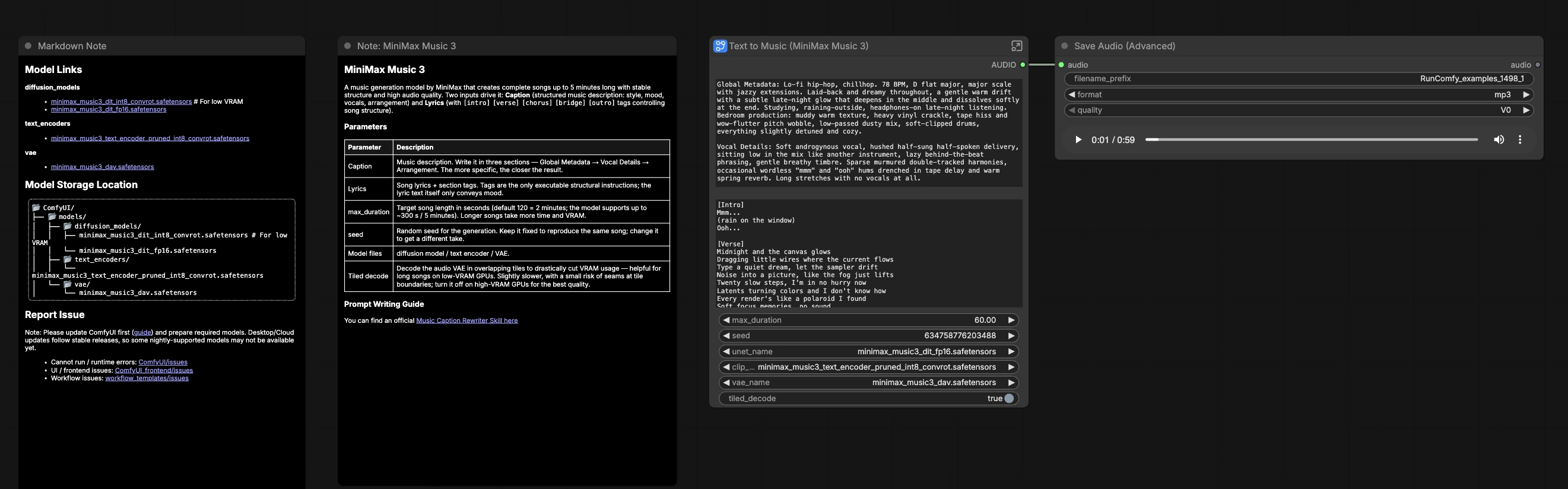
At a high level, the workflow encodes your Caption and Lyrics, creates a latent audio timeline for the requested duration, samples the song, decodes it to waveform, then saves the result. The main controls live on the Text to Music (MiniMax Music 3) (#37) node.
Caption and Lyrics authoring#
Write the Caption in three short sections: Global Metadata, Vocal Details, and Arrangement. Describe genre, mood, tempo, key, instruments, mix character, and vocal style in plain language. In the Lyrics, use section tags like [Intro], [Verse], [Chorus], [Bridge], [Outro] to define structure; the tags are what drive form, while the words mostly inform vibe and phonetics. Keep the Caption concise and concrete to steer style without overconstraining creativity. For instrumental tracks, state that no vocals are desired in the Caption.
MiniMaxMusic3TextEncode (#13)#
This node ingests the Caption and tagged Lyrics, producing conditioning that captures style, arrangement intent, and vocal presence. It also emits a time value that the graph uses to size the latent audio timeline, so your max_duration setting directly shapes song length. Set a seed if you want reproducible takes; keep it fixed while you refine text to iterate on the same arrangement. The encoder is paired with a MiniMax CLIP family text model loaded elsewhere in the graph, so switching encoders is rarely necessary.
EmptyMiniMaxMusic3LatentAudio (#15)#
Creates an empty latent audio canvas whose length matches the encoder’s duration signal. Think of it as the blank multitrack timeline the generator will fill with drums, bass, harmony, melody, and vocals according to your text. Longer durations increase VRAM needs and render time. Use this to move between short ideas and full‑length songs without changing any other part of the pipeline.
UNETLoader (#6) and KSampler (#9)#
UNETLoader selects the MiniMax Music 3 DiT weights. KSampler applies the diffusion process using the positive conditioning from your text and a blank negative conditioning provided by ConditioningZeroOut (#10). Steps and sampler choice affect detail and rhythm feel, while the guidance scale balances adherence to text against generative freedom. Keep the seed constant to compare captions fairly, and change it to explore new melodic and structural alternatives.
Decoding and VRAM control: VAEDecodeAudio (#12), VAEDecodeAudioTiled (#42), ComfySwitchNode (#43)#
After sampling, the latent audio is decoded to waveform by the DAV. For long songs or low VRAM scenarios, enable the tiled_decode switch on the main node to route through VAEDecodeAudioTiled, which processes overlapping tiles to reduce memory use. Tiled decoding is slightly slower and can introduce subtle boundary artifacts in edge cases, so prefer standard decoding when resources allow. The ComfySwitchNode picks the appropriate path automatically based on your toggle.
Output: SaveAudioAdvanced (#35)#
The final audio is saved to disk in your chosen format such as MP3 or WAV. Use this node to set filename conventions and quality settings appropriate for drafts or sharing. For production use, consider exporting a lossless file for downstream mixing and mastering.
Key nodes in the MiniMax Music 3 ComfyUI workflow#
MiniMaxMusic3TextEncode (#13)#
Central to style and structure. Adjust max_duration to set target length and seed for reproducibility. If results feel off‑prompt, refine the Caption’s Global Metadata first, then tweak Vocal Details and Arrangement to rebalance instrumentation and mix character.
KSampler (#9)#
Governs detail, timing feel, and how strongly the song follows text. Increase steps for richer textures at the cost of speed, try alternate samplers for different groove and transients, and adjust guidance scale to trade precision for creativity. Keep the same seed when A/B testing captions to isolate prompt changes.
VAEDecodeAudioTiled (#42)#
Use when generating longer tracks or working on limited GPUs. It lowers peak memory by decoding the waveform in overlapping tiles. Enable it only as needed to avoid small seam risks and extra render time.
UNETLoader (#6)#
Switch between FP16 and INT8 DiT weights depending on VRAM. FP16 is recommended for highest fidelity, while the INT8 ConvRot variant helps fit longer songs on smaller cards.
SaveAudioAdvanced (#35)#
Controls export format and quality. Choose MP3 for quick sharing or WAV for lossless stems and post‑processing. Set clear filename prefixes to keep multiple takes organized.
Optional extras#
- Use concise, concrete Captions. A strong Global Metadata paragraph with genre, BPM feel, key, mix adjectives, and production era often matters more than long prose.
- Section tags in Lyrics drive structure. Keep tags simple, avoid nesting, and let instrumental sections breathe by omitting words between tags.
- To push vocals forward, emphasize vocal timbre and placement in the Caption. For instrumental outputs, explicitly say no vocals.
- For more variation, change the seed. For focused refinement, keep the seed fixed and iterate on text.
- The model treats tempo, key, and instrumentation as guidance. Expect creative deviations and iterate toward the target.
- This MiniMax Music 3 ComfyUI workflow does not include reference‑audio, cover, continuation, or audio‑editing modes. For advanced prompt techniques and examples, see the official project resources: MiniMax‑Music3 on GitHub and the model files on Hugging Face.
Acknowledgements#
This workflow implements and builds upon the following works and resources. We gratefully acknowledge ComfyUI for the MiniMax Music 3: Text to Music workflow template, MiniMax-AI for the MiniMax Music 3 official project, and Comfy-Org for the MiniMax Music 3 model weights for their contributions and maintenance. For authoritative details, please refer to the original documentation and repositories linked below.
Resources#
- Comfy.org/Source workflow template
- Docs / Release Notes: MiniMax Music 3: Text to Music — ComfyUI Workflow
- MiniMax-AI/MiniMax Music 3 official project
- GitHub: MiniMax-AI/MiniMax-Music3
- Hugging Face: MiniMaxAI/MiniMax-Music3
- Comfy-Org/MiniMax Music 3 model weights
- Hugging Face: Comfy-Org/MiniMax-Music-3
Note: Use of the referenced models, datasets, and code is subject to the respective licenses and terms provided by their authors and maintainers.