

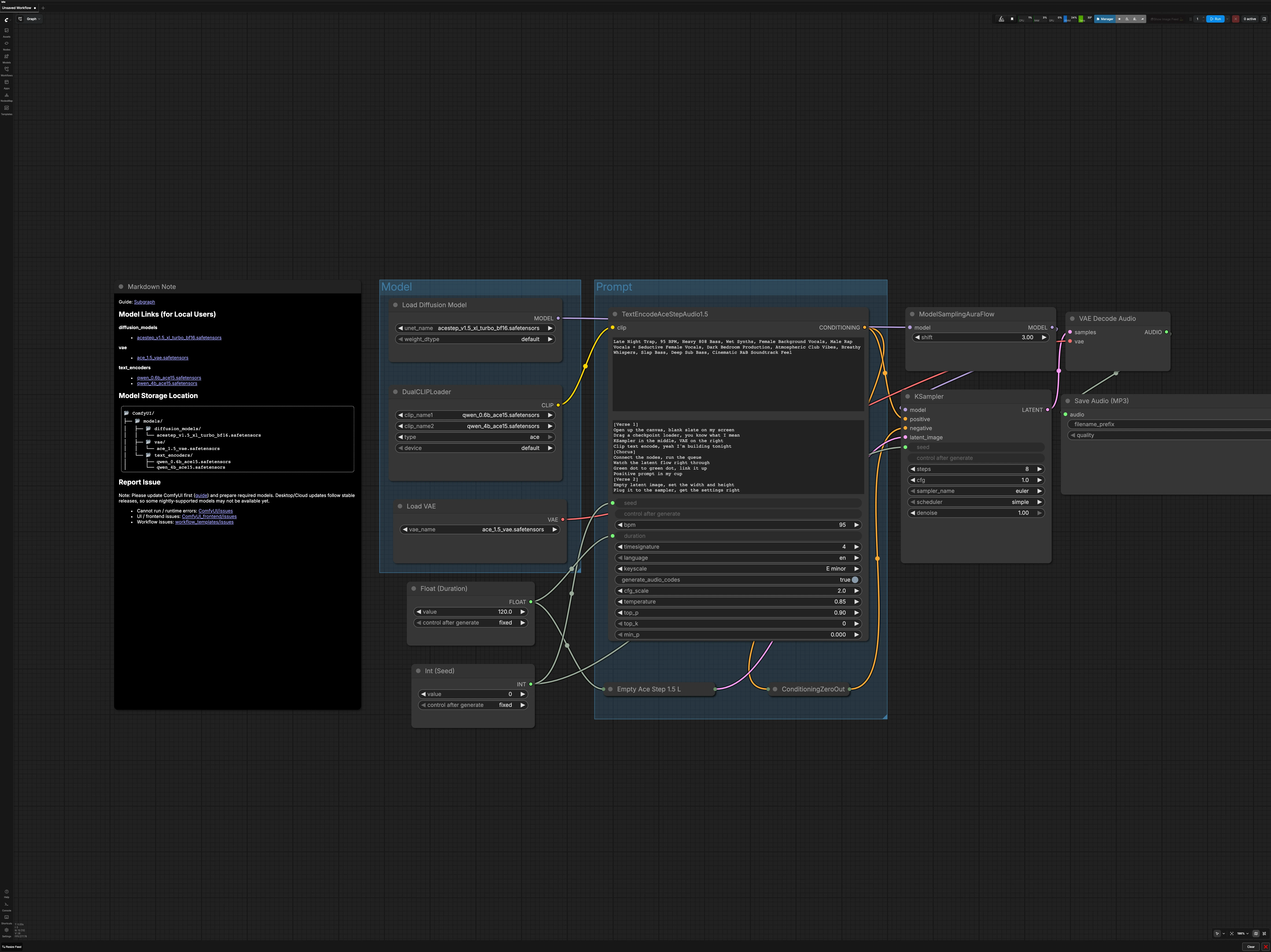
ACE-Step 1.5XL Turbo Text-to-Music ComfyUI Workflow#
Turn compact prompts into polished MP3 music with this comfyui workflow focused on speed and repeatability. It pairs the ACE-Step 1.5XL Turbo generator with its official VAE and dual Qwen text encoders, then exports straight to MP3 for easy preview and reuse. Producers, sound designers, and prompt artists can iterate quickly while keeping results consistent across runs.
Key models in this comfyui workflow#
- ACE-Step 1.5XL Turbo (bf16). The core diffusion model that synthesizes music from text conditioning, optimized for fast denoising and high-quality audio latents. Model file
- ACE-Step 1.5 VAE. The decoder that turns audio latents into a final waveform while preserving timbre and dynamics expected by the ACE-Step family. Model file
- Qwen 0.6B ACE 1.5 text encoder. Lightweight encoder that converts your descriptive prompt into conditioning vectors used by the generator. Model file
- Qwen 4B ACE 1.5 text encoder. Larger companion encoder that enriches semantics, style cues, instruments, and vocal hints for more faithful renders. Model file
How to use this comfyui workflow#
The graph is organized into two main groups plus global controls. You load the ACE-Step model stack, describe the music you want, set song duration and seed, then sample, decode, and export to MP3.
Model group#
This section initializes the model stack the generator expects. UNETLoader (#104) loads ACE-Step 1.5XL Turbo, and VAELoader (#106) brings in the matching ACE-Step 1.5 VAE so decoding stays faithful. DualCLIPLoader (#105) pairs the Qwen 0.6B and 4B text encoders to prepare prompt embeddings. The UNet is routed through ModelSamplingAuraFlow (#78), which applies the sampler configuration required by the model before denoising begins.
Prompt group#
Write a concise description of genre, mood, instruments, vocals, tempo, and production style in TextEncodeAceStepAudio1.5 (#94). If you use lyrics or structural notes, provide them in the secondary text box so the encoders can condition phrasing and dynamics. Negative conditioning is intentionally disabled via ConditioningZeroOut (#47) to keep outputs focused and to simplify early iterations. The node also accepts the global duration and seed, ensuring conditioning stays aligned with the track length and your reproducibility settings.
Duration and seed#
Set the track length in seconds using Float (Duration) (#99). Choose a seed in Int (Seed) (#109) to make runs reproducible across both the encoder and sampler. Keeping the same seed while changing only the prompt is a reliable way to A/B test creative directions. For broad exploration, vary the seed after you are happy with the prompt.
Latent audio setup#
EmptyAceStep1.5LatentAudio (#98) builds an empty audio latent that matches your chosen duration. This acts as the canvas the sampler will fill during denoising. Longer durations require more compute, so consider starting shorter to validate a prompt before scaling up. The workflow wires duration globally so your latent and conditioning always stay in sync.
Denoising and sampling#
KSampler (#3) performs the diffusion process using the ACE-Step 1.5XL Turbo model and your prompt conditioning. The sampler path runs through ModelSamplingAuraFlow (#78) to match the scheduler settings expected by the model for stable, fast convergence. Use the same seed to compare changes to wording or style, and only adjust sampler settings once your prompt is dialed in. When the sampler finishes, you will have an audio latent ready for decoding.
Decode and export#
VAEDecodeAudio (#18) converts the latent into a waveform with the ACE-Step 1.5 VAE to preserve the intended timbre. SaveAudioMP3 (#107) writes an MP3 with a base filename and optional version tag so you can keep takes organized. MP3 is ideal for quick review and sharing, and you can always re-render or re-export to a different format later. The result appears in your standard ComfyUI output location.
Key nodes in this comfyui workflow#
TextEncodeAceStepAudio1.5 (#94)#
This node translates your musical description and optional lyrics into conditioning for the generator using the paired Qwen encoders. Keep prompts specific about genre, instrumentation, vocal presence, tempo, mood, and mix character. Ensure the node’s duration matches the global song length so structure and phrasing are aligned. Use a fixed seed while iterating on wording to understand how terms influence arrangement and timbre.
EmptyAceStep1.5LatentAudio (#98)#
Controls the time canvas the model will fill. Increasing duration increases memory and render time, so iterate on shorter drafts before committing to longer pieces. Keep duration changes deliberate because they can alter perceived tempo and section pacing even with the same prompt and seed.
KSampler (#3)#
Drives quality, speed, and overall texture by controlling how noise is removed from the latent. Start with the provided scheduler path and adjust sampler settings only after the prompt feels right. For fast drafts, reduce sampling effort; for higher fidelity, increase it gradually while keeping the seed constant to make differences easy to hear. See core sampler behavior in the ComfyUI repository for general guidance. ComfyUI on GitHub
SaveAudioMP3 (#107)#
Handles export and file naming so you can catalog takes. Set a clear base name and version tag to track iterations. If you plan to master or further edit, keep the project seed and prompt in your notes so you can re-render with alternate export settings when needed.
Optional extras#
- Write prompts as short, ordered phrases: genre, mood, key feel, tempo, instruments, vocal type, production style.
- Keep lyrics concise and aligned to the chosen duration to avoid rushed phrasing near the end.
- Lock the seed while refining the prompt, then vary the seed to explore alternate arrangements with the same brief.
- Start with shorter durations to validate direction, then scale up once the core sound works.
- Negative conditioning is disabled by design; enable and tune a true negative prompt only if you need strict exclusions after initial exploration.
Acknowledgements#
This workflow implements and builds upon the following works and resources. We gratefully acknowledge Comfy.org for the Audio ACE Step 1.5 XL Turbo workflow, and Comfy-Org for the ACE-Step 1.5XL Turbo diffusion model, ACE-Step 1.5 VAE, ACE-Step 1.5 text encoder 0.6B, and ACE-Step 1.5 text encoder 4B for their contributions and maintenance. For authoritative details, please refer to the original documentation and repositories linked below.
Resources#
- Comfy.org/Audio ACE Step 1.5 XL Turbo workflow
- Docs / Release Notes: Workflow page
- Comfy-Org/ACE-Step 1.5XL Turbo diffusion model
- Hugging Face: acestep_v1.5_xl_turbo_bf16.safetensors
- Comfy-Org/ACE-Step 1.5 VAE
- Hugging Face: ace_1.5_vae.safetensors
- Comfy-Org/ACE-Step 1.5 text encoder 0.6B
- Hugging Face: qwen_0.6b_ace15.safetensors
- Comfy-Org/ACE-Step 1.5 text encoder 4B
- Hugging Face: qwen_4b_ace15.safetensors
Note: Use of the referenced models, datasets, and code is subject to the respective licenses and terms provided by their authors and maintainers.