


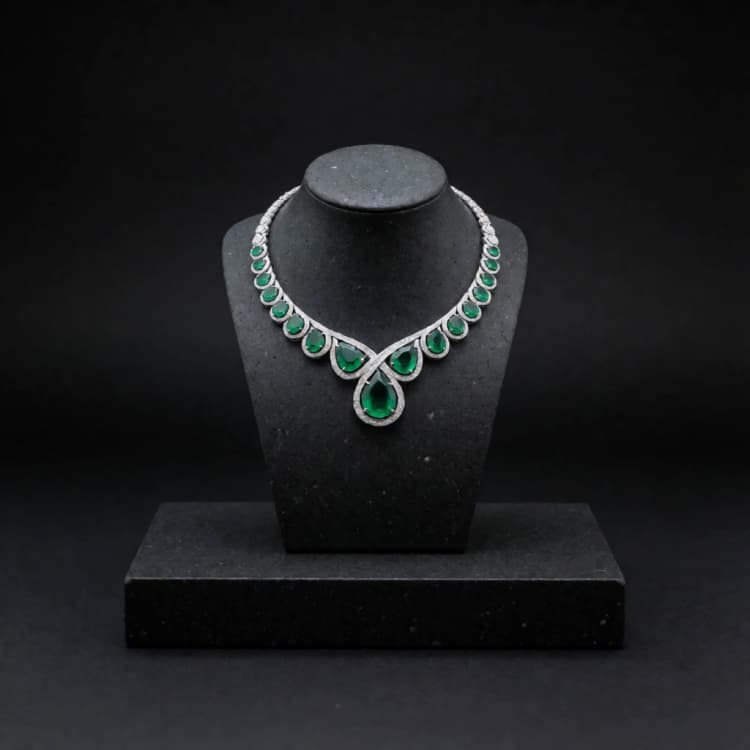
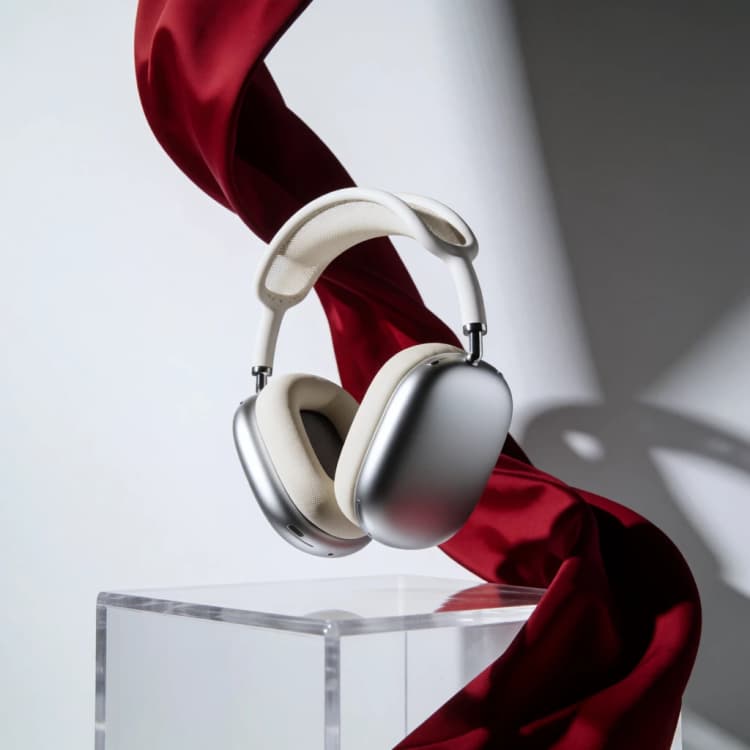
Krea 2 Turbo SDA LoRA ComfyUI Workflow: two‑stage sampling for high‑variance, on‑prompt images#
This RunComfy‑ready text‑to‑image graph pairs Krea‑2 Turbo with F16’s SDA Diversity LoRA to recover stronger seed‑to‑seed variation while preserving prompt intent and image quality. SDA stands for Semantic Directional Alignment. The Krea 2 Turbo SDA LoRA ComfyUI Workflow applies the adapter only during the earliest denoising steps, then turns it off for refinement so you get distinct compositions across seeds without drifting off prompt.
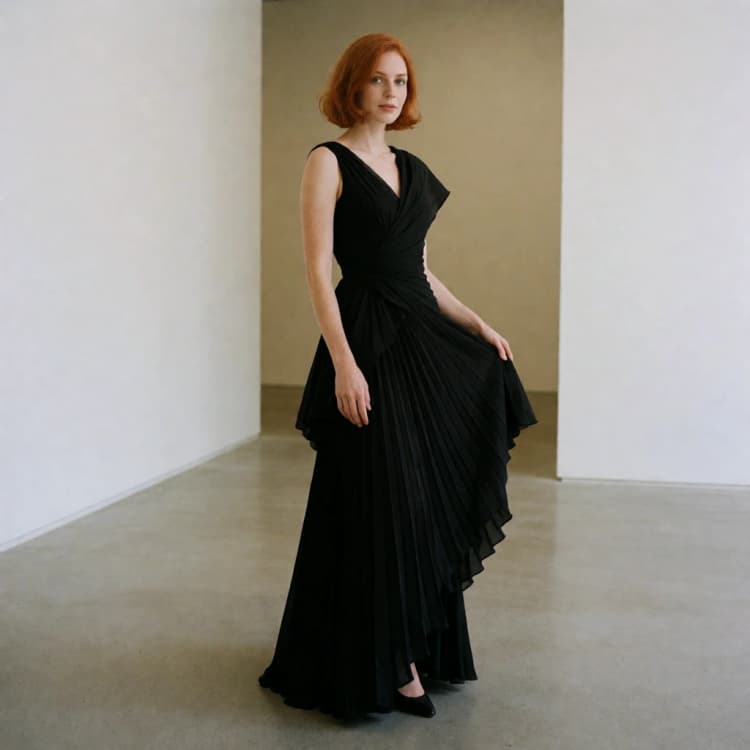
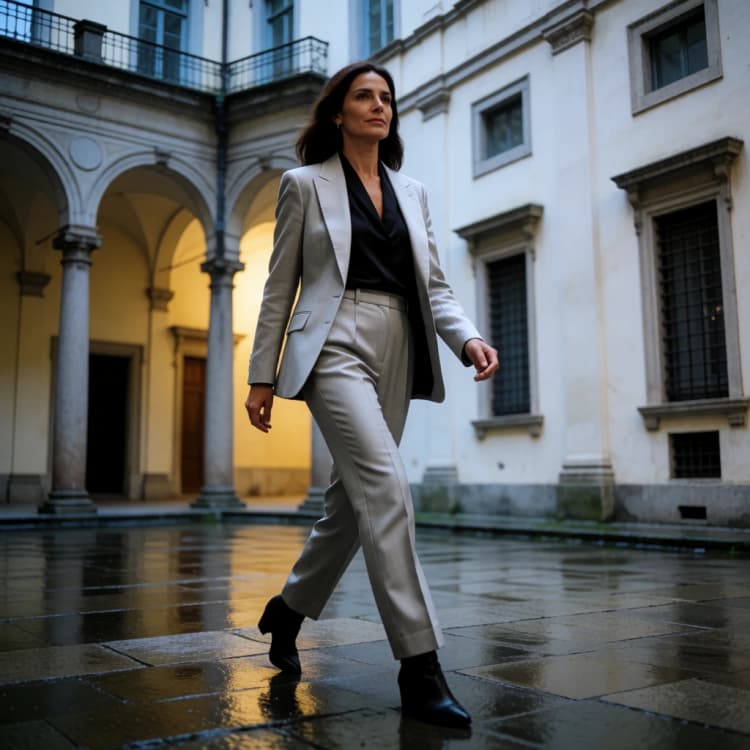
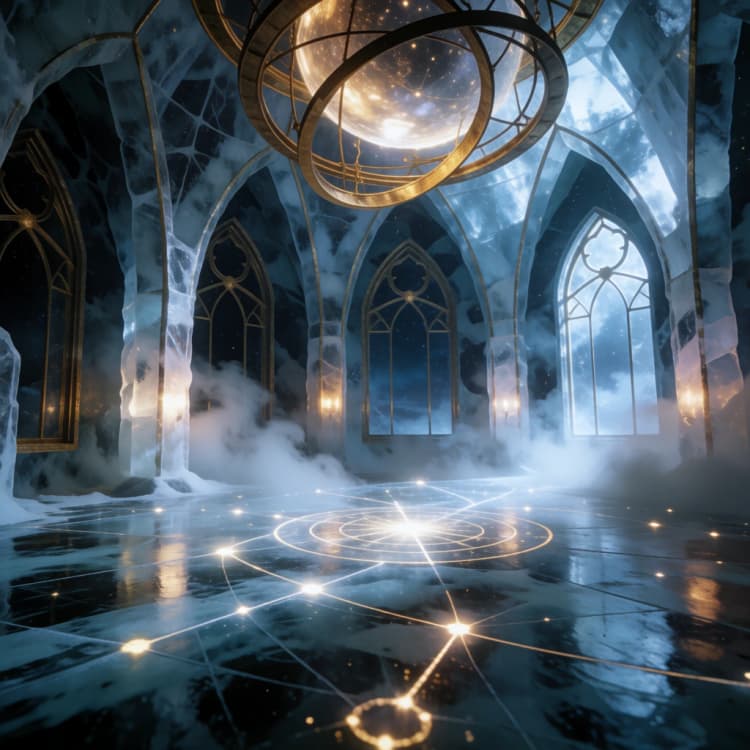
Use it for creative exploration where diversity matters and art direction must stay consistent. It excels at fashion concepts, cinematic fantasy scenes, campaign imagery, product advertising, and any brief that benefits from reliably different yet on‑brand outputs. The Krea 2 Turbo SDA LoRA ComfyUI Workflow is tuned for quick iteration and predictable control.
Key models in the Krea 2 Turbo SDA LoRA ComfyUI Workflow#
- Krea‑2 Turbo base model. High‑quality, fast text‑to‑image backbone that anchors the workflow’s prompt fidelity and detail krea/Krea‑2‑Turbo.
- Krea 2 Turbo SDA Diversity LoRA by F16. An SDA adapter that nudges the early noise trajectory to improve compositional diversity while keeping semantics aligned. In this graph it is scheduled to act only at the start of sampling F16/krea2‑turbo‑sda.
- Qwen Image VAE for Krea‑2. The decoder that converts latents back to RGB with color stability and texture coherence Comfy‑Org/Krea‑2.
- Krea‑2 text encoder weights. The Qwen‑based text encoder shipped with Krea‑2 that parses your prompt into conditioning used by the UNet Comfy‑Org/Krea‑2.
How to use the Krea 2 Turbo SDA LoRA ComfyUI Workflow#
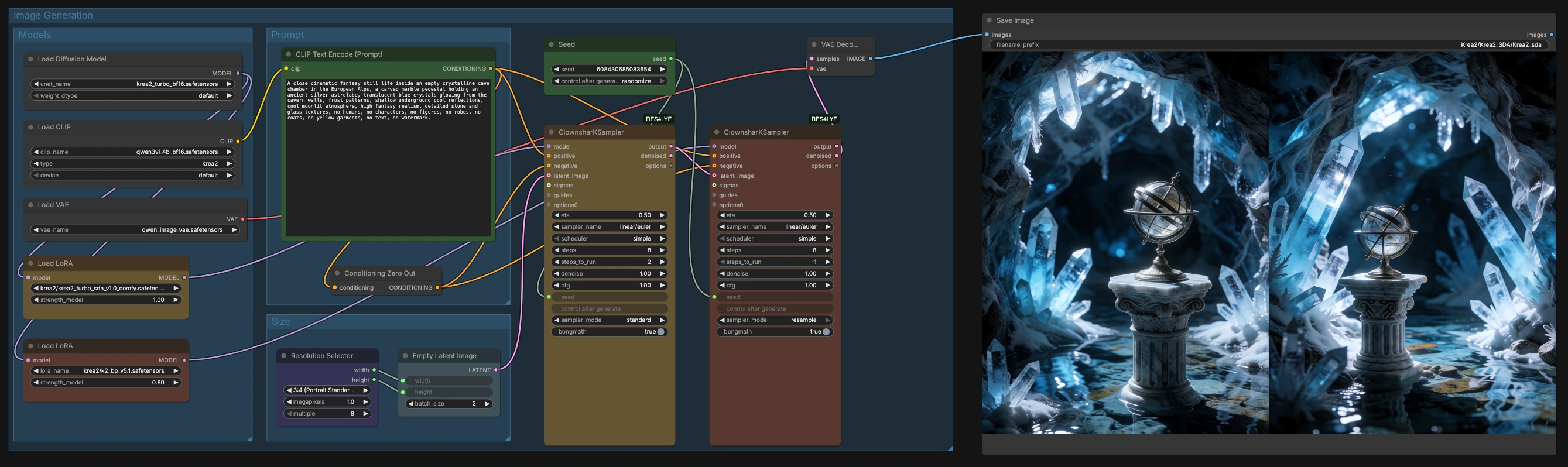
This workflow runs in two coordinated stages. Stage A introduces SDA only at the start to diversify composition across seeds. Stage B finishes denoising without SDA so the base model can consolidate detail, lighting, and materials cleanly.
Models#
The Models group loads the Krea‑2 Turbo UNet, the matching text encoder, and the Qwen Image VAE. An SDA Diversity LoRA is attached to the Stage A model path, and a second LoRA slot is available for Stage B to optionally add a stylistic accent. You can keep the defaults, swap in another compatible Krea‑2 LoRA, or disable the secondary slot if you want a strictly base‑model finish.
Prompt#
The Prompt group encodes your text into positive conditioning and automatically creates an unconditional branch for guidance. Write natural language prompts that describe subject, setting, materials, lighting, and any exclusions you care about. Long descriptive prompts work well with Krea‑2 Turbo. The unconditional branch is handled for you, so you can focus on a single clear prompt string.
Size#
The Size group lets you pick an aspect ratio and scale, then generates a matching empty latent canvas. Choose ratios like portrait, square, or landscape to match your deliverable, then increase scale for more pixels when you are satisfied with a look. Larger sizes offer more detail but cost more time.
Image Generation#
The Image Generation group contains the two samplers, a shared seed control, and the VAE decode and save. Stage A seeds the process with SDA active only at the beginning, which restores healthy variation between seeds while keeping the idea intact. Stage B takes the intermediate latent and refines it without SDA, optionally honoring a secondary style LoRA for polish. Outputs are decoded by the VAE and saved to the folder configured in the graph.
Key nodes in the Krea 2 Turbo SDA LoRA ComfyUI Workflow#
CLIPTextEncode (#56)#
Encodes your prompt into the conditioning used by the model. The workflow also creates an unconditional branch automatically, so you do not need a separate negative prompt field. If you see off‑topic elements, tighten your language and place the most important concepts early in the sentence.
LoraLoaderModelOnly (#146) — SDA Diversity LoRA#
Attaches the Krea 2 Turbo SDA Diversity LoRA for Stage A. Its strength controls how assertively the early trajectory is steered. If your images feel too similar across seeds, increase the strength slightly; if you notice concept drift, lower it. Keep SDA confined to the early phase to preserve the benefits of the two‑stage schedule.
ClownsharKSampler_Beta (#138) — Stage A with SDA#
Runs the first part of denoising with SDA enabled for just the first two of eight steps, then hands off the latent. This brief, front‑loaded application is what restores seed‑to‑seed diversity while keeping the prompt grounded. If you extend SDA deeper into the schedule, you may gain variety but risk semantic drift.
ClownsharKSampler_Beta (#140) — Stage B refinement#
Continues from the incoming latent and completes denoising without SDA so the base model can resolve structure, materials, and micro‑detail. Adjusting its step count trades speed for sharpness. Keep the same seed when comparing prompts so differences reflect text changes rather than noise.
LoraLoaderModelOnly (#147) — auxiliary style LoRA#
Provides an optional secondary LoRA path for Stage B that can add a gentle stylistic bias. Leave it as is, replace it with a different Krea‑2 LoRA, or set its weight to zero to disable. Use this slot to impose a studio look or brand flavor after composition is set.
SeedNode (#145)#
Locks or randomizes the seed for reproducibility. Fix the seed to iterate on art direction with minimal change, or randomize to explore fresh compositions that benefit from the SDA kickstart.
ResolutionSelector (#49)#
Sets aspect ratio and pixel scale for the canvas. Start small while exploring prompts and seeds, then scale up when you are confident in a direction to capture finer surface detail.
Optional extras#
- Start with a fixed seed to tune your prompt, then randomize the seed to sample diverse compositions once the idea is solid.
- If diversity is still low, raise the SDA LoRA strength a little or try bolder nouns and scene verbs at the start of your prompt.
- If outputs drift off brief, lower SDA strength or remove the Stage B style LoRA to finish purely on the base model.
- Use batch generation to compare multiple seeds side by side; keep the prompt identical so differences reflect the SDA effect.
- For product and fashion work, add camera terms and material cues early in the prompt to anchor perspective and texture while SDA broadens composition.
Links for the models used in this workflow:
- Krea‑2 Turbo base model: Krea‑2‑Turbo
- SDA Diversity LoRA: F16/krea2‑turbo‑sda
- Krea‑2 VAE and text encoder weights: Comfy‑Org/Krea‑2
Acknowledgements#
This workflow implements and builds upon the following works and resources. We gratefully acknowledge F16 for Krea 2 Turbo SDA Diversity LoRA, Krea for Krea 2 Turbo base model, and Comfy-Org for Krea 2 ComfyUI weights for their contributions and maintenance. For authoritative details, please refer to the original documentation and repositories linked below.
Resources#
- F16/krea2-turbo-sda
- Hugging Face: F16/krea2-turbo-sda
- krea/Krea-2-Turbo
- Hugging Face: krea/Krea-2-Turbo
- Comfy-Org/Krea-2
- Hugging Face: Comfy-Org/Krea-2
Note: Use of the referenced models, datasets, and code is subject to the respective licenses and terms provided by their authors and maintainers.