

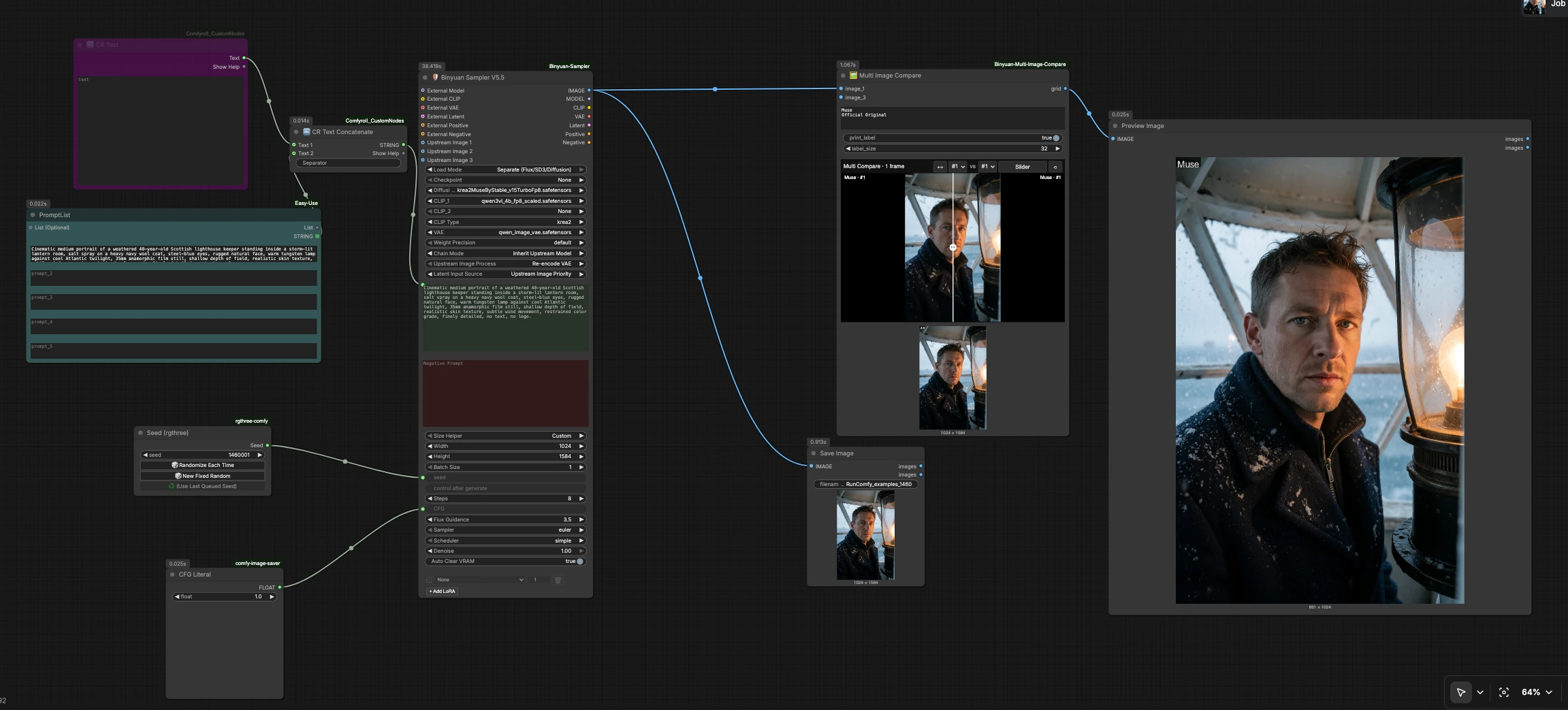

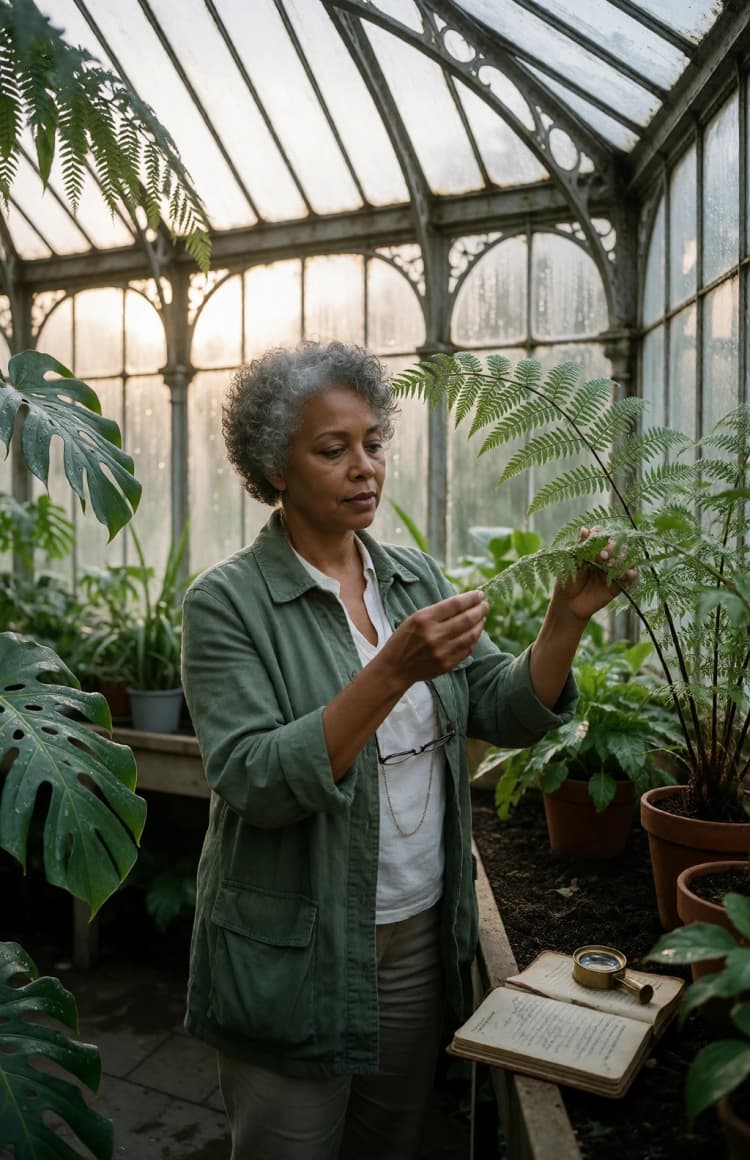


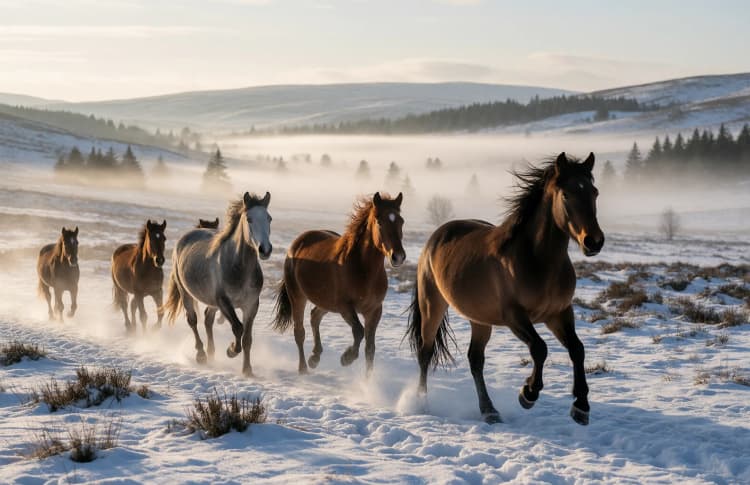

Krea 2 Muse text-to-image ComfyUI workflow#
Ce flux de travail Krea 2 Muse text-to-image ComfyUI est une pipeline de génération d'images prête à l'emploi RunComfy pour les portraits, les visuels carrés et les paysages larges. Construit autour d'un échantillonneur centralisé, il garde la taille, la graine, l'orientation et les contrôles d'invite en un seul endroit, vous permettant d'explorer rapidement les variations.
Conçu pour l'art conceptuel, les images éditoriales, les concepts de produits et l'idéation de campagnes, le flux de travail associe la rapidité du Krea 2 Turbo à un chemin d'entrée d'invite clair et une grille de prévisualisation étiquetée pour des tests A/B rapides. Le checkpoint par défaut cible une esthétique "Muse" via une fine-tune Krea 2 Turbo tierce, tout en restant entièrement compatible avec les poids officiels Krea 2.
Modèles clés dans le flux de travail Comfyui Krea 2 Muse text-to-image ComfyUI#
- Krea 2 Turbo. Le modèle text-to-image principal qui alimente ce flux de travail, optimisé pour un échantillonnage rapide et de haute qualité et une large gamme esthétique. Les poids ouverts et les variantes sont disponibles sur Hugging Face sous l'organisation officielle krea/Krea-2-Turbo.
- Encodeur de texte vision-langage de la série Qwen. L'emballage Krea 2 pour ComfyUI est fourni avec un encodeur Qwen VL pour analyser les invites avec une forte compréhension du texte, améliorant le suivi des instructions et le détail visuel. Voir les encodeurs de texte emballés dans Comfy-Org/Krea-2 et les documents de fond dans le pipeline Diffusers QwenImage.
- Qwen Image VAE. L'autoencodeur utilisé pour compresser et reconstruire les images, équilibrant fidélité et vitesse pour les pipelines de la famille Krea 2. La mise en œuvre de référence et les fichiers sont publiés dans Qwen/Qwen-Image.
Comment utiliser le flux de travail Comfyui Krea 2 Muse text-to-image ComfyUI#
Le graphe suit un chemin simple de l'assemblage de l'invite à un échantillonneur centralisé, puis à la prévisualisation et à l'enregistrement. Les invites peuvent être issues de listes intégrées ou saisies librement, et tous les contrôles de génération sont sur l'échantillonneur pour une itération rapide.
- Bibliothèque d'invites et générateur de préfixes
- Utilisez les listes d'invites organisées pour lancer l'idéation à travers des portraits, la nature, la faune, des scènes de produits, des moments cinématiques et de l'art stylisé. Chaque liste est une collection d'invites prêtes à l'emploi que vous pouvez adapter à votre brief.
- Le nœud de préfixe vous permet d'ajouter de courts tokens de style ou des déclencheurs LoRA qui devraient apparaître systématiquement avant votre invite principale. C'est idéal pour imposer une ambiance, un médium ou une étiquette de projet à travers les exécutions.
- Connectez votre liste d'invites choisie au nœud de concaténation pour fusionner le préfixe et la description principale, puis dirigez ce texte dans l'invite positive de l'échantillonneur.
- Échantillonnage centralisé et contrôles
- L'échantillonneur est le cœur du flux de travail Krea 2 Muse text-to-image ComfyUI. Il charge le checkpoint Krea 2 Turbo, l'encodeur de texte Qwen, et le VAE Qwen Image, puis exécute la génération avec votre invite.
- Définissez la taille de l'image pour portrait, carré ou paysage. Ajustez l'orientation (CFG) et le nombre d'étapes pour équilibrer vitesse, adhérence et détail. Krea 2 Turbo est conçu pour bien fonctionner à une orientation relativement faible par rapport aux modèles de diffusion classiques.
- Choisissez un échantillonneur et un planificateur approprié pour un développement rapide ou des passes de haute fidélité. Vous pouvez également traiter par lots des images pour explorer plusieurs graines en un seul clic.
- L'échantillonneur supporte l'injection LoRA pour que vous puissiez introduire des packs de style ou des fine-tunes spécifiques à un projet sans restructurer le graphe.
- Gestion des graines pour la répétabilité
- Un nœud de graine dédié fournit des résultats stables et reproductibles. Verrouillez une graine pour affiner une composition unique, ou randomisez pour explorer de nouveaux arrangements et éclairages avant de vous engager.
- Prévisualisation et enregistrement
- Une grille de comparaison étiquetée collecte vos résultats pour une révision rapide côte à côte. Utilisez-la pour vérifier le cadrage, la couleur et les détails fins à travers les graines ou les ajustements de paramètres.
- Le nœud de prévisualisation affiche les résultats en ligne tandis que le nœud d'enregistrement écrit les finales avec un préfixe de nom de fichier personnalisé pour un versionnement et une récupération propres.
Nœuds clés dans le flux de travail Comfyui Krea 2 Muse text-to-image ComfyUI#
BinyuanUltimateSampler(#6) Le générateur central qui charge le checkpoint Krea 2 Turbo, l'encodeur de texte et le VAE, puis gère la taille, les étapes, l'orientation, la graine, l'échantillonneur et le planificateur en un seul endroit. Utilisez-le pour passer rapidement de la sortie portrait, carrée et paysage. Gardez l'orientation modeste pour Krea 2 Turbo, augmentez les étapes lors de la recherche de micro-détails, et utilisez les lots pour explorer efficacement plusieurs graines. Si vous appliquez des LoRAs, ajustez leur force de manière conservatrice pour préserver la cohérence du modèle de base.CR Text(#8) Un champ de texte simple pour les tokens de préfixe qui devraient toujours précéder votre invite, comme une étiquette de style, une étiquette de marque ou un déclencheur LoRA. Gardez les préfixes courts et séparés par des virgules pour un conditionnement propre.CR Text Concatenate(#13) Fusionne le préfixe avec votre invite principale en une seule description bien formée pour l'échantillonneur. Utilisez-le pour imposer une phrase cohérente et tester comment différents préfixes dirigent la même invite de base.Seed (rgthree)(#7) Un nœud utilitaire pour générer, verrouiller ou mélanger la valeur de la graine qui alimente l'aléatoire. C'est le moyen le plus rapide de reproduire une image plus tard ou de créer un ensemble de variations contrôlées.binyuanMultiImageCompare(#3) Construit une grille étiquetée à partir de vos résultats pour une révision rapide A/B. Utilisez-la pour annoter les exécutions avec une courte étiquette, puis évaluez la composition, l'éclairage et la fidélité de la texture à travers les graines ou les changements de paramètres.SaveImage(#20) Enregistre les images rendues sur disque avec un préfixe de nom de fichier clair. Nommez les exécutions par projet, orientation ou date pour garder les explorations importantes organisées.
Extras optionnels#
- Orientation d'abord, puis style. Choisissez votre ratio d'aspect cible et votre composition tôt, puis affinez le style avec des préfixes, des LoRAs et des modifications d'invites. Cela maintient le cadrage stable pendant que vous itérez sur l'apparence.
- Gardez l'orientation basse avec Krea 2 Turbo. Comparé aux modèles de diffusion classiques, cette famille répond bien à une CFG modeste; augmentez-la uniquement si l'image s'éloigne trop de l'invite.
- Utilisez de petits lots pour l'idéation. Générez quelques graines à la fois, sélectionnez dans la grille de comparaison, puis verrouillez une graine pour le polissage.
- Licence et sécurité. L'emballage officiel Krea 2 inclut la licence communautaire; révisez-la avant une utilisation commerciale et appliquez des mesures de sécurité raisonnables au besoin. Voir la licence dans Comfy-Org/Krea-2.
Ce flux de travail Krea 2 Muse text-to-image ComfyUI est conçu pour une exploration visuelle rapide : une invite en entrée, des contrôles cohérents, des prévisualisations propres en sortie. Que vous construisiez des tableaux conceptuels, des traitements éditoriaux ou des cadres de campagne, il vous offre une base rapide et fiable pour transformer des idées en images avec Krea 2 Turbo.
Remerciements#
Ce flux de travail implémente et s'appuie sur les travaux et ressources suivants. Nous remercions sincèrement RunningHub pour le flux de travail krea2MuseByStable_v15TurboFp8 ComfyUI, Stable Yogi pour le modèle Krea2 Muse, Krea AI pour le projet Open Source Krea 2, et Krea AI pour les poids du modèle Krea 2 Turbo pour leurs contributions et leur maintenance. Pour des détails autoritaires, veuillez vous référer à la documentation originale et aux dépôts liés ci-dessous.
Ressources#
- RunningHub/krea2MuseByStable_v15TurboFp8
- Docs / Notes de version : krea2MuseByStable_v15TurboFp8
- Stable Yogi/Krea2 Muse
- Docs / Notes de version : Page du modèle Civitai
- Krea AI/Krea 2 Open Source
- GitHub : krea-ai/krea-2
- Hugging Face : krea/Krea-2-Raw
- Docs / Notes de version : Page Open Source Krea 2
- Krea AI/Krea 2 Turbo
- Hugging Face : krea/Krea-2-Turbo
- GitHub : krea-ai/krea-2
Note : L'utilisation des modèles, ensembles de données et code référencés est soumise aux licences et conditions respectives fournies par leurs auteurs et mainteneurs.