

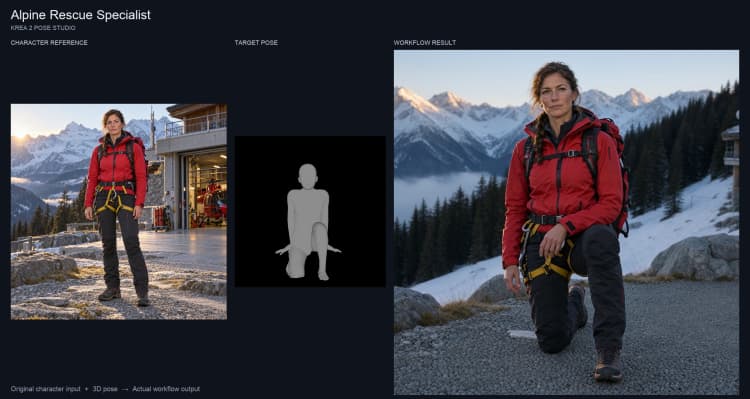
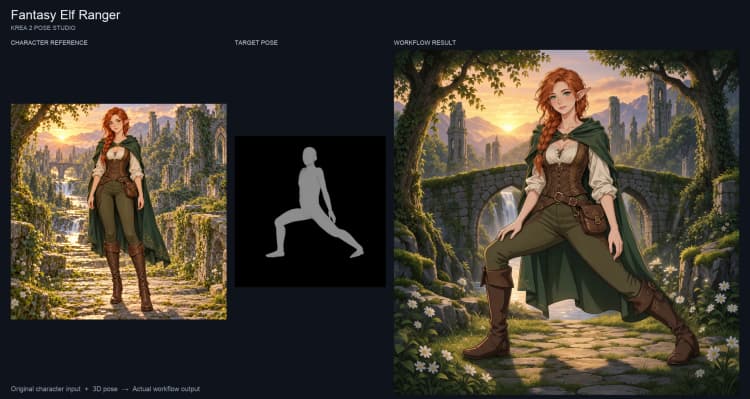
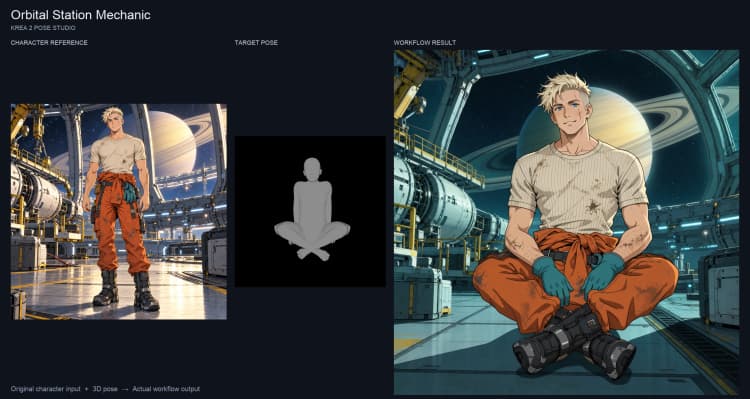
Krea 2 Pose Studio: Pose your characters in ComfyUI#
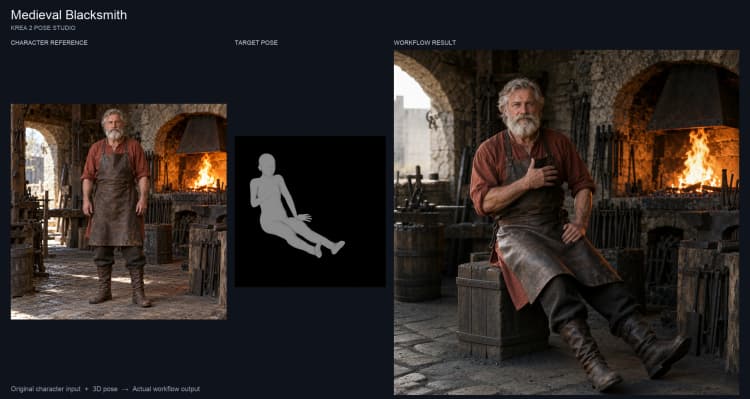
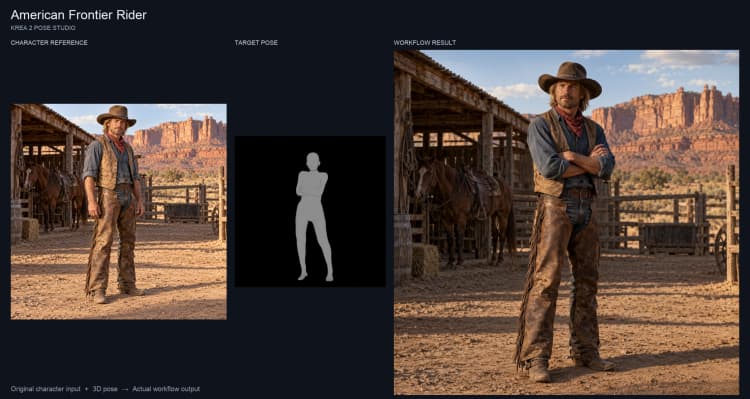
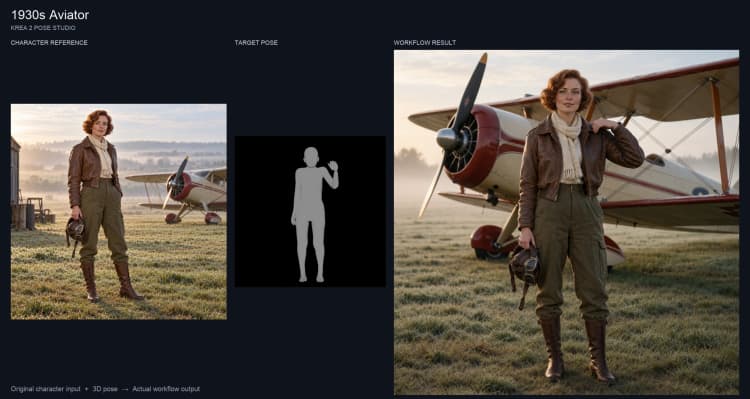
Krea 2 Pose Studio is a ComfyUI workflow for posing an existing character image with an interactive 3D mannequin, then refining the result in one or two passes. It is built around Krea 2 Turbo with Krea 2 Identity Edit V2 to guide character identity and outfit while you change stance, angle, or expression. Identity and pose matching can vary between runs. The workflow supports realistic or anime looks, adjustable character and pose influence, and an optional second‑pass upscale.
Start with the first pass and iterate seeds and text. The optional second pass offers reference conditioning for additional character guidance or a base-model route with more freedom to change details. Neither path guarantees exact identity or pose preservation.
Keep the Pose Studio browser editor open when running this workflow: capturing a fresh mannequin pose requires the live browser canvas. The setup was verified through the browser; unattended headless pose capture has not been verified. This workflow produces still images, and the example cover video is a presentation of those images.
Key models in ComfyUI Krea 2 Pose Studio workflow#
- Krea 2 Turbo. The diffusion backbone that generates your new image from text and image guidance. Packaged model files are available in the official Krea 2 repository. Comfy-Org/Krea-2
- Qwen3‑VL 4B text encoder (as packaged with Krea 2). Interprets prompts and grounded instructions so the UNet follows your text and pose intent. Comfy-Org/Krea-2
- Qwen image VAE (as packaged with Krea 2). Encodes/decodes pixels to latents so the sampler can work efficiently. Comfy-Org/Krea-2
- Krea 2 Identity Edit V2 LoRA. A lightweight adapter that steers generation to keep the character’s facial identity and outfit consistent across new poses. conradlocke/krea2-identity-edit
How to use ComfyUI Krea 2 Pose Studio workflow#
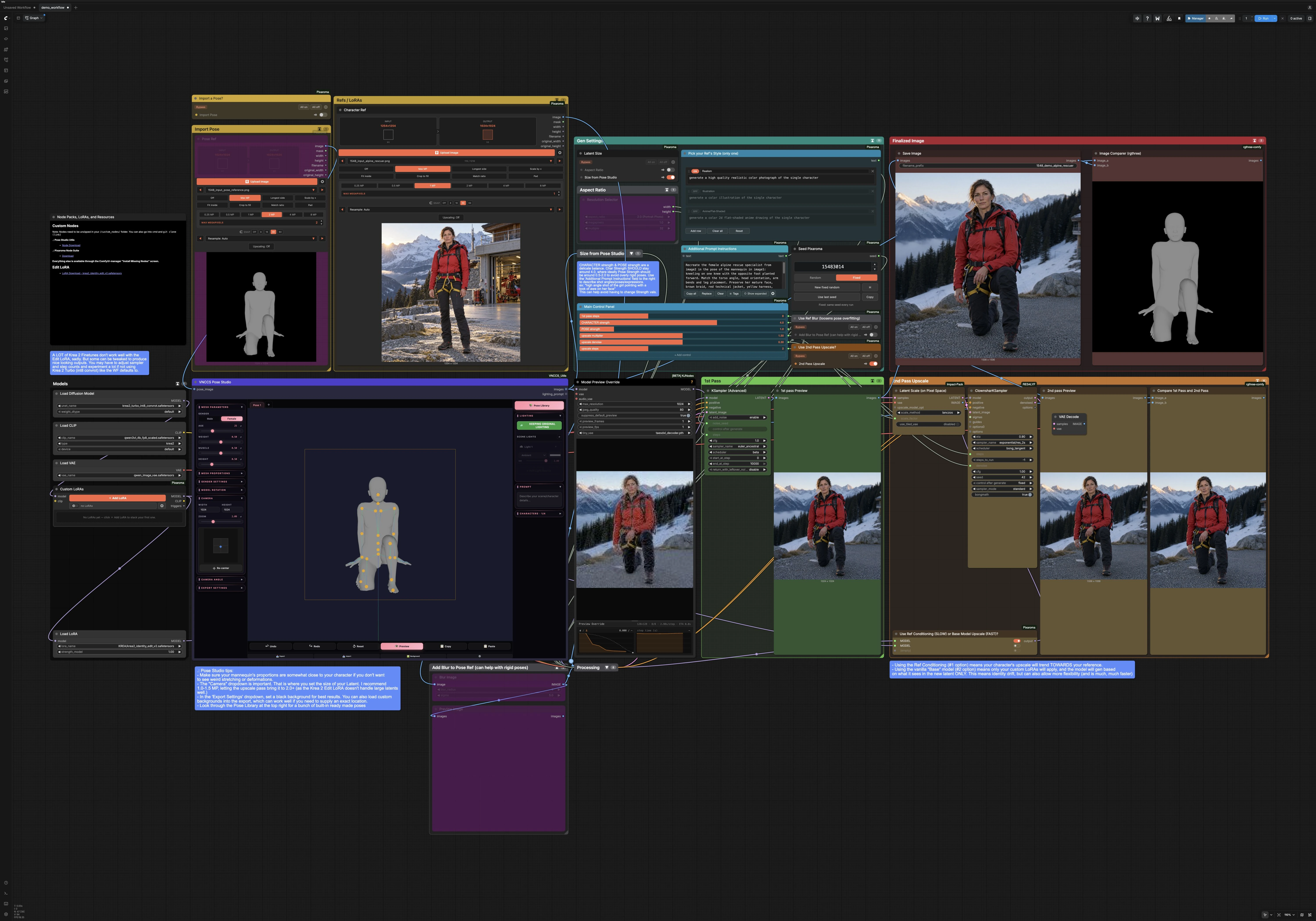
At a glance, you load a Character Ref, set the canvas size, pose the mannequin, and run a 1st pass. Then, optionally, you upscale and refine in a 2nd pass, compare against your reference, and save the result. The groups below work together in that order.
Import Pose#
Use VNCCS_PoseStudio (#334) to design the stance with a clickable 3D mannequin. You can key a full‑body pose, tweak hands and head, and set the camera framing inside the pose editor. Exported images from this group become guidance for the edit stage. The Pose Ref (#349) input also connects to the editor’s optional image-to-pose import. That import path was not validated in these examples; the demonstrated results use mannequin poses set in the editor. The VNCCS documentation explains the UI in detail. ComfyUI_VNCCS_Utils docs
Refs / LoRAs#
Load your Character Ref in Character Ref (#336). This image anchors face, hairstyle, and outfit for Krea 2 Identity Edit V2. If you use additional style or costume LoRAs, add them in Custom LoRAs (#335); they will affect both 1st‑pass generation and the optional 2nd‑pass upscale when using the base‑model route. Choose the overall look in Pick your Ref's Style (#381) to nudge realism, illustration, or anime before sampling.
Aspect Ratio and Size#
Pick a size in Aspect Ratio via ResolutionSelector (#83). If you want the canvas to match your pose preview exactly, turn on “Size from Pose Studio,” which routes the mannequin export through GetImageSize (#337) and feeds width/height into the latent initializer. This keeps limbs in frame and reduces cropping surprises.
Gen Settings#
Write any scene notes in Additional Prompt Instructions (#342). This is the right place to state shot angle, framing (full body, half‑body, close‑up), or small prop calls. The Main Control Panel (#345) exposes the most important levers: CHARACTER strength biases toward the identity in your Character Ref, and POSE strength biases toward the mannequin arrangement. Use the Seed node (#348) to re‑roll variations without changing your text.
1st Pass#
The first pass composes your new image at working resolution. Krea2EditGroundedEncode builds the positive and negative guidance from your Character Ref and prompt, while Krea2EditModelPatch (#79) fuses that guidance into the Krea 2 Turbo model. KSamplerAdvanced (#364) then generates the initial result, which you can preview immediately. If the body alignment is close but the hands or face need help, refine the prompt or adjust the strength sliders, then rerun.
2nd Pass Upscale#
Enable the “2nd Pass Upscale” group to sharpen details and push final resolution. LatentPixelScale (#314) enlarges the latent, then you pick a refinement path with Use Ref Conditioning or Base Model? (#362). The Ref‑Conditioning path reuses Identity Edit so the upscale trends toward the Character Ref; the Base‑Model path refines using the base model plus any custom LoRAs, with greater risk of character drift. ClownsharKSampler_Beta (#371) performs the lightweight denoise/refine on the upscaled latent before decoding to the final image.
Add Blur to Pose Ref (optional)#
If generations look too stiff or overfit the mannequin silhouette, switch on “Use Ref Blur.” This routes the pose image through ImageBlur (#354) so the sampler reads pose intention without clinging to every contour. Compare the result with blur enabled and disabled to judge whether it helps your particular pose.
Finalized Image#
Compare the 1st and 2nd pass side by side in Compare 1st Pass and 2nd Pass (#311). The Image Comparer at the top (#113) lets you slide between your Pose Studio export and the saved final to judge match quality. Use SaveImage (#29) to write the chosen output.
Key nodes in ComfyUI Krea 2 Pose Studio workflow#
VNCCS_PoseStudio (#334)#
This interactive mannequin is the heart of Krea 2 Pose Studio. It exports clean, lighting‑aware pose images and can drive canvas size when “Size from Pose Studio” is enabled. Use the built‑in camera controls to frame the shot you want to see in the final, and keep the background simple to avoid unintended context.
Krea2EditGroundedEncode (#84)#
Creates the conditioning that blends your Character Ref and prompt into Krea 2’s language‑vision space. It receives the pose image (optionally blurred), the Character Ref, and your instructions. For best identity retention, keep the negative input minimal and describe composition details in the positive prompt.
Krea2EditModelPatch (#79)#
Patches the model for editing with guidance from the Character Ref and pose latents. The Identity Edit V2 LoRA itself is loaded separately by LoraLoaderModelOnly (#71). Tune ref_boost and the panel’s CHARACTER strength/POSE strength together: more character emphasis can tolerate slightly lower pose emphasis, and vice versa. If hands or clothing drift, nudge character emphasis up; if limbs feel locked, ease pose emphasis or enable “Use Ref Blur.”
KSamplerAdvanced (#364)#
Runs the first full generation at working size. Adjust steps for tradeoffs between speed and detail, and re‑roll noise_seed for new arrangements within the same constraints. If composition keeps cropping, check that your pose camera and the workflow canvas size agree.
LatentPixelScale (#314)#
Upscales the latent before refinement so fine structure can be added efficiently. Increase scale_factor when you need more pixels for fabric weave, hair strands, or linework, but keep VRAM in mind. This step preserves the 1st‑pass composition while leaving room for crisp detail.
ClownsharKSampler_Beta (#371)#
Performs a quick refine on the enlarged latent. Lower denoise settings better preserve the 1st‑pass identity and pose; higher settings allow style or material changes at the cost of fidelity. Pair this with the Ref‑Conditioning/Base‑Model switch to compare stronger reference guidance with freer reinterpretation.
PixaromaSliders (#345)#
Your main creative controls live here. CHARACTER strength governs how strongly the face/outfit match the Character Ref, while POSE strength governs how strictly the body follows the mannequin. Small moves here often fix more than large prompt rewrites.
Optional extras#
- Use a plain, dark background in Pose Studio. Busy backdrops can leak into the edit guidance.
- For anime, choose the Anime/Flat‑Shaded row in
Pick your Ref's Style; for photo‑real, select Realism before sampling. - If pose matching is close but not exact, re‑roll the
Seedand add a short clause toAdditional Prompt Instructionsdescribing the limb or camera change you want. - Compare both upscale paths if needed; the Base-Model path may change identity or clothing, so inspect the result before accepting it.
- Some third‑party Krea 2 finetunes pair unevenly with Identity Edit. If a finetune fights the pose or breaks identity, switch back to Krea 2 Turbo, or rely more on custom LoRAs for style.
- Model and LoRA files are maintained in the official repositories: Krea 2 models and assets here and Identity Edit V2 here.
Acknowledgements#
This workflow implements and builds upon the following works and resources. We gratefully acknowledge foxfuressence for the Krea 2 Pose Studio workflow and walkthrough, Comfy-Org and conradlocke for the Krea‑2 model files and Krea 2 Identity Edit V2, and AHEKOT for the VNCCS Pose Studio utilities for their contributions and maintenance. For authoritative details, please refer to the original documentation and repositories linked below.
Resources#
- foxfuressence/Krea 2 Pose Studio
- Docs / Release Notes: Krea 2 POSE STUDIO | Pose your characters in any style!
- foxfuressence/Krea 2 + Pose Studio — Why Keyframes matter (Walkthrough)
- Docs / Release Notes: Krea 2 + Pose Studio: Why Keyframes matter for your AI videos + Quick Start guide
- Comfy-Org/Krea-2
- Hugging Face: Comfy-Org/Krea-2
- conradlocke/Krea 2 Identity Edit V2
- Hugging Face: conradlocke/krea2-identity-edit
- AHEKOT/VNCCS Pose Studio
- GitHub: AHEKOT/ComfyUI_VNCCS_Utils
- Docs / Release Notes: VNCCS Pose Studio Usage Guide
Note: Use of the referenced models, datasets, and code is subject to the respective licenses and terms provided by their authors and maintainers.