

Idol ComfyUI Image to 3D: single image to 3D Gaussian splat with SPZ, GLB and orbit video#
Idol ComfyUI Image to 3D turns a single subject photo into a navigable 3D view. The workflow reconstructs a Gaussian splat from one image, lets you orbit the result in a live preview, and exports both an SPZ splat and an optional GLB mesh for downstream DCC, game, or XR pipelines. It is powered by the Idol fine-tune of TripoSplat, which reads stylized characters, figures, and props with strong priors.
Use Idol ComfyUI Image to 3D when you want fast 3D exploration from a clean product shot or concept sheet. The unseen sides are inferred from the visible view, so fine back-side details may be approximate, and the GLB conversion is intended for quick blockouts that may require cleanup before production use.
Key models in Comfyui Idol ComfyUI Image to 3D workflow#
- Comfy-Org Idol diffusion model. The UNet weights that drive single-view 3D generation based on the TripoSplat method. Provides stronger performance on stylized subjects compared to the base model. Hugging Face: Comfy-Org/Idol and the original speridlabs/idol.
- DINOv3 ViT-H vision encoder. Supplies robust visual features from the input image that condition TripoSplat’s sampler for better 3D consistency. Distributed with the Idol repository. Hugging Face: Comfy-Org/Idol
- Idol Decoder VAE. Decodes latent samples into a Gaussian splat representation that can be rendered and exported. Hugging Face: Comfy-Org/Idol
- Flux2 VAE. A secondary VAE used in the conditioning path to align features for TripoSplat’s latent space. Hugging Face: Comfy-Org/Idol
- BiRefNet background removal model. Produces clean subject masks that improve geometry and color around thin boundaries such as hair or props. Hugging Face: Comfy-Org/BiRefNet
For background on the underlying approach see TripoSplat on GitHub and its paper. GitHub: VAST-AI-Research/TripoSplat and arXiv:2605.16355
How to use Comfyui Idol ComfyUI Image to 3D workflow#
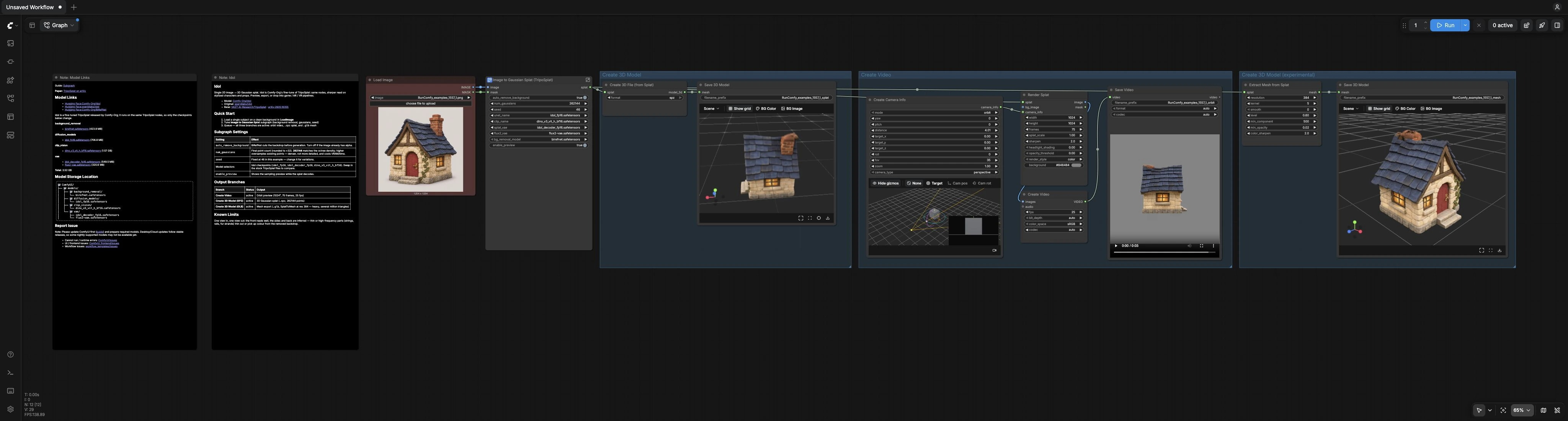
This workflow has one core generation stage and three output branches that run in parallel: an orbit video, an SPZ splat, and an experimental GLB mesh. Load a single, centered subject on a simple background and queue the graph to get all outputs in one pass.
Image to Gaussian Splat (core generation)#
The LoadImage (#99) node brings in your source image and optional alpha. The subgraph Image to Gaussian Splat (TripoSplat) (#88) handles preprocessing, optional BiRefNet segmentation, and TripoSplat conditioning. Internally, CLIPVisionLoader and the VAEs extract features, KSampler (#6) generates latents, and VAEDecodeTripoSplat (#55) converts them into a 3D Gaussian splat. Use the subgraph’s controls to toggle auto_remove_background, set num_gaussians, choose the Idol checkpoints, and set a seed. Turn on enable_preview to route the model through TripoSplatSamplingPreview (#97) for a quick sanity check before full decoding.
Create Video#
RenderSplat (#75) renders an orbit of the reconstructed splat. Camera motion is defined by CreateCameraInfo (#79) in orbit mode, which you can adjust for distance and framing. CreateVideo (#41) assembles the frames and SaveVideo (#42) writes the resulting clip. This branch is ideal for reviewing silhouettes and checking for floaters or occlusion artifacts without leaving ComfyUI.
Create 3D Model (SPZ splat)#
SplatToFile3D (#92) writes the Gaussian splat to an .spz file that preserves the point attributes used for high-quality splat rendering. SaveGLB (#51) provides a 3D viewer so you can inspect orientation and scale, then commits the file to disk. Choose this path when you need the most faithful real-time visualization of the Idol ComfyUI Image to 3D output.
Create 3D Model (experimental mesh)#
SplatToMesh (#76) converts the splat into a triangle mesh for interchange, with controls for resolution, smoothing, and component cleanup. SaveGLB (#67) exports the result as .glb. This path is experimental and primarily for quick blockouts. Expect to retopologize, decimate, or fix shading in a DCC tool for production.
Key nodes in Comfyui Idol ComfyUI Image to 3D workflow#
UNETLoader (#16)#
Loads the Idol UNet weights that specialize TripoSplat for stylized characters and props. If you need a baseline comparison, you can swap to the stock TripoSplat UNet from its repository. Keep the UNet, CLIP vision model, and VAEs from the same release family for stable behavior. Reference weights: Hugging Face: Comfy-Org/Idol and GitHub: VAST-AI-Research/TripoSplat.
KSampler (#6)#
Drives the denoising schedule that produces the latent 3D representation. The most impactful controls are steps, sampler_name, scheduler, cfg, and seed. Increase steps for fidelity, adjust CFG to balance adherence to conditioning versus smoothness, and use the seed for reproducibility across runs. Avoid extreme CFG with very low steps, which can introduce unstable geometry.
VAEDecodeTripoSplat (#55)#
Turns the final latent into a Gaussian splat. The decisive parameter is num_gaussians, which sets point count and impacts both detail and memory use. Use moderate counts for previews and higher counts for final SPZ exports. Very large counts increase render cost and do not invent new detail beyond what the model inferred.
ComfySwitchNode (#35) Switch: Mask Source#
Chooses between the BiRefNet mask and any alpha or mask you provide with LoadImage. Use the model-derived mask when the input has a busy backdrop. If you supply a clean alpha, switch to your mask to preserve thin structures.
TripoSplatSamplingPreview (#97)#
Provides a quick, low-cost preview of the sampling orientation and rough geometry. Enable this when first testing a subject or when changing checkpoints. It helps you verify framing and scale before committing to a full decode.
RenderSplat (#75)#
Renders the orbit frames used for the preview video. The key controls are image width and height, frames, splat_scale, headlight_shading, and opacity_threshold. Keep an eye on splat scale and opacity threshold together, which govern how soft or tight the point blending appears.
SplatToMesh (#76)#
Converts the splat into a triangle mesh for .glb export. resolution, min_component, min_opacity, and smooth regulate the balance between detail and cleanliness. Raise resolution for more surface fidelity, and increase minimum component to remove tiny floating shells. Expect to run mesh cleanup in a DCC for best results.
CreateCameraInfo (#79)#
Defines an orbiting camera path for the video branch. Adjust distance, yaw, and pitch to center the subject and avoid clipping. Pair camera tweaks with RenderSplat resolution changes to keep your subject framed consistently across outputs.
Optional extras#
- Prefer images with the subject centered, fully in frame, and minimal background.
- If you already have a high-quality alpha, use it; otherwise enable automatic background removal for better edges.
- Start with a moderate
num_gaussiansfor iteration, then raise it for final SPZ export when you are happy with the shape. - Use the preview toggle to validate pose and scale before full decoding.
- SPZ is best for fidelity and fast iteration in splat-compatible viewers; GLB is for interchange and will usually need cleanup.
- When converting to mesh, expect to decimate and fix normals or shading in your DCC.
- For the orbit video, adjust camera distance and frame count to balance smoothness and render time.
- The method infers unseen sides from the visible view, so symmetry and simple forms reconstruct most reliably.
Acknowledgements#
This workflow implements and builds upon the following works and resources. We gratefully acknowledge Comfy-Org for the ComfyUI Idol model files, Sperid Labs for the original IDOL model, and Comfy-Org for the ComfyUI workflow template (3d_idol_image_to_gaussian_splat.json) for their contributions and maintenance. For authoritative details, please refer to the original documentation and repositories linked below.
Resources#
- Comfy-Org/Idol
- Hugging Face: Comfy-Org/Idol
- speridlabs/idol
- Hugging Face: speridlabs/idol
- Comfy-Org/workflow_templates (3d_idol_image_to_gaussian_splat.json)
Note: Use of the referenced models, datasets, and code is subject to the respective licenses and terms provided by their authors and maintainers.