TripoSplat image to 3D Gaussian Splats workflow for ComfyUI#
Turn a single reference image into a shareable 3D Gaussian Splats asset with an orbit-preview video. This TripoSplat image to 3D Gaussian Splats workflow is an official ComfyUI 3D template that streamlines background removal, vision conditioning, TripoSplat sampling, splat decoding, real-time rendering, and export to SPZ with an optional GLB mesh path. It is built around the open TripoSplat project and paper, which introduce triplane features for single‑image 3D Gaussian reconstruction GitHub and arXiv, with ready-to-use weights on Hugging Face.
Artists, game developers, and XR creators can quickly prototype props or stylized objects from a single image, preview them as an orbiting turntable, and export assets that are RunComfy-ready. The template this README describes aligns with the upstream ComfyUI workflow example for TripoSplat available on GitHub.
Key models in ComfyUI TripoSplat image to 3D Gaussian Splats workflow#
- TripoSplat diffusion model checkpoint (UNet). Core generator that predicts a 3D Gaussian field from a single image’s features. Sources: GitHub and Hugging Face.
- TripoSplat VAE Decoder. Decodes sampled latents into explicit 3D Gaussian Splats parameters for rendering and export. Weights are packaged in the TripoSplat model card on Hugging Face.
- FLUX.2 VAE. Provides an image encoding space used during conditioning and alignment with the TripoSplat pipeline. Distributed with the TripoSplat weights on Hugging Face.
- DINO v3 ViT-H vision backbone. Supplies high-level, robust image features for single‑view 3D reconstruction; shipped alongside the workflow’s assets in Hugging Face.
- BiRefNet for background removal. Segments the foreground subject to improve conditioning and reduce clutter before 3D generation. Model weights: Hugging Face.
How to use ComfyUI TripoSplat image to 3D Gaussian Splats workflow#
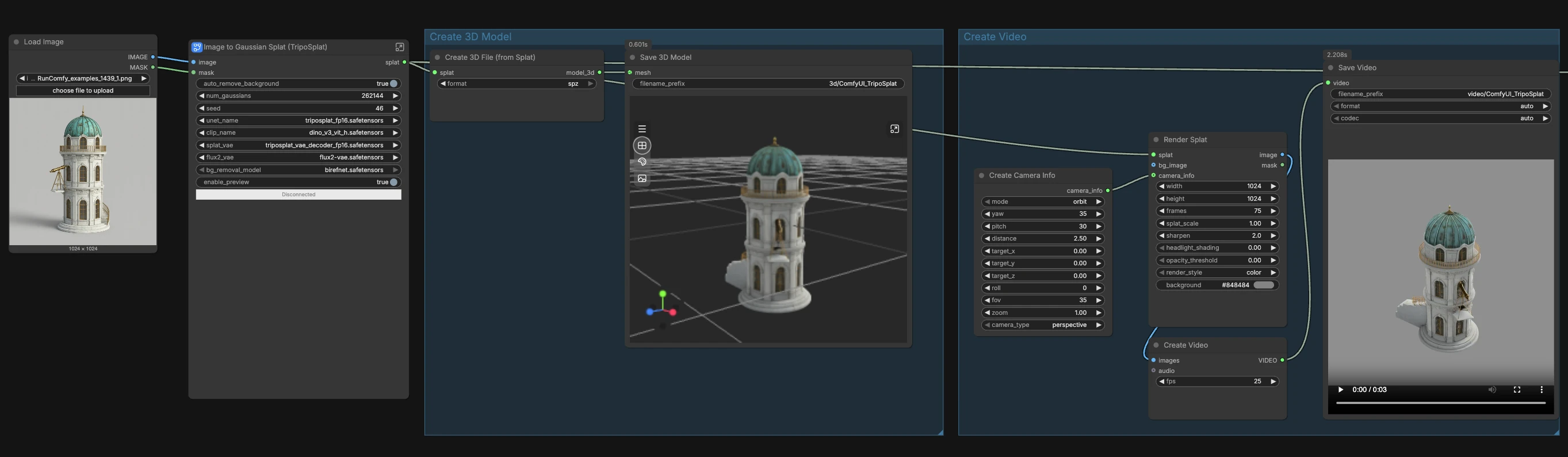
This workflow moves from image and mask preparation to TripoSplat sampling and decoding, then fans out to two export branches: a live orbit preview video and an SPZ 3D Gaussian Splats file. A third, optional branch converts splats to a mesh for GLB export.
- Load and prepare your image
- Import a reference image in
LoadImage(#99). If your image already has transparency or a curated mask, it can be used directly. Otherwise, the embedded “Remove Background (BiRefNet)” subgraph isolates the subject and feeds a clean mask forward. TheSwitch: Mask Source(#35) automatically chooses between your mask and the BiRefNet mask based on theauto_remove_backgroundtoggle. The preprocessorTripoSplatPreprocessImage(#2) standardizes size and combines the image with the chosen mask so the subject is centered and clean.
- Import a reference image in
- Image to Gaussian Splat (TripoSplat) subgraph
- The core subgraph
Image to Gaussian Splat (TripoSplat)(#88) computes conditioning withTripoSplatConditioning(#24) using DINO v3 ViT-H and the FLUX.2 VAE. AKSampler(#6) runs the TripoSplat UNet with those conditionings to produce latents.VAEDecodeTripoSplat(#55) then decodes the latents into an actual 3D Gaussian Splats structure. If you want a quick look before a full decode, enable the built-in preview path which routes the model throughTripoSplatSamplingPreview(#97).
- The core subgraph
- Create 3D Model
- The decoded splats are exported with
SplatToFile3D(#92) to an SPZ file that preserves the 3D Gaussian field. This is the recommended format for downstream use and for loading back into RunComfy. The node labeledSaveGLB(#51) receives the file and writes it to disk as an SPZ package for portability and sharing.
- The decoded splats are exported with
- Create Video
- For a turntable preview,
CreateCameraInfo(#79) defines an orbit camera andRenderSplat(#75) rasterizes the splats into frames.CreateVideo(#41) stitches those frames into a video, andSaveVideo(#42) writes the result to disk. This branch gives you instant visual feedback on coverage, density, and silhouette before you finalize exports.
- For a turntable preview,
- Create 3D Model (experimental)
- If you need a mesh, the experimental branch converts the splats with
SplatToMesh(#76) and writes a GLB viaSaveGLB(#67). Mesh conversion is best for quick visualization or basic DCC import. For fidelity and lighting-friendly previews, the native splats plus the orbit video typically look better than an early mesh.
- If you need a mesh, the experimental branch converts the splats with
Key nodes in ComfyUI TripoSplat image to 3D Gaussian Splats workflow#
VAEDecodeTripoSplat(#55)- Decodes diffusion latents into a full 3D Gaussian Splats representation. The
num_gaussianscontrol governs density and memory use. Higher values create denser splats and smoother silhouettes but take longer and require more VRAM; start modestly and scale until coverage and detail meet your needs.
- Decodes diffusion latents into a full 3D Gaussian Splats representation. The
KSampler(#6)- Drives TripoSplat inference using the conditioning and initial latent. Adjust
seedfor new structural variations from the same image. Keep other sampler choices stable while you evaluate changes in foreground extraction and subject composition.
- Drives TripoSplat inference using the conditioning and initial latent. Adjust
TripoSplatConditioning(#24)- Builds the vision guidance that makes single‑image 3D feasible by combining DINO features with a VAE latent. Good results depend on a clean, centered subject and a mask that excludes busy backgrounds.
RenderSplat(#75)- Renders the resulting splats to images for the preview turntable. Tune output size for the balance between crispness and speed, and use the camera info input from
CreateCameraInfo(#79) to control orbit style.
- Renders the resulting splats to images for the preview turntable. Tune output size for the balance between crispness and speed, and use the camera info input from
SplatToMesh(#76)- Converts the Gaussian representation to a polygonal mesh for GLB export. Expect lower fine detail than native splats; treat this as a convenience path when your target toolchain requires meshes.
Optional extras#
- Use images with clear, centered subjects and good separation from the background; object views with minimal occlusion work best.
- If your source already has transparency, disable auto background removal to preserve your hand-made mask.
- Increase
num_gaussiansgradually to find the sweet spot for your GPU and object complexity. - Enable the TripoSplat preview path to validate subject isolation and silhouette before running a full decode and exports.
- Prefer SPZ for quality and editability; use the mesh branch only when a GLB is strictly required.
Acknowledgements#
This workflow implements and builds upon the following works and resources. We gratefully acknowledge Comfy-Org for ComfyUI’s native 3D Gaussian Splatting support and the 3D TripoSplat image-to-gaussian-splat workflow template, VAST AI Research and VAST AI for the TripoSplat model and repository, and the TripoSplat paper authors for the research paper for their contributions and maintenance. For authoritative details, please refer to the original documentation and repositories linked below.
Resources#
- Comfy-Org/Bringing native support for 3D Gaussian Splatting
- Docs / Release Notes: Bringing native support for 3D Gaussian Splatting
- Comfy-Org/3d_triposplat_image_to_gaussian_splat.json
- GitHub: Comfy-Org/workflow_templates
- VAST-AI/TripoSplat (model card)
- GitHub: VAST-AI-Research/TripoSplat
- Hugging Face: VAST-AI/TripoSplat
- arXiv: arXiv:2605.16355
- VAST-AI-Research/TripoSplat (repository)
- GitHub: VAST-AI-Research/TripoSplat
- Hugging Face: VAST-AI/TripoSplat
- arXiv: arXiv:2605.16355
- TripoSplat/arXiv:2605.16355
- GitHub: VAST-AI-Research/TripoSplat
- Hugging Face: VAST-AI/TripoSplat
- arXiv: arXiv:2605.16355
Note: Use of the referenced models, datasets, and code is subject to the respective licenses and terms provided by their authors and maintainers.