

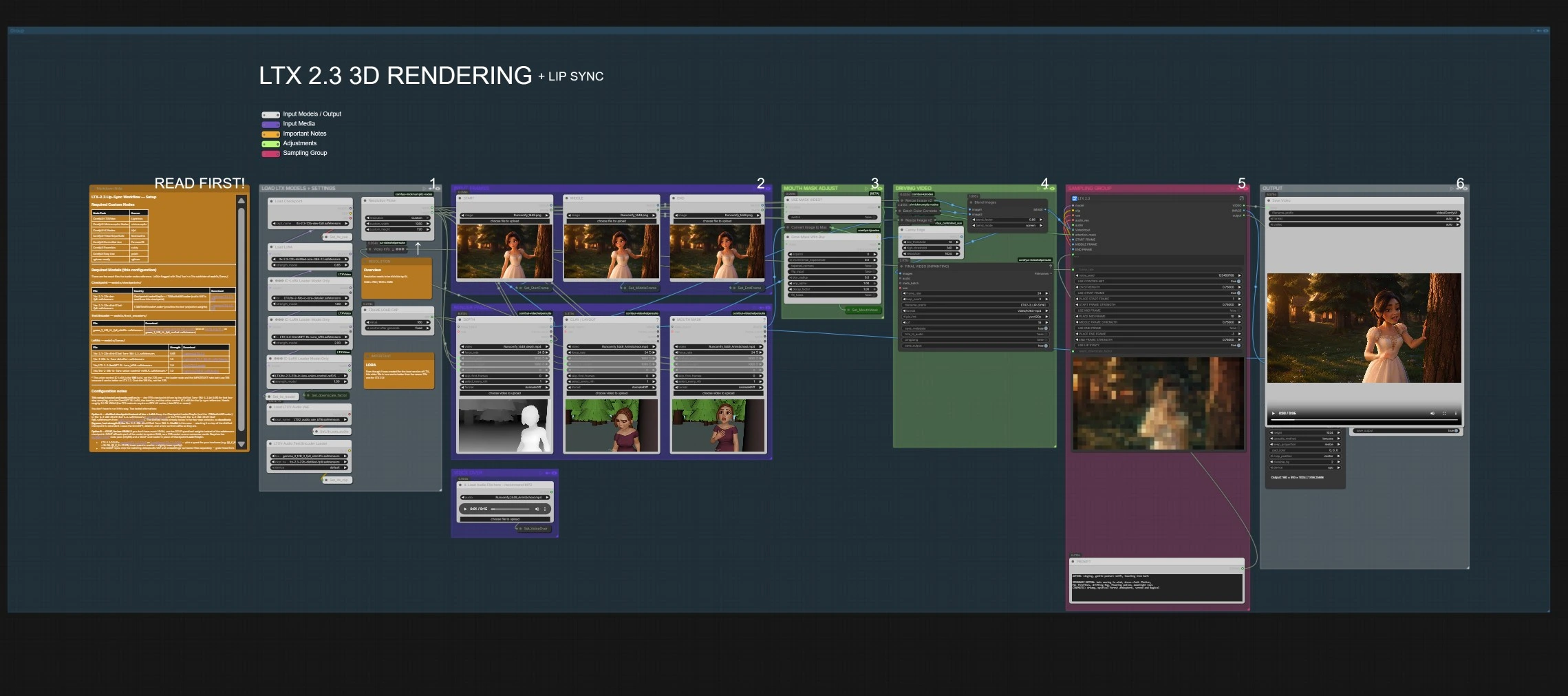
3D Movie Pipeline for ComfyUI#
The 3D Movie Pipeline is a production‑focused ComfyUI workflow by Mickmumpitz.ai that turns structured 3D scene passes into cinematic AI video. It combines depth layouts, clay renders, camera moves, and optional mouth masks with the LTX‑2.3 video model to preserve spatial layout, lensing, and continuity while you steer motion, look, and timing.
Built for filmmakers, animators, and visual storytellers, the 3D Movie Pipeline streamlines multi‑shot production. You get frame placement controls, advanced attention for object and region guidance, optional lip‑sync from a voice track, and an auxiliary image stage for quick shot‑look previz, all inside ComfyUI.
Key models in Comfyui 3D Movie Pipeline workflow#
Core video stack
- LTX‑2.3 (22B) by Lightricks. The primary video generation model that follows text, control signals, and 3D guides to synthesize temporally coherent footage. Model card
- LTX Audio VAE (bundled with LTX‑2.3). Encodes and decodes audio as an audio latent so the model can time mouth shapes and motion to speech for lip‑sync. Model bundle
- Gemma 3 12B Instruct text encoder for LTX‑2.x. Provides the language embedding used by LTX‑2.3 for prompts. Prepackaged for ComfyUI. Files
- LTX‑2.3 Distilled LoRA 384‑1.1. Speeds up few‑step sampling and stabilizes looks when used with the dev checkpoint. LoRA
- LTX‑2 19B IC‑LoRA Detailer. Enhances local detail and edge fidelity in the generated video. LoRA
- LTX‑2.3 OmniNFT RL LoRA. Style reinforcement and consistency helper for the video stack. LoRA
- IC‑LoRA Union‑Control (ref 0.5). A reference‑alignment LoRA used to keep color and structure faithful to guides; the 19B build is often preferred for LTX‑2.3. LoRA family
Optional previz image stack
- FLUX.2 Klein 9B (FP8). Fast image generator used here to turn Canny + Depth into a styled frame for look‑dev. Model card
- Qwen 3 8B text encoder for FLUX‑2. Files
- Flux‑2 VAE. Image VAE matched to FLUX‑2. Files
- Flux2‑Klein‑9B‑Consistency‑V2 LoRA. Improves color and content consistency in previz frames. LoRA
Reference implementation of LTX nodes for ComfyUI: ComfyUI‑LTXVideo
How to use Comfyui 3D Movie Pipeline workflow#
The 3D Movie Pipeline fuses three inputs from your DCC or layout tool — a Depth movie, a Clay/Layout movie, and an optional Mouth Mask movie — then runs LTX‑2.3 with advanced attention, reference frames, and optional lip‑sync to render the final shot. An image previz branch with FLUX.2 helps you dial the look before you commit to a full pass.
Resolution and shot setup#
Use ResolutionPicker (#6082) to set your working width and height. The pipeline expects dimensions divisible by 64 for efficient tiling and stable attention. Keep the same aspect across all inputs so the 3D Movie Pipeline can align passes without unintended crops or letterboxing. If you want quick tests, lower frame counts using FRAME LOAD CAP (#6214).
Input frames (Start, Middle, End)#
Load reference stills in START (LoadImage (#6108)), MIDDLE (#6139), and END (#6102). The workflow reads their size with GetImageSize+ (#6071) and resizes the guides accordingly. These frames can be placed at specific indices in the timeline to lock key poses, set story beats, or force a look transition. The 3D Movie Pipeline uses these references as anchors while it interpolates motion and continuity between them.
Render passes: Depth, Clay/Layout, Mouth Mask#
DEPTH(VHS_LoadVideo(#5893)) brings in your depth movie from the 3D app. This guides perspective, occlusion, and volumetric placement so LTX‑2.3 respects camera moves and blocking.CLAY / LAYOUT(VHS_LoadVideo(#6094)) supplies a flat‑shaded or gray shaded render to drive silhouettes, set design, and lighting cues. A Canny edge pass (CannyEdgePreprocessor(#6095)) is derived from it to sharpen structural guidance.MOUTH MASK(VHS_LoadVideo(#6059)) is optional and marks the mouth region per frame. The 3D Movie Pipeline uses it as an attention mask so lip motion can be refined without disturbing the rest of the face.
Mouth mask adjust#
If you provide a mask video, ImageToMask (#6060) converts frames to masks and GrowMaskWithBlur (#6197) expands and softens edges for more forgiving inpainting. USE MASK VIDEO? (#6244) lets you switch between a generated solid mask and the incoming mask video. This keeps lip‑sync edits tightly scoped and reduces artifacts outside the speaking area.
Driving video assembly#
Depth and layout streams are normalized with ImageResizeKJv2 (#6097, #6099, #6103). BatchColorCorrector (#6100) balances tonality and color so the model sees consistent exposure and palette across the sequence. The 3D Movie Pipeline then blends the Canny outline with the corrected layout using ImageBlend (#6096) to form a unified driving video that the generator follows.
Voice over#
Add narration or dialog using LoadAudio (#5883). It is routed to the model through Set_VoiceOver (#6248) and Get_VoiceOver (#6249). When lip‑sync is enabled in the sampler, the 3D Movie Pipeline uses this audio to time mouth shapes and micro‑motion to the spoken content.
Generate with LTX‑2.3#
The sampler node LTX 2.3 (#6202) is the heart of the 3D Movie Pipeline. It receives model, text encoder, VAE, and audio VAE; the blended driving video; optional attention mask; and your prompt from PROMPT (#6203). Toggles allow you to place Start/Middle/End frames at defined positions, blend their influence, enable or bypass control signals, and turn lip‑sync on. The advanced attention path routes through LTX video guide nodes to weight frames and regions so important subjects stay on‑model.
Output#
The node writes a ready‑to‑edit movie with SaveVideo (#6109). For alternate pipelines or side‑by‑side previews, the workflow also includes VHS_VideoCombine (#6057). Use the same frame rate across all steps to keep audio, mask, and guidance perfectly aligned in the 3D Movie Pipeline.
Optional image previz with FLUX.2#
For quick look‑dev without re‑rendering a full shot, the image branch loads Canny (CANNY (#7468)) and Depth (DEPTH (#7469)) stills, blends them (ImageBlend (#7466)), and prompts FLUX.2 Klein 9B (SAMPLER (#7465)). The consistency LoRA helps keep colors and details faithful to your guides. Use SaveImage (#7444) to export previz frames that inform your prompt and LoRA choices before running the full 3D Movie Pipeline.
Key nodes in Comfyui 3D Movie Pipeline workflow#
LTX 2.3 (#6202)
- Role: Main video generator that fuses text, 3D guides, control passes, and audio into the final sequence.
- What to adjust: Turn lip‑sync on when providing audio; switch ControlNet‑style guidance on or off and tune overall strength; place
START,MIDDLE, andENDframes and blend their influence to lock important beats. Keep frame rate consistent with your inputs to avoid timing drift.
DEPTH (#5893)
- Role: Loads the depth movie that establishes scene geometry and camera motion.
- What to adjust: Match resolution to
ResolutionPickerand keep the same length as the layout and mask clips. UseFRAME LOAD CAPfor quick iteration during look‑dev.
CLAY / LAYOUT (#6094)
- Role: Provides the layout or clay render used to extract edges and to steer composition, lighting intent, and silhouettes.
- What to adjust: Align to the depth pass resolution; if you change grading upstream, re‑run
BatchColorCorrectorso guidance stays consistent.
USE MASK VIDEO? (#6244)
- Role: Switches between a generated solid mouth mask and the incoming mask video.
- What to adjust: Use the video mask when lip‑sync needs per‑frame precision; switch to the solid mask when you only need a broad protected region.
LTXICLoRALoaderModelOnly (#6223)
- Role: Loads the union‑control IC‑LoRA used for reference alignment and color/structure faithfulness.
- What to adjust: Choose the variant that best matches LTX‑2.3 in your tests; many productions prefer the 19B build for tighter adherence when running the 3D Movie Pipeline.
Optional extras#
- Keep all inputs the same duration and frame rate to maintain sync across the 3D Movie Pipeline.
- Depth should be clean and temporally stable. If your DCC exports EXR or 16‑bit PNG, convert once to a mezzanine format and reuse it for all iterations.
- Start/Middle/End frames work best when they show distinct, story‑relevant poses or lighting states; avoid near‑duplicates.
- If the mouth region flickers, slightly expand the mask in
GrowMaskWithBlurto include lips, teeth, and a thin border of skin. - For large shots, iterate with
FRAME LOAD CAPand a smaller resolution, then switch back to full res for finals. - When switching from the dev checkpoint to the distilled checkpoint, disable the distilled LoRA to prevent over‑constraint.
- Use the FLUX.2 previz branch to test palette and style with your actual Canny and Depth guides before running the full 3D Movie Pipeline.
Acknowledgements#
This workflow implements and builds upon the following works and resources. We gratefully acknowledge MickMumpitz.ai for the 3D Movie Pipeline Workflow Source for their contributions and maintenance. For authoritative details, please refer to the original documentation and repositories linked below.
Resources#
- MickMumpitz.ai/3D Movie Pipeline Workflow Source
- Docs / Release Notes: 3D Movie Pipeline Workflow Source
Note: Use of the referenced models, datasets, and code is subject to the respective licenses and terms provided by their authors and maintainers.