

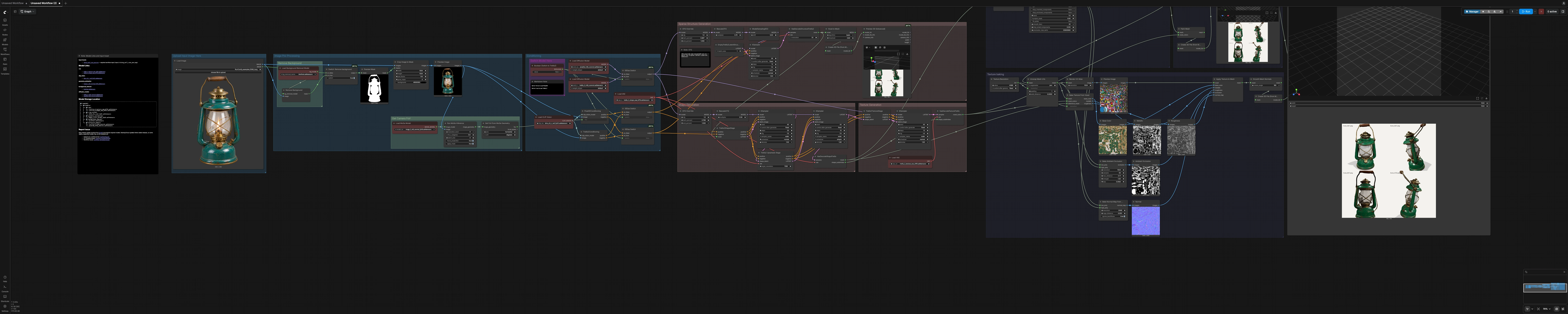
Pixal3D & TRELLIS.2 ComfyUI Workflow: Single image to textured 3D GLB#
This Pixal3D & TRELLIS.2 ComfyUI Workflow turns a single product or object photo into a clean, textured 3D asset with a previewable GLB. The default path runs Pixal3D and a built‑in switch exposes the TRELLIS.2 branch, so you can compare results without rebuilding the graph. Shared DINOv3 conditioning, MoGe camera estimation, background removal, UV unwrapping, and PBR texture baking help produce game‑ready meshes and texture maps. It is a practical starting point for artists, game prototypers, and product teams who need fast, repeatable image‑to‑3D results inside ComfyUI.
Outputs include a quick vertex‑color preview GLB for rapid checks and a final PBR‑textured GLB with base color, metallic, roughness, ambient occlusion, and normal support. Inline previews let you validate UVs, texture channels, and lighting behavior before export.
Key models in Comfyui Pixal3D & TRELLIS.2 ComfyUI Workflow#
- Pixal3D (Comfy‑Org) – single‑image 3D diffusion backbone that predicts object shape and texture from one view. Model card
- TRELLIS.2 (Comfy‑Org) – two‑stage shape then texture architecture that improves geometric consistency and texture fidelity. Model card
- DINOv3‑L vision encoder – feature extractor used to condition both Pixal3D and TRELLIS.2 on your input image. (Weights hosted within Pixal3D assets.) Repository
- MoGe 2 (Monocular Geometry Estimation, ViT‑L) – predicts coarse geometry and camera field of view used to stabilize downstream reconstruction. Model card
- BiRefNet – background removal network used to isolate the foreground object and tighten the crop. Model card
- TRELLIS.2 VAEs (Shape VAE and Texture VAE) – decoders for shape and texture latents used across both branches. Repository
How to use Comfyui Pixal3D & TRELLIS.2 ComfyUI Workflow#
The workflow flows left to right: image pre‑processing and conditioning, sparse structure, shape refinement, texture generation, UVs and baking, then export. A single toggle switches the model and its conditioning between Pixal3D and TRELLIS.2 while keeping the rest of the pipeline identical.
Upload Input Image Here#
Load one well‑lit photo of a single object against a clean background. Square crops work well, but the graph will auto‑crop around the subject if background removal is active. The PreviewImage nodes show exactly what downstream stages will see, which helps catch framing issues early.
Remove Background#
Foreground separation uses BiRefNet so the model focuses on the object silhouette and not the scene. Use Switch: Remove background (#248) to enable or bypass matting depending on your image. The resulting mask is previewed for quick verification and is also used to drive the crop.
Image Pre‑Processing#
ImageCropToMask centers and pads the object based on the mask so the subject fills the frame without clipping. This improves feature extraction for conditioning and helps geometry estimation converge on the correct scale. A preview confirms the final input that reaches the 3D model branches.
Get Camera FoV#
MoGe estimates monocular depth cues and converts them to a camera field of view that stabilizes reconstruction. MoGeInference (#56) runs on the preprocessed image, then MoGeGeometryToFOV feeds the camera angle back into the conditioning. The Pixal3D branch uses this signal directly, while the TRELLIS.2 branch relies on image features from DINOv3.
Conditioning#
Both Pixal3DConditioning and Trellis2Conditioning transform DINOv3‑L features into positive and negative conditioning for the diffusion samplers. You do not need to tune anything here in typical use. The workflow automatically routes the correct conditioning to the active model branch.
Switch Model Here#
Set Boolean (Switch to Trellis2) (#316) to choose the active branch. The toggle drives ComfySwitchNode (#318) for the UNet model and ComfySwitchNode (#314 and #315) for the corresponding positive and negative conditioning. Start with Pixal3D for speed, then flip to TRELLIS.2 when you want stronger geometric consistency or texture detail.
Sparse Structure Generation#
This stage creates a coarse voxel scaffold of the object. KSampler (#3) runs on an empty latent structure, guided only by your image conditioning. VaeDecodeStructureTrellis2 (#119) converts the latent to a low‑resolution voxel grid, which is immediately converted to a rough mesh for early 3D preview. Use this pass to confirm overall silhouette before deeper sampling.
Shape Generation#
Trellis2ShapeStage (#91) injects shape‑aware guidance, then a targeted KSampler (#18) densifies the structure. Trellis2UpsampleStage (#94) boosts spatial resolution to capture finer details without losing the established form. VaeDecodeShapeTrellis (#92) yields the first watertight mesh plus the shape subdivisions that keep later texture decoding aligned to geometry.
Texture Generation#
This stage conditions texture on the finalized shape to avoid painting outside the surface. Trellis2TextureStage (#98) prepares texture latents based on the upsampled shape and conditioning. A final KSampler (#12) resolves the texture latent, and VaeDecodeTextureTrellis (#93) converts it to per‑voxel colors that match the decoded shape topology.
Mesh Post‑Processing#
Before UVs, the mesh is cleaned and right‑sized for baking and real‑time use. RemeshMesh and DecimateMesh regularize topology and reduce faces while preserving features. MeshSmoothNormals improves shading continuity. GetMeshInfo helps route the correct high‑poly and low‑poly versions to the baking nodes.
Texture baking#
UnwrapMesh generates a UV layout at your chosen map size, controlled by the Texture Resolution integer widget. BakeTextureFromVoxel (#147) turns voxel colors into base color, metallic, and roughness textures in UV space. BakeAmbientOcclusion (#233) and BakeNormalMapFromMesh (#224) bake occlusion and normal maps from high‑poly to low‑poly for physically based shading. ApplyTextureToMesh (#210) assembles the PBR set onto the mesh, and MeshSmoothNormals plus export nodes write the final GLB. Use the included previews for UVs, base color, metallic, roughness, AO, and normals to validate results before saving.
Vertex color preview#
For fast iteration, PaintMesh (#252) applies voxel colors directly to the mesh without UVs and bakes, producing a lightweight preview GLB. This path is ideal for quickly evaluating viewpoint coverage, material separation, and overall look before committing to full PBR baking. Use it to spot issues early, then return to the baking branch for final textures.
Key nodes in Comfyui Pixal3D & TRELLIS.2 ComfyUI Workflow#
Boolean (Switch to Trellis2)(#316) Controls whether the graph runs Pixal3D or TRELLIS.2. Use Pixal3D for quick drafts, then switch to TRELLIS.2 when you want the two‑stage shape and texture pipeline described in the model card. TRELLIS.2 Pixal3DComfySwitchNode(#318) Routes the selected UNet into all downstream samplers so the branch change is global and consistent. Pair it with the conditioning switches (ComfySwitchNode(#314) andComfySwitchNode(#315)) to keep prompts aligned with the chosen backbone.Trellis2ShapeStage(#91) Adds geometry‑specific guidance before dense sampling, which helps stabilize proportions and silhouette. Useful when inputs have complex outlines or fine structural detail. TRELLIS.2Trellis2UpsampleStage(#94) Increases latent spatial resolution for shape without reintroducing noise. Adjust only if you need noticeably finer mesh detail or want to balance speed and fidelity. TRELLIS.2Trellis2TextureStage(#98) Conditions texture on the finalized shape so PBR maps adhere to surfaces. Tuning here affects how strongly texture follows geometry versus appearance cues. TRELLIS.2UnwrapMesh(#196) Generates a UV atlas used by all subsequent bakes. Coordinate its resolution with theTexture Resolutioncontrol to set the target map size for base color, metallic, roughness, AO, and normal.BakeTextureFromVoxel(#147) Converts voxel colors into UV textures and aligns them with a reference mesh from the shape decoder to preserve detail. Increase the texture size when you see color bleeding or loss of small markings.ApplyTextureToMesh(#210) Combines base color, metallic, roughness, occlusion, and normal into a final PBR‑ready mesh. Use the included previews to verify each channel before export.MoGeInference(#56) Estimates geometry and camera FoV that improve reconstruction stability, especially for narrow or wide lenses. Keep this on for most inputs to avoid scale drift. MoGeRemoveBackground(#192) andSwitch: Remove background(#248) Optional foreground matting powered by BiRefNet. Enable when busy scenes or shadows confuse reconstruction. BiRefNetSave3DAdvanced(#322) Writes the final GLB and lets you set a filename prefix and preview camera. Use it at the end of the PBR branch once all texture checks look correct.
Optional extras#
- Aim for a single, centered object with minimal occlusion and good edge contrast for the best Pixal3D & TRELLIS.2 ComfyUI Workflow results.
- If backgrounds are cluttered, enable the background removal switch to improve silhouette quality and UV packing efficiency.
- Iterate quickly with the vertex color preview GLB, then run the full baking branch when the shape and material separation look right.
- Increase
Texture Resolutionwhen exporting hero assets or macro shots. Keep it modest for fast props or mobile targets. - Use the UV atlas preview to spot stretching or overlaps before baking normals and occlusion.
- Prefer 3/4 or front‑angled views rather than extreme perspectives for more complete reconstructions.
Acknowledgements#
This workflow implements and builds upon the following works and resources. We gratefully acknowledge Comfy.org for the Source workflow template, Comfy-Org for the Pixal3D and TRELLIS.2 model weights, and Comfy-Org for the MoGe and BiRefNet model weights for their contributions and maintenance. For authoritative details, please refer to the original documentation and repositories linked below.
Resources#
- Comfy.org/Source workflow template
- Docs / Release Notes: comfy.org/workflows/920c795f693a-920c795f693a
- Comfy-Org/Pixal3D
- Hugging Face: Comfy-Org/Pixal3D
- Comfy-Org/TRELLIS.2
- Hugging Face: Comfy-Org/TRELLIS.2
- Comfy-Org/MoGe
- Hugging Face: Comfy-Org/MoGe
- Comfy-Org/BiRefNet
- Hugging Face: Comfy-Org/BiRefNet
Note: Use of the referenced models, datasets, and code is subject to the respective licenses and terms provided by their authors and maintainers.