

Fibo 2 Edit Turbo Text to Image: 4‑Step ComfyUI Workflow#
This workflow turns structured text into finished images with Bria’s Fibo 2.0 Edit Turbo distilled weights running in four steps. It is a text‑only graph that follows the community setup by lvladikov, using VGL-style JSON prompts without an input image.
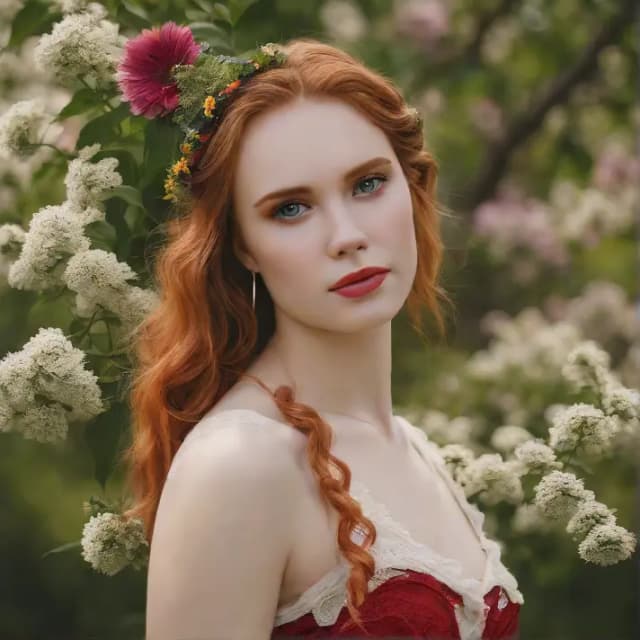
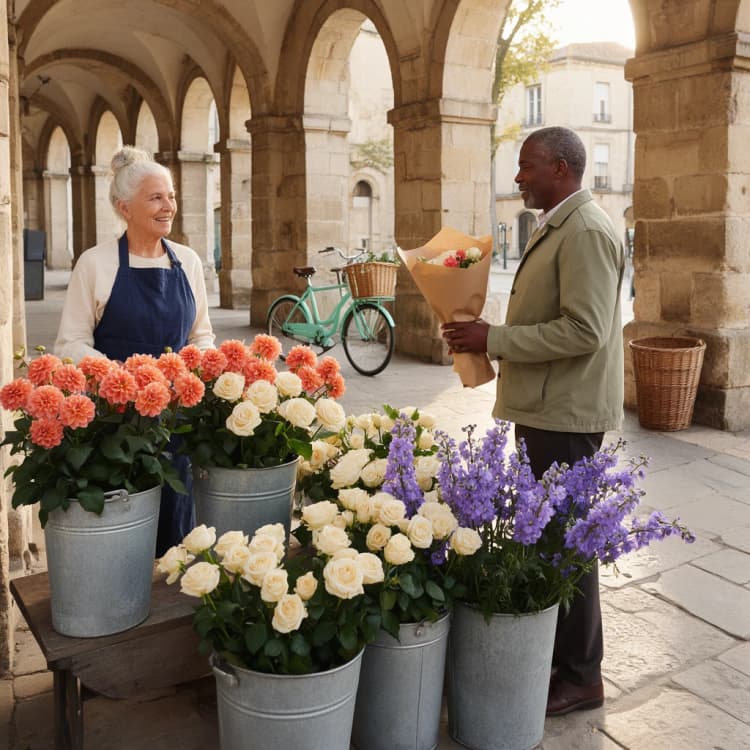
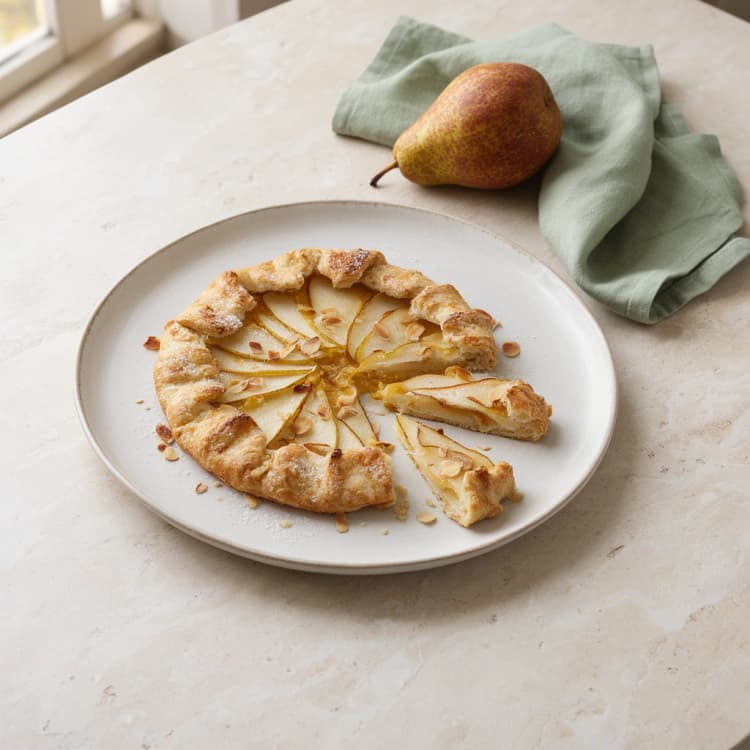
Fibo 2 Edit Turbo Text to Image is ideal for art directors, prompt engineers, and rapid ideation. It shines with VGL JSON prompts that spell out subjects, background, lighting, aesthetics, and medium. Use it to explore photographic portraits, atmospheric scenes, food imagery, and watercolor illustrations while keeping iteration speed high. For Bria’s official recommendation on text‑to‑image, see Fibo 2.0 Dev; this graph intentionally demonstrates Edit Turbo in a pure T2I path.
Key models in Comfyui Fibo 2 Edit Turbo Text to Image workflow#
- Bria AI Fibo 2.0 Edit Turbo (BF16). The distilled editing model is used here in lvladikov’s community text-to-image configuration with four sampling steps. Model card
- Qwen3‑VL 4B (BF16) text encoder for Fibo 2.0. Provides high‑capacity text embeddings from plain text or VGL JSON so the model captures detailed composition, lighting, and style intent. Hosted with the Fibo 2.0 assets by Comfy‑Org. Repository
- FLUX.2 VAE. Compresses and decodes the latent representation used by Fibo 2.0 so images render crisply at the chosen resolution. Repository
How to use Comfyui Fibo 2 Edit Turbo Text to Image workflow#
The graph runs end‑to‑end from text to image in four stages.
- Load the Fibo 2.0 components
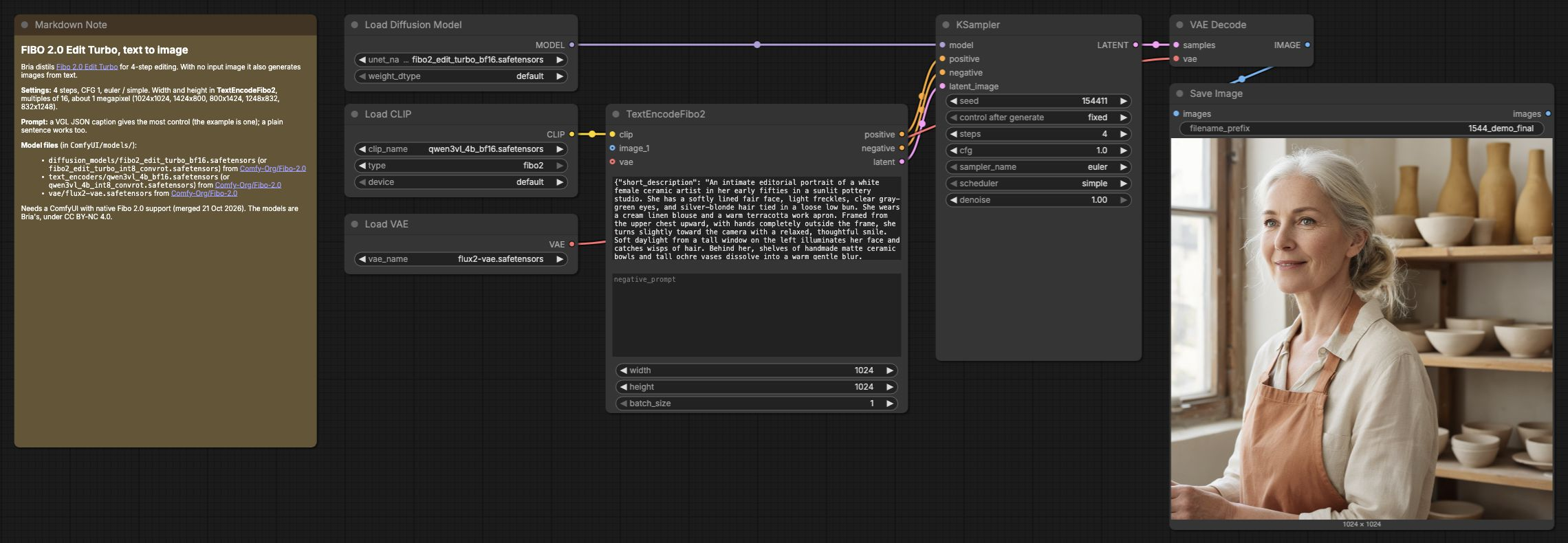
UNETLoader(#1),CLIPLoader(#2), andVAELoader(#3) pull in the Edit Turbo backbone, the Qwen3‑VL text encoder, and the FLUX.2 VAE. This step prepares all weights needed to tokenize your prompt, denoise in latent space, and decode to pixels. Keep the configured files:fibo2_edit_turbo_bf16.safetensors,qwen3vl_4b_bf16.safetensors, andflux2-vae.safetensors.
- Author your prompt with VGL JSON
TextEncodeFibo2(#4) is the heart of the prompt interface. It accepts either a structured VGL JSON caption or a plain sentence; structured prompts typically yield the most reliable composition and lighting. Set your target resolution here; stick to multiples of 16 and start around 1 megapixel such as 1024×1024 for best speed‑to‑quality balance. Leave the image and VAE inputs onTextEncodeFibo2unconnected for this text-only graph. At CFG 1, the negative prompt is not used.
- Sample in four steps for speed
KSampler(#5) applies the four‑step schedule tuned for Fibo 2.0 Edit Turbo. Use 4 steps, CFG 1, theeulersampler, thesimplescheduler, and denoise 1. Fix the seed when comparing prompts, or change it to explore alternative results.
- Decode and save
VAEDecode(#6) converts the final latents to an image.SaveImage(#7) writes files with a simple prefix so batches stay organized. What you see is exactly what the VAE decodes from the denoised latents, so changes earlier in the graph are reflected faithfully here.
Key nodes in Comfyui Fibo 2 Edit Turbo Text to Image workflow#
TextEncodeFibo2 (#4)#
Encodes your plain text or VGL JSON into conditioning for the model and also prepares the latent canvas. Adjust prompt to use structured fields like subject, background, lighting, aesthetics, and medium; set width and height to the desired resolution; leave negative_prompt empty because CFG 1 skips the negative conditioning pass. Start with batch_size 1 for predictable memory use, then increase when you are satisfied with the look.
KSampler (#5)#
Runs the Fibo 2.0 Edit Turbo denoising process. Keep steps at 4 to stay within the model’s distilled regime, then vary seed to explore alternatives. Keep cfg at 1, sampler euler, scheduler simple, and denoise 1, matching the verified four-step setup. The negative prompt has no effect at CFG 1. Change image size in TextEncodeFibo2 and keep the seed fixed when comparing prompts.
UNETLoader (#1)#
Loads fibo2_edit_turbo_bf16.safetensors, the exact diffusion model used in this workflow. Keep the configured BF16 file to reproduce the provided examples; quantized variants are separate configurations and were not validated for this workflow.
VAEDecode (#6)#
Uses flux2-vae.safetensors to decode the final latents into RGB. Keep the configured VAE connected to VAEDecode; it is not connected to the text encoder in this text-only graph.
Optional extras#
- Prompting with VGL JSON works best when you include compact fields: short_description, objects, background_setting, lighting, aesthetics, photographic_characteristics, style_medium. Describe the visible scene explicitly, including the subject, composition, lighting, and medium.
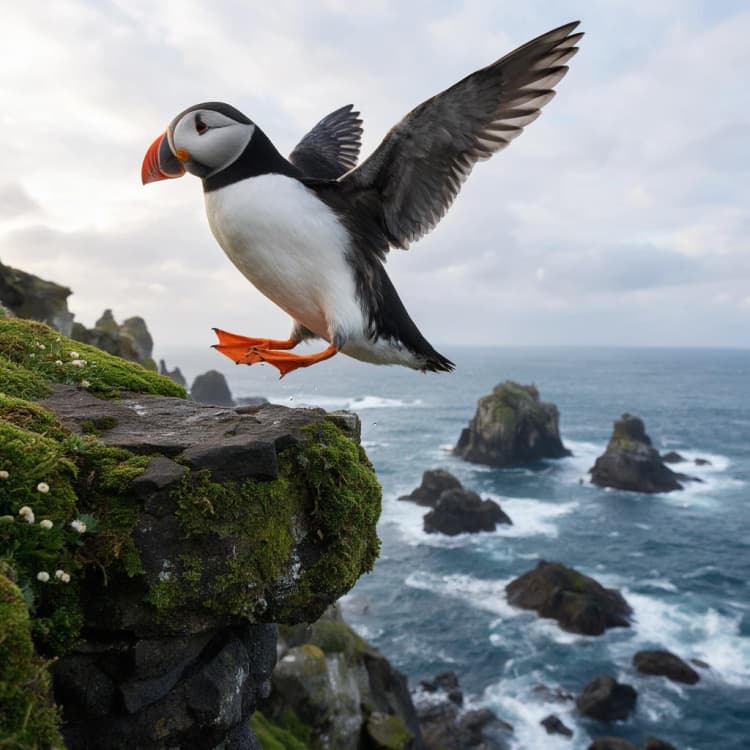
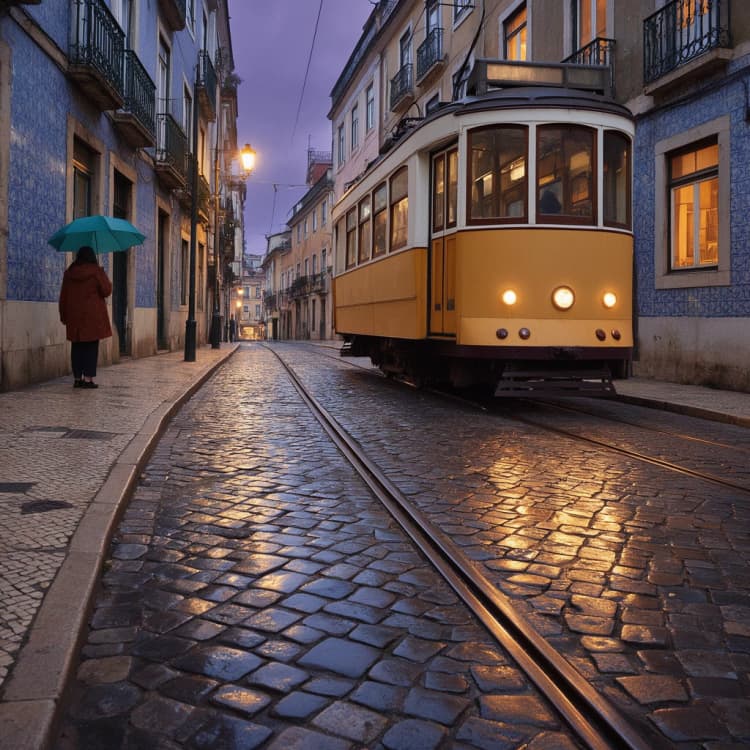
- Good starting themes for this workflow include editorial portraits, moody landscapes, plated cuisine close‑ups, and soft watercolor illustrations. Each maps well to VGL JSON and the four‑step Edit Turbo schedule.
- Respect the model cards and licenses in the referenced repositories. For official text‑to‑image from Bria, explore Fibo 2.0 Dev alongside this community Fibo 2 Edit Turbo Text to Image graph.
- References: source graph by lvladikov FIBO2‑Edit‑Turbo‑T2I, Bria’s Edit Turbo model Fibo‑2.0‑edit‑turbo, Comfy‑Org aggregation of Fibo 2.0 assets Comfy‑Org/Fibo‑2.0.
Acknowledgements#
This workflow implements and builds upon the following works and resources. We gratefully acknowledge lvladikov for FIBO2-Edit-Turbo-T2I, briaai for Fibo-2.0-edit-turbo, and Comfy-Org for Fibo-2.0 for their contributions and maintenance. For authoritative details, please refer to the original documentation and repositories linked below.
Resources#
- lvladikov/FIBO2-Edit-Turbo-T2I
- Hugging Face: lvladikov/FIBO2-Edit-Turbo-T2I
- briaai/Fibo-2.0-edit-turbo
- Hugging Face: briaai/Fibo-2.0-edit-turbo
- Comfy-Org/Fibo-2.0
- Hugging Face: Comfy-Org/Fibo-2.0
Note: Use of the referenced models, datasets, and code is subject to the respective licenses and terms provided by their authors and maintainers.