



Boogu Turbo text-to-image ComfyUI workflow#
This Boogu Turbo text-to-image ComfyUI workflow is a clean, fast path from prompt to image using the Boogu-Image-0.1-Turbo checkpoint with four-step LCM sampling. It pairs the Qwen3-VL text encoder with the FLUX.1 VAE so you can iterate quickly while keeping the graph minimal and easy to reuse across projects.
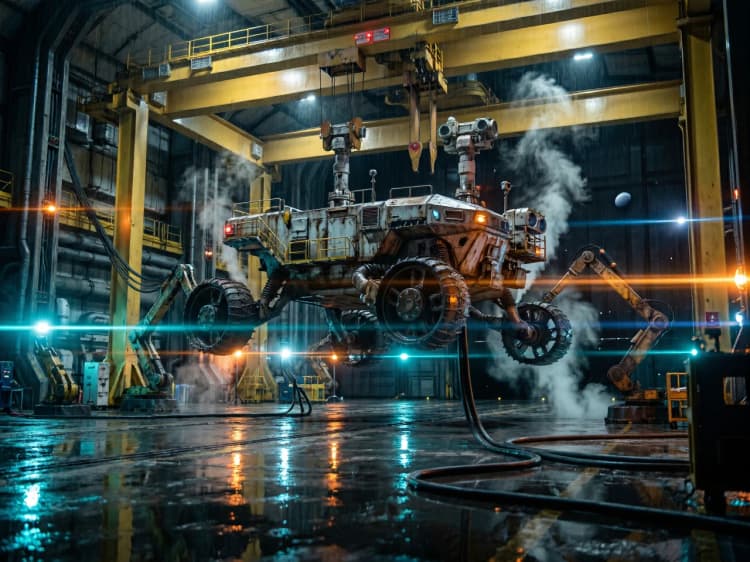
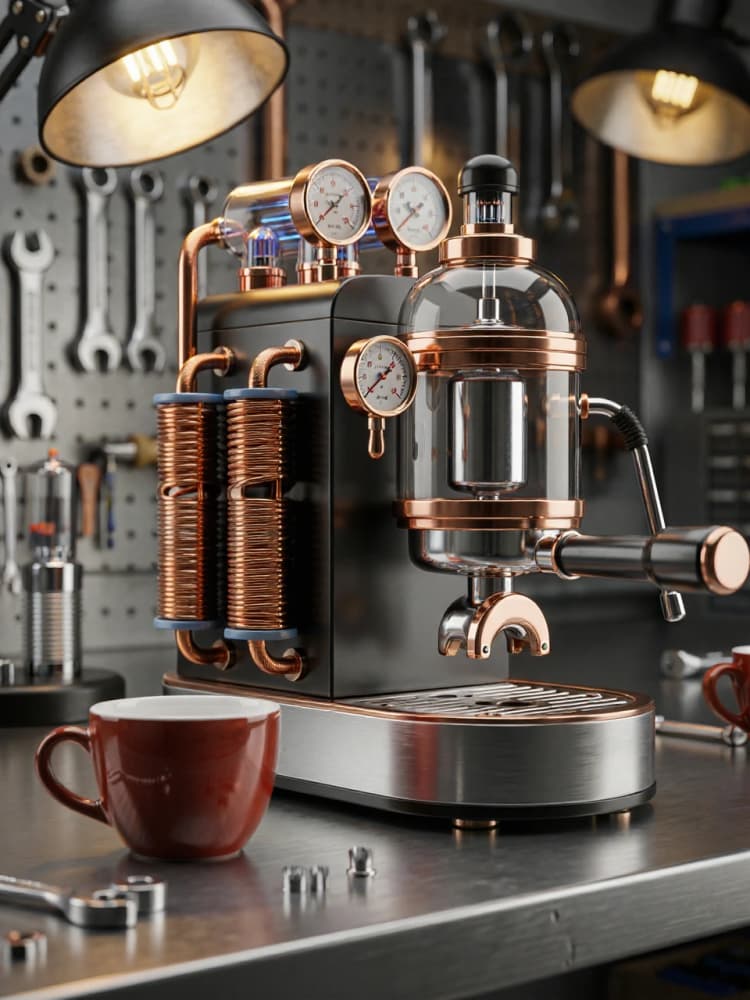
Designed for rapid visual exploration, the workflow excels at cinematic environments, anime-style backgrounds, atmospheric landscapes, imaginative product machines, and architectural scenes. If you want a lightweight Boogu Turbo text-to-image ComfyUI workflow that is RunComfy-ready and simple to inspect, this template is a strong starting point.
Key models in Comfyui Boogu Turbo text-to-image ComfyUI workflow#
- Boogu-Image-0.1-Turbo. The distilled Turbo variant is built for fast, photorealistic text-to-image with typical 3–4 step inference and guidance scale near 1.0. Official model weights and instructions are available on Hugging Face, with ComfyUI-ready repackaged files provided by Comfy-Org. See Boogu/Boogu-Image-0.1-Turbo-fp8 and the curated ComfyUI pack at Comfy-Org/Boogu-Image.
- Qwen3-VL 8B text encoder. This modern vision-language backbone is used here purely as a text encoder to produce strong prompt embeddings for the diffusion model. The ComfyUI-packaged encoders are hosted at Comfy-Org/Qwen3-VL and the official repository is QwenLM/Qwen3-VL.
- FLUX.1 VAE. The autoencoder from Black Forest Labs encodes and decodes images between pixel and latent space, helping preserve color and contrast fidelity. Reference weights and documentation are at black-forest-labs/FLUX.1-dev.
How to use Comfyui Boogu Turbo text-to-image ComfyUI workflow#
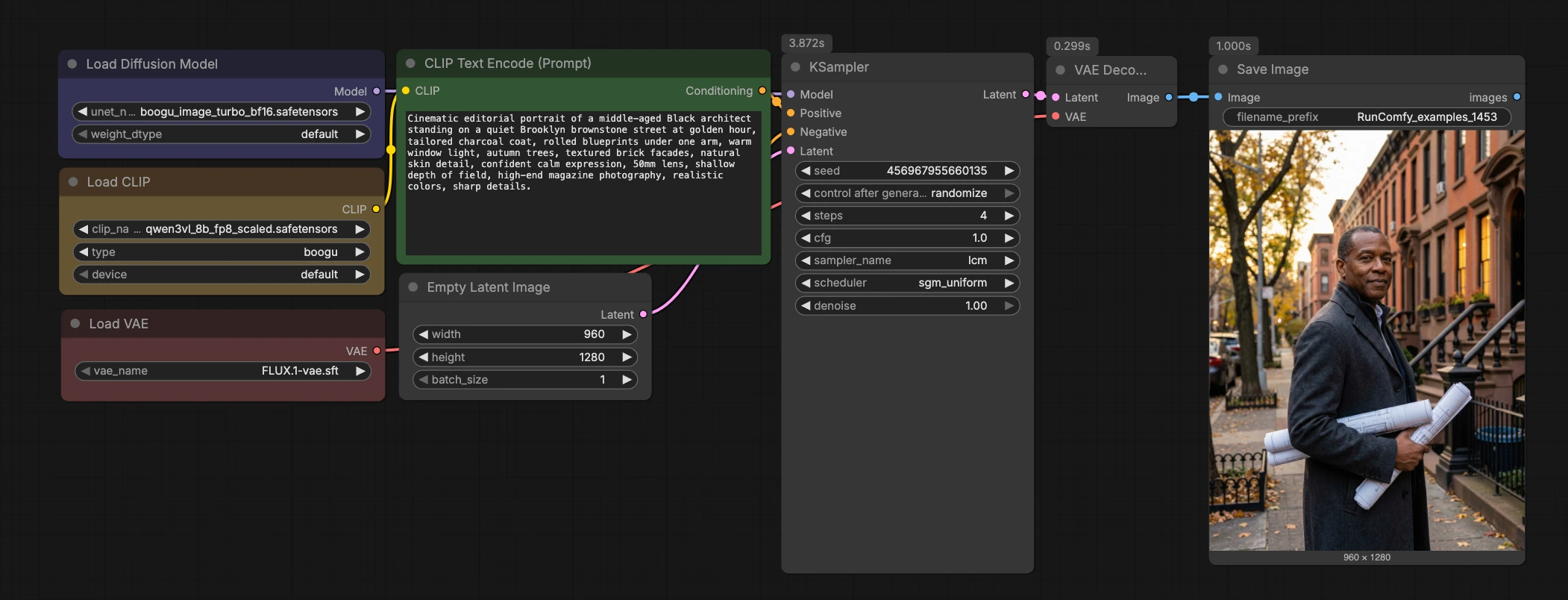
At a glance, the workflow encodes your prompt, initializes a latent canvas, runs a fast LCM sampler through Boogu-Image-0.1-Turbo, decodes with the FLUX.1 VAE, and saves the result. The graph is intentionally compact so you can drop it into other projects or extend it with LoRAs, ControlNets, or post-processing chains.
Prompt encoding with Qwen3-VL (CLIPLoader (#7) → CLIPTextEncode (#11))#
This stage loads a Qwen3-VL encoder and converts your text prompt into conditioning vectors. Enter your prompt in CLIPTextEncode (#11) using natural language; detailed photographic cues like lens, lighting, time of day, and texture work well. The negative input is intentionally zeroed via ConditioningZeroOut (#9) to keep results stable with Turbo’s low-guidance regime. If you prefer explicit negatives, replace ConditioningZeroOut with a second CLIPTextEncode to supply a negative prompt. Good prompt hygiene here reduces the need for high CFG or extra steps later.
Latent setup and model loading (EmptyLatentImage (#8) + UNETLoader (#2))#
EmptyLatentImage (#8) creates the latent canvas. The default 960×1280 portrait aspect is a balanced starting point for people, interiors, and tall product shots; you can set other sizes for squares or wides. UNETLoader (#2) loads the Boogu Turbo diffusion weights from the Comfy-Org pack, aligning the model to your chosen encoder and VAE. Swapping BF16 and FP8 variants is straightforward if you need to balance VRAM and throughput. Keep the model choice consistent across your project to maintain style continuity.
Fast LCM sampling (KSampler (#32) with sampler lcm)#
The KSampler is configured for Latent Consistency Models to achieve high quality in around four steps. LCM distillation targets very low guidance values, which is why this Boogu Turbo text-to-image ComfyUI workflow runs stably with CFG near 1.0 while preserving prompt adherence. If you want a touch more micro-detail, increase the steps modestly and fix the seed for A/B comparisons. For style or composition changes, re-roll the seed and refine the prompt rather than pushing steps too high. Background theory on LCM few-step inference is described in the original paper Latent Consistency Models.
Decode and save (VAELoader (#5) → VAEDecode (#3) → SaveImage (#58))#
The FLUX.1 VAE loaded in VAELoader (#5) decodes latents to RGB in VAEDecode (#3). Matching the VAE family to your diffusion backbone generally yields more faithful colors and textures, which is why this graph ships with the FLUX.1 VAE. SaveImage (#58) writes results to disk; change the output prefix to organize experiments by prompt, seed, or aspect ratio. If you later chain upscalers or post-fx, branch from the Image output of VAEDecode to preserve a clean history.
Key nodes in Comfyui Boogu Turbo text-to-image ComfyUI workflow#
CLIPTextEncode (#11)#
This node houses your main text prompt and produces the positive conditioning used by the sampler. Keep prompts concise, and add scene cues like camera focal length, time-of-day, and material adjectives. If you want to use negative prompts, create a second CLIPTextEncode and wire it to the sampler’s negative input, removing ConditioningZeroOut (#9).
ConditioningZeroOut (#9)#
This disables negative conditioning by feeding a zero vector into the sampler’s negative port. Leaving it in place is a good default for Turbo’s low-guidance configuration. Remove it only when you specifically need negative prompts and can articulate them clearly.
EmptyLatentImage (#8)#
Controls output dimensions and batch size. Start at 960×1280 for portraits or 1280×960 for wider environments; adjust based on subject and memory budget. Larger latents provide more canvas for fine detail but increase VRAM usage and decode time.
UNETLoader (#2)#
Selects the Boogu-Image-0.1-Turbo checkpoint to use for generation. Use the BF16 variant for highest fidelity on capable GPUs or the FP8 variant for lower VRAM and faster loads, both available in the Comfy-Org package. Model files and their intended folders are documented at Comfy-Org/Boogu-Image.
KSampler (#32)#
Runs the diffusion process with the lcm sampler for few-step inference. Key levers are the seed, the number of steps, and CFG; Turbo is designed to run with very low guidance and few steps while maintaining quality, as reflected in the official Turbo settings on the model card at Boogu/Boogu-Image-0.1-Turbo-fp8. For controlled explorations, fix the seed and vary steps or prompt wording one change at a time.
VAELoader (#5) and VAEDecode (#3)#
Load and apply the FLUX.1 VAE for decoding. Sticking with the FLUX.1 family keeps colors, contrast, and texture behavior consistent with the UNet’s training setup. Mixing VAEs is possible but may subtly shift tonality or saturation; test before committing to a new look. Reference weights: black-forest-labs/FLUX.1-dev.
SaveImage (#58)#
Controls output naming and destination. Use meaningful prefixes like project name, aspect tag, or seed to keep runs organized. When expanding the pipeline, branch here to add upscalers, color grading, or captioners without disrupting the base save.
Optional extras#
- Keep CFG near 1.0 and steps around four for fastest iterations; move to 6–8 steps only when you need a little more texture or stability.
- Re-roll seed to explore composition; fix seed to fine-tune style and micro-detail.
- Prefer BF16 weights for best quality on high-memory GPUs; switch to FP8 to speed up loading and reduce VRAM.
- For text-in-image legibility, try slightly higher resolution and include explicit typography cues in the prompt.
- Save interim favorites often; small prompt nudges in this Boogu Turbo text-to-image ComfyUI workflow can produce meaningfully different scenes in seconds.
Acknowledgements#
This workflow implements and builds upon the following works and resources. We gratefully acknowledge RunningHub for the workflow reference, Boogu for the Boogu-Image repository and the Boogu-Image-0.1-Turbo model, Comfy-Org for the Boogu ComfyUI weights, and ComfyUI for the Boogu tutorial for their contributions and maintenance. For authoritative details, please refer to the original documentation and repositories linked below.
Resources#
- RunningHub/Workflow reference
- Docs / Release Notes: RunningHub post
- Boogu/Project site
- Docs / Release Notes: boogu.org
- Boogu/Boogu Image repository
- GitHub: boogu-project/Boogu-Image
- Hugging Face: Boogu/Boogu-Image-0.1-Turbo
- Boogu/Boogu-Image-0.1-Turbo model
- Hugging Face: Boogu/Boogu-Image-0.1-Turbo
- GitHub: boogu-project/Boogu-Image
- Comfy-Org/Boogu ComfyUI weights
- Hugging Face: Comfy-Org/Boogu-Image
- ComfyUI/Boogu tutorial
- Docs / Release Notes: ComfyUI tutorial
Note: Use of the referenced models, datasets, and code is subject to the respective licenses and terms provided by their authors and maintainers.