

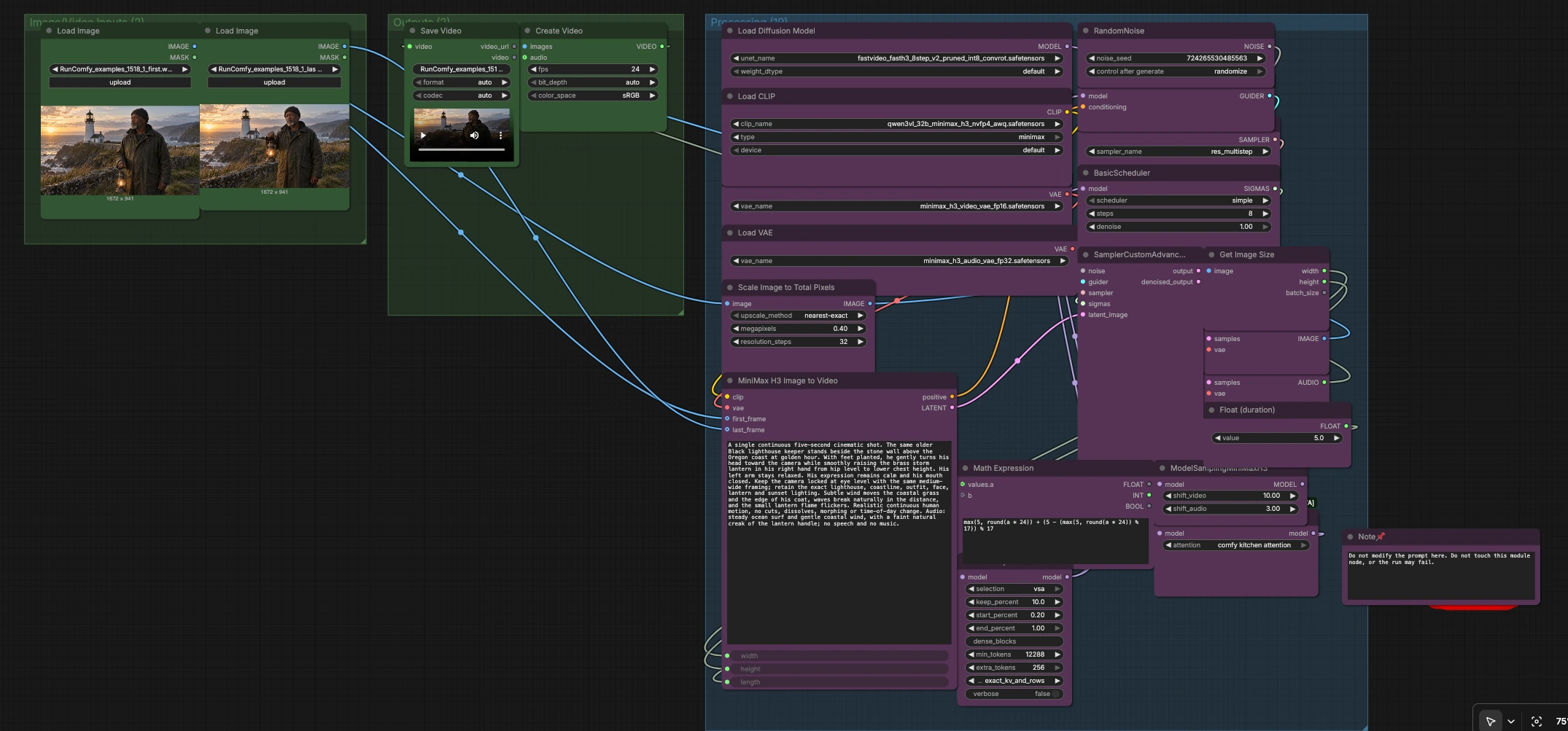
FastH3 8-Step V2 ComfyUI Workflow: two-frame conditioned MiniMax H3 video with audio#
FastH3 8-Step V2 ComfyUI Workflow turns a first and last reference frame into a continuous MiniMax H3 video with synchronized generated audio. It uses the FastVideo FastH3 V2 INT8 checkpoint with an eight-step schedule, sparse attention, and explicit first/last-frame conditioning to deliver fast, controlled results.
This workflow is ideal for cinematic transitions, character motion, social video concepts, and short narrative shots that need a defined opening and closing composition. If you want stable subjects, locked framing, and natural motion while keeping speed high, the FastH3 8-Step V2 ComfyUI Workflow is built for you.
Key models in ComfyUI FastH3 8-Step V2 ComfyUI Workflow#
- FastVideo FastH3 8-Step V2 (INT8). The diffusion backbone that generates video and audio latents in only eight sampling steps for rapid iteration. Checkpoints: FastVideo/FastVideo-FastH3-8-Step-V2 and ComfyUI-ready weights in FastVideo/FastVideo-FastH3-Comfy.
- Qwen3-VL 32B text encoder for MiniMax H3. Encodes the prompt into conditioning embeddings used to guide motion, scene details, and audio cues. Weights are distributed with the official model set at Comfy-Org/MiniMax-H3.
- MiniMax H3 Video VAE. Decodes video latents to RGB frames at the target resolution specified by the inputs. See Comfy-Org/MiniMax-H3.
- MiniMax H3 Audio VAE. Decodes audio latents into waveform audio that is muxed with the generated frames. See Comfy-Org/MiniMax-H3.
How to use ComfyUI FastH3 8-Step V2 ComfyUI Workflow#
The graph follows the official FastH3 image-to-video pattern and assembles your shot from left to right. You provide two reference images and a text prompt, the workflow computes the necessary conditioning and sampling in eight steps with sparse attention, then decodes synchronized video and audio and saves a ready-to-publish file.
Image/Video Inputs (2)
- Load your first and last frames using
LoadImage(#136) andLoadImage(#161). Choose images from the same scene and aspect ratio so composition and identity remain consistent throughout the clip. - The first frame is auto-resized by
ImageScaleToTotalPixels(#142) to fit a compute budget, thenGetImageSize(#141) reads its width and height so the generated sequence matches that resolution. - Use natural, scene-accurate reference frames. The last frame anchors the final composition so the shot resolves exactly where you intend.
Processing (19)
- Core weights are loaded with
UNETLoader(#151),CLIPLoader(#152), and twoVAELoadernodes (#143 video, #144 audio). TheMiniMaxH3ImageToVideo(#155) node fuses your first frame, last frame, prompt, and target duration into a single conditioning package and initial latent. - Duration is set once with the handy
Float (duration)control (#157). AComfyMathExpression(#156) converts that time to a frame count aligned to the model’s stride for smooth attention across the sequence. - Temporal and efficiency helpers include
MiniMaxH3SigmaShift(#160) to bias the schedule for MiniMax H3,ModelAttentionBackend(#159) to select the attention implementation, andBlockSparseAttention(#158) to reduce computation while preserving fidelity in important regions. - The denoising core uses
BasicGuider(#150) with positive conditioning from the image-to-video node, an eight-stepBasicScheduler(#148), theres_multistepsampler chosen inKSamplerSelect(#147), andSamplerCustomAdvanced(#149) to produce joint video and audio latents in one pass.
Outputs (2)
- Video latents decode to frames via
VAEDecode(#146) while audio latents decode viaVAEDecodeAudio(#145).CreateVideo(#154) then muxes the image sequence and audio into a single clip. SaveVideo(#92) writes the file. Set a filename prefix and choose a format and codec that match your delivery platform or editing pipeline.
Key nodes in ComfyUI FastH3 8-Step V2 ComfyUI Workflow#
MiniMaxH3ImageToVideo (#155)
- Builds the conditioning from your first and last reference frames plus the prompt, and outputs an initial latent for joint video-and-audio generation. Tune the text prompt to describe motion, camera, atmosphere, and any desired sound cues. Keep identities and scene elements consistent with the references for the most stable results. Adjust the duration control in the left group to change clip length without touching sampler settings.
BlockSparseAttention (#158)
- Applies sparse attention to the loaded model to accelerate sampling while preserving attention where it matters most. If you see detail loss in busy scenes, increase the kept fraction or reserve additional tokens for foreground subjects. For simple scenes, stronger sparsity can significantly speed up renders.
MiniMaxH3SigmaShift (#160)
- Shifts the noise schedule for video and audio so temporal structure and sound remain coherent across the short eight-step trajectory. If motion looks jittery, nudge the video shift higher; if audio alignment drifts, adjust the audio shift slightly. Use small changes and test short previews to find a balance.
SamplerCustomAdvanced (#149)
- Runs the eight-step denoising with the
res_multistepsampler and the schedule fromBasicScheduler(#148). Keep the seed fixed inRandomNoise(#153) for reproducibility, then vary it to explore alternates once you like the motion. Strong guidance from theBasicGuider(#150) helps adhere to the prompt when compositions are complex.
CreateVideo (#154)
- Muxes decoded frames and audio into a final clip. Set frames per second to control cadence, choose a color space for your workflow, and if you plan to edit later, pick a codec that balances size and quality for your NLE.
Optional extras#
- Reference selection: pick two frames from the same lens and perspective, with matching exposure and white balance. Sharper references usually yield cleaner textures.
- Prompting: write what the subject does, how the camera behaves, and what the environment sounds like. Keep the wording consistent with your references to avoid identity drift.
- Resolution vs speed: if you hit memory limits, lower the target pixel budget in
ImageScaleToTotalPixels(#142). For hero shots, raise it and render fewer variations. - Duration and fps: adjust duration for pacing, then set fps in
CreateVideo(#154) to control the feel. The workflow auto-aligns frame count for stable attention. - Seeds and iteration: lock the noise seed to refine prompts and references, then try new seeds for alternates once composition and timing are locked.
- Template parity: the graph follows the official FastH3 I2V structure, so tips from the reference template at Comfy-Org/workflow_templates transfer directly.
Acknowledgements#
This workflow implements and builds upon the following works and resources. We gratefully acknowledge FastVideo for the FastH3 8-Step V2 model and ComfyUI weights, Comfy-Org for the FastH3 I2V workflow template, and RunningHub.ai for the workflow source for their contributions and maintenance. For authoritative details, please refer to the original documentation and repositories linked below.
Resources#
- RunningHub.ai/Workflow source
- Docs / Release Notes: RunningHub.ai post
- FastVideo/FastVideo-FastH3-8-Step-V2
- GitHub: hao-ai-lab/FastVideo
- Hugging Face: FastVideo/FastVideo-FastH3-8-Step-V2
- arXiv: 2405.14867
- FastVideo/FastVideo-FastH3-Comfy
- Hugging Face: FastVideo/FastVideo-FastH3-Comfy
- Comfy-Org/workflow_templates (FastH3 I2V template)
- GitHub: Comfy-Org/workflow_templates
Note: Use of the referenced models, datasets, and code is subject to the respective licenses and terms provided by their authors and maintainers.