

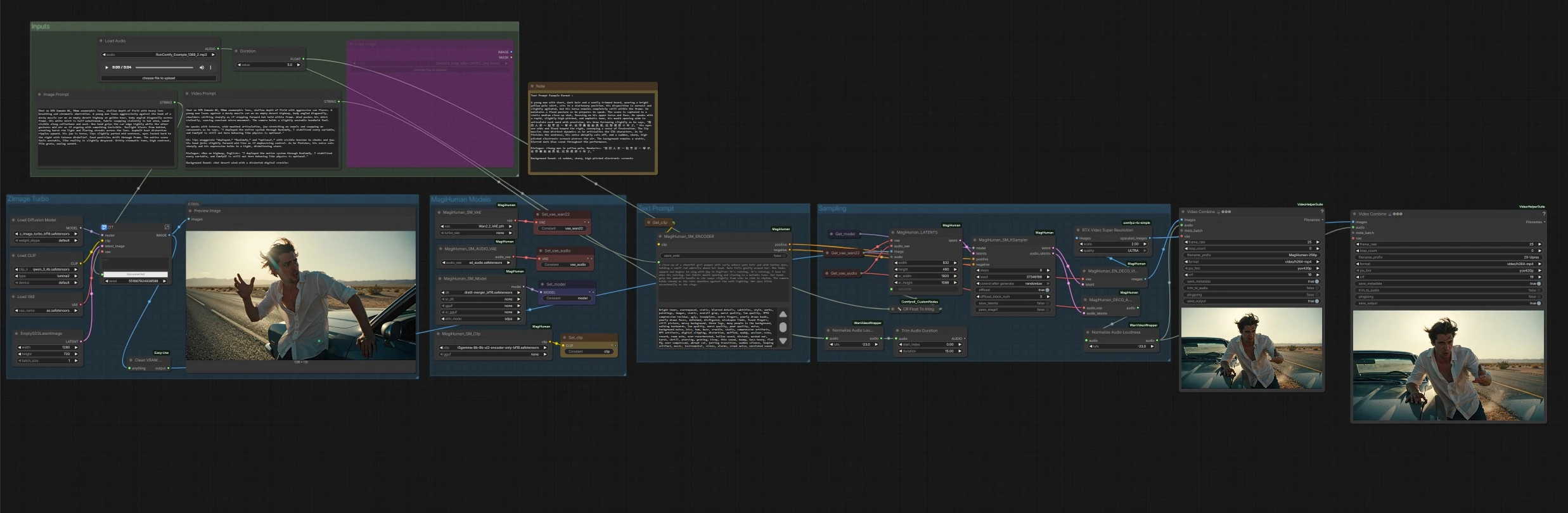
daVinci-MagiHuman talking digital human workflow for ComfyUI#
This ComfyUI workflow builds a full text-to-video pipeline around daVinci-MagiHuman to generate realistic talking digital humans with synchronized speech, lip movement, expression and body micro‑motion. It is designed for creators who want a fast, single-click path from a descriptive prompt to an MP4 with clean audio. The graph can animate a freshly generated portrait or any supplied reference image, then renders video and speech together, finishing with optional upscaling and automatic audio loudness normalization.
The daVinci-MagiHuman core uses a single-stream Transformer to co-generate video and audio from one prompt, which helps preserve timing and lip-sync fidelity even on short clips. This ComfyUI implementation keeps the controls simple: write an Image Prompt to define the look, a Video Prompt to define performance and dialogue, set the clip Duration, and run.
Key models in ComfyUI daVinci-MagiHuman workflow#
- daVinci-MagiHuman (15B single‑stream audio‑video generator). Role: jointly produces video frames and speech from text while maintaining temporal consistency and lip‑sync. References: GitHub, arXiv, Hugging Face.
- T5Gemma 9B encoder (UL2‑adapted). Role: encodes the Video Prompt into rich conditioning that steers motion, delivery and style for daVinci‑MagiHuman. Reference: Hugging Face.
- Z‑Image Turbo diffusion model. Role: quickly generates a high‑quality still portrait from the Image Prompt to use as identity/reference for animation. References: Hugging Face (z_image_turbo), Hugging Face (z_image).
- Qwen 3 4B text encoder for Z‑Image Turbo. Role: parses the Image Prompt to guide portrait generation. Reference: Hugging Face file.
- Wan 2.2 VAE. Role: decodes MagiHuman video latents to RGB frames with strong temporal consistency. References: GitHub, Hugging Face example model.
- Audio VAE (sd_audio). Role: decodes MagiHuman audio latents to a speech waveform for muxing with the final video. Reference: custom node bundle for MagiHuman GitHub.
- RTX Video Super Resolution (optional). Role: post‑upscales decoded frames to increase perceived sharpness and reduce compression artifacts before final encode. Reference: ComfyUI wrapper GitHub.
How to use ComfyUI daVinci-MagiHuman workflow#
Overall flow: the Z‑Image Turbo group creates an identity portrait from your Image Prompt. The MagiHuman Models group loads the daVinci‑MagiHuman checkpoint, video VAE and audio VAE, and prepares the text encoder. The Text Prompt group turns your Video Prompt into conditioning. The Sampling group fuses the reference image and prompt into joint video and audio latents, then decodes both. Finally, the Outputs stage muxes frames with audio into MP4, with an optional upscaled version.
Inputs#
Use the Image Prompt and Video Prompt text boxes to describe look and performance. The Duration control sets the clip length in seconds. An audio loader is present for convenience if you plan to experiment with audio‑driven variants, but this template runs in text‑driven mode by default.
ZImage Turbo#
This stage renders a single reference portrait from the Image Prompt using the Z‑Image Turbo UNet with the Qwen 3 4B text encoder and its bundled VAE. It is optimized for fast, clean identity generation with cinematic looks. The result is previewed, then forwarded as the reference image for animation. If you already have a headshot, you can bypass this by wiring your image directly to the animation stage.
MagiHuman Models#
Here the graph loads the daVinci‑MagiHuman base or distilled checkpoint along with the Wan 2.2 video VAE, the audio VAE, and the T5Gemma encoder. This keeps text encoding, video latents and audio latents aligned for single‑stream sampling. You can swap weights if you have alternatives available in your environment.
Text Prompt#
Your Video Prompt is encoded into positive and negative conditioning. Positive text should describe camera distance, pose, language, delivery style and the exact dialogue content. Negative text can list visual or audio defects to avoid. The encoder feeds both sets of conditioning into the sampler to shape motion, lip dynamics and timbre.
Sampling#
The sampler builds an initial latent sequence from the reference image and the requested Duration, then performs denoising with daVinci‑MagiHuman to produce synchronized video and audio latents. A utility converts Duration to whole seconds for stable scheduling. When sampling completes, the video latents go to the video decoder and the audio latents go to the audio decoder.
Decode, loudness and export#
Video latents are decoded with the Wan 2.2 VAE to image frames. Audio latents are decoded to speech, then normalized to broadcast‑friendly loudness so the final MP4 plays back consistently across devices. Two exports are produced: a base render and an optional upscaled render using RTX Video Super Resolution. Both are muxed to MP4 with audio and saved with clear filename prefixes.
Key nodes in ComfyUI daVinci-MagiHuman workflow#
MagiHuman_LATENTS(#13)
Builds the joint latent canvas for video and optional audio, taking the reference image and clip length. Adjust seconds to set duration and ensure your reference image is well framed for the motion you describe. Higher base resolution helps facial fidelity but also increases VRAM and decode time.
MagiHuman_SM_ENCODER(#95)
Encodes the Video Prompt into positive and negative conditioning for the sampler. Put the exact spoken line in quotes and name the language to improve lip closure and timing. Use the negative field to suppress artifacts like “subtitles,” “static,” or “room echo.”
MagiHuman_SM_KSampler(#9)
Runs daVinci‑MagiHuman denoising to co‑generate video and speech latents. The seed controls reproducibility, while steps and the internal schedule trade speed for detail and motion stability. For variation without losing identity, change seed or lightly rephrase the performance portion of your prompt.
MagiHuman_EN_DECO_VIDEO(#5)
Decodes video latents with the Wan 2.2 VAE into RGB frames for export or upscaling. Use this path for the fastest end‑to‑end render; long clips or higher resolutions will linearly increase decode time.
MagiHuman_DECO_AUDIO(#6)
Decodes audio latents to waveform and sends them through loudness normalization for even playback. If you later switch to audio‑driven generation, route your external audio into the latent builder and keep this decode path for final muxing.
RTXVideoSuperResolution(#93)
Optional post‑upscaler that sharpens edges and reduces ringing. Use moderate strength to improve clarity without introducing temporal shimmer.
Optional extras#
- Prompting pattern for reliable lip‑sync: include a speaker tag and language plus a quoted line, for example Dialogue: <Presenter, English>: "Welcome to the show." Add a brief note about delivery, shot size and camera stability.
- Keep the reference portrait as a medium close‑up with the head fully inside frame. Tight crops leave little room for jaw and cheek dynamics.
- If you need stricter timing, trim or extend your script to match the chosen Duration. Very long sentences in very short clips can force unnatural articulation.
- This template runs in prompt‑only mode. For audio‑driven tests, connect an external audio file to the audio input on
MagiHuman_LATENTS(#13) and adjust your Video Prompt to describe expression rather than spoken content.
Acknowledgements#
This workflow implements and builds upon the following works and resources. We gratefully acknowledge daVinci-MagiHuman for the daVinci-MagiHuman Workflow Source for their contributions and maintenance. For authoritative details, please refer to the original documentation and repositories linked below.
Resources#
- daVinci-MagiHuman/Workflow Source
- Docs / Release Notes: daVinci-MagiHuman Workflow Source
Note: Use of the referenced models, datasets, and code is subject to the respective licenses and terms provided by their authors and maintainers.